> Portal Navigation:
>
> - Append `.md` to any URL under `https://dev.wix.com/docs/` to get its markdown version.
> - Pages are either content pages (article or reference text) or menu pages (a list of links to child pages).
> - To get a menu page, truncate any URL to a parent path and append `.md` (e.g. `https://dev.wix.com/docs/sdk.md`, `https://dev.wix.com/docs/sdk/core-modules.md`).
> - Top-level index of all portals: https://dev.wix.com/docs/llms.txt
> - Full concatenated docs: https://dev.wix.com/docs/llms-full.txt
## Resource: Configure Permissions for Your App
## Article: Configure Permissions for Your App
## Article Link: https://dev.wix.com/docs/build-apps/develop-your-app/auth/permissions/configure-permissions-for-your-app.md
## Article Content:
# Configure Permissions for Your App
This article explains how to identify the required permissions and add them to your app configuration. For more information, see [About Permissions](https://dev.wix.com/docs/build-apps/develop-your-app/auth/permissions/about-permissions.md).
__Important:__ When your app authenticates on behalf of a Wix user or site member, it takes into account the roles specific to that user or member, which can influence the permissions granted to your app. Learn more about [user roles](https://support.wix.com/en/article/roles-permissions-overview) and [member roles](https://support.wix.com/en/article/site-members-creating-member-roles).
## Step 1 | Identify required permissions
To identify which permissions your app requires:
1. Go to the [REST API](https://dev.wix.com/docs/rest.md), [JavaScript SDK](https://dev.wix.com/docs/sdk.md), or [Velo](https://dev.wix.com/docs/velo.md) (for Wix Blocks) reference.
1. Search for the endpoints or methods your app uses.
1. Find the supported permission scopes under **Permission Scopes**:
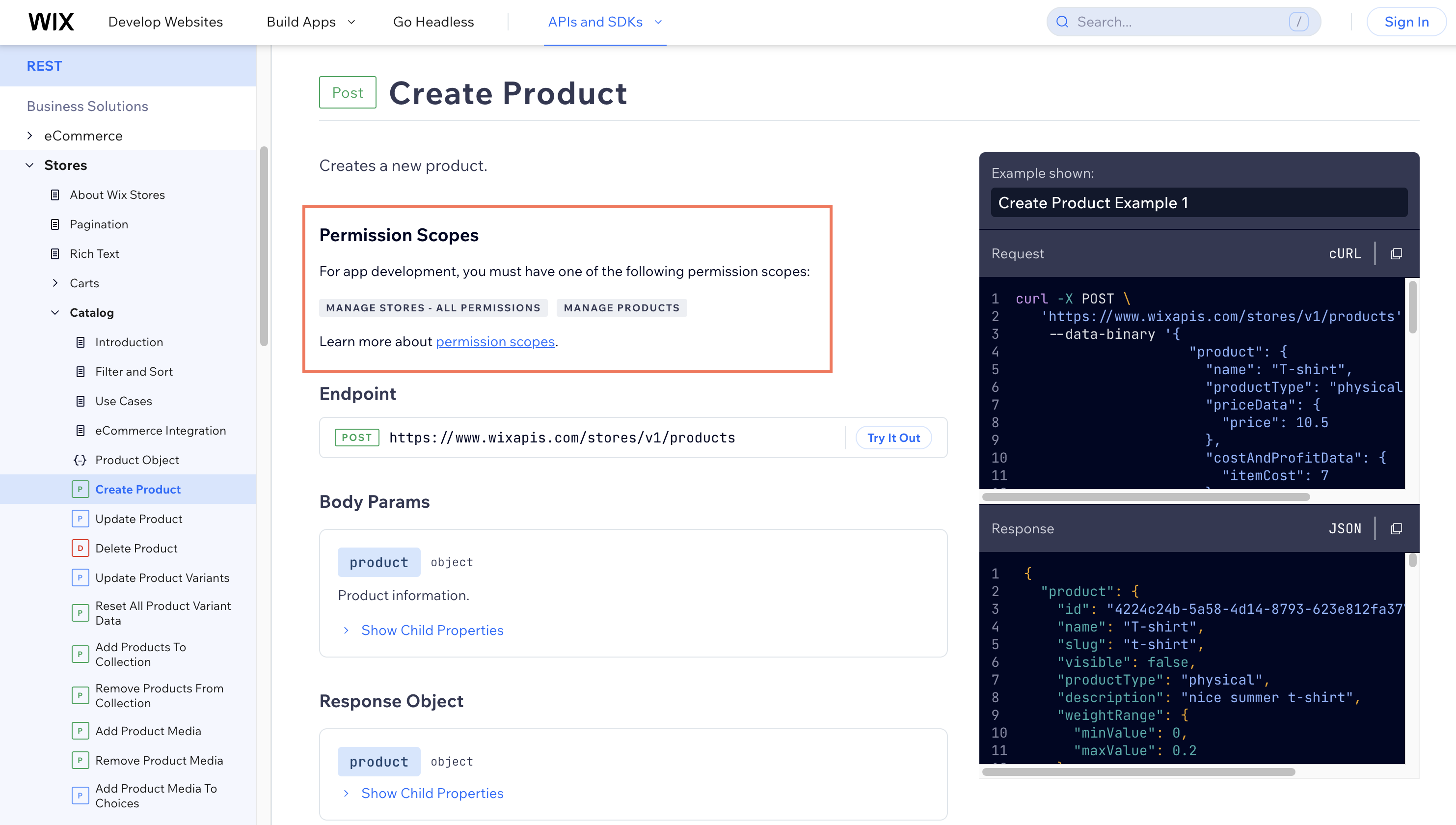
1. Select one of the permission scopes listed to include in your app. You can click on a scope to prompt the addition to your app, as described in the next section.
__Warning:__ Only request the permissions your app requires. Apps that request unnecessary permissions aren't allowed on the app market.
## Step 2 | Add permissions to your app
To add permissions to your app:
1. Go to [**Permissions**](https://manage.wix.com/app-selector?title=Select+an+App&primaryButtonText=Select+Site&actionUrl=https%3A%2F%2Fdev.wix.com%2Fapps%2F%7BappId%7D%2Fdev-center-permissions) in your app's dashboard.
1. Click **Add Permissions**.
1. Search or filter for the relevant scope.
1. Select the relevant scopes from the results.
__Tip:__ Keep in mind that some high-level permission scopes, like **Read Stores - All Read Permissions**, encompass multiple other permission scopes, such as **Read Products** and **Read Orders**. Therefore, you don't need to add the lower scopes separately.
1. Click **Save**.
When a site owner installs your app, they're prompted to approve the specified permissions.
> **Note:** After you save permission changes, they apply automatically to development sites. You don't need to build or release a new app version, but it may take a few minutes for the updated permissions to take effect.
### Migrate legacy permissions to scopes
If your app still has permissions from before Wix introduced permission scopes, those permission IDs use the legacy format without the `SCOPE.` prefix. For example, `WIX_STORES.READ_PRODUCTS` is the legacy form of `SCOPE.DC-STORES.READ-PRODUCTS`.
Legacy-format IDs still appear on the Permissions page and when Wix users install your app, but they aren't valid scopes. Wix doesn't grant them at install, so API calls that need those permissions fail even though the permission looks configured.
You can confirm a legacy ID by calling [List App Permissions](https://dev.wix.com/docs/rest/app-management/app-permissions/list-app-permissions.md). If any `appPermissions[].permission.permissionId` value is missing the `SCOPE.` prefix, that permission is in the legacy format. This is different from the `WIX_*` values in `instance.permissions` from [Get App Instance](https://dev.wix.com/docs/rest/app-management/app-instance/get-app-instance.md), which are the individual permissions a valid scope grants.
If any of your app's permissions are in this legacy format, a **Migrate to Scopes** banner appears at the top of the Permissions page. Click **Migrate to Scopes** to convert them to their scope equivalents. If the button is disabled, your app isn't currently in a state that allows updates, such as while it's in review. Wait until you can update the app, then migrate.
## Step 3 | Verify granted permissions
The permissions you configure for your app aren't always the same as the permissions granted to an [app instance](https://dev.wix.com/docs/build-apps/develop-your-app/auth/app-instances/about-app-instances.md) on a specific site. If you add a permission after a Wix user installs your app, their instance doesn't have it until they approve the change.
To compare the permissions your app requests with the permissions granted on a site:
1. Call [List App Permissions](https://dev.wix.com/docs/rest/app-management/app-permissions/list-app-permissions.md) with your app's `appId` to retrieve the permission scopes your app requests. Each result returns a scope ID in `appPermissions[].permission.permissionId`, such as `SCOPE.DC.MANAGE-YOUR-APP`.
__Tip:__ Pass `consistent=true` to retrieve the most recent permissions, including changes you just saved.
1. Call [Get App Instance](https://dev.wix.com/docs/rest/app-management/app-instance/get-app-instance.md) to retrieve the permissions granted on the site. The response's `instance.permissions` array lists the granted permissions.
1. Compare the results. The two methods don't necessarily return identical strings: List App Permissions returns permission scope IDs, while `instance.permissions` lists the individual permissions that those scopes grant. For example, the `SCOPE.DC.MANAGE-YOUR-APP` scope grants the `WIX_DEVELOPERS.MANAGE_APP_INSTANCE` permission. To see which permissions a scope covers, check the **Permissions** and **Permission Scopes** sections of the relevant API reference.
Note that these methods require different [identities](https://dev.wix.com/docs/overview/auth-permissions/identities.md). List App Permissions requires an [API key](https://dev.wix.com/docs/overview/auth-permissions/authentication-methods.md) with the account-level **Manage Custom Apps** permission from the account that owns the app. Get App Instance must be [authenticated as your app](https://dev.wix.com/docs/build-apps/develop-your-app/auth/authenticate-using-oauth.md) on the site you're checking.
If a permission you configured isn't granted to the instance:
* **On a development site:** Wait a few minutes and check again. Permission changes apply automatically, but they aren't always immediate.
* **On a site with a released version of your app:** Adding permissions requires a [major version](https://dev.wix.com/docs/build-apps/manage-your-app/versioning/about-app-versioning.md). Wix users who installed your app before the update need to update it and approve the new permissions.