> Portal Navigation:
>
> - Append `.md` to any URL under `https://dev.wix.com/docs/` to get its markdown version.
> - Pages are either content pages (article or reference text) or menu pages (a list of links to child pages).
> - To get a menu page, truncate any URL to a parent path and append `.md` (e.g. `https://dev.wix.com/docs/sdk.md`, `https://dev.wix.com/docs/sdk/core-modules.md`).
> - Top-level index of all portals: https://dev.wix.com/docs/llms.txt
> - Full concatenated docs: https://dev.wix.com/docs/llms-full.txt
## Resource: List Type Properties in Blocks
## Article: Creating and Managing List Type Properties in Widget API
## Article Link: https://dev.wix.com/docs/build-apps/develop-your-app/develop-an-app-with-blocks/widget-api/list-type-properties-in-blocks.md
## Article Content:
# List Type Properties in Blocks
**Editor compatibility**
Wix Blocks apps aren't supported in the Wix Harmony editor. Existing Blocks apps remain available for purchase on the Wix App Market for Wix Editor and Wix Studio sites. To learn more, see [About Wix Harmony and Blocks](https://dev.wix.com/docs/build-apps/develop-your-app/frameworks/wix-blocks/about-wix-harmony-and-blocks.md).
Sometimes you need a property that can contain a list of items, for example, colors, sizes or locations. The list type can contain a list of items of a single type, such as text strings, numbers, or values of a custom type.
### Create a List Type Property
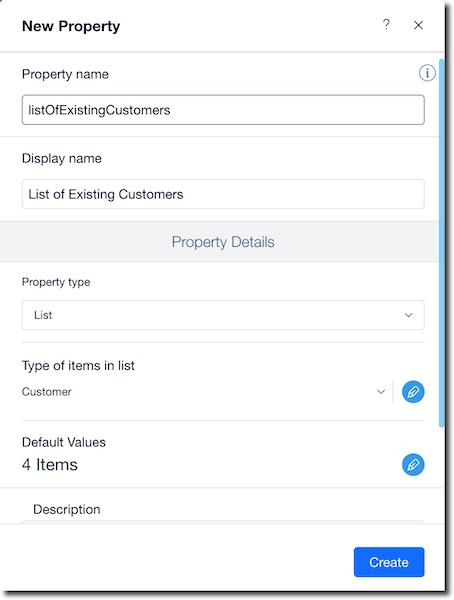
1. Click the **Widget API**  icon.
2. Click **Add New Property** or hover over **Properties** and click the  icon.
3. Give your property a significant name and a display name.
4. Select **List** in the **Property type** menu.
5. Select the type of items on the list (or create a new custom type for them).
6. Describe your list.
7. Click **Add items...** to add items to your list.
8. Click **Create**.
### Set List Type Properties from a Website
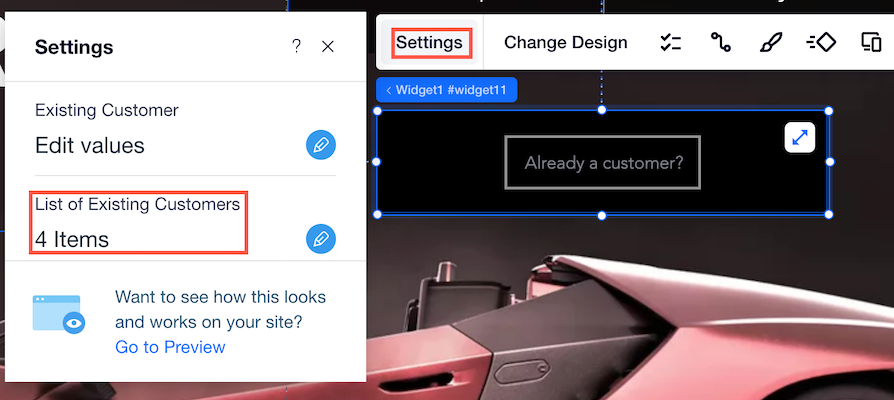
1. Open the site in the Wix Editor or Wix Studio.
2. Select the widget ([learn more about installing a widget](https://support.wix.com/en/article/installing-a-blocks-app-in-your-site-ga)).
3. Click **Settings** in the widget's action bar to see the list.
**Edit List in Blocks Versus in a Site:**
* **If you edit list items in Blocks:** Changes will come into effect wherever the widget is installed, as long as you make sure to build the app again in Blocks, and refresh the Wix Editor or Wix Studio.
* **If you edit list items in the Editor:** Changes will impact only that specific instance of the widget, which is installed in your site.