> Portal Navigation:
>
> - Append `.md` to any URL under `https://dev.wix.com/docs/` to get its markdown version.
> - Pages are either content pages (article or reference text) or menu pages (a list of links to child pages).
> - To get a menu page, truncate any URL to a parent path and append `.md` (e.g. `https://dev.wix.com/docs/sdk.md`, `https://dev.wix.com/docs/sdk/core-modules.md`).
> - Top-level index of all portals: https://dev.wix.com/docs/llms.txt
> - Full concatenated docs: https://dev.wix.com/docs/llms-full.txt
## Resource: Customize Wix Stores Using Embedded Scripts
## Article: Customize Wix Stores Using Embedded Scripts
## Article Link: https://dev.wix.com/docs/build-apps/develop-your-app/extensions/site-extensions/embedded-scripts/customize-wix-stores-using-embedded-scripts.md
## Article Content:
# Customize Wix Stores Using Embedded Scripts
**Warning:** This feature isn't supported in Wix Studio sites. Instead, use a [site plugin extension](https://dev.wix.com/docs/build-apps/develop-your-app/extensions/site-extensions/site-plugins/about-site-plugin-extensions.md) with a Wix Stores [slot](https://dev.wix.com/docs/build-apps/develop-your-app/extensions/site-extensions/site-plugins/supported-wix-app-pages/about-slots.md).
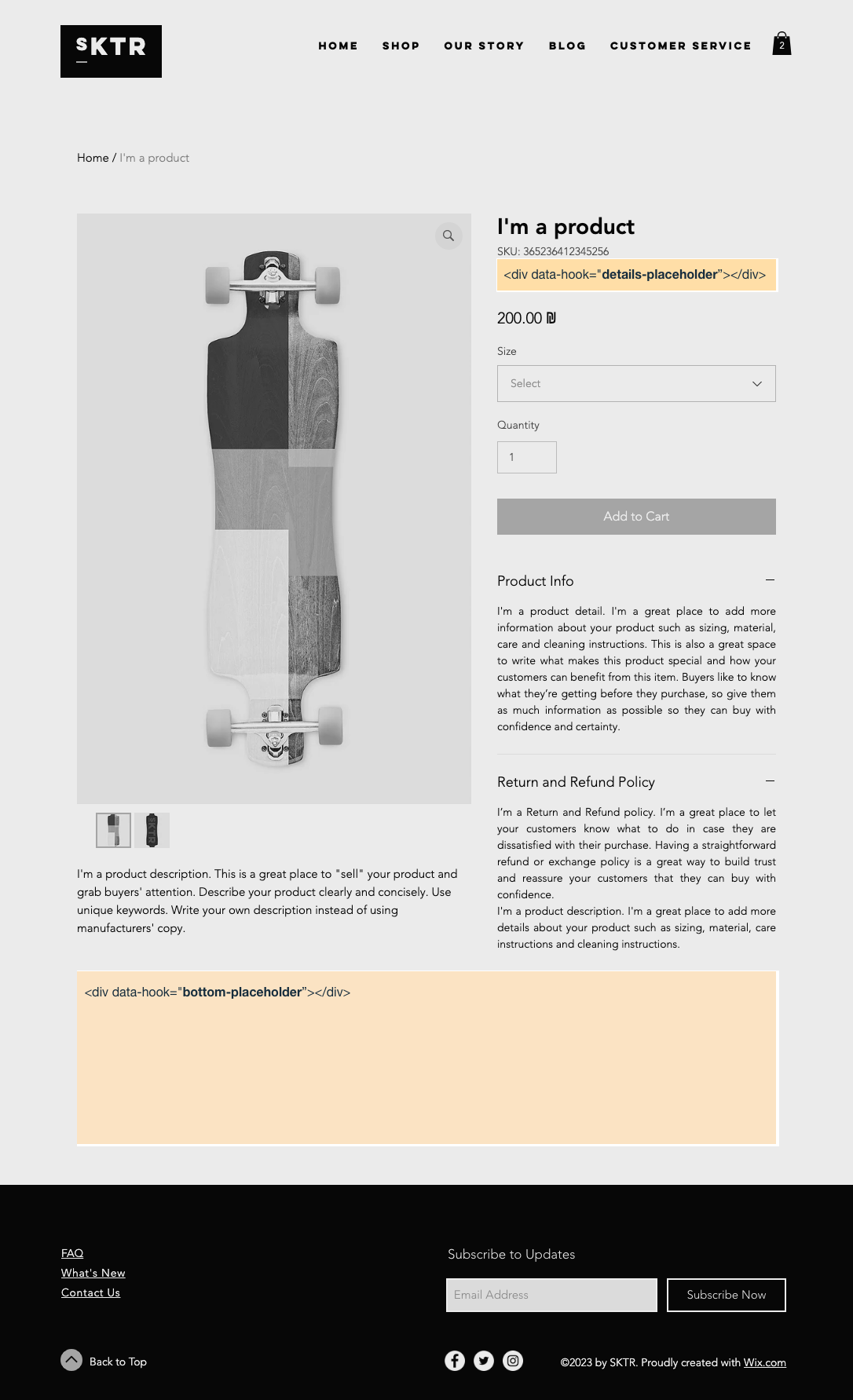
[Wix Stores](https://support.wix.com/en/article/wix-stores-about-wix-stores) provides placeholders in their default product page where you can extend the functionality by injecting embedded scripts:
## Step 1 | Locate the placeholders
Below the product SKU you should find:
```html
```
And at the bottom of the product page you should find:
```html
```
The placeholders are empty divs with data-hooks that allow you to add content to these specific page locations.
## Step 2 | Inject data into a placeholder
To inject data into a placeholder, follow these steps:
1. Develop the HTML content or elements you want to insert into the placeholder.
1. Write a JavaScript script to append your content to the relevant placeholder. Ensure your script waits until the page is fully loaded by using the `DOMContentLoaded` event or a similar method. The following example appends a new paragraph to the `details-placeholder`:
```javascript
document.addEventListener('DOMContentLoaded', function() {
var placeholder = document.querySelector('[data-hook="details-placeholder"]');
if (placeholder) {
var newElement = document.createElement('p');
newElement.textContent = 'This is the new content.';
placeholder.appendChild(newElement);
}
});
```
1. Add the script to your app using an embedded script extension. You can do this in your app's dashboard or via the CLI. For detailed instructions, refer to the following resources:
* [Add an Embedded Script Extension to a Self-Hosted App](https://dev.wix.com/docs/build-apps/develop-your-app/frameworks/self-hosting/supported-extensions/site-extensions/embedded-scripts/add-an-embedded-script-extension-to-a-self-hosted-app.md)
* [Add an Embedded Script Extension Using the Wix CLI](https://dev.wix.com/docs/wix-cli/guides/extensions/site-extensions/embedded-scripts/add-an-embedded-script-extension.md)
**Important:** Make sure you append your DOM elements to the placeholder's existing content. Don't replace the content as other apps may be using the same placeholder.
## See also
* [About Embedded Scripts](https://dev.wix.com/docs/build-apps/develop-your-app/extensions/site-extensions/embedded-scripts/about-embedded-scripts.md)