> Portal Navigation:
>
> - Append `.md` to any URL under `https://dev.wix.com/docs/` to get its markdown version.
> - Pages are either content pages (article or reference text) or menu pages (a list of links to child pages).
> - To get a menu page, truncate any URL to a parent path and append `.md` (e.g. `https://dev.wix.com/docs/sdk.md`, `https://dev.wix.com/docs/sdk/core-modules.md`).
> - Top-level index of all portals: https://dev.wix.com/docs/llms.txt
> - Full concatenated docs: https://dev.wix.com/docs/llms-full.txt
## Resource: About Site Widget Extensions
## Article: About Site Widget Extensions
## Article Link: https://dev.wix.com/docs/build-apps/develop-your-app/extensions/site-extensions/site-widgets/about-site-widget-extensions.md
## Article Content:
# About Site Widget Extensions
Site widgets are draggable UI components that Wix site owners can add to pages on their website. They enhance a site's functionality by displaying content or enabling site visitors to perform various tasks.
When working in the site editor, site owners can adjust the size of the widget, reposition it, and customize it using its settings panel.
> **Note:** When viewing the widget in the site editor, the widget can't call Wix APIs.
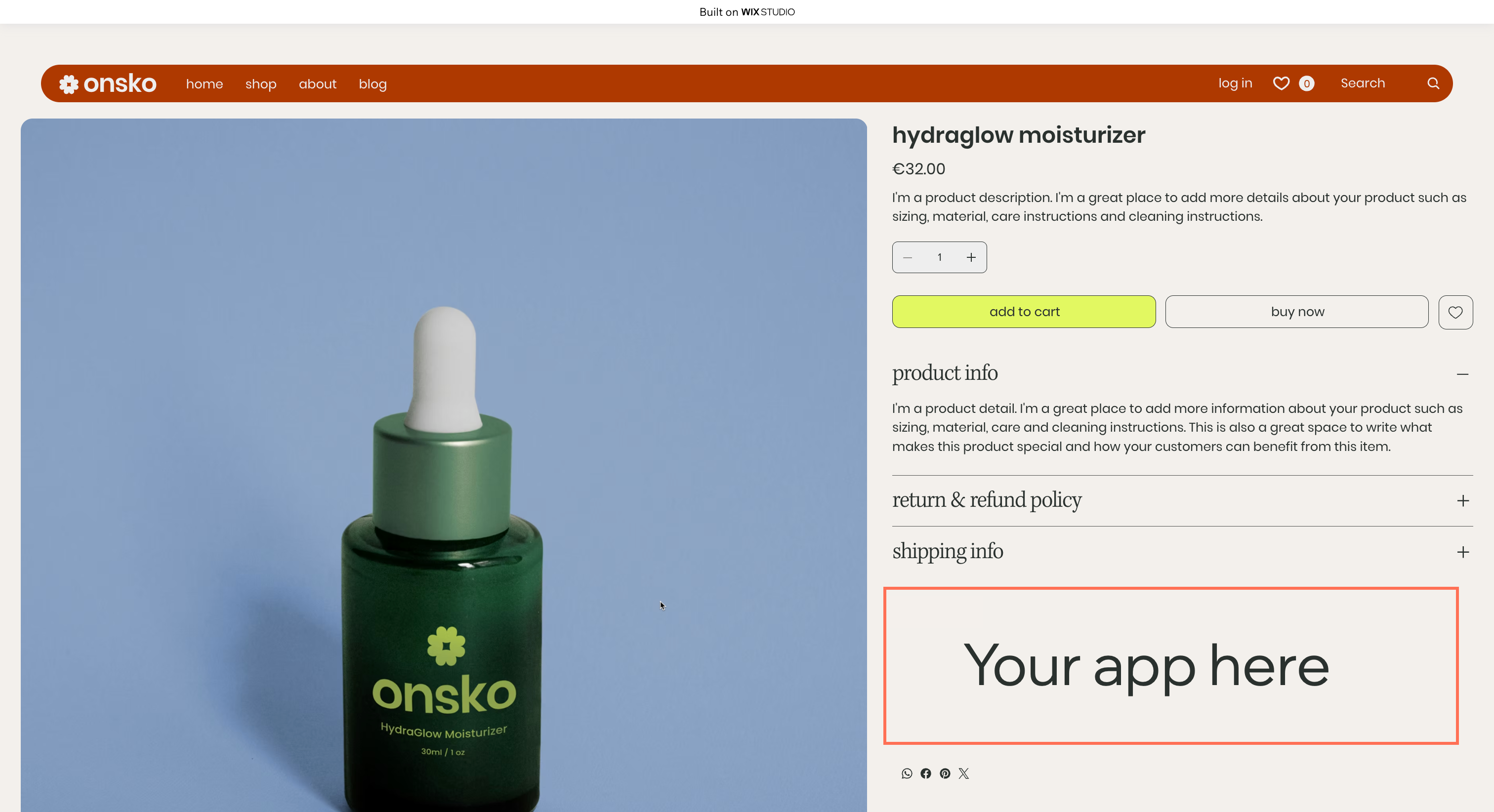
## Essential widgets
When configuring a site widget, you can set it to be *essential*, meaning that it is crucial to your app’s functionality. Deleting an essential widget (or the section or page that contain it) from a site, will also delete the entire app. An essential widget can only be added once to a site and users cannot duplicate it.
> **Note**: You can set a widget to be essential only if the widget is added as part of a [site page extension](https://dev.wix.com/docs/build-apps/develop-your-app/extensions/site-extensions/site-pages/about-site-page-extensions.md).
## Implementation options
You can add a site widget extension using:
* [Wix CLI](https://dev.wix.com/docs/wix-cli/guides/extensions/site-extensions/custom-elements/add-a-custom-element-extension.md): Create a site widget using the CLI, with your code by default deployed on our servers. The creation and setup process of your widget takes place in the terminal. Then, to edit your widget, you write code directly in your CLI app project's files.
* [Self-hosted custom element](https://dev.wix.com/docs/build-apps/develop-your-app/frameworks/self-hosting/supported-extensions/site-extensions/site-widgets-and-plugins/add-self-hosted-site-widget-extensions-with-custom-elements.md): Create a site widget using custom element technology, with your code deployed on your own server. The custom element is essentially a new HTML tag that you define, which is made available in the Wix editors as a widget.
* [Wix Blocks](https://dev.wix.com/docs/build-apps/develop-your-app/frameworks/wix-blocks/site-widgets/build-a-site-widget-in-blocks.md): Create a site widget in Wix's native app editor. Design your widget using visual layout and design tools, and code your business logic using Velo, Wix’s native coding solution.
### Choosing your implementation
Here are some factors to consider when choosing which implementation to work with:
* Site widgets currently can't be pinned to a specific location on a page. If your app requires this, best to use an [embedded script component](https://dev.wix.com/docs/build-apps/develop-your-app/extensions/site-extensions/embedded-scripts/about-embedded-scripts.md).
* Site widgets built with Wix Blocks support all the functionality available in [Wix's editor elements](https://support.wix.com/en/article/studio-editor-adding-elements-4240855#types-of-elements). If your extension should include functionality that isn't supported, use the [Wix CLI](https://dev.wix.com/docs/wix-cli/guides/extensions/site-extensions/custom-elements/add-a-custom-element-extension.md) or a [self-hosted custom element](https://dev.wix.com/docs/build-apps/develop-your-app/frameworks/self-hosting/supported-extensions/site-extensions/site-widgets-and-plugins/add-self-hosted-site-widget-extensions-with-custom-elements.md).
* Site widgets built with [Wix Blocks](https://dev.wix.com/docs/build-apps/develop-your-app/frameworks/wix-blocks/site-widgets/build-a-site-widget-in-blocks.md) can connect to a site's color and typography themes, and support advanced capabilities for configuring the widget customization experience in the editor.
**Editor compatibility**
Wix Blocks apps aren't supported in the Wix Harmony editor. Existing Blocks apps remain available for purchase on the Wix App Market for Wix Editor and Wix Studio sites. To learn more, see [About Wix Harmony and Blocks](https://dev.wix.com/docs/build-apps/develop-your-app/frameworks/wix-blocks/about-wix-harmony-and-blocks.md).
## Interact with a user site
The way to interact with a user site from your site widget extension depends on your implementation. For widgets created with Blocks, use [Velo](https://dev.wix.com/docs/velo.md). For widgets created via the CLI, use the [Site API](https://dev.wix.com/docs/sdk/host-modules/site/introduction.md).
## Sandboxing in the editor
Site widgets are sandboxed when rendered in the editor to enhance security. This means they're treated as if they come from a different domain, which impacts access to browser storage APIs and other same-origin resources.
__Important:__ The format of the Wix editor URL is changing due to new cookies introduced for authorization. The new URL format is `{username}-{sitename}.{editor|studio|harmony}.wix.com`. If your app uses CORS and whitelists specific origins, update your allowed origins to match the new format to avoid blocked requests.
Learn more about [handling sandboxing in the editor](https://dev.wix.com/docs/build-apps/develop-your-app/extensions/site-extensions/handle-sandboxing-in-the-editor.md).