> To build or manage a Wix site with an AI agent, follow https://www.wix.com/headless/skill.md
> It builds a new Wix site or puts your own site online, from a prompt, and keeps changing it afterwards. The pages are code in any web technology, and Wix runs the backend.
> It works through the Wix plugin (the Wix MCP and the Wix skills), the Wix CLI or no Wix login, and puts the site live on Wix hosting or on another host.
> Business features include a store, bookings, events and tickets, a restaurant, a blog, forms, members and many more.
> Read the Wix skills online at https://www.wix.com/skills
>
> Portal Navigation:
>
> - Append `.md` to any URL under `https://dev.wix.com/docs/` to get its markdown version.
> - Pages are either content pages (article or reference text) or menu pages (a list of links to child pages).
> - To get a menu page, truncate any URL to a parent path and append `.md` (e.g. `https://dev.wix.com/docs/sdk.md`, `https://dev.wix.com/docs/sdk/core-modules.md`).
> - If a reference page seems to be missing its schema (parameters, return types, or type definitions), append `?schema=true` to its `.md` URL (e.g. `https://dev.wix.com/docs/contexts/contexts/stores/category-info/use-category-info-context.md?schema=true`).
> - Top-level index of all portals: https://dev.wix.com/docs/llms.txt
> - Full concatenated docs: https://dev.wix.com/docs/llms-full.txt
## Resource: Wix's Development Frameworks
## Article: Wix's Development Frameworks
## Article Link: https://dev.wix.com/docs/build-apps/get-started/overview/wix-s-development-frameworks.md
## Article Content:
# Wix’s Development Frameworks
Whether you're a seasoned developer or just dipping your toes into the world of coding, Wix offers an arsenal of developer-friendly tools and technologies to drive your [app-building journey](https://dev.wix.com/docs/build-apps/get-started/overview/about-wix-apps.md#your-app-building-journey). These tools and technologies are integrated within 3 frameworks, each providing a comprehensive development model. This article guides you through the process of choosing the development framework that’s right for you.
The main choice is who manages your app's hosting and deployment:
* **Wix-managed**: Wix hosts and deploys your app on the Wix cloud, with no additional setup or cost. Build it code-first with the [Wix CLI](#wix-cli), or visually with [Wix Blocks](#wix-blocks).
* **Self-managed**: Use your own tech stack and [host your app yourself](#self-managed).
[](https://manage.wix.com/account/custom-apps)
## Wix CLI
Use Wix CLI to code and deploy with Wix’s React/Node.js stack. Get the standard JavaScript developer experience, code on your local machine with your preferred IDE, and collaborate with your team using git. Your code is deployed and hosted on the Wix cloud, with no additional costs or setup.
[Learn more about Wix CLI](https://dev.wix.com/docs/wix-cli/cli-for-apps/about-the-wix-cli-for-apps.md)
To create an app with Wix CLI, run the [app creation command](https://dev.wix.com/docs/wix-cli/cli-for-apps/command-reference/project-creation-commands/create-app.md) and follow the prompts:
```bash
npm create @wix/new@latest app
```
The CLI registers your app, generates your project files, and installs its dependencies. To start a local development environment, run `npm run dev` in your project folder.
## Self-managed
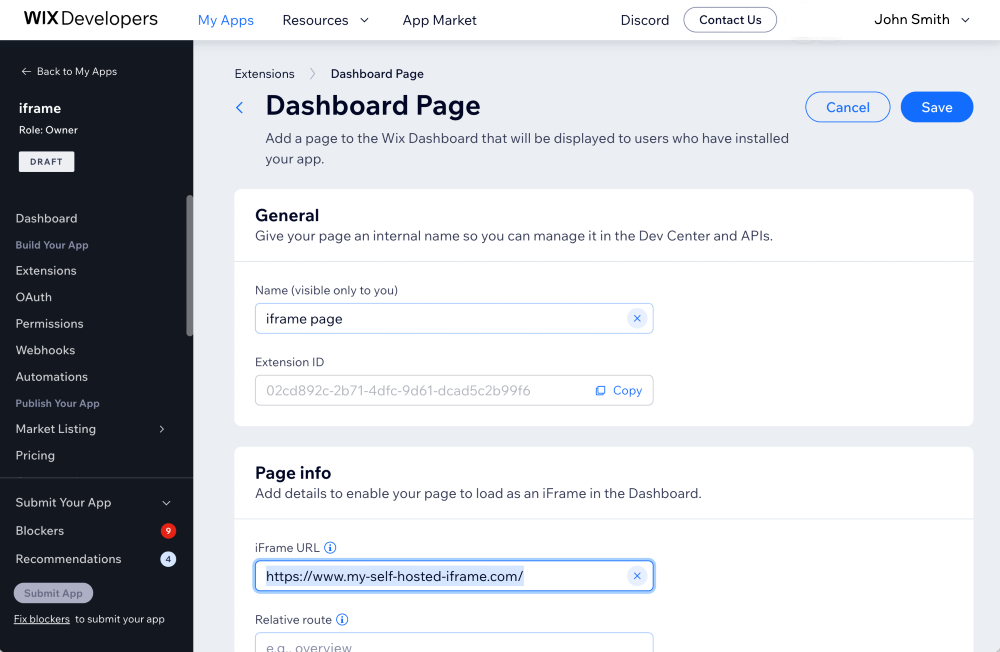
With the self-managed framework, you use your own tech stack and handle deployment and hosting yourself. When setting up your application in your app's dashboard, simply provide URLs to your deployment assets, such as iframes, webhooks, and JavaScript bundles.
[Learn more about self-managed apps](https://dev.wix.com/docs/build-apps/develop-your-app/frameworks/self-hosting/about-self-hosting-for-wix-apps.md)
Here's an example of registering a self-managed iframe in your app's dashboard:
## Wix Blocks
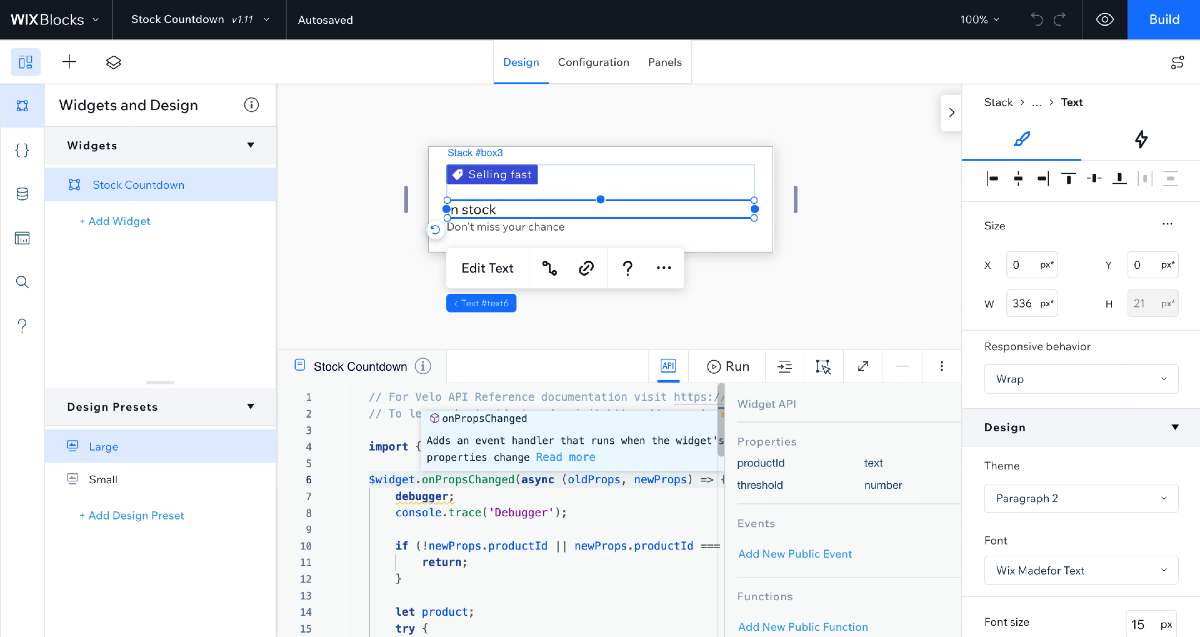
If you prefer a visual, low-code approach, you can use Wix Blocks to design, code, and deploy on Wix’s native app editor. Build site and dashboard components using Wix’s drag-and-drop editor, with its powerful layout and design tools, and code your business logic using [Velo](https://dev.wix.com/docs/develop-websites/articles/getting-started/about-developing-websites.md), Wix’s native coding solution. Your code is deployed and hosted on the Wix cloud, with no additional costs or setup.
[Learn more about Wix Blocks](https://dev.wix.com/docs/build-apps/develop-your-app/develop-an-app-with-blocks/about-wix-blocks.md)
Here's what Wix Blocks looks like:
## Choosing a framework
Start by identifying the [extensions](https://dev.wix.com/docs/build-apps/get-started/overview/how-apps-extend-wix.md) your app needs, then check which frameworks support each one in the [extension catalog](https://dev.wix.com/docs/build-apps/get-started/overview/how-apps-extend-wix.md#extension-catalog). With your required extensions in mind, consider:
- **Hosting and deployment**: Wix CLI and Wix Blocks deploy automatically to the Wix cloud, with no additional setup or cost. Self-managed gives you full control over hosting and deployment on your own infrastructure, in exchange for managing it yourself.
- **Tech stack and tooling**: Wix CLI provides a standard TypeScript workflow in your preferred IDE. Self-managed lets you use any stack and tools you already work with. Wix Blocks uses Wix’s native online editor and coding solution.
- **Collaboration and version control**: Wix CLI and self-managed both integrate with git and standard CI/CD practices.
## Combine frameworks
A Wix app’s functionality is based on a set of [extensions](https://dev.wix.com/docs/build-apps/get-started/overview/how-apps-extend-wix.md) that are added to a site, for example, a dashboard page, a site widget or specific backend logic. You can build each of these extensions using one or more of Wix’s development frameworks.
It’s important to understand that no matter which framework you start with, you can always continue developing your app using any of the other frameworks. Your app can contain multiple extensions, each built with a different framework. Because of this, Wix-managed and self-managed describe how an individual extension is built and hosted, not necessarily a whole app. In fact, there are several use cases that require multiple frameworks in the same app. Learn more about the [frameworks you can use to build each type of extension](https://dev.wix.com/docs/build-apps/get-started/overview/how-apps-extend-wix.md).
## Summary
So which framework should you choose? Basically, it’s a question of which tech stack and tools you prefer to work with. Here’s a summary of the main features of each development framework:
| **Wix CLI** | **Self-managed** | **Wix Blocks** |
|---|---|---|
|
Standard TypeScript full-stack developer experience.
Your preferred local IDE.
App scaffolding, live preview, and deployment flows.
Collaboration and version control on git.
Hosted on the Wix cloud.
|
Your own tech stack and tools.
Limited access to Wix developer utilities.
You manage hosting on the platform of your choice.
|
Drag-and-drop UI editor.
Native Wix coding solution in an online IDE.
No-code and low-code features.
Frontend and backend coding, databases, and deployment flows.