> Portal Navigation:
>
> - Append `.md` to any URL under `https://dev.wix.com/docs/` to get its markdown version.
> - Pages are either content pages (article or reference text) or menu pages (a list of links to child pages).
> - To get a menu page, truncate any URL to a parent path and append `.md` (e.g. `https://dev.wix.com/docs/sdk.md`, `https://dev.wix.com/docs/sdk/core-modules.md`).
> - Top-level index of all portals: https://dev.wix.com/docs/llms.txt
> - Full concatenated docs: https://dev.wix.com/docs/llms-full.txt
## Resource: About Pinned Widgets
## Article: About Pinned Widgets
## Article Link: https://dev.wix.com/docs/build-apps/develop-your-app/frameworks/self-hosting/supported-extensions/deprecated/iframe/about-pinned-widgets.md
## Article Content:
# About Pinned Widgets
**Warning:** This feature is deprecated. Instead, consider using an [embedded script](https://dev.wix.com/docs/build-apps/develop-your-app/extensions/site-extensions/embedded-scripts/about-embedded-scripts.md).
A pinned widget is a small element that can be added to any or all pages of an existing website, and is automatically placed in a specific location on a page.
### Position
When a pinned widget component is added by the user, it'll be placed in the position you set when you registered your app. The user will be able to change the position of the app only if you provide this option from the App Settings. Use the dock UI control to automatically bind the widget placement to the control in the App Settings.
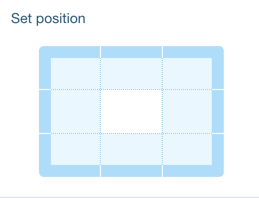
Define your app’s default position in your app's dashboard. You can place it in one of these areas of the website:
* TOP\_LEFT
* TOP\_CENTER
* TOP\_RIGHT
* CENTER\_RIGHT
* CENTER\_LEFT
* BOTTOM\_LEFT
* BOTTOM\_CENTER
* BOTTOM\_RIGHT
If you placed the widget in one of the four centered areas, you can set it to be relative to the center or fixed to the edge of the screen.
* **Vertical margin:** This margin offsets the widget vertically from its center placement.
* **Horizontal margin:** This margin offsets the widget horizontally from its center placement.
Once the component has been added to its default position, the user can control its position from the App Settings (if you provided that option).
>**Note:**
> The app layout should fit all the positions you support, you may have more than one layout.
#### Examples
Set widget placement and margin (App Settings)
```javascript
Wix.Settings.setWindowPlacement(compId, placement, verticalMargin, horizontalMargin);
```
Get widget placement and margin (App Settings)
```javascript
Wix.Settings.getWindowPlacement(compId, callback);
```
Placement change event (Editor, Widget)
```javascript
Wix.addEventListener(Wix.Events.WINDOW_PLACEMENT_CHANGED, handler);
```
### Size
You’ll set the default size for the pinned widget in your app's dashboard, and users won’t be able to resize it in the Wix Editor.
Follow our [UI/UX guidelines](https://dev.wix.com/docs/build-apps/develop-your-app/design/ux-and-ui-best-practices.md) – we’ll show you how to decide your app’s default size, and how to create the right user experience when site visitors interact with your app.
For example, you can resize the app when a site visitor interacts with it in the live site. Make sure to reset the widget back to the default size when the user switches back to Edit mode, or when the site visitors clicks out of your app.
#### Example
**Resize widget**
```javascript
Wix.resizeWindow(newWidth, newHeight, callback);
```