> Portal Navigation:
>
> - Append `.md` to any URL under `https://dev.wix.com/docs/` to get its markdown version.
> - Pages are either content pages (article or reference text) or menu pages (a list of links to child pages).
> - To get a menu page, truncate any URL to a parent path and append `.md` (e.g. `https://dev.wix.com/docs/sdk.md`, `https://dev.wix.com/docs/sdk/core-modules.md`).
> - Top-level index of all portals: https://dev.wix.com/docs/llms.txt
> - Full concatenated docs: https://dev.wix.com/docs/llms-full.txt
## Resource: About Coding in Blocks
## Article: About Coding in Blocks
## Article Link: https://dev.wix.com/docs/build-apps/develop-your-app/frameworks/wix-blocks/code-in-blocks/about-coding-in-blocks.md
## Article Content:
# About Coding in Blocks
**Editor compatibility**
Wix Blocks apps aren't supported in the Wix Harmony editor. Existing Blocks apps remain available for purchase on the Wix App Market for Wix Editor and Wix Studio sites. To learn more, see [About Wix Harmony and Blocks](https://dev.wix.com/docs/build-apps/develop-your-app/frameworks/wix-blocks/about-wix-harmony-and-blocks.md).
Blocks lets you add [JavaScript](https://dev.wix.com/docs/develop-websites/articles/get-started/about-developing-websites.md) code to your widgets and apps. You can add code to an individual widget or dashboard page, as well as code for the entire app.
This overview covers the various places where you can add code to a Blocks app.
Note:
Blocks is currently in a transition from using Velo modules to using the JavaScript SDK. Wherever available, this article suggests the relevant SDK modules.
Learn more about [developing with the SDK](https://dev.wix.com/docs/sdk/articles/get-started/about-site-development.md)
## Widget code
Add code to your widget to provide the following:
* **Custom functionality and interactions** - Select widget elements using their IDs and bind them to code, work with Wix's frontend and backend APIs, and more.
* **Widget API** - Your [widget API](https://dev.wix.com/docs/build-apps/develop-your-app/frameworks/wix-blocks/widget-api/about-the-widget-api.md) enables you to add properties, functions, and events to the entire widget. These are exposed when your widget is installed on a site or when it's added inside another widget. Use your widget API with the [$widget](https://www.wix.com/velo/reference/$widget) module.

## Panel code
Blocks custom panels have their own code tab to create their logic.
[Design a custom panel](https://dev.wix.com/docs/build-apps/develop-your-app/frameworks/wix-blocks/editor-experience-panels/design-custom-panels-in-blocks.md), connect it to an action button, and [add code](https://dev.wix.com/docs/build-apps/develop-your-app/frameworks/wix-blocks/editor-experience-panels/add-code-to-custom-panels-in-blocks.md) to determine what happens in the panel.
Blocks custom panels have designated API references:
* [`@wix/editor`](https://dev.wix.com/docs/sdk/host-modules/editor/widget/introduction.md) widget module in the SDK
* [`wix-editor`](https://www.wix.com/velo/reference/wix-editor) Velo module
* [`$w` Panel Elements](https://www.wix.com/velo/reference/$w/panelbutton)

## Dashboard code
Add [Dashboard pages](https://dev.wix.com/docs/build-apps/develop-your-app/frameworks/wix-blocks/dashboard-pages/build-a-dashboard-page-in-blocks.md) to your app to enable site builders to configure your app. Dashboard pages have a designated code tab, as well as designated APIs:
* [`wix-dashboard`](https://www.wix.com/velo/reference/wix-dashboard)
* [Dashboard elements](https://www.wix.com/velo/reference/$w/dashboardbutton)
* [Open Dashboard from a panel](https://www.wix.com/velo/reference/wix-editor/opendashboardpanel)

## Collection code
Blocks allows you to [create CMS collections](https://dev.wix.com/docs/build-apps/develop-your-app/frameworks/wix-blocks/cms-collections-in-blocks/about-cms-collections-in-blocks.md) and access them in your app and site. Use the [`@wix/data`](https://dev.wix.com/docs/sdk/api-reference/data/introduction.md) SDK module to work with your collections.
## Code files and folders
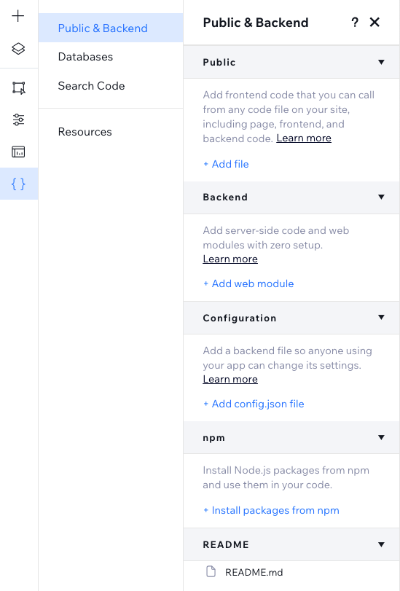
Add [frontend or backend code files](https://dev.wix.com/docs/build-apps/develop-your-app/frameworks/wix-blocks/code-in-blocks/add-code-files-to-your-app.md) for your entire app. These are also referred to as "code packages".
To add code to your app:
1. Click **Code**  in the left menu.
2. Select **Public & Backend** and add a file.
## Current app instance
When your app is installed on a site, you can get information about the specific [app instance](https://dev.wix.com/docs/build-apps/develop-your-app/access/app-instances/about-app-instances.md) that is currently running. For example, you can use the app instance to retrieve the pricing plan of the current user.
Learn more about working with the [app instance in Blocks](https://dev.wix.com/docs/build-apps/develop-your-app/access/app-instances/identify-the-app-instance-in-backend-environments.md#blocks-backend-function).