> Portal Navigation:
>
> - Append `.md` to any URL under `https://dev.wix.com/docs/` to get its markdown version.
> - Pages are either content pages (article or reference text) or menu pages (a list of links to child pages).
> - To get a menu page, truncate any URL to a parent path and append `.md` (e.g. `https://dev.wix.com/docs/sdk.md`, `https://dev.wix.com/docs/sdk/core-modules.md`).
> - Top-level index of all portals: https://dev.wix.com/docs/llms.txt
> - Full concatenated docs: https://dev.wix.com/docs/llms-full.txt
## Resource: Build a Dashboard Page in Blocks
## Article: Add a dashboard page extension using Blocks
## Article Link: https://dev.wix.com/docs/build-apps/develop-your-app/frameworks/wix-blocks/dashboard-pages/build-a-dashboard-page-in-blocks.md
## Article Content:
# Build Dashboard Pages in Blocks
**Editor compatibility**
Wix Blocks apps aren't supported in the Wix Harmony editor. Existing Blocks apps remain available for purchase on the Wix App Market for Wix Editor and Wix Studio sites. To learn more, see [About Wix Harmony and Blocks](https://dev.wix.com/docs/build-apps/develop-your-app/frameworks/wix-blocks/about-wix-harmony-and-blocks.md).
Dashboard Pages are the back-office of your app, allowing site builders to manage the app's data and settings. You can see examples of Dashboard Pages in the Wix apps, such as Stores and Bookings.
Important:
Read our [UX guidelines](https://dev.wix.com/docs/build-apps/develop-your-app/frameworks/wix-blocks/dashboard-pages/ux-guidelines-for-dashboard-pages-in-blocks.md) to build useful and successful Dashboard Pages.
Examples:
To see examples of dashboard pages, open the following templates and go to the **Dashboard Interface**  tab.
- [Repeater](https://dev.wix.com/apps-templates/template?id=a4a7246f-4644-48ce-81e7-2a86aa74d9e5&http_referrer=documentation)
- [Recipe list](https://dev.wix.com/apps-templates/template?id=512a7d8a-1666-40c2-9586-25874d2f69b4&http_referrer=documentation)
Or, try out the [Coffee catalog tutorial](https://dev.wix.com/docs/build-apps/get-started/tutorials/tutorial-create-a-coffee-catalog-with-blocks.md), which uses multiple dashboard pages.
## Create a Dashboard Page
To add dashboard pages to your Blocks app:
1. Click the **Dashboard Interface**  icon in the left menu.
1. Click **Create Extension**.
1. Click **Dashboard Page**.
The Dashboard Page you created includes:
* A canvas where you can add elements, such as layout tools, buttons, input texts fields and so on. Blocks provides several template for a commonly used Dashboard user-interface (UI), which you can customize as you wish. Note our [UX guidelines](https://dev.wix.com/docs/build-apps/develop-your-app/frameworks/wix-blocks/dashboard-pages/ux-guidelines-for-dashboard-pages-in-blocks.md) when designing the page.
* A code section to add code to your dashboard.
## Rename, reorder or hide your Dashboard Pages
You can impact how users see your app's Dashboard Pages in their site menu. Click the **More Actions**  icon next to the page's name to rename, reorder or hide it from the menu.

**Naming rules:**
- If you create **only one** Dashboard Page and rename it, users won't see its name. They will see it in their site's Dashboard menu, named after your app.
- If you create **more than one** Dashboard Page, you can rename and reorder the pages. Users will see all the pages in their site's Dashboard menu, in a directory named under your app's name and with the names and order you determined in Blocks.
## Add code to your Dashboard Page
Use your Dashboard Page's code section to add code to your Dashboard Page. Your code can include:
* Business logic
* Code that handles data stored in your [app's collections](https://dev.wix.com/docs/build-apps/develop-your-app/frameworks/wix-blocks/cms-collections-in-blocks/about-cms-collections-in-blocks.md)
* Unique actions for Dashboard Pages using the [dashboard SDK](https://dev.wix.com/docs/sdk/host-modules/dashboard/introduction.md).
To add code to your dashboard page, open your dashboard page and go to its code section (if you don't see the code section, click the **Maximize**  icon).
## Assign an Action Button to the Dashboard Page
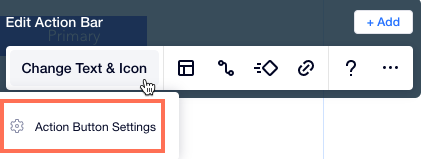
One of the most common ways to open a Dashboard Page is from the Main Action Button in one of your widget's Action Buttons. To do this:
1. Go to the **Editor Experience**  **Configuration** tab.
2. Click on the widget or element that you want to configure.
3. Click **Edit Action Bar**.
4. Hover over the main action button (the left button).
5. Click **Action Button Settings**.
6. Select **Dashboard** and choose one of your dashboard pages.
## Open a Dashboard Page from a Custom Panel
Adding a link to the Dashboard Page from a custom panel enhances its visibility and accessibility for users.
- Link to the page from a panel button with [no code](https://dev.wix.com/docs/build-apps/develop-your-app/frameworks/wix-blocks/editor-experience-panels/panel-button-rules-to-open-pages.md).
- Use the `wix-editor` module to open the page using code. [See code example](https://dev.wix.com/docs/build-apps/develop-your-app/frameworks/wix-blocks/dashboard-pages/open-a-blocks-dashboard-page-from-a-custom-panel.md)
## Open a Dashboard Page from another Dashboard Page
Navigating between your Dashboard pages can create seamless workflows, such as a step-by-step wizard. Use the `dashboard` SDK to lead users from one Dashboard Page to another. [See code example](https://dev.wix.com/docs/build-apps/develop-your-app/frameworks/wix-blocks/dashboard-pages/open-a-blocks-dashboard-page-from-a-custom-panel.md)
## Create a dashboard page for a list and another for individual items
A common dashboard pattern involves creating two connected pages: one that displays a list of items (like products, orders, or users) and another that shows detailed information for individual items. This master-detail pattern allows users to browse through multiple items and then drill down into specific details. Learn how to implement this pattern using the dashboard SDK's `navigate()` and `observeState()` functions to pass data between pages. [See the complete guide](https://dev.wix.com/docs/build-apps/develop-your-app/frameworks/wix-blocks/dashboard-pages/create-list-and-detail-dashboard-pages.md).
## Self hosted dashboard extensions
You can also add [self hosted dashboard extensions](https://dev.wix.com/docs/build-apps/develop-your-app/frameworks/self-hosting/supported-extensions/dashboard-extensions/add-self-hosted-dashboard-page-extensions.md) to a Blocks app.
To add a self hosted extension, go to the **Dashboard Interface** and click **Create Extension** > **Self-Hosted Extensions**.