> Portal Navigation:
>
> - Append `.md` to any URL under `https://dev.wix.com/docs/` to get its markdown version.
> - Pages are either content pages (article or reference text) or menu pages (a list of links to child pages).
> - To get a menu page, truncate any URL to a parent path and append `.md` (e.g. `https://dev.wix.com/docs/sdk.md`, `https://dev.wix.com/docs/sdk/core-modules.md`).
> - Top-level index of all portals: https://dev.wix.com/docs/llms.txt
> - Full concatenated docs: https://dev.wix.com/docs/llms-full.txt
## Resource: Open a Blocks Dashboard Page from a Custom Panel
## Article: Using a Blocks Dashboard Page URL in a Blocks Custom Panel
## Article Link: https://dev.wix.com/docs/build-apps/develop-your-app/frameworks/wix-blocks/dashboard-pages/open-a-blocks-dashboard-page-from-a-custom-panel.md
## Article Content:
# Open a Dashboard Page in Blocks Using Code
**Editor compatibility**
Wix Blocks apps aren't supported in the Wix Harmony editor. Existing Blocks apps remain available for purchase on the Wix App Market for Wix Editor and Wix Studio sites. To learn more, see [About Wix Harmony and Blocks](https://dev.wix.com/docs/build-apps/develop-your-app/frameworks/wix-blocks/about-wix-harmony-and-blocks.md).
Use code to navigate to a dashboard page from a [custom panel](https://dev.wix.com/docs/build-apps/develop-your-app/frameworks/wix-blocks/editor-experience-panels/add-code-to-custom-panels-in-blocks.md) or from another dashboard page in your app.
First, copy the dashboard URL (for panels) or ID (for other dashboards). Then, use it in your panel or dashboard code.
> **Note:** Panel buttons can also open a dashboard page [with no code](https://dev.wix.com/docs/build-apps/develop-your-app/frameworks/wix-blocks/editor-experience-panels/panel-button-rules-to-open-pages.md).
## Copy the Dashboard URL or ID:
1. Go to the app dashboard  menu.
1. Hover over the dashboard page's name and click the More Actions  icon.
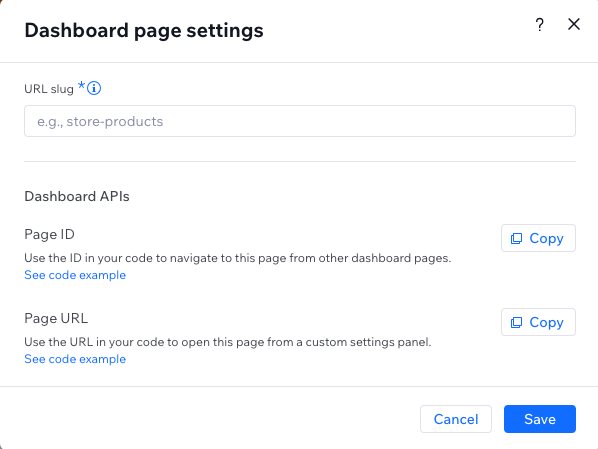
1. Click **Dashboard Page Settings**.
1. Copy the following:
- For dashboard, copy the **Page ID**
- For panel, copy the **Page URL**
## In Dashboards: Use the Dashboard ID
1. Go to the code section of the dashboard page.
2. Import the `dashboard` SDK (remember to install the corresponding npm package).
3. Call the `navigate()` function with the dashboard ID. For example:
```js
import {dashboard} from "@wix/dashboard"
dashboard.navigate({ pageId: "2e96bad1-df32-47b6-942f-e3ecabd74e57" });
```
See deprecated wix-dashboard example
```js
import wixDashboard from `wix-dashboard`;
wixDashboard.navigate({ pageId: "2e96bad1-df32-47b6-942f-e3ecabd74e57" });
```
## In Panels: Use the Dashboard URL
Opening a dashboard from a custom panel is slightly different:
1. Open your panel from the **Editor Experience > Panels** tab.
1. Go to your panel's code section.
2. Import the `wix-editor` module.
3. Use the `openDashboardPanel()` function with the correct URL. For example:
```js
import wixEditor from 'wix-editor';
wixEditor.openDashboardPanel({url: '771680a8-ad76-4a3c-8bfc-4e2873de96c9/dashboard-page-2'});
```