> Portal Navigation:
>
> - Append `.md` to any URL under `https://dev.wix.com/docs/` to get its markdown version.
> - Pages are either content pages (article or reference text) or menu pages (a list of links to child pages).
> - To get a menu page, truncate any URL to a parent path and append `.md` (e.g. `https://dev.wix.com/docs/sdk.md`, `https://dev.wix.com/docs/sdk/core-modules.md`).
> - Top-level index of all portals: https://dev.wix.com/docs/llms.txt
> - Full concatenated docs: https://dev.wix.com/docs/llms-full.txt
## Resource: Install a Blocks App on a Site
## Article: Installing a Blocks App on a Site
## Article Link: https://dev.wix.com/docs/build-apps/develop-your-app/frameworks/wix-blocks/deploy-and-manage-blocks-apps/install-a-blocks-app-on-a-site.md
## Article Content:
# Install a Blocks App on a Site
**Editor compatibility**
Wix Blocks apps aren't supported in the Wix Harmony editor. Existing Blocks apps remain available for purchase on the Wix App Market for Wix Editor and Wix Studio sites. To learn more, see [About Wix Harmony and Blocks](https://dev.wix.com/docs/build-apps/develop-your-app/frameworks/wix-blocks/about-wix-harmony-and-blocks.md).
Install and reuse any Blocks app you created or collaborate with, as many times as you want. You can install the app on any site you own or collaborate with.
Before you install the app, make sure to configure its [Installation Settings](https://dev.wix.com/docs/build-apps/develop-your-app/frameworks/wix-blocks/deploy-and-manage-blocks-apps/configure-blocks-installation-settings.md) in Blocks.
## Install your app
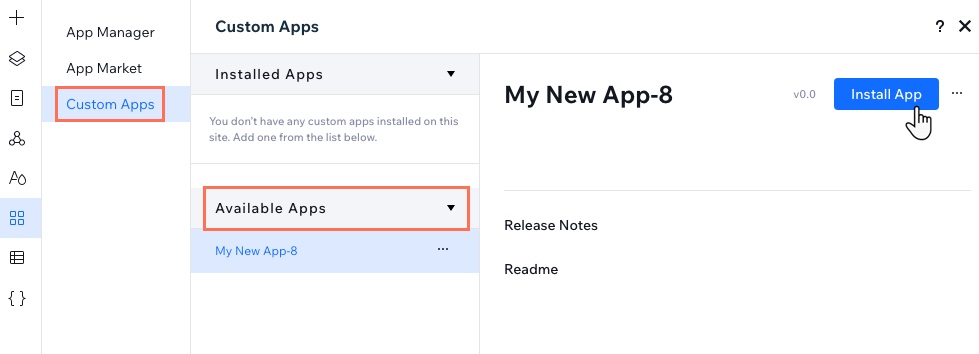
1. Open the Wix or Studio editor.
1. Click the **Add Apps**  icon in your Editor.
1. Click **Custom Apps**.
1. Click **Available Apps** and select the app you want to install.
1. Click **Install App**.
1. Wait for the success message. You'll get the most updated version release.
## Change the installed app version
To move between app versions, hover over the More Actions icon  next to your app's name. If you released a new major version, you'll see an indication next to the app name.
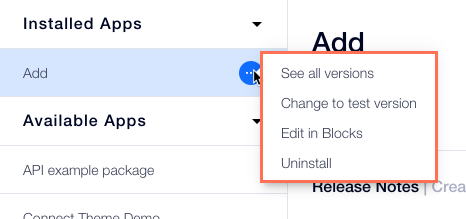
If you want to install your app just for testing purposes without releasing a version, go back to Blocks and [test your app in the editor](https://dev.wix.com/docs/build-apps/develop-your-app/frameworks/wix-blocks/deploy-and-manage-blocks-apps/manage-blocks-app-versions.md).
## Add widgets to a site page
If your app has widgets that are not automatically added to the page, you can add them to any page on your site:
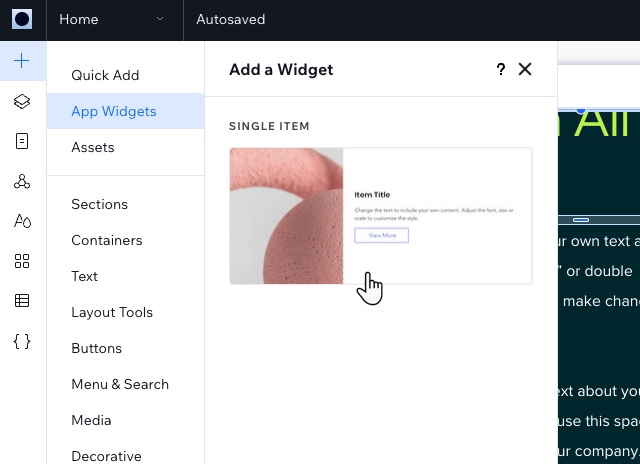
1. Click **Add Elements**  on the left side of the Editor.
2. Click **App Widgets**.
3. Select your widget and drag it onto the page. You may have the option to choose between several design presets.
Tip:
In the Studio Editor, your app widgets are at the top of the elements list. In the Wix Editor, they appear in the middle.
## Access your app's code files
If your app has public or backend code files, you can now import functions from these files.
To import **public** functions, use this syntax:
```javascript
import { } from '@/';
```
To import **backend** functions, use this syntax:
```javascript
import { } from '@/-backend';
```
## Manage your app's dashboard extensions
If you added [dashboard extensions](https://dev.wix.com/docs/build-apps/develop-your-app/frameworks/wix-blocks/dashboard-pages/about-dashboard-pages-in-blocks.md) to you app, you'll see them in the site's dashboard.

## Manage your app's collections
If your app has a [CMS collection](https://dev.wix.com/docs/build-apps/develop-your-app/frameworks/wix-blocks/cms-collections-in-blocks/about-cms-collections-in-blocks.md), you'll see it under your site's CMS collections, with the default data that you added in Blocks.
## Add your app's plugins
If your app has a plugin extension, add it to the relevant page, depending on the plugin type. [See full guide](https://dev.wix.com/docs/build-apps/develop-your-app/frameworks/wix-blocks/site-plugins/build-a-site-plugin-in-blocks.md#step-6--test-and-preview).