> Portal Navigation:
>
> - Append `.md` to any URL under `https://dev.wix.com/docs/` to get its markdown version.
> - Pages are either content pages (article or reference text) or menu pages (a list of links to child pages).
> - To get a menu page, truncate any URL to a parent path and append `.md` (e.g. `https://dev.wix.com/docs/sdk.md`, `https://dev.wix.com/docs/sdk/core-modules.md`).
> - Top-level index of all portals: https://dev.wix.com/docs/llms.txt
> - Full concatenated docs: https://dev.wix.com/docs/llms-full.txt
## Resource: Design Custom Panels in Blocks
## Article: Designing Custom Panels for Your Widget Action Bar Buttons
## Article Link: https://dev.wix.com/docs/build-apps/develop-your-app/frameworks/wix-blocks/editor-experience-panels/design-custom-panels-in-blocks.md
## Article Content:
# Design Custom Panels in Blocks
**Editor compatibility**
Wix Blocks apps aren't supported in the Wix Harmony editor. Existing Blocks apps remain available for purchase on the Wix App Market for Wix Editor and Wix Studio sites. To learn more, see [About Wix Harmony and Blocks](https://dev.wix.com/docs/build-apps/develop-your-app/frameworks/wix-blocks/about-wix-harmony-and-blocks.md).
Create custom panels for action buttons in your widget and its elements. When a Wix user clicks an action button (for example, the Settings button), the custom panel opens.
You can create as many panels as you need, to provide users with various options to customize widgets.
Creating your panel has **three main stages:**
1. Design your panel, as described in this article. Use [our UX guidelines](https://dev.wix.com/docs/build-apps/develop-your-app/frameworks/wix-blocks/editor-experience-configuration/ux-guidelines-for-editor-experience-in-blocks.md#custom-panels) to make your panels clear and effective.
2. Connect your panel to an action button.
3. Add logic to your panel to make it work.
Important:
You cannot test panels in the Blocks preview. To see your panel in action, [test it on a site](https://dev.wix.com/docs/build-apps/develop-your-app/frameworks/wix-blocks/deploy-and-manage-blocks-apps/test-your-app-on-a-site.md).
Examples:
To see examples of custom panels, open the following app templates and go to the **Editor Experience**  tab.
- [Repeater app](https://dev.wix.com/apps-templates/template?id=a4a7246f-4644-48ce-81e7-2a86aa74d9e5&http_referrer=documentation): Panel for changing the widget layout.
- [Events Map app](https://dev.wix.com/apps-templates/template?id=f086effa-64b8-4c8b-a5c8-61c3a7548af7&http_referrer=documentation): Settings panel.
- [Recipe List app](https://dev.wix.com/apps-templates/template?id=512a7d8a-1666-40c2-9586-25874d2f69b4&http_referrer=documentation): Setting panel that also links to a dashboard page.
- [Banner app](https://dev.wix.com/apps-templates/template?id=1b7db962-6230-46bf-b908-d988ef640238&http_referrer=documentation): Panel for adding and removing elements.
- [Pie Chart app](https://dev.wix.com/apps-templates/template?id=9a55382c-c755-4f01-bda2-80b85630acdd&http_referrer=documentation&http_referrer=documentation): Settings panel for custom element in Blocks.
## Create your panel
First, go to the Editor Experience panel to create a panel.
1. Click the **Editor Experience**  icon.
2. Click the **Custom Panels** tab.
3. Click **Create New Panel**.
## Add elements to your panel
Your panel is built of [panel elements](https://dev.wix.com/docs/build-apps/develop-your-app/frameworks/wix-blocks/editor-experience-panels/panel-elements-in-blocks.md), such as buttons, dividers, input fields and more. Before designing your panel, read our [UX guidelines for custom panels](https://dev.wix.com/docs/build-apps/develop-your-app/frameworks/wix-blocks/editor-experience-configuration/ux-guidelines-for-editor-experience-in-blocks.md#custom-panels).
Click **\+ Add Element** and select which elements you want to add to your panel. You can add the same element as many times as you need. Then, you can customize the label text and style, and set defaults and values.
## Customize your panel
You have several customization options for the elements in your panel. You can change label text, add tool tips, set defaults and values. You do this by using the action bar connected to each element.
### Settings options
Click on an element. Select **Settings** or the  icon to customize your panel. Here are some of the options:
Add field titles (see more)
Fill in the **Field Title** field provide a label for your element (for example, in the following image, **Fill Color & Opacity** and **Border** are labels). To remove the label, delete the text.

Add tooltips (see more)
Write some text in the **Tooltip Info** box to add an info icon with a tooltip containing additional information for site builders who install the widget. To remove the info tooltip, delete the text in the field.
Define element as "read only" (see more)
Toggle on **Read only** so that the user can only see and copy the text inside, but cannot type in it.
Set initial text options (see more)
An input field in a panel may appear empty, or may contain initial text in several forms:
* **Default text:** The input field appears with default text.
* **Placeholder:** The input field appears with a message in a light shade (usually gray), which says what the user should type there and disappears once they start typing.
* **Both:** The input field appears with default text, but if the user deletes it, they will see the light placeholder text.
Add pattern validation (see more)
Toggle to enable [regex](http://www.codemag.com/article/0305041) (regular expression) to apply additional criteria whenever the field is validated. Use the edit box to enter and edit your regular expression.
### Multiple choice elements
If you choose to add an element that has multiple options, like check boxes, radio buttons or dropdown lists, you can configure them by using the manage choices button in the action bar that appears when you select the element.
Rename choices (see more)
Click **Manage Choices** to open a pop-up with the list of the choices in your element. Double click the choice you want to rename and enter the new name in the field box. You can reorder your choices using drag and drop.

More Actions (see more)
Click **Manage Choices**, hover over the choice you want to edit and click the **More Actions**  icon, to set defaults, edit values, and move or duplicate elements.

## Name your panel
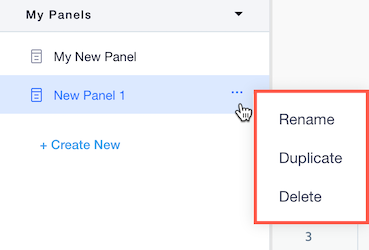
1. Hover over your panel name in the **Custom Panels** section .
2. Click the **More Actions**  icon when it appears.
3. Select **Rename**.
4. When naming your panel, note that this name is visible to users. See our [UX guidelines for panel texts](https://dev.wix.com/docs/build-apps/develop-your-app/frameworks/wix-blocks/editor-experience-configuration/ux-guidelines-for-editor-experience-in-blocks.md).
5. You can also duplicate or delete your panel if needed.
## Connect your panel to an action button
After creating your panel, you must connect it to a button in the action bar of a widget or an element.
1. Click the **Editor Experience**  icon.
2. Click the **Configuration** tab.
3. Select the desired widget from the **Widgets** panel.
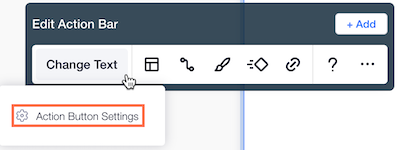
4. Hover over the button to which you want to connect your panel, in the **Edit Action Bar** menu that appears. For example, if it is a settings panel, select the settings button. If it's a design panel, select the design button. You can also add a new button, name it and connect it to a panel.
5. Click  **Action Button Settings**.
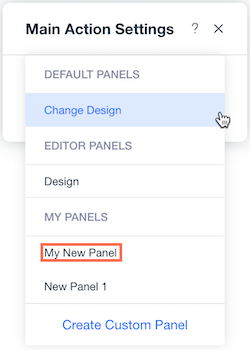
5\. Select your panel from the **Custom Panels** section.
## What's next
Now that you have designed your panel you need to add its logic. This can include:
- [Connecting widget properties](https://dev.wix.com/docs/build-apps/develop-your-app/frameworks/wix-blocks/editor-experience-panels/connect-panel-elements-to-props.md) to panel elements, so users can change the properties.
- [Creating button rules](https://dev.wix.com/docs/build-apps/develop-your-app/frameworks/wix-blocks/editor-experience-panels/panel-button-rules-to-open-pages.md) to open a pricing page, dashboard page or an external URL.
- [Adding code to your custom panel](https://dev.wix.com/docs/build-apps/develop-your-app/frameworks/wix-blocks/editor-experience-panels/add-code-to-custom-panels-in-blocks.md) for any other logic you need.