> Portal Navigation:
>
> - Append `.md` to any URL under `https://dev.wix.com/docs/` to get its markdown version.
> - Pages are either content pages (article or reference text) or menu pages (a list of links to child pages).
> - To get a menu page, truncate any URL to a parent path and append `.md` (e.g. `https://dev.wix.com/docs/sdk.md`, `https://dev.wix.com/docs/sdk/core-modules.md`).
> - Top-level index of all portals: https://dev.wix.com/docs/llms.txt
> - Full concatenated docs: https://dev.wix.com/docs/llms-full.txt
## Resource: Provide entry points to upgrade your app
## Article: Provide entry points to upgrade your app
## Article Link: https://dev.wix.com/docs/build-apps/develop-your-app/frameworks/wix-blocks/publish-blocks-apps-to-the-app-market/provide-entry-points-to-upgrade-your-app.md
## Article Content:
# Provide Entry Points to Upgrade a Blocks App
**Editor compatibility**
Wix Blocks apps aren't supported in the Wix Harmony editor. Existing Blocks apps remain available for purchase on the Wix App Market for Wix Editor and Wix Studio sites. To learn more, see [About Wix Harmony and Blocks](https://dev.wix.com/docs/build-apps/develop-your-app/frameworks/wix-blocks/about-wix-harmony-and-blocks.md).
If you [published your Blocks App](https://dev.wix.com/docs/build-apps/develop-your-app/frameworks/wix-blocks/publish-blocks-apps-to-the-app-market/publish-a-blocks-app-to-the-app-market.md) in the Wix App Market and [adapted it to a pricing plan](https://dev.wix.com/docs/build-apps/develop-your-app/frameworks/wix-blocks/publish-blocks-apps-to-the-app-market/adjust-a-blocks-app-to-different-pricing-plans.md), there are a few ways to allow site builders to upgrade their app to another plan. All these ways lead site builders to your app's pricing page.
See example pricing page

## A default Upgrade action button
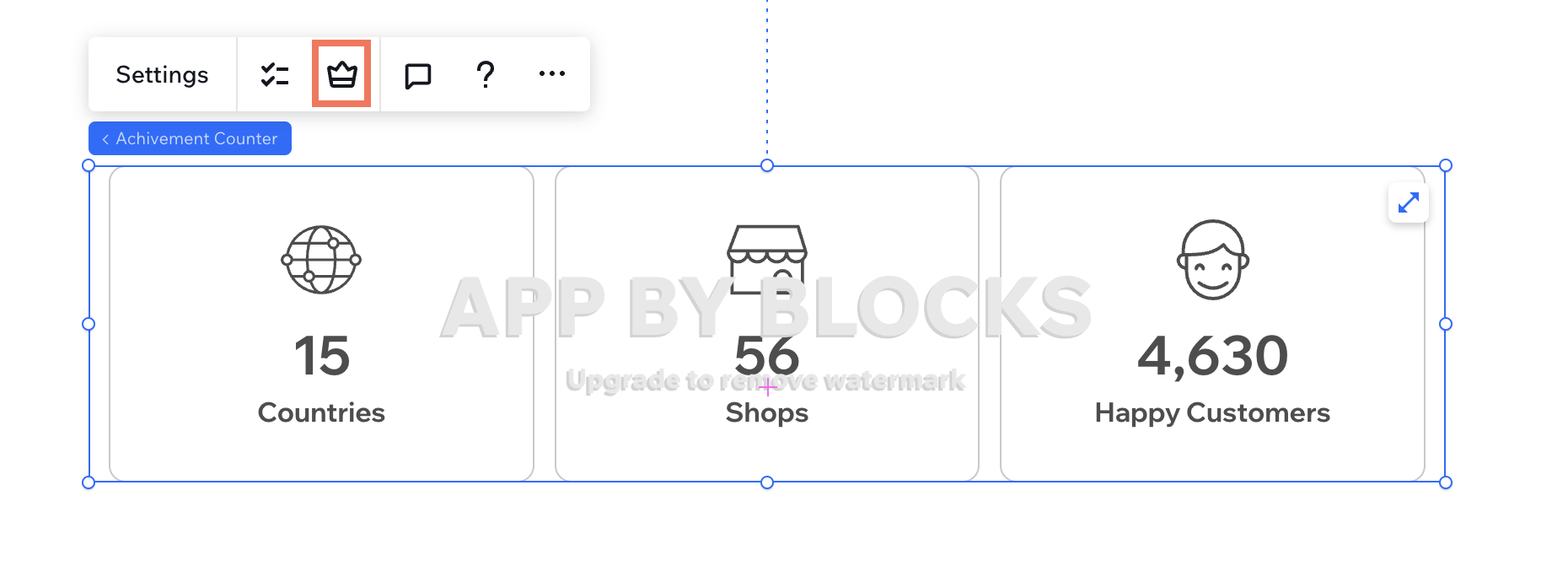
Blocks automatically adds an upgrade  icon to the widget's action bar, once you set up a pricing plan for it. Note that this button cannot be removed.
To see how this button works, [test you app in the editor](https://dev.wix.com/docs/build-apps/develop-your-app/frameworks/wix-blocks/deploy-and-manage-blocks-apps/test-your-app-on-a-site.md). You'll be able to see it on a live site once the app is published in the App Market.
## Add an Upgrade button from a panel
Add a button to a custom panel and connect it to your pricing page [with no code](https://dev.wix.com/docs/build-apps/develop-your-app/frameworks/wix-blocks/editor-experience-panels/panel-button-rules-to-open-pages.md).

**To add an upgrade button:**
1. Click the button.
1. Click **+ Add rule** in the inspector.
1. Select your pricing page.
1. Click **Settings** and set the button type to premium, to get the purple color.
## Add an Upgrade link from a panel
Add text and a link from a [custom panel](https://dev.wix.com/docs/build-apps/develop-your-app/frameworks/wix-blocks/editor-experience-panels/design-custom-panels-in-blocks.md), to enable site builders to upgrade the app from a panel.
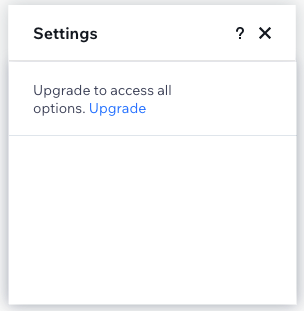
**To add a text and link to your panel:**
1. Go to the **Panels** tab.
2. Add a **Text** element to the panel.
3. Click the element's **Settings**.
4. Insert a short call to action in the **Text** field.
5. Set the code to the **Link** field through Velo. The link uses your App ID and Instance ID:
```javascript
import wixApplication from 'wix-application';
const appInstance = await wixApplication.getDecodedAppInstance();
const upgradeUrl = `https://www.wix.com/apps/upgrade/${appInstance.appDefId}?appInstanceId=${appInstance.instanceId}`;
$w('#').link = upgradeUrl;
```
## Add an Upgrade link or button from a Dashboard page
Add a link or a button to your Dashboard page, to enable site builders to upgrade from their Dashboard.
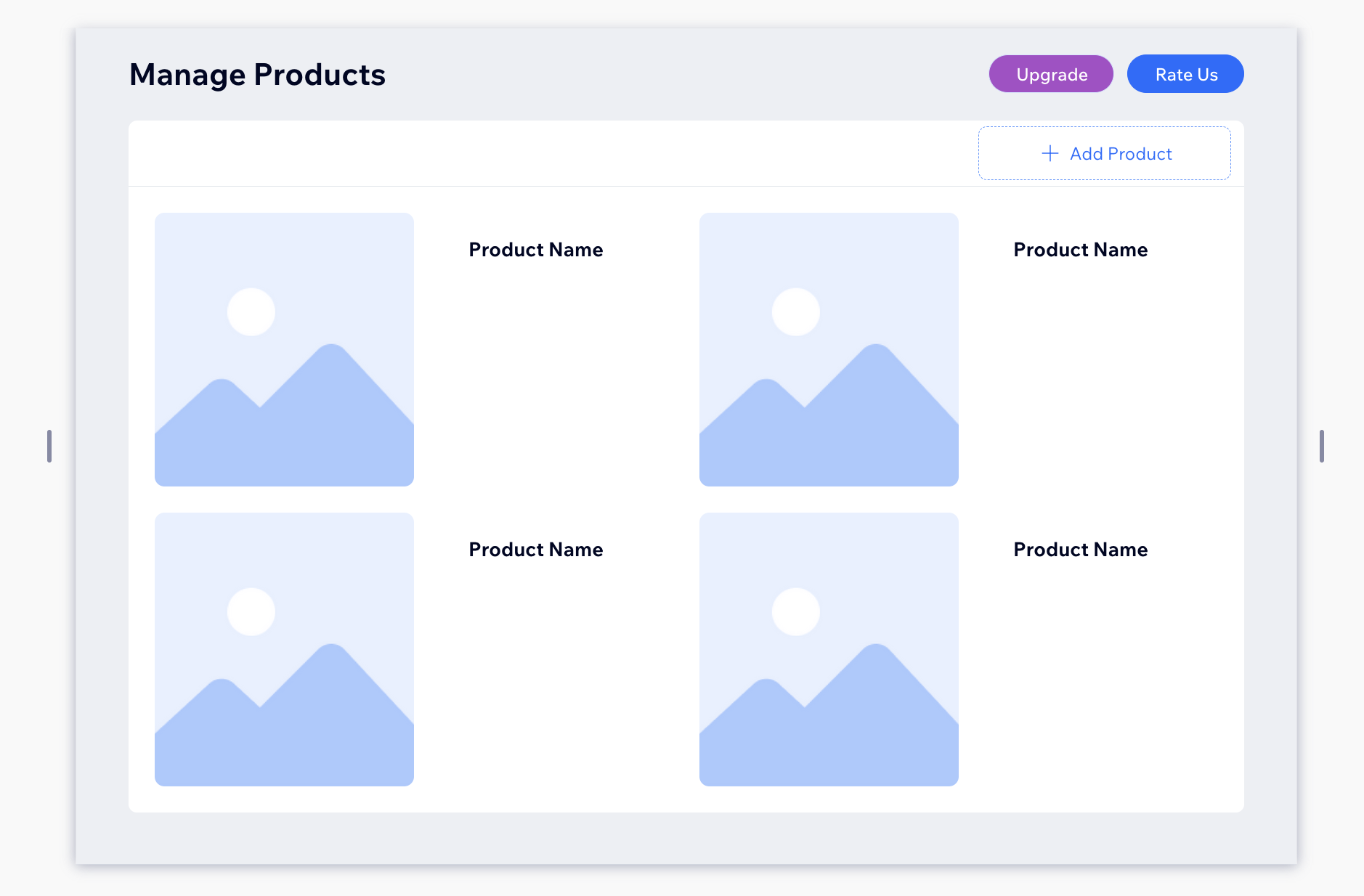
**To add an upgrade button or link to your Dashboard:**
1. Go to your App's Dashboard  page.
2. Add a button or text element through the Add  panel.
3. In the Dashboard code, set the link to use your App ID and Instance ID.
4. Specify that the link should open in a new tab.
For example, if it's button:
```javascript
import wixApplication from 'wix-application';
const appInstance = await wixApplication.getDecodedAppInstance();
const upgradeUrl = `https://www.wix.com/apps/upgrade/${appInstance.appDefId}?appInstanceId=${appInstance.instanceId}`;
$w('#').link = upgradeUrl;
$w('#').target = "_blank" //opens in a new tab
```