> Portal Navigation:
>
> - Append `.md` to any URL under `https://dev.wix.com/docs/` to get its markdown version.
> - Pages are either content pages (article or reference text) or menu pages (a list of links to child pages).
> - To get a menu page, truncate any URL to a parent path and append `.md` (e.g. `https://dev.wix.com/docs/sdk.md`, `https://dev.wix.com/docs/sdk/core-modules.md`).
> - Top-level index of all portals: https://dev.wix.com/docs/llms.txt
> - Full concatenated docs: https://dev.wix.com/docs/llms-full.txt
## Resource: Manage Accessibility in Blocks
## Article: Managing Accessibility in Blocks
## Article Link: https://dev.wix.com/docs/build-apps/develop-your-app/frameworks/wix-blocks/site-widgets/manage-accessibility-in-blocks.md
## Article Content:
# Manage Accessibility in Blocks
**Editor compatibility**
Wix Blocks apps aren't supported in the Wix Harmony editor. Existing Blocks apps remain available for purchase on the Wix App Market for Wix Editor and Wix Studio sites. To learn more, see [About Wix Harmony and Blocks](https://dev.wix.com/docs/build-apps/develop-your-app/frameworks/wix-blocks/about-wix-harmony-and-blocks.md).
Most of the elements that you add to your Blocks app are ARIA (Accessible Rich Internet Applications Suite) -compliant. You can use the accessibility panel in Blocks to improve the accessibility of elements and widgets that are not ARIA-compliant.
[Learn more about ARIA](https://www.w3.org/WAI/standards-guidelines/aria/).
**Important note about compliance:**
* At Wix, we are committed to ensuring everyone, regardless of ability, can use our products and services. We are continually working on improving them, in line with accessibility standards.
* Wix cannot guarantee or ensure that the use of our services is compliant with all accessibility laws and worldwide regulations.
* You are responsible for reviewing and complying with local legislation applicable to you or to your site visitors.
* Note that a [custom element](https://dev.wix.com/docs/build-apps/develop-your-app/frameworks/wix-blocks/code-in-blocks/about-custom-elements-in-blocks.md) is not accessibility friendly.
## Add accessibility attributes
You can add accessibility attributes to an element or a widget.
1. Right-click the element or the widget and click **Accessibility**.

2. Click **Add Attribute**.

3. Choose the attribute you want to add from the drop-down menu, and then choose its value.
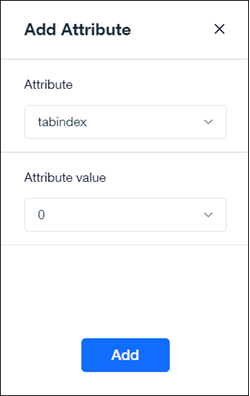
4. Repeat steps 2 and 3 to add more attributes.
## Reorganize elements by DOM (tabs) order
DOM order is used by assistive technologies to help some visitors find the information they need ([Learn more](https://support.wix.com/en/article/studio-editor-reorganizing-elements-by-dom-order)).
When a site visitor clicks "Tab" in your Blocks widget, it goes through your elements in the same order that they appear in the **Layers** panel (from bottom to top). You can edit this order as you wish, by dragging the elements in the layers panel.

Go to **Preview** to see how it works.