> Portal Navigation:
>
> - Append `.md` to any URL under `https://dev.wix.com/docs/` to get its markdown version.
> - Pages are either content pages (article or reference text) or menu pages (a list of links to child pages).
> - To get a menu page, truncate any URL to a parent path and append `.md` (e.g. `https://dev.wix.com/docs/sdk.md`, `https://dev.wix.com/docs/sdk/core-modules.md`).
> - Top-level index of all portals: https://dev.wix.com/docs/llms.txt
> - Full concatenated docs: https://dev.wix.com/docs/llms-full.txt
## Resource: Blocks Widget Properties
## Article: Widget API Properties
## Article Link: https://dev.wix.com/docs/build-apps/develop-your-app/frameworks/wix-blocks/widget-api/blocks-widget-properties.md
## Article Content:
# Blocks Widget Properties
**Editor compatibility**
Wix Blocks apps aren't supported in the Wix Harmony editor. Existing Blocks apps remain available for purchase on the Wix App Market for Wix Editor and Wix Studio sites. To learn more, see [About Wix Harmony and Blocks](https://dev.wix.com/docs/build-apps/develop-your-app/frameworks/wix-blocks/about-wix-harmony-and-blocks.md).
Properties allow site builders to pass information to the widget and get information from it. For example, in a shopping widget, you can add properties that represent information about the product.
Wix users can set property values through the default Settings panel, or by a custom panel that you create. Learn more about [using your widget API when editing a site](https://dev.wix.com/docs/build-apps/develop-your-app/frameworks/wix-blocks/widget-api/use-the-widget-api-when-editing-a-site.md).
## To add a new property to your widget:
1. Open your app in Wix Blocks.
2. Click the **Widget API**  icon on the bottom right.
3. Click **Add New Property** or hover over **Properties** and click the  icon.
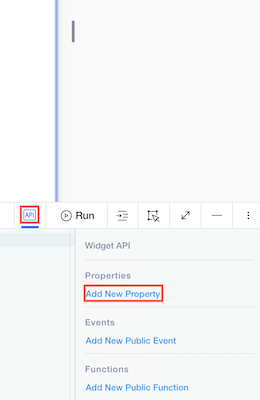
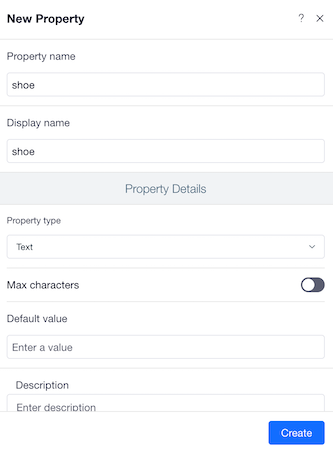
4\. Name your property, select its [type](#property-types) and default values, add a description and click **Create.** Make sure to fill in these fields with care. The Display Name will be visible to users.
## Property types
These are the types of properties you can add to your Widget API:
* **Text:** String values.
* **Number:** Number values, without spaces or special characters except for a minus sign "-", to indicate a negative value.
* **Boolean:** Either true or false.
* **Image:** The URL for the source of the image. The format for the URL is described [here](https://www.wix.com/code/reference/$w.Image.html#src).
* **Date and Time:** See [Date and Time Conventions](https://support.wix.com/en/article/date-and-time-conventions).
* **URL:** In the format `http(s)://www..`, such as [www.wix.com](http://www.wix.com/)
* **Custom:** A highly-flexible property type that you design around the needs of your app. Learn more about [creating custom type properties](https://dev.wix.com/docs/build-apps/develop-your-app/frameworks/wix-blocks/widget-api/custom-type-properties-blocks.md).
* **List:** An array of any single type listed above. Learn more about [creating list type properties](https://dev.wix.com/docs/build-apps/develop-your-app/frameworks/wix-blocks/widget-api/list-type-properties-in-blocks.md).
To change the property type, hover over the property in the **Widget API**  panel and click the **Edit**  icon.
## Interact with properties in your widget code
Interact with properties in your widget code through the [`$widget`](https://dev.wix.com/docs/velo/velo-only-apis/$widget/introduction.md) module, using the following syntax. Internal properties are optional - they're needed only if you're using [a custom type property](https://dev.wix.com/docs/build-apps/develop-your-app/frameworks/wix-blocks/widget-api/list-type-properties-in-blocks.md):
```javascript
$widget.props..
```
For example, let's say that you want to present the size of a shoe in a text element in your widget. The property is "shoe". Shoe is a custom type that has an internal property named "size". So the statement will look like this:
```javascript
$w('#text1').text = $widget.props.shoe.size;
```
## Interact with properties in panels
You can get or set properties in custom panels through your [panel code](https://dev.wix.com/docs/build-apps/develop-your-app/frameworks/wix-blocks/editor-experience-panels/add-code-to-custom-panels-in-blocks.md#interact-with-widget-properties), or through [connecting properties to panel elements](https://dev.wix.com/docs/build-apps/develop-your-app/frameworks/wix-blocks/editor-experience-panels/connect-panel-elements-to-props.md) with no code.
Note that Blocks also creates a default Settings panel for any widget that has properties.
## Define `onPropsChanged()`
The `onPropsChanged()` event is fired when there is a change in your widget's properties.
It receives `oldProps` and `newProps` as its parameters. Here is the syntax to use in the widget code:
```javascript
$widget.onPropsChanged((oldProps, newProps) => {
})
```
The initial code for `onPropsChanged()` is created automatically in every new Blocks widget. You can define what happens in this event through adding code.
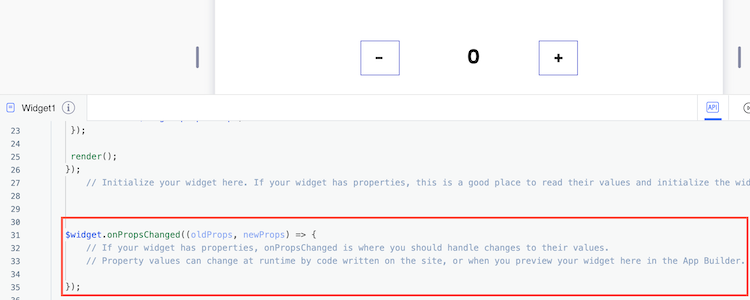
For example, in a shopping widget, if the product id is changed - load the data for the new product and customer:
```javascript
$widget.onPropsChanged((oldProps, newProps) => {
loadProductData(newProps.productId);
loadCustomerData(newProps.customerId);
});
```
## Testing your widget's API properties
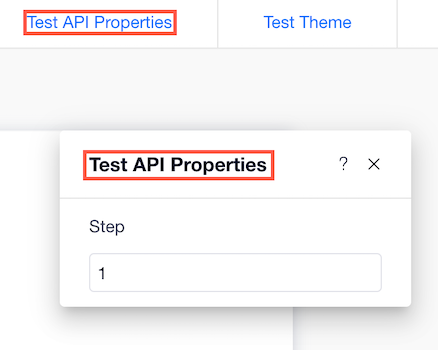
When your widget is installed on a site, it comes with a default **Settings** panel, which includes any properties that you defined in your API (Learn more about [using your Widget API when editing a site](https://dev.wix.com/docs/build-apps/develop-your-app/frameworks/wix-blocks/widget-api/use-the-widget-api-when-editing-a-site.md)). You can also use a custom **Settings** panel by using the [panel builder](https://support.wix.com/en/article/wix-blocks-about-custom-panels) in Blocks. Use Blocks's **Test API Properties** to see how these properties look on a site:
**To test your widget's API properties:**
1. Click **Preview**.
2. Click **Test API Properties** when you are in preview mode.
Don't forget to document
Make sure to document your widget API by describing any property, event or function you add to it. These descriptions are available to site creators who install your widget.