> Portal Navigation:
>
> - Append `.md` to any URL under `https://dev.wix.com/docs/` to get its markdown version.
> - Pages are either content pages (article or reference text) or menu pages (a list of links to child pages).
> - To get a menu page, truncate any URL to a parent path and append `.md` (e.g. `https://dev.wix.com/docs/sdk.md`, `https://dev.wix.com/docs/sdk/core-modules.md`).
> - Top-level index of all portals: https://dev.wix.com/docs/llms.txt
> - Full concatenated docs: https://dev.wix.com/docs/llms-full.txt
## Resource: Use the Widget API When Editing a Site
## Article: Using Your Widget API When Editing a Site
## Article Link: https://dev.wix.com/docs/build-apps/develop-your-app/frameworks/wix-blocks/widget-api/use-the-widget-api-when-editing-a-site.md
## Article Content:
# Use the Widget API When Editing a Site
**Editor compatibility**
Wix Blocks apps aren't supported in the Wix Harmony editor. Existing Blocks apps remain available for purchase on the Wix App Market for Wix Editor and Wix Studio sites. To learn more, see [About Wix Harmony and Blocks](https://dev.wix.com/docs/build-apps/develop-your-app/frameworks/wix-blocks/about-wix-harmony-and-blocks.md).
After a [Widget API was defined in Blocks](https://dev.wix.com/docs/build-apps/develop-your-app/frameworks/wix-blocks/widget-api/about-the-widget-api.md) and the widget is now [installed on a site](https://support.wix.com/en/article/installing-a-blocks-app-in-your-site-ga), you can easily access the Widget API from the Wix Editor or Wix Studio.
Note:
Any changes that you make to the API while editing a site, only impact this specific site. The original widget is not impacted. If this isn't your intention and you want to edit the Widget API so that it updates on all sites using the widget, edit it in Blocks.
## Set property values
There are a few ways for users to set the widget API properties.
### Set property values through the Settings panel
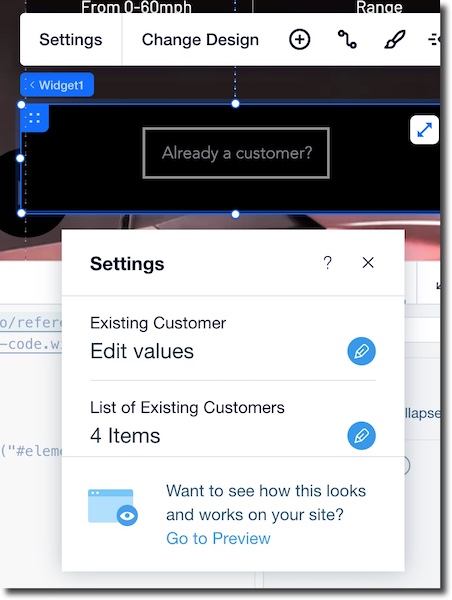
Any widget that has properties, gets a default Settings panel. A widget with no properties will not have this panel.
1. Select the widget in Wix Studio or Wix Editor.
2. Click **Settings** in the widget's action bar to access its properties.
3. Edit the properties in the **Settings** panel. Note: Your changes will only apply to the site you're editing.
4. Click **Preview** to see how your widget works on this site.
### Set property values through a custom panel
You can also let users [set the properties through a custom panel](https://dev.wix.com/docs/build-apps/develop-your-app/frameworks/wix-blocks/editor-experience-panels/connect-panel-elements-to-props.md) that you created. Note that if you connect your custom panel to the widget's **Settings** button, the default Settings panel will not be available.
### Set property values through code
1. Select the widget in Wix Studio or Wix Editor.
2. Click the **Properties and Events**  icon to view the widget's ID.
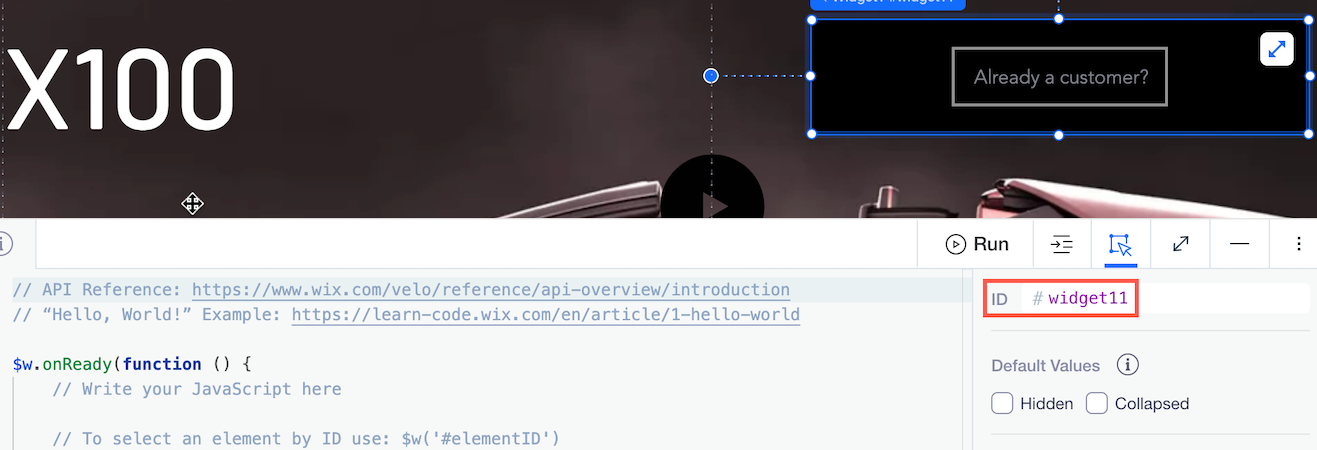
3. Use the following syntax to set or get a property value.
```js
$w("#").
```
Use extra dots if the property is an object and you want to access its inner properties. For example, let's log the name of our customer from the shopping widget to the console.
```javascript
let name = $w("#widget11").existingCustomer.name;
console.log(name);
```
## Handle widget API events
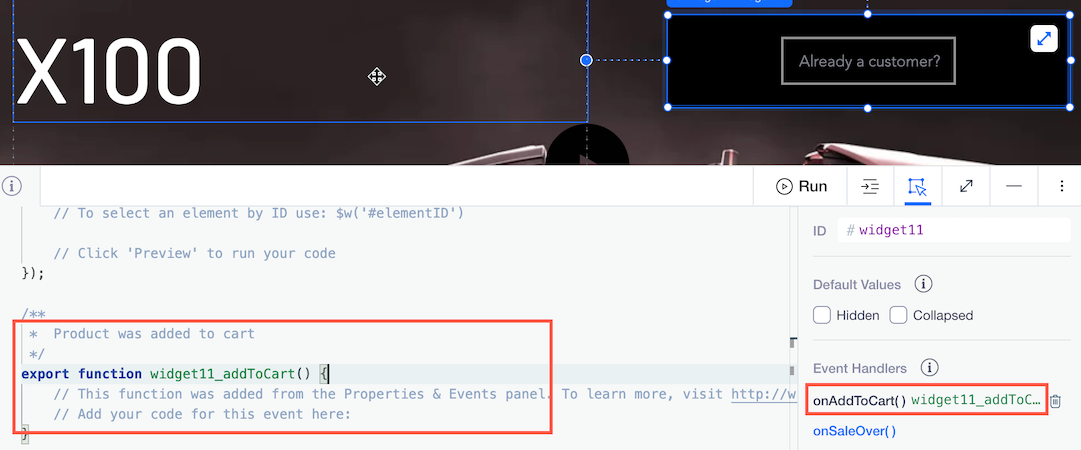
When your widget is installed on a site, site creators can see the event name in their **Properties and Events**  panel, in the format of `on`, for example, `onAddedToCart`. There are a few things they can do with this event name:
### Create a function to handle the event
1. Select the widget in the site editor.
1. Click on the name of the event in the Properties and Events panel.
1. Write the code to handle it in the empty function that appears in your code editor.
### Get data from the event
If you want to handle data from this event, you must add it as an argument (it's not added automatically). For example:
```js
export function widget11_addToCart(event){
const { productId, customerId } = event.data;
console.log('Product added to cart', { productId, customerId });
}
```
### Handle the event in the `onReady()` function
You can handle the event directly from the `onReady()` function of your site. For example:
```js
$w.onReady( function() {
$w('#widget1').onAddedToCart((event) => {
const { productId, customerId } = event.data;
console.log('Product added to cart', { productId, customerId });
});
} );
```
Note:
The condition for firing the event [was defined in Blocks](https://dev.wix.com/docs/build-apps/develop-your-app/frameworks/wix-blocks/widget-api/blocks-widget-events.md), while the actions to take when handling the event are defined in the site that installed the widget.
## Call widget API functions
Call your Widget API functions in your site's code easily, with auto-complete.
For example, when an item was successfully added to the cart - you can all a function that notifies the user.
Once you begin to write the function's name (such as "add"), you get auto-completes so you can see what functions are available:

Then you can use the function in your code, for example:
```javascript
let productAddedToCart = $w('#widget11').addItemToCart(productID, quantity));
```