> Portal Navigation:
>
> - Append `.md` to any URL under `https://dev.wix.com/docs/` to get its markdown version.
> - Pages are either content pages (article or reference text) or menu pages (a list of links to child pages).
> - To get a menu page, truncate any URL to a parent path and append `.md` (e.g. `https://dev.wix.com/docs/sdk.md`, `https://dev.wix.com/docs/sdk/core-modules.md`).
> - Top-level index of all portals: https://dev.wix.com/docs/llms.txt
> - Full concatenated docs: https://dev.wix.com/docs/llms-full.txt
## Resource: Connect Your Blocks Widget Colors to Site Themes
## Article: Connecting Your Widget Colors to Site Themes
## Article Link: https://dev.wix.com/docs/build-apps/develop-your-app/frameworks/wix-blocks/widget-design/connect-your-blocks-widget-colors-to-site-themes.md
## Article Content:
# Connect Your Blocks Widget Colors to Site Themes
**Editor compatibility**
Wix Blocks apps aren't supported in the Wix Harmony editor. Existing Blocks apps remain available for purchase on the Wix App Market for Wix Editor and Wix Studio sites. To learn more, see [About Wix Harmony and Blocks](https://dev.wix.com/docs/build-apps/develop-your-app/frameworks/wix-blocks/about-wix-harmony-and-blocks.md).
When you create a widget with Blocks, it can be installed on many different Wix sites. To ensure that your widget's colors look great on all of these sites, Blocks automatically connects it to a theme. When you change colors in your widget, we recommend keeping them connected to the theme.
### Select colors that are connected to a theme
1. Open your widget in Blocks.
2. Select a widget element (such as a container or a text input).
3. Click the **Design** icon  in the **Inspector** menu  on the right.
4. Click the color options related to your elements, to change its colors. A box, for example, has colors for **Fill Color & Opacity**, **Border**, **Corners** or **Text**.
5. Select a color from the **Theme Palette**.
Blocks uses a default palette that cannot be changed - this represents the Wix site themes. If you want to change the color, we recommend that you select the appropriate color from the five default colors presented.
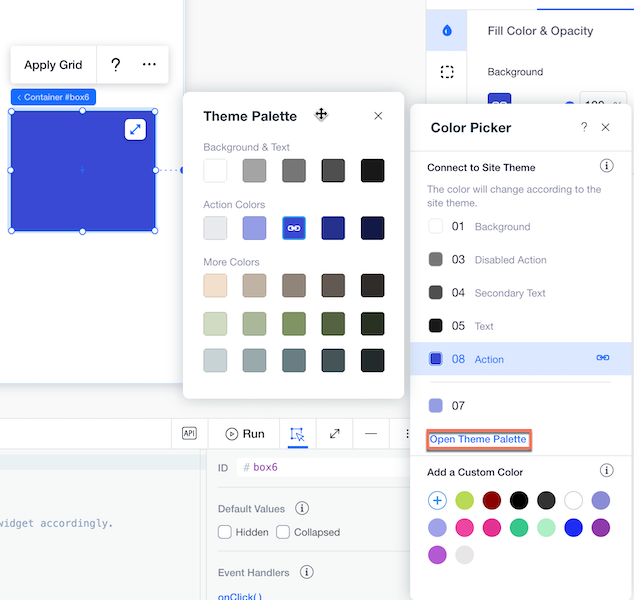
When a color is connected to a theme, it shows the link  indication in the color picker. .
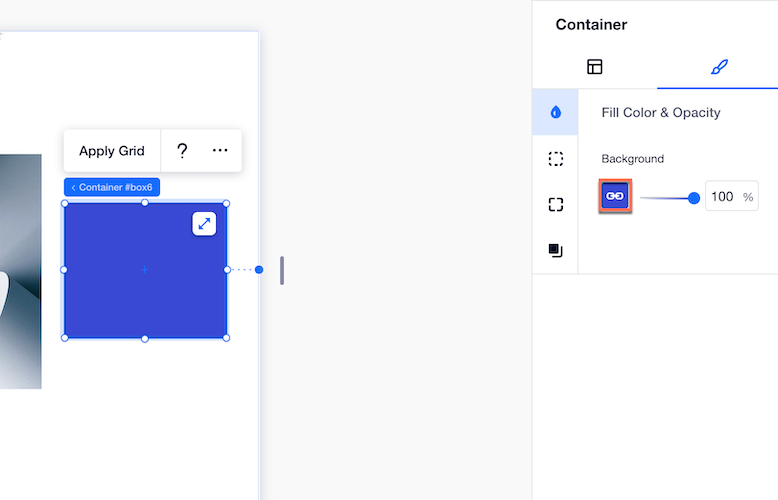
If you choose a color from the **Add a Custom Color** section of the color picker and not from the Theme Palette, the color remains fixed and disconnects from site themes. You might choose to use this option in special cases, such as success and error buttons that you want to keep green and red.
> **Note:** If you a user selects a color through a [custom panel color input](https://dev.wix.com/docs/build-apps/develop-your-app/frameworks/wix-blocks/editor-experience-panels/panel-elements-in-blocks.md), the color won't connect to a site theme, even if they select one of the 5 recommended colors. This is because panel elements behave differently.
## Test your colors
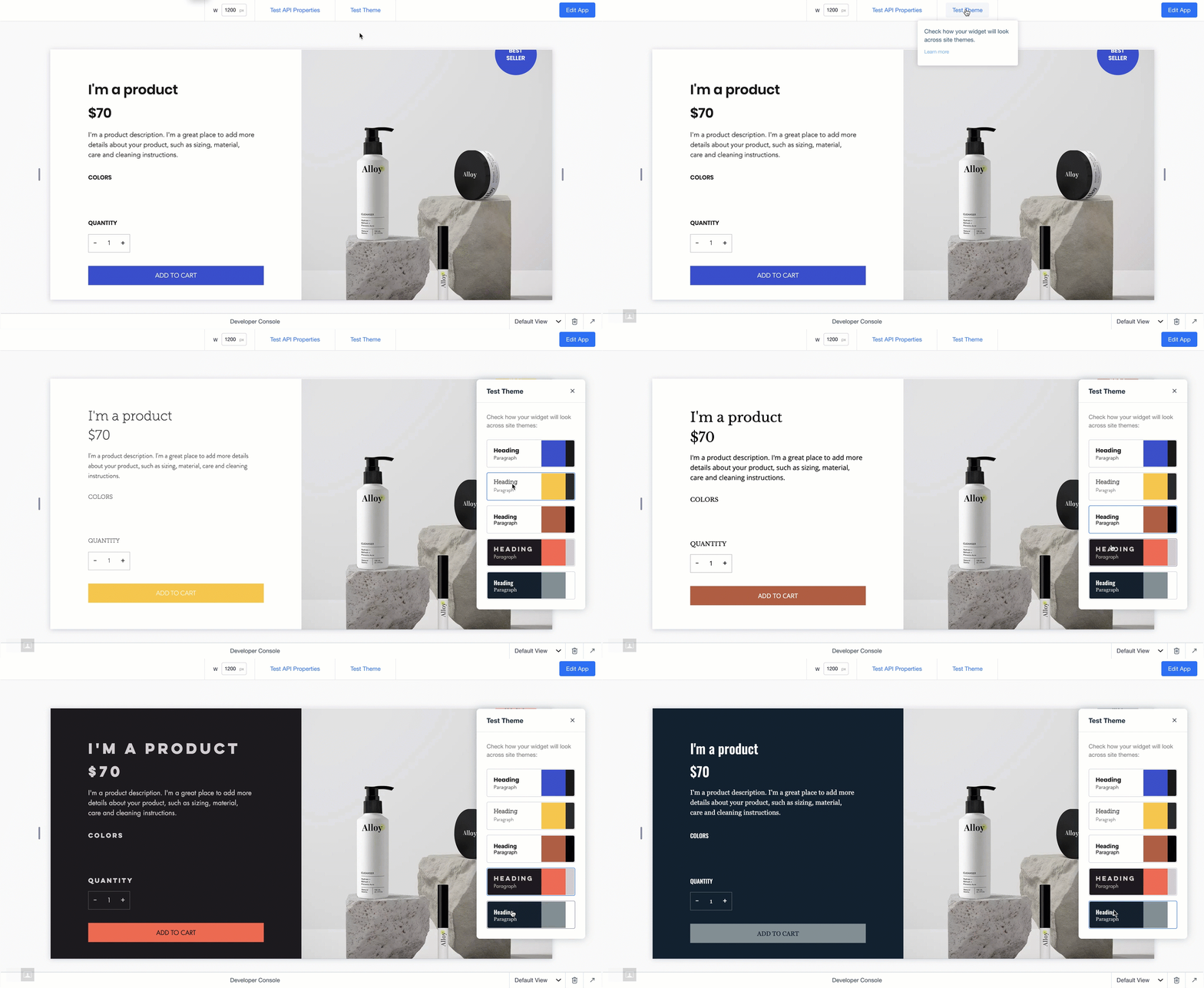
Click **Test Theme** in **Preview**  mode to see how your widget looks across various sites with different themes. This helps you check that all your elements are connected correctly and your widget looks great with different themes.