> Portal Navigation:
>
> - Append `.md` to any URL under `https://dev.wix.com/docs/` to get its markdown version.
> - Pages are either content pages (article or reference text) or menu pages (a list of links to child pages).
> - To get a menu page, truncate any URL to a parent path and append `.md` (e.g. `https://dev.wix.com/docs/sdk.md`, `https://dev.wix.com/docs/sdk/core-modules.md`).
> - Top-level index of all portals: https://dev.wix.com/docs/llms.txt
> - Full concatenated docs: https://dev.wix.com/docs/llms-full.txt
## Resource: Connect Your Widget Text Styles to Site Typography Themes
## Article: Connecting Your Widgets Text Styles to Site Typography Themes
## Article Link: https://dev.wix.com/docs/build-apps/develop-your-app/frameworks/wix-blocks/widget-design/connect-your-widget-text-styles-to-site-typography-themes.md
## Article Content:
# Connect Your Blocks Widget Text Styles to Site Typography Themes
**Editor compatibility**
Wix Blocks apps aren't supported in the Wix Harmony editor. Existing Blocks apps remain available for purchase on the Wix App Market for Wix Editor and Wix Studio sites. To learn more, see [About Wix Harmony and Blocks](https://dev.wix.com/docs/build-apps/develop-your-app/frameworks/wix-blocks/about-wix-harmony-and-blocks.md).
When you design a widget, you want it to look great on any site it's installed on. That's why connecting your widget's texts to a theme is so important. Styled texts, such as Heading 2 or Paragraph 2, are connected to a theme that defines their properties.
### Connect a text element to site typography themes:
To look best on Wix sites, your paragraphs should be connected to **Paragraph 2** and your headings to **Heading 2**.
## Check that your texts are connected:
1. Select a text element on your widget.
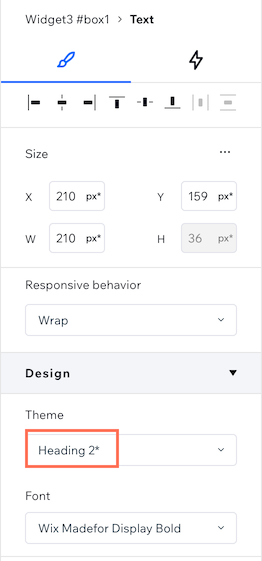
1. Look at the text theme under the **Design** section in the **Inspector**  menu.
### Override specific typography properties
You can choose to override each one of the typography properties (such as font, size, bold, etc.). Your text will stay connected to the site theme, except for the overridden properties. Your text will disconnect from the theme only if you override **all** properties.
Currently, all text elements in Blocks appear with a size override, so you'll see the asterisk (*) sign next to the text Theme.
### Test your theme
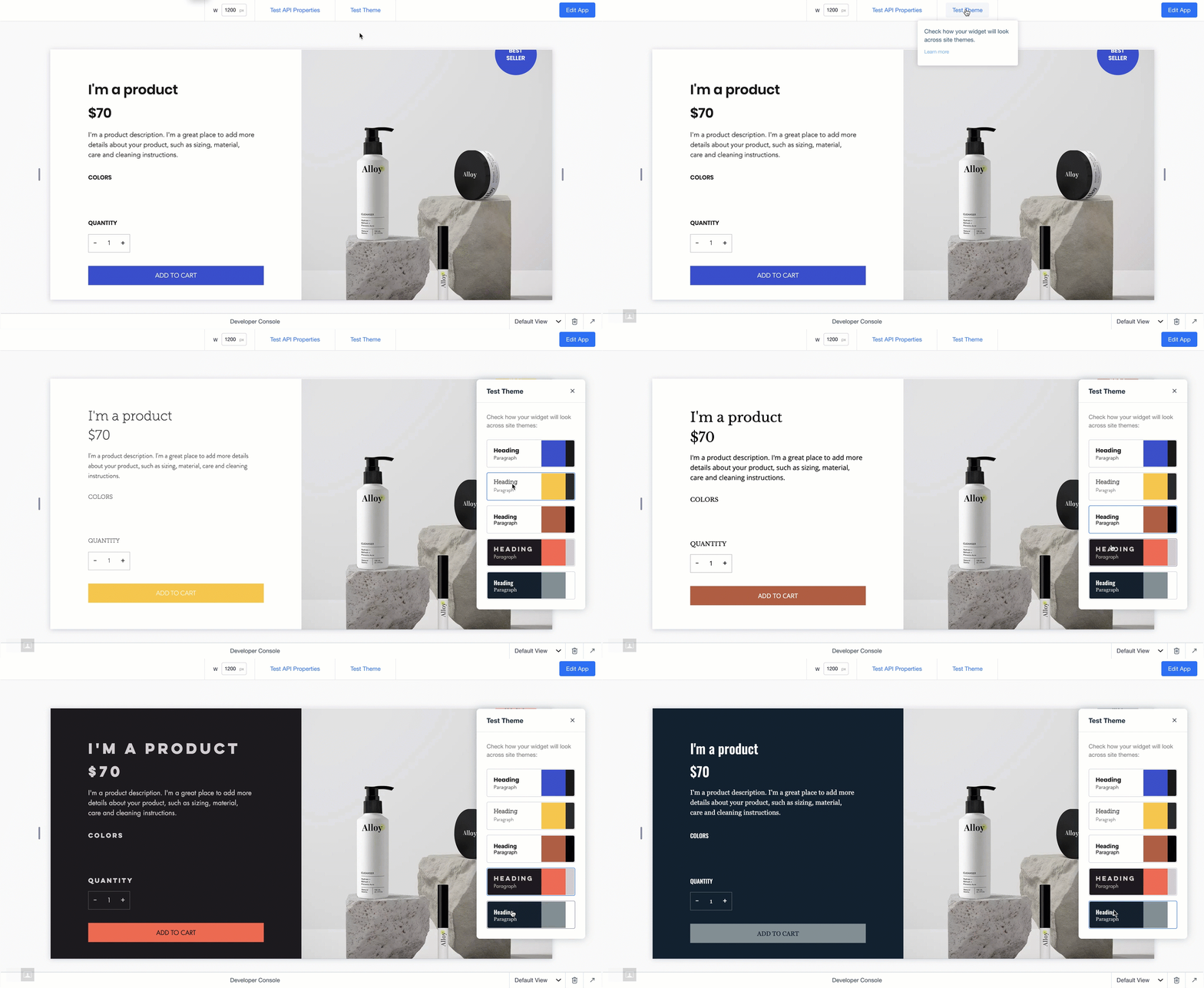
Click **Test Theme** in Preview  mode to see how your widget looks across various sites with different themes. This helps you check that all your elements are connected correctly and your widget looks great with different themes.