> Portal Navigation:
> 
> - Append `.md` to any URL under `https://dev.wix.com/docs/` to get its markdown version.
> - Pages are either content pages (article or reference text) or menu pages (a list of links to child pages).
> - To get a menu page, truncate any URL to a parent path and append `.md` (e.g. `https://dev.wix.com/docs/sdk.md`, `https://dev.wix.com/docs/sdk/core-modules.md`).
> - Top-level index of all portals: https://dev.wix.com/docs/llms.txt
> - Full concatenated docs: https://dev.wix.com/docs/llms-full.txt

## Resource: Custom Element Extension Files and Code

## Article: Custom Element Extension Files and Code

## Article Link: https://dev.wix.com/docs/build-apps/develop-your-app/frameworks/wix-cli/supported-extensions/site/custom-elements/custom-element-extension-files-and-code.md

## Article Content:

# Custom Element Extension Files and Code

<blockquote class="warning">

**Deprecation notice:**

`installation.autoAdd` is deprecated. If your code still uses this property, update it to `installation.staticContainer`.

Learn more about [custom element installation in the CLI](https://dev.wix.com/docs/build-apps/develop-your-app/frameworks/wix-cli/supported-extensions/site/custom-elements/about-custom-element-installation-with-the-cli.md).

</blockquote>

[Add a new custom element extension](https://dev.wix.com/docs/build-apps/develop-your-app/frameworks/wix-cli/supported-extensions/site/custom-elements/add-a-custom-element-extension-with-the-wix-cli.md) to your CLI project with the [generate](https://dev.wix.com/docs/wix-cli/command-reference/project-commands/generate.md) command, select **Custom Element** as the framework.

The CLI generates a folder with the name you choose, containing the following files:

+ An `element.extension.ts` file that defines a builder containing the configuration settings for your custom element.
+ An `element.tsx` file that contains the main code for the custom element.
+ A `element.panel.tsx` file that contains the code for your widget's settings panel.
+ A `element.module.css` file that configures CSS styling to customize your widget's appearance. It's generated with some initial styles to help you get started.
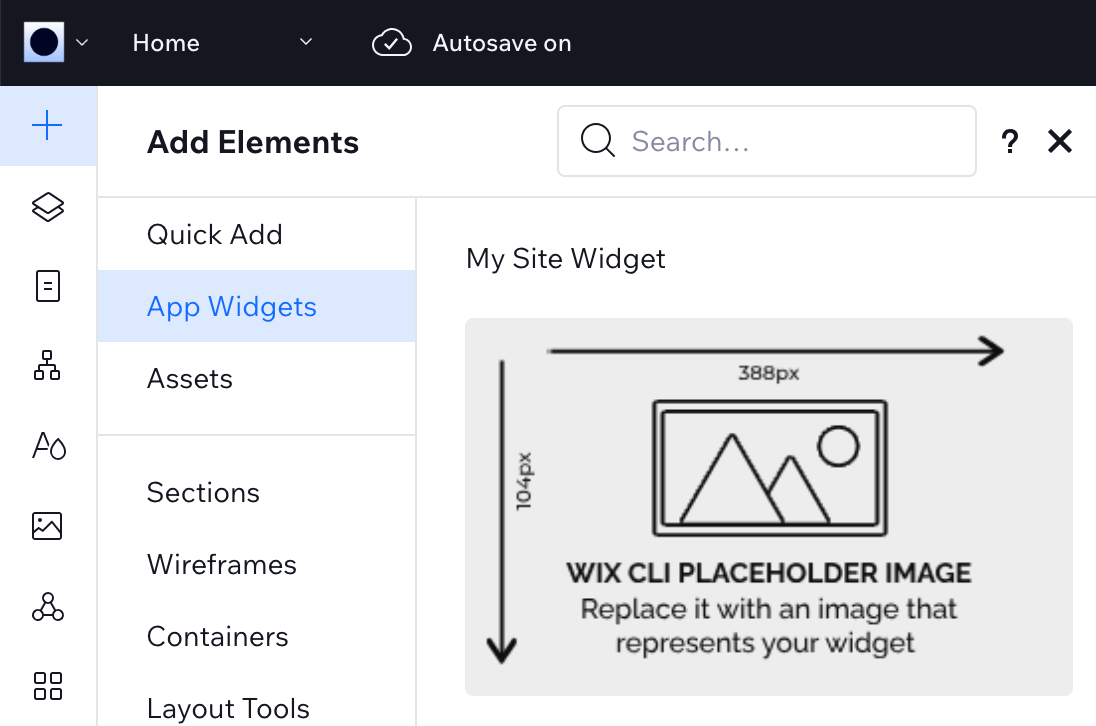
+ A default `thumbnail.png` file that contains the thumbnail displayed in the **Add Elements** panel and the **Manage Apps** page for your widget. This file is optional, but without a thumbnail, your widget won't appear in the [Add Elements panel or the Manage Apps page](https://dev.wix.com/docs/build-apps/develop-your-app/extensions/site-extensions/site-widgets/display-a-custom-element-site-widget-in-the-add-elements-panel.md).
![Custom element in add elements panel](https://wixmp-833713b177cebf373f611808.wixmp.com/images/bc25d688c71ae039fb00aa037d436140.png)

It's possible to create each of these files yourself, but we don't recommend it for a couple of reasons:

+ You're more likely to make errors in the filepath if you add the files and folders yourself. If the filepath is incorrect, the CLI can't detect the custom element and it won't work.
+ The auto-generated files offer React template code that helps you get started developing.

## element.extension.ts

The `element.extension.ts` file configures the settings for how your custom element appears on a user's site. This file is required, so don't delete it after the extension is generated. If you add your own files, you must include `element.extension.ts`.

When you generate a new custom element in your project, you'll see the following code in `element.extension.ts`:

```typescript
import { extensions } from '@wix/astro/builders';

export default extensions.customElement({
  id: '9ff1170b-550b-4f14-bda9-2ead587d9c47',
  name: 'My Element',
  width: {
    defaultWidth: 450,
    allowStretch: true
  },
  height: {
    defaultHeight: 250
  },
  installation: {
    staticContainer: "HOMEPAGE"
  },
  
  behaviors: {
    dashboard: {
      dashboardPageComponentId: '154f642e-a705-4ff3-8421-6119354a3384'
    }
  },
  tagName: 'my-element',
  element: './extensions/site/widgets/my-element/my-element.tsx',
  settings: './extensions/site/widgets/my-element/my-element.panel.tsx',
  presets: [{
    id: '44e6714f-f81b-4824-ab77-50037439b881',
    name: 'My Preset',
    thumbnailUrl: '{{BASE_URL}}/public/thumb.png',
  }],
});
```

You can edit the configuration object and add properties as follows:

| Key                            | Type     | Description                                                                                                                                                                                                                                                                                                                                |
|----------------------------------|----------|--------------------------------------------------------------------------------------------------------------------------------------------------------------------------------------------------------------------------------------------------------------------------------------------------------------------------------------------|
| `id`                             | string   | A unique identifier for your custom element. The CLI generates this GUID for you. If you add the JSON file yourself, you must generate your own GUID.                                                                                                                                                                                          |
| `name`                           | string   | The name of the custom element as it appears in the [app dashboard](https://manage.wix.com/account/custom-apps). The CLI prompts you for the name when you create the extension.                                                                                                                                                                              |
| `height.defaultHeight`           | number   | The widget's height in pixels when it is first installed on a site.                                                                                                                                                                                                                                                                    |
| `width.defaultWidth`             | number   | The widget's width in pixels when it is first installed on a site.                                                                                                                                                                                                                                                                     |
| `width.stretchByDefault`         | boolean  | Whether to stretch the widget to full width on installation.                                                                                                                                                                                                                 |
| `width.allowStretch`             | boolean  | Whether to allow users to toggle the widget between full-width and default width.                                                                                                                                                                                                                                   |
| `installation.staticContainer`     | string  | Determines where the widget is automatically added when your app is installed. Set to `"HOMEPAGE"` to automatically add the widget to the site home page upon installation. If you omit the field, the widget isn't added upon install. |
| `presets[0].id `        | string  | A unique GUID identifier for the preset object containing your thumbnail.  |
| `presets[0].name`        | string  | The display name for the preset. This can be any descriptive name.  |
| `presets[0].thumbnailUrl`        | string  | The URL path to your thumbnail image. Use the format `{{BASE_URL}}/public/your-image-name.png` where `your-image-name.png` is the filename of your image in the `public` folder.  |

Set `installation.staticContainer` to `"HOMEPAGE"` to automatically add the widget to the site home page when the app is installed. Wix users can move the widget to any location after installation. If the field is omitted, the widget isn't added on installation and Wix users can add the widget manually from the editor's **Add** panel. In the CLI, automatic installation applies only to the home page. For details, configuration examples, and best practices, see [About custom element installation with the CLI](https://dev.wix.com/docs/build-apps/develop-your-app/frameworks/wix-cli/supported-extensions/site/custom-elements/about-custom-element-installation-with-the-cli.md).

## element.tsx

The `element.tsx` file is where you write the code for the custom element. You can write code in other files and include it here, but you must return your main component in this file. This is where the CLI will look for the custom element definition.

This file is required for the custom element to work, so don't delete it. If you add the files on your own, you must include `element.tsx`.

When the `element.tsx` file is generated, it looks like this:

```javascript
import React, { type FC } from 'react';
import ReactDOM from 'react-dom';
import reactToWebComponent from 'react-to-webcomponent';
import styles from './element.module.css';

interface Props {
  displayName?: string;
}

const CustomElement: FC<Props> = ({
  displayName = `Your Widget's Title`,
}) => {
  return (
    <div className={styles.root}>
      <h2>{displayName}</h2>
      <hr />
      <p>
        This is a Site Widget generated by Wix CLI.<br />
        Continue to develop this widget at <code>'src/site/widgets/custom-elements/your-widget-filename'</code>.
      </p>
    </div>
  );
};

const customElement = reactToWebComponent(
  CustomElement,
  React,
  ReactDOM as any,
  {
    props: {
      displayName: 'string',
    },
  }
);

export default customElement;
```

The file sets up a React component called `CustomElement`, where you write the custom element code. It also calls [`reactToWebComponent`](https://www.npmjs.com/package/react-to-webcomponent) to convert your React component to a custom element, and exports the custom element so Wix can work with it.

We recommend writing your code in React, since the rest of the CLI also works with React. However, you can also write code directly in `element.tsx` with JavaScript. If you do so, make sure to export the custom element, like in the example below:

```javascript
class CustomElement extends HTMLElement {
  constructor() {
    super();
  }
  // Element functionality written in here
}

export default CustomElement;
```

Note that you don't need to call `define()` even here; Wix still takes care of that for you even if you haven't defined the custom element in React.

## element.panel.tsx

The `element.panel.tsx` file contains the code defining your custom element's settings panel. The settings panel lets site users customize the widget after they install your app. 

In the panel's code, use Wix's [JavaScript SDK](https://dev.wix.com/docs/sdk.md) to [access widget properties](https://dev.wix.com/docs/sdk/host-modules/editor/widget/introduction.md) and [retrieve environmental data from the editor](https://dev.wix.com/docs/sdk/host-modules/editor/info/introduction.md), as well as access and manage Wix business solutions.

To apply changes made in the settings panel to the widget, use the Widget API's [`setProp()`](https://dev.wix.com/docs/sdk/host-modules/editor/widget/set-prop.md) function. Widget properties are bound to your custom element's attributes, so any change in the properties automatically updates the corresponding attribute. To handle attribute updates so they're reflected in your widget in the editor, use the [`attributeChangedCallback()`](https://developer.mozilla.org/en-US/docs/Web/API/Web_components/Using_custom_elements#responding_to_attribute_changes) in your custom element's code.

After the custom element is generated, you'll see code like this in `element.panel.tsx` file:

```typescript
import React, { type FC, useState, useEffect, useCallback } from 'react';
import { widget } from '@wix/editor';
import {
  SidePanel,
  WixDesignSystemProvider,
  Input,
  FormField,
  SectionHelper,
} from '@wix/design-system';
import '@wix/design-system/styles.global.css';

const SITE_WIDGETS_DOCS = 'https://dev.wix.com/docs/build-apps/develop-your-app/frameworks/wix-cli/supported-extensions/site/custom-elements/about-custom-element-installation-with-the-cli';.md

const Panel: FC = () => {
  const [displayName, setDisplayName] = useState<string>('');

  useEffect(() => {
    widget.getProp('display-name')
      .then(displayName => setDisplayName(displayName || `Your Widget's Title`))
      .catch(error => console.error('Failed to fetch display-name:', error));
  }, [setDisplayName]);

  const handleDisplayNameChange = useCallback((event: React.ChangeEvent<HTMLInputElement>) => {
    const newDisplayName = event.target.value;
    setDisplayName(newDisplayName);
    widget.setProp('display-name', newDisplayName);
  }, [setDisplayName]);

  return (
    <WixDesignSystemProvider>
      <SidePanel width="300" height="100vh">
        <SidePanel.Content noPadding stretchVertically>
          <SidePanel.Field>
            <FormField label="Display Name">
              <Input
                type="text"
                value={displayName}
                onChange={handleDisplayNameChange}
                aria-label="Display Name"
              />
            </FormField>
          </SidePanel.Field>
        </SidePanel.Content>
        <SidePanel.Footer noPadding>
          <SectionHelper fullWidth appearance="success" border="topBottom">
            Learn more about <a href={SITE_WIDGETS_DOCS} target="_blank" rel="noopener noreferrer" title="Site Widget docs">Site Widgets</a>
          </SectionHelper>
        </SidePanel.Footer>
      </SidePanel>
    </WixDesignSystemProvider>
  );
};

export default Panel;
```

The file contains a React component called `Panel` that defines the custom element's settings panel with the following key features:

1. **State Management**: Uses React hooks (`useState`, `useEffect`, `useCallback`) to manage the display name property.
2. **Widget Integration**: Uses the `widget` API from `@wix/editor` to get and set widget properties.
3. **UI Components**: Utilizes Wix Design System components like `SidePanel`, `Input`, and `FormField` for a consistent user interface.

As with `element.tsx`, you can write code in other files and include it here, but you must return your main component in this file. The panel code must be written in React to work with the rest of the CLI.

Learn more about [creating a settings panel for a custom element](https://dev.wix.com/docs/build-apps/develop-your-app/extensions/site-extensions/create-a-settings-panel-for-a-site-widget-or-plugin-wix-cli-and-self-hosting.md). You can also [integrate Wix's native color and font pickers in your panel](https://dev.wix.com/docs/build-apps/develop-your-app/extensions/site-extensions/site-widgets/integrate-wix-s-native-color-and-font-pickers-in-a-site-widget-s-settings-panel.md).

## Custom element thumbnail

To display a thumbnail for your custom element in the **Add Elements** panel, you need to add a `presets` configuration to your `element.extension.ts` file and create a `public` folder with your thumbnail image.

Add the presets configuration to your `element.extension.ts` file after the `settings` property:

```typescript
presets: [{
  id: '44e6714f-f81b-4824-ab77-50037439b881',
  name: 'My Preset',
  thumbnailUrl: '{{BASE_URL}}/public/thumb.png',
}]
```

Create a `public` folder at the root level of your project and add your thumbnail image file.

<blockquote class="important">

**Important:**
If you rename the thumbnail file, you must update the path in `thumbnailUrl`. Without a thumbnail, your widget won't appear in the [Add Elements panel or the Manage Apps page](https://dev.wix.com/docs/build-apps/develop-your-app/extensions/site-extensions/site-widgets/display-a-site-widget-in-the-add-panel-and-site-dashboard.md).

</blockquote>