> Portal Navigation:
>
> - Append `.md` to any URL under `https://dev.wix.com/docs/` to get its markdown version.
> - Pages are either content pages (article or reference text) or menu pages (a list of links to child pages).
> - To get a menu page, truncate any URL to a parent path and append `.md` (e.g. `https://dev.wix.com/docs/sdk.md`, `https://dev.wix.com/docs/sdk/core-modules.md`).
> - Top-level index of all portals: https://dev.wix.com/docs/llms.txt
> - Full concatenated docs: https://dev.wix.com/docs/llms-full.txt
## Resource: Create an App with the Wix CLI
## Article: Quick Start an App
## Article Link: https://dev.wix.com/docs/build-apps/get-started/quick-start/create-an-app-with-the-wix-cli.md
## Article Content:
# Quick Start a Wix CLI App
This guide explains the minimum steps required to get a CLI app up and running using the Wix CLI.
Prefer to watch instead? Here's the video walkthrough:
> **Note:** To develop with AI assistance, install the [Wix Plugin](https://dev.wix.com/docs/api-reference/articles/ai-tools/about-the-wix-plugin.md) for your IDE. It adds [Wix Skills](https://dev.wix.com/docs/wix-cli/guides/development/about-wix-skills.md) and the [Wix MCP](https://dev.wix.com/docs/sdk/articles/use-the-wix-mcp/about-the-wix-mcp.md), giving your AI client the context it needs to help you build CLI projects.
## Before you begin
Before getting started, make sure that you:
+ Have [Node.js](https://nodejs.org/en/) (v20.11.0 or higher).
+ Have Git installed and [configured](https://git-scm.com/docs/git-config).
+ Are logged into your Wix account. If you don't already have one, [sign up for a Wix account](https://manage.wix.com/account/custom-apps).
## Step 1 | Create a new app project
1. Run the following command to create a new app project:
```bash
npm create @wix/new@latest app
```
2. When asked what you would like to do, select **Create a new Wix App**.
3. Enter a **name for your app** and a **folder name** for your project.
+ The **app name** is the name that appears in your [app's dashboard](https://manage.wix.com/account/custom-apps).
+ The **folder name** is the name of the directory containing your project's local files.
4. Enter a **namespace** for your app.
A namespace is a unique way to identify your app, in the format `@prefix/suffix`. Some extensions, such as [data collections](https://dev.wix.com/docs/build-apps/develop-your-app/extensions/backend-extensions/data-collections/about-data-collections-extensions.md) and [schema plugins](https://dev.wix.com/docs/build-apps/develop-your-app/extensions/backend-extensions/schema-plugins/about-schema-plugin-extensions.md), require a namespace. Wix suggests a namespace based on your app name. You can accept the suggestion or enter your own value. Once set, you can't change your namespace.
5. Enter a **code identifier** for your app.
The code identifier is a unique, JavaScript-compatible name for your app and its extensions. Wix suggests a code identifier based on your namespace. You can accept the suggestion or enter your own value. Once set, you can't change your code identifier.
Once the CLI has created your app, the [app's files](https://dev.wix.com/docs/wix-cli/guides/get-started/project-structure.md) appear in a local directory with the folder name you chose. At this point your app appears in the [Wix app dashboard](https://manage.wix.com/account/custom-apps), but it isn't yet installed on a site for testing.
## Step 2 | Test the app
1. Run the [dev](https://dev.wix.com/docs/wix-cli/command-reference/project-commands/dev.md) command to start the local development environment:
```bash
npm run dev
```
The CLI builds a local environment for your test site and provides a menu to view your app's dashboard pages in the browser. Any changes you make to your code are immediately reflected in the browser.
2. Select a site to install your app on for testing:
+ **Pick an existing site:** Designates one of your existing Wix sites.
+ **Create a new Development Site:** Builds a new Wix [development site](https://dev.wix.com/docs/wix-cli/guides/about-the-wix-cli.md#development-sites).
3. Press `Enter` to open your browser and install the application on your test site.
4. In your IDE, open `src/extensions/dashboard/pages/my-page/my-page.tsx` and edit the `title` prop in `` to any value you like.
> **Note:** Return to your browser, and see the change reflected immediately.
## Step 3 | Call a Wix API
In this step, we show how to call an API from your app's dashboard page, using the [List Locations](https://dev.wix.com/docs/api-reference/business-management/locations/list-locations?apiView=SDK.md) method as an example.
1. Add the **Manage Locations** permission to your app. To do so, go to **Permissions** in your app dashboard, click **Add Permissions**, search for **Manage Locations**, select it and save. [Permissions](https://dev.wix.com/docs/build-apps/develop-your-app/access/authorization/configure-permissions-for-your-app.md) define what data your app can access on an installed site.
2. Install the `@wix/business-tools` package so you can work with the [Locations API](https://dev.wix.com/docs/api-reference/business-management/locations/introduction?apiView=SDK.md).
```bash
npm install @wix/business-tools
```
3. Update the code of your dashboard page extension to display a list of all the business locations in your site:
1. Open your dashboard extension's tsx file. The path should be `/src/extensions/dashboard/pages/my-page/my-page.tsx`.
2. Add the following import statements to your file:
```js
import { locations } from '@wix/business-tools';
import React, { useState, useEffect } from 'react';
```
3. In the `DashboardPage` component add a `locationNames` state variable and a `useEffect` hook that calls `listLocations()` and extracts the list of location names to `locationNames`. Your code should look like this:
```tsx
const { listLocations } = locations;
const [locationNames, setLocationNames] = useState('');
useEffect(() => {
listLocations().then(response => {
if (response.locations) {
const names = response.locations.map(location => location.name).join('\n');
setLocationNames(names);
}
});
}, []);
```
4. In the `Page.Content` element of your component, change the `title` to `"Locations List"` and the `subtitle` to the value of `locationNames`. Your code should look like this:
```tsx
```
**Full example code**
```tsx
import type { FC } from 'react';
import { useState, useEffect } from 'react';
import { EmptyState, Page, WixDesignSystemProvider } from '@wix/design-system';
import '@wix/design-system/styles.global.css';
import { locations } from '@wix/business-tools';
const DashboardPage: FC = () => {
const { listLocations } = locations;
const [locationNames, setLocationNames] = useState('');
useEffect(() => {
listLocations().then(response => {
if (response.locations) {
const names = response.locations.map(location => location.name).join('\n');
setLocationNames(names);
}
});
}, []);
return (
);
};
export default DashboardPage;
```
Your dashboard page is now set up to load and display the names of the site's locations.
4. Test the API call:
1. Run the [dev](https://dev.wix.com/docs/wix-cli/command-reference/project-commands/dev.md) command to start the local development environment:
```bash
npm run dev
```
2. Click the link to open your development site's dashboard.
3. Navigate to your app's page in the dashboard under Apps.
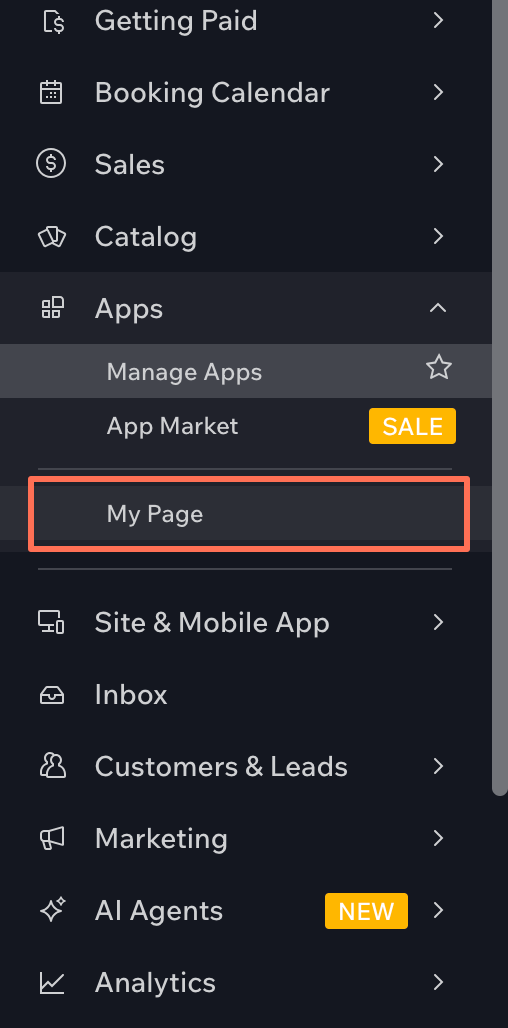
4. Your app's dashboard page should load and display a list of locations.

## Next steps
After completing the above steps, you have a simple Wix app that you can experiment with and test locally.
You can now:
+ [Add extensions to your app](https://dev.wix.com/docs/wix-cli/guides/extensions/about-extensions.md#adding-extensions).
+ [Learn more about developing your app](https://dev.wix.com/docs/wix-cli/guides/development/development-overview.md).
+ [Install the Wix Plugin](https://dev.wix.com/docs/api-reference/articles/ai-tools/about-the-wix-plugin.md) to set up Wix Skills and the Wix MCP in your IDE for AI-assisted development.
## See also
+ [About the Wix CLI](https://dev.wix.com/docs/wix-cli/guides/about-the-wix-cli.md)
+ [Wix CLI Development Overview](https://dev.wix.com/docs/wix-cli/guides/development/development-overview.md)
+ [Project structure](https://dev.wix.com/docs/wix-cli/guides/get-started/project-structure.md)
+ [CLI Command Reference](https://dev.wix.com/docs/wix-cli/command-reference/introduction.md)