> Portal Navigation:
>
> - Append `.md` to any URL under `https://dev.wix.com/docs/` to get its markdown version.
> - Pages are either content pages (article or reference text) or menu pages (a list of links to child pages).
> - To get a menu page, truncate any URL to a parent path and append `.md` (e.g. `https://dev.wix.com/docs/sdk.md`, `https://dev.wix.com/docs/sdk/core-modules.md`).
> - Top-level index of all portals: https://dev.wix.com/docs/llms.txt
> - Full concatenated docs: https://dev.wix.com/docs/llms-full.txt
## Resource: Tutorial | Create a Countdown Widget with Blocks
## Article: Creating a Countdown Widget
## Article Link: https://dev.wix.com/docs/build-apps/get-started/tutorials/tutorial-create-a-countdown-widget-with-blocks.md
## Article Content:
# Tutorial | Create a Countdown App Using Blocks
**Editor compatibility**
Wix Blocks apps aren't supported in the Wix Harmony editor. Existing Blocks apps remain available for purchase on the Wix App Market for Wix Editor and Wix Studio sites. To learn more, see [About Wix Harmony and Blocks](https://dev.wix.com/docs/build-apps/develop-your-app/frameworks/wix-blocks/about-wix-harmony-and-blocks.md).
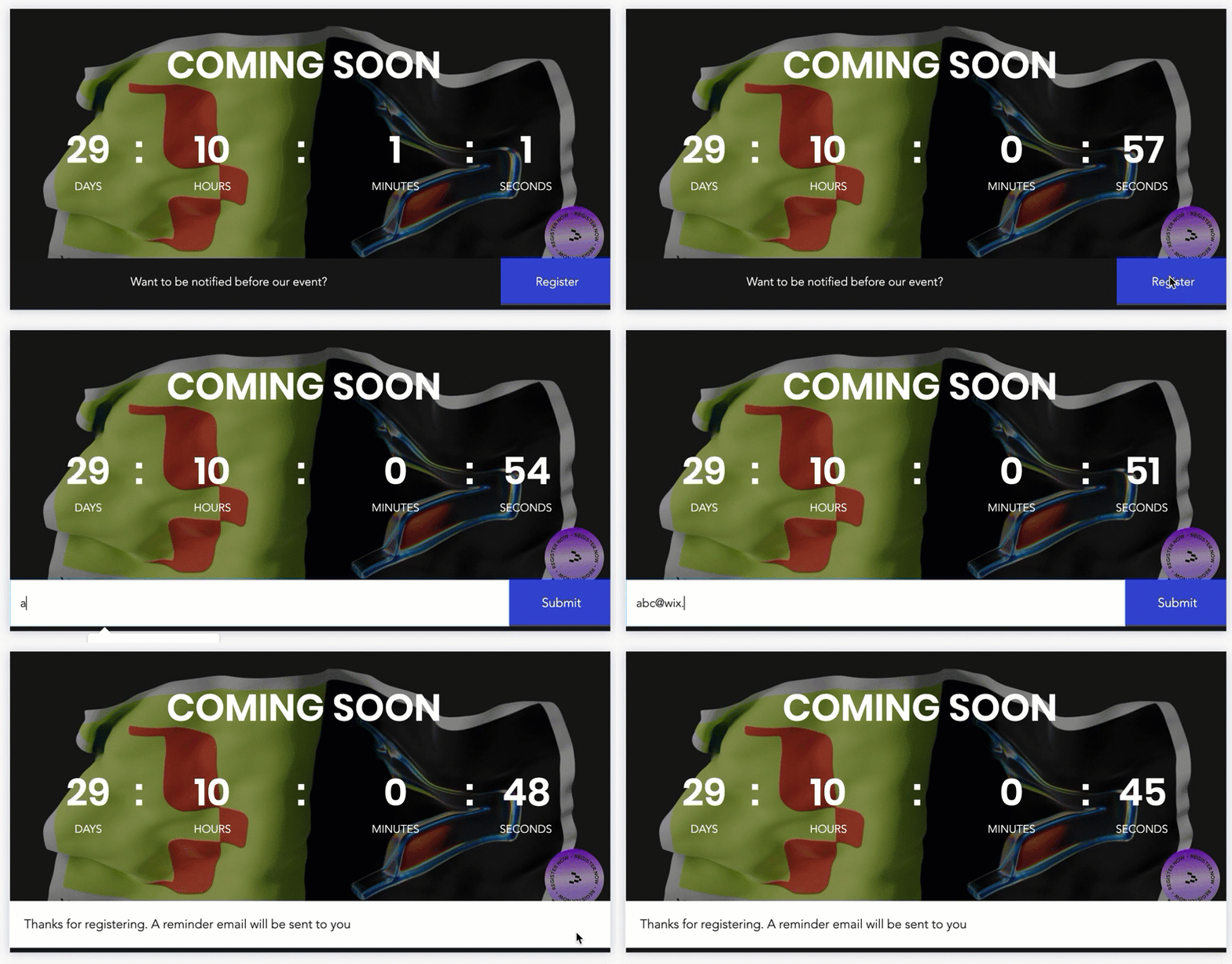
This tutorial shows you how to build a countdown widget, which counts down to a specific date. It also contains a registration widget where site visitors can register and receive an email notification the day before your event. You will also learn how to install your countdown widget on a site and explore all the key features of Blocks.
## What you get in the template
To make things easier, we've created a template so that you can get started right away.
The [template](https://blocks.wix.com/wix-blocks-new-app-creator?editorType=RESPONSIVE&originTemplateId=67720f0c-6b4b-426f-aca4-918556dd36ab&http_referrer=documentation) contains:
* A countdown widget. You need to complete its design and code its functions and properties.
* A registration widget which you need to complete and add to your countdown widget.
* Some public utilities that you can use to implement your widget's functionality.
* Some backend code that you can use to implement the functions of your email notification.
Get the [template](https://blocks.wix.com/wix-blocks-new-app-creator?editorType=RESPONSIVE&originTemplateId=67720f0c-6b4b-426f-aca4-918556dd36ab&http_referrer=documentation)
## Step 1 | Complete the Design of Your Widget
To build this widget, start with this [template](https://blocks.wix.com/wix-blocks-new-app-creator?editorType=RESPONSIVE&originTemplateId=67720f0c-6b4b-426f-aca4-918556dd36ab&http_referrer=documentation) and edit it under your Wix account. The template has been left incomplete so that you can learn how to add elements to your widget.
The widget is designed with a grid so that you can easily align and place elements.
1. Open the template.
2. Click **Countdown** under **App Interface**.
3. Click **Add Elements**  in the top bar.
4. Select **Text**. Drag and drop a **48px Title** box into your widget.
5. Click **Edit Text** and change the text to **SS**.
6. Change the text color to white and center the text using the **Inspector**  .
7. Select the text box and move it into the grid square above the SECONDS label using  .
8. Resize it using  .
Learn more about [designing your widget](https://dev.wix.com/docs/build-apps/develop-your-app/frameworks/wix-blocks/get-started/a-blocks-app-workflow.md)
* * *
See how it looks (editing text)

See how it looks (adjusting the layout)

* * *
## Step 2 | Add and Define Your Widget's API Properties
You can [define an API for your widget](https://dev.wix.com/docs/build-apps/get-started/tutorials/tutorial-create-a-countdown-widget-with-blocks.md), so that the site builder who installs the widget can interact with it through code. The API can contain properties, events and exported functions.
This widget uses two properties:
* **endDate**: Defines the end date when the countdown reaches zero. Using this property, site builders can change the end date so that the widget is customized for their site.
* **emailId**: Determines the email message that will be sent to users when they sign up for a notification.
Learn more about [widget API properties](https://dev.wix.com/docs/build-apps/develop-your-app/frameworks/wix-blocks/widget-api/blocks-widget-properties.md)
### Give your widget elements an ID
First you need to give your widget's elements an ID so that you can easily refer to them in the code.
1. Click on the text box.
2. Give the text box an ID in the **Properties & Events**  panel. In this example, the ID is `secondsTxt`. Note that the other elements have already been given IDs.
### Define the "endDate" and "emailId" properties
1. Click the **Widget Public API** button.
2. Click **Add New Property** in the **Properties** section.
3. Enter the property name, `endDate`.
4. Select the property type. In this case, **Date and Time** (the date is displayed in US format mm/dd/yyyy).
5. Select a default value (the site builder will be able to change this when they install your widget in the editors).
6. Hover over **Properties** and click the  icon that appears.
7. Create another property for the triggered email and call it `emailId`. This is a **Text** type property with no default value.
* * *
## Step 3 | Add Code to Make Your Widget Work
To make your widget count down, you need to create a function in the code that calculates the remaining time until the end date. To do this, your template comes with some pre-installed utilities that you can find in the **Public & Backend**  menu.
Blocks uses a new global variable, **$widget** and the property, **$widget.props**, that holds all the properties that you have defined for your widget.
Blocks also uses Velo autocomplete, so that you can write code more easily.
Learn more about the [widget API](https://dev.wix.com/docs/build-apps/get-started/tutorials/tutorial-create-a-countdown-widget-with-blocks.md)
### Change the code to consider your new function
1. Click on the **Code**  menu.
2. In the code panel for **Countdown** create a function, `updateTime()`, so that your countdown widget will update the count. Your new function should look like this:
```javascript
$widget.onPropsChanged(function () {
});
function updateTime() {
const {days, hours, minutes, seconds} = getRemainingTime (new Date($widget.props.endDate));
$w('#daysTxt').text = days.toString();
$w('#hoursTxt').text = hours.toString();
$w('#minutesTxt').text = minutes.toString();
$w('#secondsTxt').text = seconds.toString();
}
```
You also need to set an interval for how often the widget updates the remaining time.
To do this, add the following code **in** your `onReady()` function. This updates the widget every second.
```javascript
$w.onReady(function () {
updateTime();
if (wixWindow.viewMode !== "Editor") {
setInterval(updateTime, 1000);
}
});
```
**Edit time condition**
Velo code only runs when you click preview or when you open the live site. The Blocks **onReady** code runs also during editing time, so that you can see it in action while working in the editor. We use the above condition so that your countdown widget doesn't count down during editing time.
### Preview your widget and test its API properties
You are ready to preview your widget and its API properties.
1. Click **Preview**. Your widget should countdown every second to the end date.
2. Click **Test API Properties**. A panel appears with the default value you set earlier.
3. Change the date to check if the widget responds and counts down to the new date.
See how it looks

* * *
## Step 4 | Create and Code a Custom Panel
You can create a custom settings panel so that site builders can change the settings of your widget when they install it on a site. In this example, the custom settings panel allows the site builder to change the end date and define an email ID that determines which email will be sent to users when they register to receive notifications.
Learn more about [panels](https://dev.wix.com/docs/build-apps/develop-your-app/frameworks/wix-blocks/editor-experience-panels/about-panels-in-blocks.md)
### Create a custom panel
1. Click on the **Custom Panels** tab in the **Editor Experience** menu.
2. Click **Create Panel**.
3. Name your panel. In this example, use "My settings".
4. Click **Create Panel**.
5. Click **\+ Add Element**.
6. Select **Text Input**. This will be for the end date.
7. Click **Properties & Events**  . Give your text input an ID - `endDateInput`.
8. Select the text element and click **Settings**.
9. Add the name "End Date" in the **Field Title** field.
10. Delete the text in the **Default Text** field.
11. Set the placeholder text to "End Date".
12. Add a text divider.
13. Click **Settings**. Add a title in the **Section Title** field. In this example, use "Triggered email".
14. Add another **Text Input**. Give your text input an ID - `emailIdInput`.
15. Select the text element and click **Settings**.
16. Add the name "Email ID" in the **Field Title** field.
17. Delete the text in the **Default Text** field.
18. Set the placeholder text to "Email ID".
The design of your custom panel is complete. Now you need to implement it by adding code.
See how it looks

### Add code to your custom panel
You want your custom panel to display the current end date and email ID when it loads. The site builder uses the panel to change these values. You need to add code to the panel so that when these inputs change, it updates your widget.
Learn more about [adding code to your custom panels](https://dev.wix.com/docs/build-apps/develop-your-app/frameworks/wix-blocks/editor-experience-panels/add-code-to-custom-panels-in-blocks.md).
To enable panel elements to interact with your widget and perform actions in the editor, you can use the Velo `wix-widget` module in your code.
To use the Widget API, import `wixWidget` from the `wix-widget` module.
Insert the following code **before** your `onReady()` function.
```javascript
import wixWidget from 'wix-widget';
```
You want your widget to update when the values change, so you need to register an `onChange` event. You also need to add `async` to your `onReady()` function as you will be using some asynchronous functions.
Your `onReady()` function should look like this:
```javascript
$w.onReady(async function () {
const { endDate, emailId } = await wixWidget.getProps();
$w('#endDateInput').value = endDate;
$w('#emailIdInput').value = emailId;
$w('#endDateInput').onChange(e => {
wixWidget.setProps({ endDate: e.target.value });
});
$w('#emailIdInput').onChange(e => {
wixWidget.setProps({ emailId: e.target.value });
});
});
```
Click  **Run** or **Preview** to check your code
See how it looks

* * *
## Step 5 | Configure Your Widget
Now that your panel is designed and coded, you need to configure your widget so that your panel connects to one of your widget's action bar buttons.
The **Configuration** tab within the **Editor Experience Panel**  enables you to control how your widget behaves when a site builder installs and customizes it on a site. You can give your widget and its elements display names, so that it is clear to site builders what your widget does. You can also make changes to the floating action bars that appear in the editors when site builders select elements in your widget.
Learn more about [configuration](https://dev.wix.com/docs/build-apps/develop-your-app/frameworks/wix-blocks/editor-experience-configuration/about-configuration-in-blocks.md).
### Add your custom panel to your widget's floating action bar
1. Click the Editor Experience Panel icon  .
2. Select **Configuration**.
3. Select your countdown widget. A floating action bar appears.
4. Click **Settings**.
5. Click  **Action Button Settings**. The **Main Action Settings** panel appears.
6. Select **My settings** from the dropdown list to select your custom panel.
See how it looks

* * *
## Step 6 | Add a Second (Inner) Widget and Implement the Registration Logic
The template comes with a second widget called **Registration.** You can find it under **App Interface**.
When you click **Layers** you can see that it has been created as a multi-state box with three states. It has a button labeled **Register**, which changes to **Submit** when the site visitor clicks it. It also has a field box where site visitors can add their email address. A thank-you message appears when a site visitor has registered.
This widget also comes with a design preset which can be used for mobile view.
Learn more about [design presets](https://dev.wix.com/docs/build-apps/develop-your-app/frameworks/wix-blocks/widget-design/about-design-presets.md)
### Add your registration widget to the countdown widget
You're now ready to add your registration widget to your first widget, the countdown widget. In Blocks, you can create lots of different widgets and add them to other widgets.
Learn more about working with [widgets within widgets](https://dev.wix.com/docs/build-apps/develop-your-app/frameworks/wix-blocks/site-widgets/add-nested-widgets-in-blocks.md)
1. Working in the **Design** tab, select your countdown widget.
2. Click **More Options**  and select **Add Widget**.
3. Select **Registration**. Your inner widget appears in the middle of your countdown widget.
4. Drag and stretch your inner widget to fit the lower section of your countdown widget.
5. Change its ID to `registration` in **Properties & Events** .
**Another way to add a widget**
You can also add an inner widget by clicking the  **Add** **Elements** menu. Select **MY WIDGETS** and drag and drop the widget you want to add into the first widget.
See how it looks

See how it looks

### Implement the registration logic in the main widget's code
You'll implement the code for user registration in the main widget (Countdown), using functions that are defined in the `contactUtils.js` and `collectionUtils.js` files.
The `onSubmit()` function creates or updates a contact using the `wix-crm` API via the `createContact` utility, then stores the subscription data in your app's collection. The function receives the user's email address from the registration form and updates the collection.
1. Create a new async function.
2. Call it `onSubmit`. It uses the create contact utility from `contactUtils.js` and the collection name helper from `collectionUtils.js`.
Your code should look like this:
```javascript
async function onSubmit({ email }) {
const contact = await createContact(email);
wixData.insert(getSubscriptionsCollectionName(), {
endDate: new Date($widget.props.endDate),
emailId: $widget.props.emailId,
contactId: contact.contactId
});
}
```
### Register for the onSubmit event
In your `onReady()`, after your `updateTime()` function, add the following code:
```javascript
$w('#registration').onSubmit(onSubmit);
```
**Backend code is already included**
The backend code is already implemented in your template in Blocks. It includes an export function, **notify()**, which uses the pre-installed utilities. It checks the remaining time, triggers the email when ready and updates the collection. You need to invoke this in the editor, as explained below in Step 10.
* * *
## Step 7 | Release Your App and Give it a Namespace
Now you are ready to release your app for the first time. Your first release will be a major version. Later, when you are working on your app, you can choose a minor or major version. A minor version is updated automatically on all the sites where it appears. You just need to refresh the page. In a major version, the site builder needs to update your app manually. An indication appears next to the name of the app in the **Installed Apps** panel in the Editor.
Learn more about [versions in Blocks](https://dev.wix.com/docs/build-apps/develop-your-app/frameworks/wix-blocks/deploy-and-manage-blocks-apps/manage-blocks-app-versions.md)
When you click build for the first time, Blocks prompts you to give your app a namespace. This namespace is used to refer to your collection in Velo code in the editors and in the app’s code in Blocks.
Learn more about the [app namespace](https://dev.wix.com/docs/build-apps/get-started/tutorials/tutorial-create-the-recipes-app-with-blocks.md)
### Your first release
1. Click **Release**.
2. Enter a namespace for your app and click **Next**.
3. Select **Major Version** and click **Release**.
4. You get a message that Version 1.0 is built. Click **Got it** to continue working on your app.
## Step 8 | Add a Collection to Your Widget
Now you need to create a collection to store all of the subscriptions. Collections in Blocks are empty placeholders that you design in Blocks, which will be filled with data once the app is installed on a site. Learn more about [collections in Blocks](https://dev.wix.com/docs/build-apps/develop-your-app/frameworks/wix-blocks/cms-collections-in-blocks/connect-elements-to-collection-fields-with-no-code.md)
The template has a pre-installed utility called `getSubscriptionsCollectionName()`, in **collectionUtils.js** under **Public & Backend**. It constructs the full name of the collection so that you don't have to add your full app namespace every time you refer to it in the code.
### Configure your collection utility
To configure your collection utility:
1. Click **collectionUtils.js** under **Public & Backend**.
2. Add your app's namespace. Your code should look like this, with your own namespace:
```javascript
const NAMESPACE = '@mywixaccount/my-app-namespace';
export function getSubscriptionsCollectionName() {
return `${NAMESPACE}/subscriptions`;
}
```
### Create your collection
To create your collection:
1. Click **CMS**.
2. Click **+ Create collection**.
3. Give your collection a meaningful name. In this example, use **Subscriptions**.
4. Click **Create**.
### Add fields to your collection
1. Click **Add Item** to add a field to your collection.
2. Enter **Title**, for example **Subscription**.
3. Click **Add Field**.
4. Select **Date**, click **Choose Field Type**.
5. Enter **endDate** in the **Field Name** field. This will be the last date up until which people can register.
6. Click **Save**.
7. Now click **Add Field** and create a **Text** type field and call it **emailId** for the triggered email.
8. Add another **Text** type field and call it **contactId**. This will store the contact details of registered users.
9. Now create a **Boolean** type field and call it **notified**. This ensures that subscribers will be notified only once.
See how it looks

### Set permissions for your collection
You want any site visitor to be able to add content to your collection by subscribing.
1. Click **More Options**  for your collection from the **CMS** menu.
2. Select **Permissions & Privacy**.
3. Select the dropdown menu **Who can view this content?**.
4. Select **Anyone**.
5. Click **Save**.
See how it looks


* * *
## Step 9 | Install Your App on a Site in the Wix Editor
You can install your widget on any of the editors. The following example uses the Wix Editor. Before you install your app, you need to release your app a second time. This will be a major release, because you have created a collection.
1. After releasing your app, open your website.
2. Click **Add apps**  .
3. Click **Custom Apps**. A list of all your apps appears.
4. Select your app from the **Available apps** list.
5. Click **Install App**.
6. Click **Add** **Elements**  .
7. Select **My Widgets**.
8. Double click your widget to add it to your site.
Your widget is fluid and you can select its elements so that you can customize the widget to your site. You can also open the settings panel and change the default end date.
See how it looks

### Set an Email ID
Users can register for an email notification. You need to create the email that will be sent and get an ID for it so that the widget API can identify which email needs to be sent.
1. Open **My Dashboard** from the **Site** menu in the top bar.
2. Go to **Triggered Emails** in **Developer Tools**.
3. Click **Get Started**.
4. Enter a subject.
5. Design the email using the editor tools.
6. Click **Save & Continue**.
7. Add the sender details, the **From name** and the **Reply-to email**, and click **Save**.
8. Click **Got it**.
9. Click **Save & Publish** again. You get a generated identification code that links to the email that you have designed so that it will be sent to anyone who registers.
10. Enter this code in your custom panel in the **Email ID** field.
### Use Backend Code in Wix Editor to Notify Subscribers
Backend code is included with your app in Blocks, but you need to invoke the notification in the editor.
### Invoke your notify function
1. Click **\+ New web module** under **Backend** in **Public & Backend** in the Wix editor.
2. Call it `backend.web.js`.
3. Import the backend function in your site's code section under **backend.wb.js**.
Your code should look like this:
```javascript
import { notify } from 'myWixId/my-application-name-backend';
```
Now create an export function `invokeNotify` in **backend.jsw** in your site's code section.
Your code should look like this:
```javascript
export function invokeNotify() {
return notify ();
}
```
Now you need to create a [scheduled job](https://dev.wix.com/docs/velo/articles/getting-started/schedule-jobs.md). The widget's frontend code only runs when someone is on the page. You need a backend process that runs even when no one is visiting to check who should be notified and send emails. A Scheduled Job is the built‑in way to do that.
1. Click **Add**  in **Backend**
2. Click  **Add scheduled jobs**. Add the following code under **jobs.config** in your site's code section. In this example, the notify function is invoked at 10 minutes past the hour, every hour.
Your code should look like this:
```javascript
{
"jobs": [{
"functionLocation": "/backend.jsw",
"functionName": "invokeNotify",
"description": "",
"executionConfig": {
"cronExpression": "10 * * * *"
}
}]
}
```
> **Note:** Scheduled jobs run only on the published site. Expect up to 1–2 minutes delay.
* * *
## Step 10 | Test Your App
Now you are ready to test your app.
1. Publish your site.
2. Register to receive an email notification.
3. Go back to the editor and check your collection.
4. You can see that there is a new subscriber. Wait until the countdown reaches 0 days and you'll get a notification email. You will also see a tick in the **notified** field.
**Check your triggered emails**
You can also check in **Triggered Emails** under **Developer Tools** in your dashboard to see if the email has been sent.