> Portal Navigation:
>
> - Append `.md` to any URL under `https://dev.wix.com/docs/` to get its markdown version.
> - Pages are either content pages (article or reference text) or menu pages (a list of links to child pages).
> - To get a menu page, truncate any URL to a parent path and append `.md` (e.g. `https://dev.wix.com/docs/sdk.md`, `https://dev.wix.com/docs/sdk/core-modules.md`).
> - Top-level index of all portals: https://dev.wix.com/docs/llms.txt
> - Full concatenated docs: https://dev.wix.com/docs/llms-full.txt
## Resource: Tutorial | Create a Counter Widget with Blocks
## Article: Creating a Counter Widget
## Article Link: https://dev.wix.com/docs/build-apps/get-started/tutorials/tutorial-create-a-counter-widget-with-blocks.md
## Article Content:
# Tutorial | Create a Counter Widget Using Blocks
**Editor compatibility**
Wix Blocks apps aren't supported in the Wix Harmony editor. Existing Blocks apps remain available for purchase on the Wix App Market for Wix Editor and Wix Studio sites. To learn more, see [About Wix Harmony and Blocks](https://dev.wix.com/docs/build-apps/develop-your-app/frameworks/wix-blocks/about-wix-harmony-and-blocks.md).
This tutorial shows you how to build a counter widget, where you can increment and decrement a number. Through this simple widget we will walk through everything that you can do with Wix Blocks.

We recommend that you build this widget from scratch, but if you get stuck, you can [view a template of the widget in Blocks and edit it](https://blocks.wix.com/wix-blocks-new-app-creator?editorType=RESPONSIVE&originTemplateId=bac5efe0-e532-4f58-8029-58adca2fb0b4&http_referrer=documentation) under your Wix account.
## Step 1 | Create a new Widget in Blocks
[Create an empty Blocks app](https://support.wix.com/en/article/wix-blocks-creating-an-app-and-opening-it). Start with a blank canvas.
* * *
## Step 2 | Add a Flexbox
A flexbox is a container that allows responsiveness. It will keep the other elements organized. To add a flexbox:
1. Click the **Add Elements** **+** button in the top menu.
2. Click **Layout ->** **Flexboxes**
3. Click the vertical 3-section flexbox.
Show screenshot

* * *
## Step 3 | Add Widget Elements
### Adding the buttons
1. Click the **Add Elements** **+** button on the top menu.
2. Click **Buttons**.
3. Drag and drop a Primary Button onto the right section of the flexbox.
Show screenshot

### Changing the text
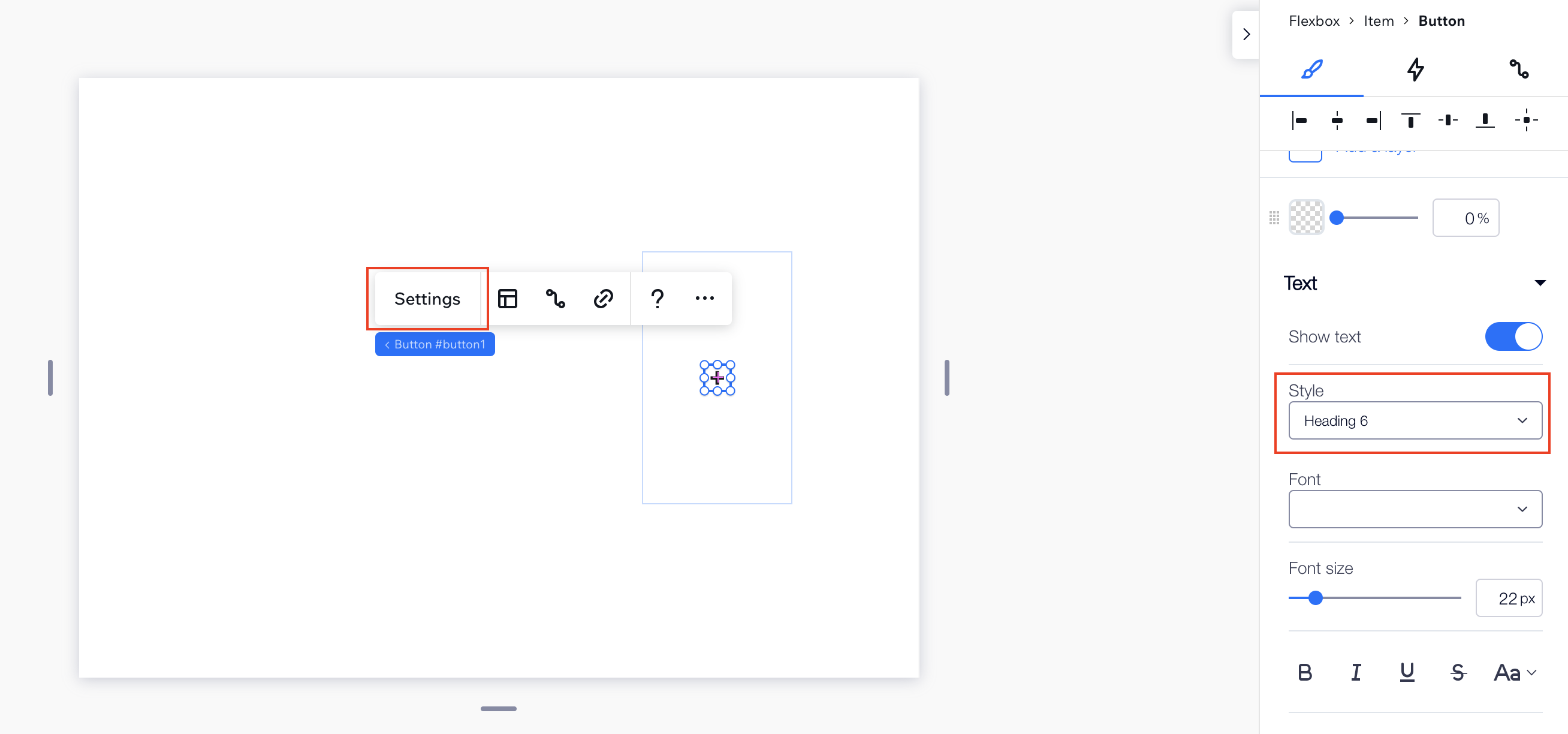
1\. Click **Settings**.
2\. Select **Text only** from the drop down list.
3\. Change the button's text or icon to "+".
4\. Click the **Design**  icon in the **Inspector** panel  and select **Text**.
5\. Click **Themes** and select **Heading 6** from the drop down list.
6\. Drag and drop another square button to the left section.
7\. Change the text to "-".
Show screenshot
### Adding the middle number
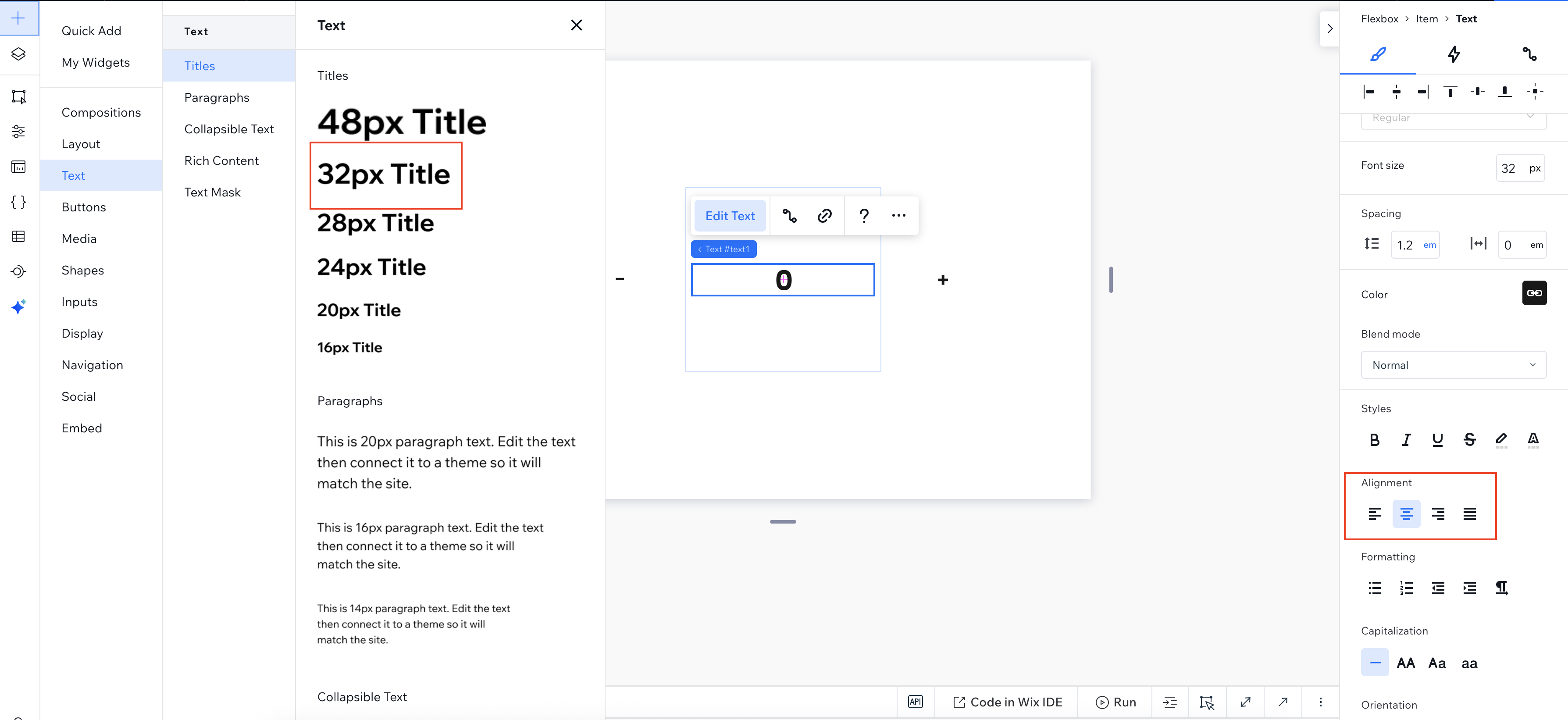
1. Click the **Add Elements** **+** button and select **Text**.
2. Drag and drop an **32px Title** element to the central section of the flexbox.
3. Edit the text to "0" and align it to the center.
Show screenshot
#### Changing the IDs
1. Click the increment button.
1. Click the **Properties and Events**  icon in the bottom right of the screen.
2. Change the ID of your increment button to **incBtn**.
3. Change the ID of your decrement button to **decBtn**.
4. Change the ID of your text element to **countTxt**.
Show screenshot

* * *
## Step 4 | Add Code to Your Elements
Now it's time to make the widget do what it's supposed to do: count up and down when the buttons are clicked.
1\. Go to the bottom part of your screen to add code to your widget.
Show screenshot

2\. Add the following code **before** your **onReady()** function.
```javascript
//Set the count to 0
let count = 0;
//Assign the count to your text element
function render() {
$w('#countTxt').text = count.toString();
}
//Add a certain amount to the count and fire an event in the widget API
function addToCount(amount) {
count += amount;
render();
}
```
3\. Add the following code **in** your **onReady()** function.
```javascript
$w('#incBtn').onClick(() => {
addToCount(1);
});
$w('#decBtn').onClick(() => {
addToCount(-1);
});
render();
```
4\. Click the **Preview** button to see your widget in action.
* * *
## Step 5 | Make Your Widget Customizable with Widget API
Blocks lets you [define an API for your widget](https://dev.wix.com/docs/build-apps/develop-your-app/frameworks/wix-blocks/widget-api/about-the-widget-api.md), so that the user (a site owner who installs the widget) can customize it to their needs. The API can contain properties, events and exported functions.
Let's say that you want a user to be able to decide what the "step" of the count is. Perhaps they want the step to be 2, so that the count is 0,2,4,6 etc.
To do that, let's define a property in the widget API named `step`.
### Define the `step` Property
1. Click the **Widget API**  icon to open the Widget API panel.
2. Click **Add New Property** in the **Properties** section (or hover over the section and click the  icon that appears).
Show screenshot

### Configure the property
1. Name your property "step".
1. Give it the type **Number**.
1. Give it a default value of **1**.
Show screenshot

### Change Your Code to Consider Your New Property
Change your code so that when the buttons are clicked, **addToCount** is called with the step from the properties rather than with the default value of 1.
Use _$widget.props_ to access your properties (notice the autocomplete Velo suggestions).
```javascript
$w.onReady(function () {
$w('#incBtn').onClick(() => {
addToCount($widget.props.step);
});
$w('#decBtn').onClick(() => {
addToCount(-$widget.props.step);
});
render();
});
```
### Test Your Property in Preview Mode
1. Click **Preview** to move to preview mode.
2. Click **Test API Properties**.
Show screenshot

3\. Change the step to a different number and see how your widget works.
Show screenshot

### Add a Public Event to Your Widget API
The widget API allows you to add an event that is fired whenever you decide.
Add an event that is fired when the "count" variable changes:
1. Click the **Widget API**  icon to open the Widget API panel.
2. Click **Add New Public Event** in the **Events** section (or hover over the section and click the  icon that appears).
3. Name your event and describe it
Show screenshot

4\. Add this line to your **addToCount()** function, to fire the event when the count changes.
```javascript
$widget.fireEvent('change', count);
```
5\. Now, your **addToCount()** function should look like this:
```javascript
function addToCount(amount) {
count += amount;
render();
$widget.fireEvent('change', count);
}
```
Tip:
You'll need to catch your event in the site editor once you have installed your widget in your website (this will be describe in Step 8).
### Add a Public Function to Your Widget API
Create and export a **reset()** function, so that site owners can easily set the count to 0.
1. Click the **Widget API**  icon to open the Widget API panel.
2. Click **Add New Public Function** in the **Functions** section (or hover over the section and click the  icon that appears).
3. A new empty function by the default name **myPublicFunction()** is created, with a designated JSDoc (the comments block) that can be read by anyone who will use your function on a site.
Show screenshot
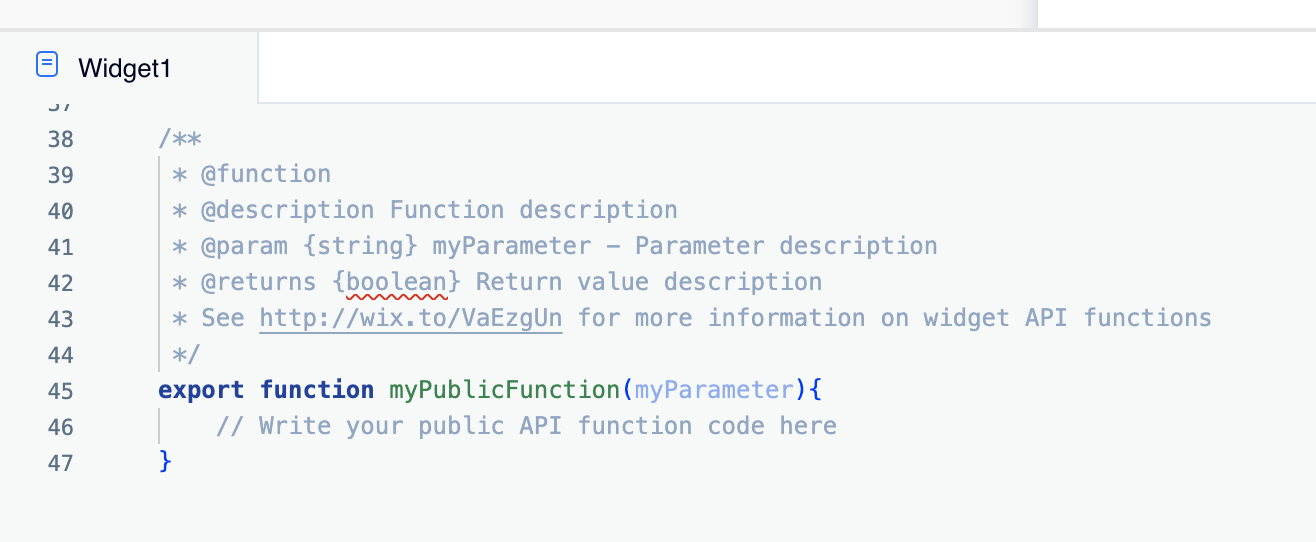
4\. Paste the following code instead of the function default code:
```javascript
export function reset(){
//This function is part of my public API
count = 0;
render();
}
```
5\. Update the JSDoc. You must keep the function's annotation in this format.
```javascript
/**
*@function
*@description Sets count to 0 and renders.
*@returns nothing
*/
```
* * *
## Step 6 | (Optional) Configure Your Widget's Edit-Time Behavior
The **Configuration** tab within the **Editor Experience Panel**  allows you to determine the behavior of the widget and its elements when a site owner edits it in the editor. Try out a few options in the **Configuration** tab.
Show screenshot
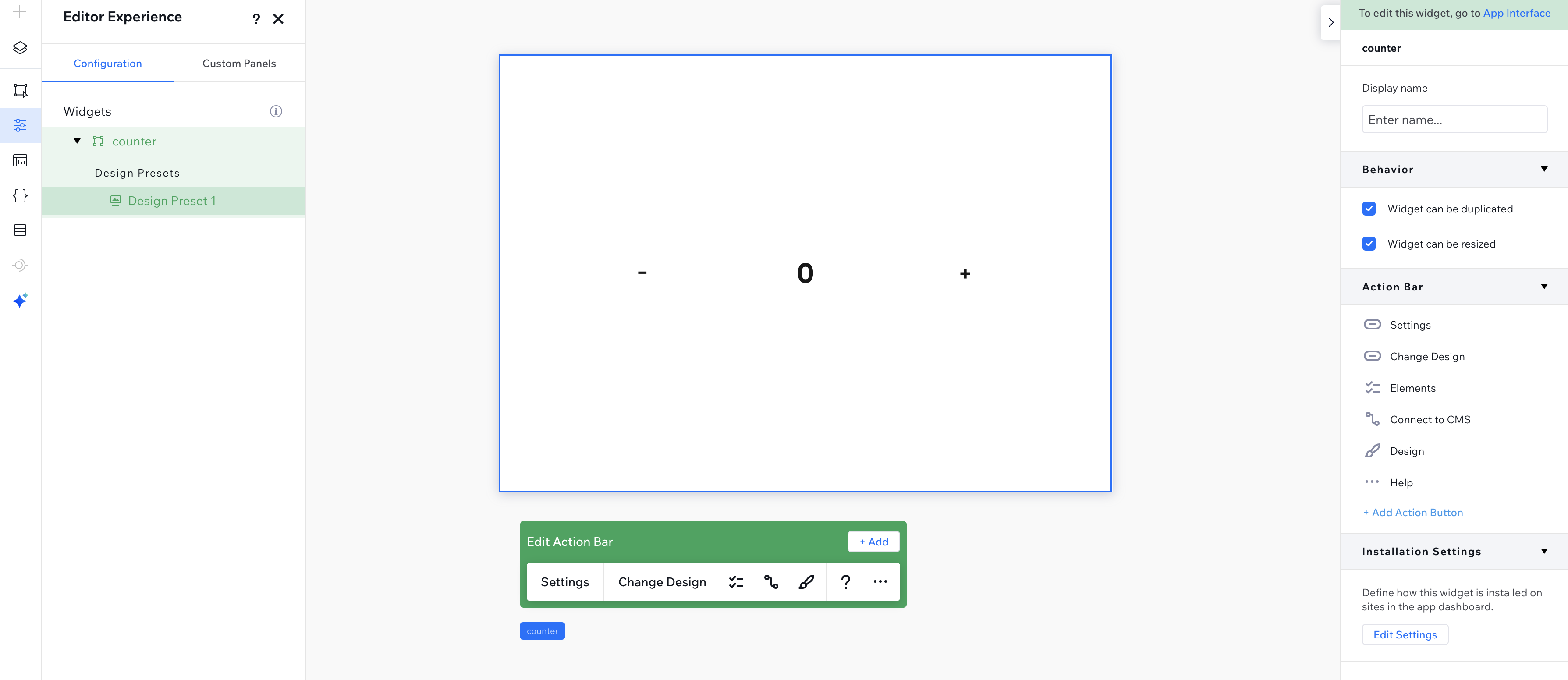
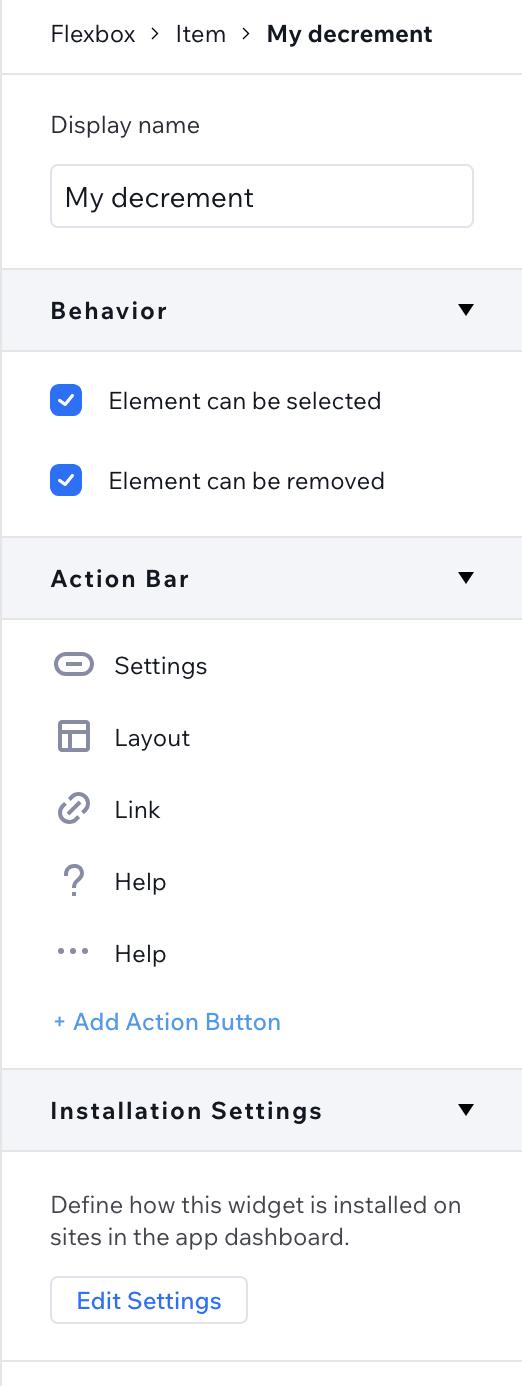
Set a display name for your widget elements:
1. Select the decrement button.
2. Change its display name under **Component Name** to "My Decrement" in the Inspector  panel.
Show screenshot
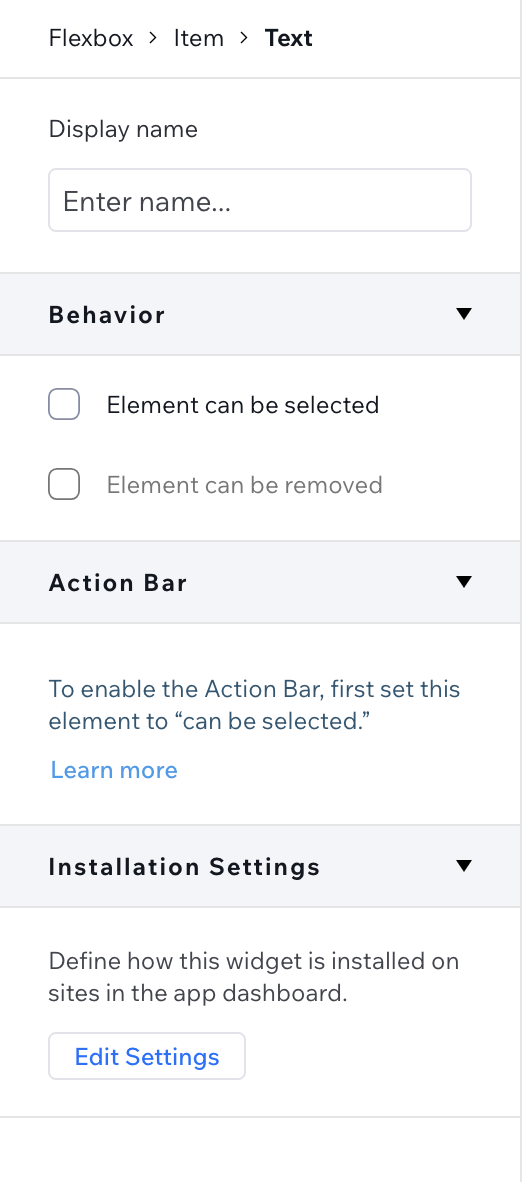
Prevent the text element from being selectable in the editor:
1. Select the text element that represents your count.
2. Click the **Can be selected** option in the **Behavior** section of the **Inspector**  panel to remove the blue checkmark.
Show screenshot
* * *
## Step 7 | (Optional) Create More Design Presets
Blocks allows you to create various variations for your widget's design and layout, through [design presets](https://dev.wix.com/docs/build-apps/develop-your-app/frameworks/wix-blocks/widget-design/create-and-manage-design-presets.md). To create another design preset:
1. Click the **App Interface**  panel .
2. Go to the **Design Presets** section.
3. Click .
4. Click the **ֿMore Actions** icon  to rename your preset (you can also duplicate or delete it).
Show screenshot

4\. Make some visible changes in your widget, like changing the color of the middle section.
Show screenshot

Move back and forth between presets to see the differences.
Tip:
Note that some design and layout changes impact only your current preset, while others impact all ([learn more](https://dev.wix.com/docs/build-apps/develop-your-app/frameworks/wix-blocks/widget-design/create-and-manage-design-presets.md)).
* * *
## Step 8 | Catch Your Event in the site editor
Go to your site editor to catch the event from your app. First you need to register an Event Handler for the change event:
1. [Install your app](https://dev.wix.com/docs/build-apps/develop-your-app/frameworks/wix-blocks/deploy-and-manage-blocks-apps/install-a-blocks-app-on-a-site.md) on a site and add the widget to the site.
2. Enable **Dev Mode** on the site.
3. Click on your widget and then click the **Properties and Events**  icon.
4. Change the ID of your widget, for example, to "counter1".
5. Click **onChange( )** under Event Handlers.
6. Select **counter1\_change** in the box.
Show screenshot

Now write the function. It gets the \`count\` as a parameter and resets the count when it gets to whatever number you decide (in our example: 30). Your function should look like this:
```javascript
export function counter1_change({data: count}) {
// This function was added from the Properties & Events panel. To learn more, visit http://wix.to/UcBnC-4
// Add your code for this event here:
if (count > 30) {
$w('#counter1').reset();}
}
```
Preview or publish to see your site in action.