> Portal Navigation:
>
> - Append `.md` to any URL under `https://dev.wix.com/docs/` to get its markdown version.
> - Pages are either content pages (article or reference text) or menu pages (a list of links to child pages).
> - To get a menu page, truncate any URL to a parent path and append `.md` (e.g. `https://dev.wix.com/docs/sdk.md`, `https://dev.wix.com/docs/sdk/core-modules.md`).
> - Top-level index of all portals: https://dev.wix.com/docs/llms.txt
> - Full concatenated docs: https://dev.wix.com/docs/llms-full.txt
## Resource: Tutorial | Create the Recipes App with Blocks
## Article: The Recipes App
## Article Link: https://dev.wix.com/docs/build-apps/get-started/tutorials/tutorial-create-the-recipes-app-with-blocks.md
## Article Content:
# Tutorial | Create a Recipes App Using Blocks
**Editor compatibility**
Wix Blocks apps aren't supported in the Wix Harmony editor. Existing Blocks apps remain available for purchase on the Wix App Market for Wix Editor and Wix Studio sites. To learn more, see [About Wix Harmony and Blocks](https://dev.wix.com/docs/build-apps/develop-your-app/frameworks/wix-blocks/about-wix-harmony-and-blocks.md).
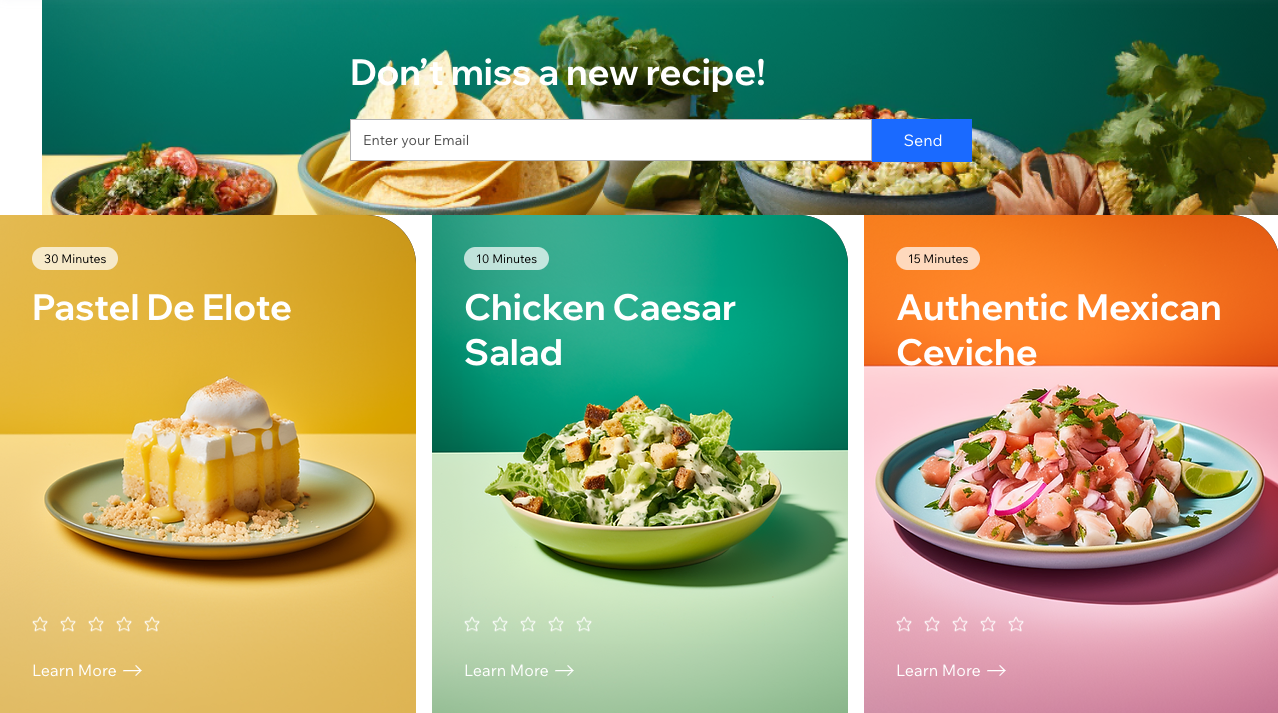
This tutorial walks you through building the **Recipes** app. The app showcases recipes on Wix sites, so site visitors can see an image, description, and rating for each recipe. They can also subscribe to get new recipes.
The app includes:
* 2 widgets - **Recipes** and **Subscribe**
* A custom settings panel
* A collection for holding the recipes data
* A dashboard page for allowing builders to interact with data in the app
**Ready to begin?** [Create your own copy of the app](https://blocks.wix.com/wix-blocks-new-app-creator?editorType=RESPONSIVE&originTemplateId=0f424cdc-4998-4c66-8a6e-19be9a9a3c23&http_referrer=documentation) in Blocks. The link leads to a template with most of the design and some of the code ready.
>**Notes:**
> Throughout this tutorial, you'll move back and forth from creating the app in Wix Blocks to testing it on a Wix site.
* * *
## Step 1 | Create a new Design Preset
[Design Presets](https://dev.wix.com/docs/build-apps/develop-your-app/frameworks/wix-blocks/widget-design/about-design-presets.md) are Blocks' way of allowing you to have multiple designs and layouts for the same widget. They're often used for adapting the app for different devices, like desktop and mobile. The first thing we'll do is create another preset for when the widget is used on a mobile phone. This preset will be a duplicate Card Layout preset, with a few changes.
1. In case you missed this first step: click [this link](https://blocks.wix.com/wix-blocks-new-app-creator?editorType=RESPONSIVE&originTemplateId=0f424cdc-4998-4c66-8a6e-19be9a9a3c23https://blocks.wix.com/wix-blocks-new-app-creator?editorType=RESPONSIVE&originTemplateId=0f424cdc-4998-4c66-8a6e-19be9a9a3c23&http_referrer=documentation) to create your own copy of the app.
2. Name your app: go to the top bar and click on the app's temporary name.
3. Go to the **Design Presets** menu. The app template already has 3 presets and you'll create a new one now.
4. Duplicate the **Card Layout** preset (to do this, hover, then click the  icon).
5. Rename the new preset to **Mobile Layout** and make sure it's selected.
6. On the right side of the screen, go to the **Design** menu of your widget.
7. Click on the **Layers**  menu and select the entire widget.
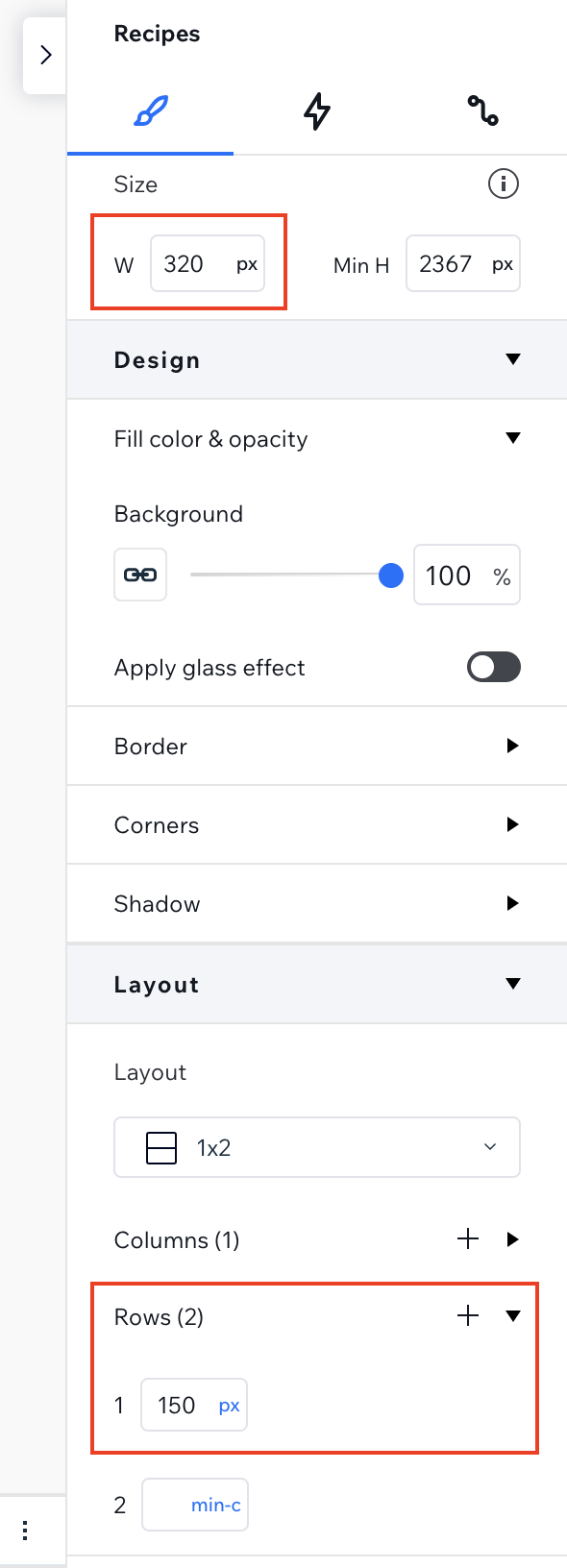
8. Change the widget's width to 320px.
9. In the **Layout** section, click **Rows**.
10. Select your widget's first grid row. Change the first grid row height to 150px.
See screenshot
11. Go to **Layers**  and click on the first box in the **#recipesRepeater**. Click on the **#recipesTitle**.
12. Change the title's font size to 18.
See screenshot

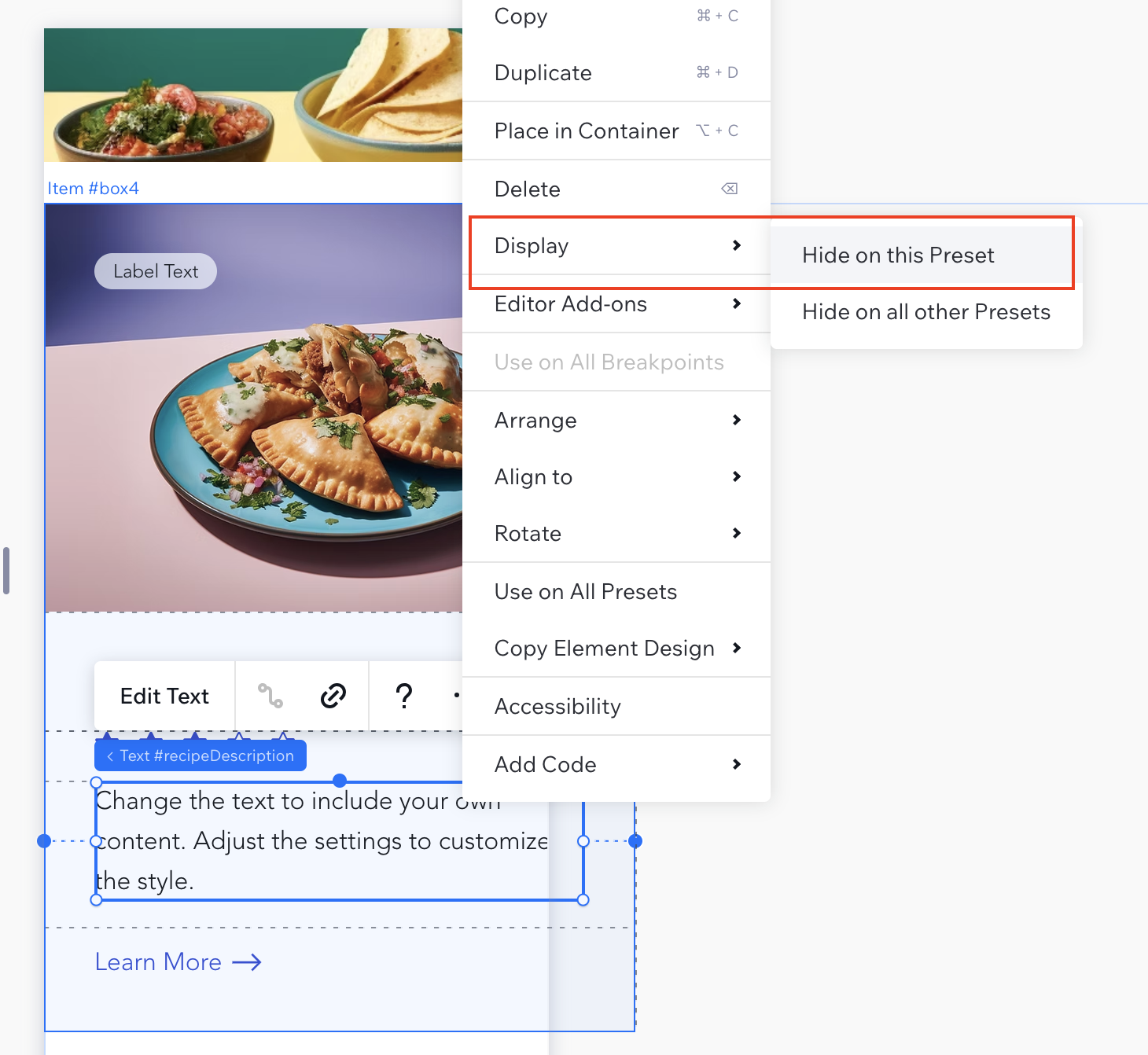
13. Click on the **Description**, click , then **Display**, and set it to **Hide on this preset**, to hide the description in mobile.
See screenshot
12. Go back to the **Card Layout** preset and check that the description **does** appear there.
* * *
## Step 2 | Test the app
Test your app on a site to see how it works.
1. Click **Test** on the top right.
2. You will be prompted to create a [namespace](https://dev.wix.com/docs/build-apps/develop-your-app/frameworks/wix-blocks/code-in-blocks/creating-a-namespace-for-your-app.md) first. Your namespace allows your app to interact with data collections and code files in its code.
3. Create a [test version](https://dev.wix.com/docs/build-apps/develop-your-app/frameworks/wix-blocks/deploy-and-manage-blocks-apps/test-your-app-on-a-site.md).
4. Select a site to test your app on. If you don't have a test site, click **Create Dev Site**.
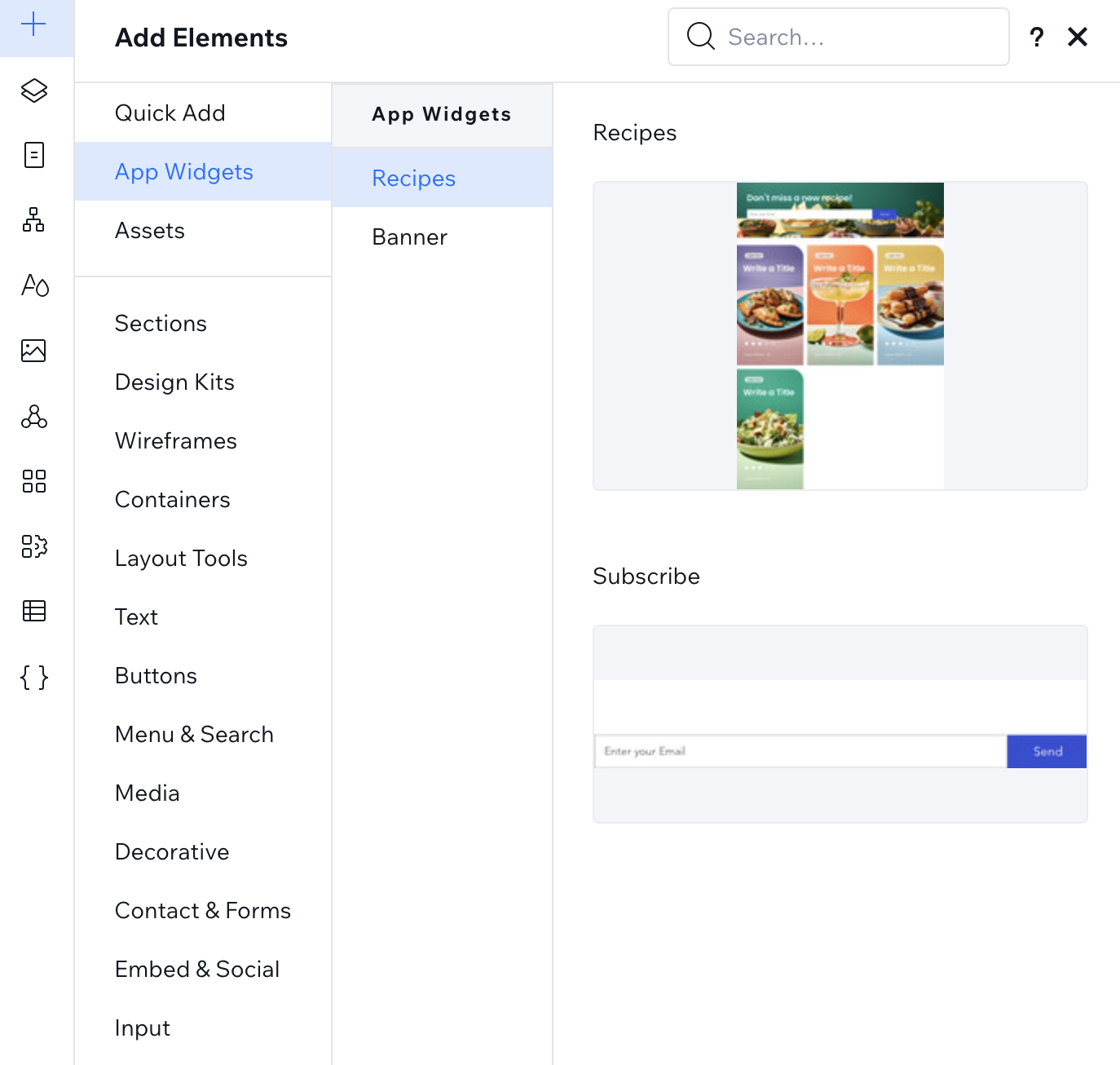
5. Add your widget. Go to the **App Widgets** section of the **Add**  panel. Click or drag the Recipes widget to add it to your site.
See screenshot
Now let's do some actions on this widget in the site, just to see how it works.
1. Click the **Stretch**  icon to stretch your widget in the site section.
2. Go to your desktop  view. Click the **Presets**  action button of your widget and change the preset.
3. Go to your mobile  view and change your preset again to the **Mobile Layout** preset.
4. Right-click on the widget and click **Reset Widget**, to go back to the original design.
* * *
## Step 3 | Add the recipes collection in Blocks
Now, go back to Blocks to continue creating the app.
1. Go back to Blocks.
2. Click the **CMS** icon.
3. Create a collection called **recipes**.
4. Add the following fields (make sure that the names are **exactly** the same, no caps):
* **image** type **Image**
* **description** type **Text**
* **duration** type **Text**
* **rating** type **Number**
5. Go to [our demo site](https://wixblocks.wixstudio.io/cookingwithmaria), search for the words "Collection data" and save the data file to your computer.
6. Import the data to your collection.
See screenshot

7. Click **More Actions** and select **Collection settings** from the dropdown.
8. Copy the collection ID.
See screenshot

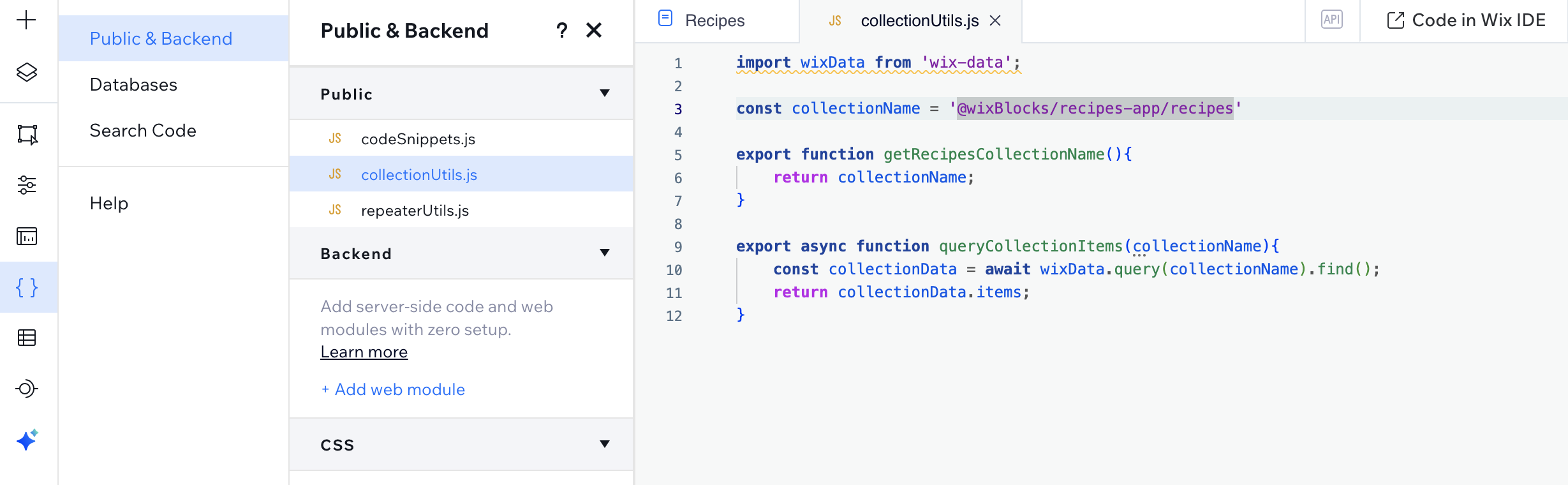
8. Go to **collectionUtils.js** file in the **Public and Backend**  files. This is the file for interacting with the app's collection.
9. Change the value of **collectionName** from '@wixBlocks/recipes-app/recipes' to your collection ID.
* * *
## Step 4 | Add logic to the Recipes widget
This step populates the repeater with the data from the collection, using code.
**Code snippets**
You can also find the following code snippets in the **codeSnippets.js** file in the **Public and Backend**  section.
1. Click **App Interface**  to go back to the **Recipes** widget.
2. Paste the following snippet in your widget code.
```javascript
// import { populateRepeater } from "public/repeaterUtils";
import { getRecipesCollectionName, queryCollectionItems } from 'public/collectionUtils'
```
3. Create an **initRepeater()** function. For now, create the repeater to show 4 items. We'll change this later.
```javascript
async function initRepeater(){
const collectionItems = await queryCollectionItems(getRecipesCollectionName());
populateRepeater($w('#recipesRepeater'), collectionItems, 4);
}
```
4. Await the **initRepeater()** function in your widget's **onReady()** function.
```javascript
$w.onReady(async function () {
await initRepeater();
});
```
This is the full widget code at the moment:
```javascript
// Full Recipes widget's code
import { populateRepeater } from 'public/repeaterUtils'
import { getRecipesCollectionName, queryCollectionItems } from 'public/collectionUtils'
$w.onReady(async function () {
await initRepeater();
});
$widget.onPropsChanged(async (oldProps, newProps) => {
});
async function initRepeater(){
const collectionItems = await queryCollectionItems(getRecipesCollectionName());
populateRepeater($w('#recipesRepeater'), collectionItems, 4);
}
```
## Step 5 | Create the Recipes widget API
In the previous step we defined the repeater to show 4 items from the database. But what if a site builder who installed your app wants to show a different number of items? Let's add a property to the Recipes widget API. The property will hold the number of items to display in the widget, and will replace the constant number of 4 that we added in the previous step.
1. Click the **Widget API**  icon, on the right of your widget's code area.
2. Click **Add New Property**
3. Name your property **itemsToDisplay** and give it a display name (such as: "Items to Display", which is more readable).
4. Give it a type of number and a default value of 3.
See screenshot

5. Update the **populateRepeater** function so that it sends the prop as a parameter instead of the 4.
```javascript
populateRepeater($w('#recipesRepeater'), collectionItems, $widget.props.itemsToDisplay);
```
The **onPropsChanged()** function is triggered when an event of props changing is detected. You can add custom logic to this function.
6. Await the **initRepeater()** function in your **onPropsChanged()** function:
```javascript
await initRepeater();
```
Here is the full widget code, after adding the property.
```javascript
// Full Recipes widget's code
import { populateRepeater } from 'public/repeaterUtils'
import { getRecipesCollectionName, queryCollectionItems } from 'public/collectionUtils'
$w.onReady(async function () {
await initRepeater();
});
$widget.onPropsChanged(async (oldProps, newProps) => {
await initRepeater();
});
async function initRepeater(){
const collectionItems = await queryCollectionItems(getRecipesCollectionName());
populateRepeater($w('#recipesRepeater'), collectionItems, $widget.props.itemsToDisplay);
}
```
* * *
## Step 6 | The "My Settings" panel
When a site builder installs your widget, they can change the value of the properties with an autogenerated **Settings** panel in your widget's floating menu. However, you can also build a custom panel and add custom logic to it.
1. Click the **Editor Experience** icon.
1. Click the **Custom Panels** tab. The app has a custom panel nameD **My Settings**. Look at the code tab. The code gets the property and sets a slider's value accordingly.
2. Add an **onChange()** function inside the **onReady()**, so that when the property is changed by the slider, the function notifies the panel to set the widget props again.
```javascript
$w('#panelSlider1').onChange(async event => {
await wixWidget.setProps({itemsToDisplay: event.target.value});
});
```
This is the full panel code:
```javascript
import wixWidget from 'wix-widget'; // Control your widget's properties, design presets, and more.
import wixEditor from 'wix-editor'; // interact with the Editor by removing or restoring widget elements, opening Dashboard panels, and more.
$w.onReady(async function () {
const props = await wixWidget.getProps();
$w('#panelSlider1').value = props.itemsToDisplay;
$w('#panelSlider1').onChange(async event => {
await wixWidget.setProps({ itemsToDisplay: event.target.value });
});
});
```
**Tip:**
Note the [wix-widget](https://www.wix.com/velo/reference/wix-widget) and [wix-editor](https://www.wix.com/velo/reference/wix-editor) modules at the beginning of the panel code. They are unique to [Blocks custom panel code](https://dev.wix.com/docs/build-apps/develop-your-app/frameworks/wix-blocks/editor-experience-panels/add-code-to-custom-panels-in-blocks.md).
* * *
## Step 7 | Make configuration changes
The [**Configuration**](https://dev.wix.com/docs/build-apps/develop-your-app/frameworks/wix-blocks/editor-experience-configuration/about-configuration-in-blocks.md) tab in the **Editor Experience**  panel allows you to control the editor experience of a site builder who installs your app.
1. Click Editor Experience  .
2. Go to the **Configuration** tab.
3. Click the gray part of the widget, to edit the action bar of the Recipes widget.
4. Click the **Settings** button.
5. Click **Action Button Settings** and connect it to the **My Settings** panel.
Now, whenever a site builder clicks "Settings", they will see your custom panel.
See screenshot

Another change you can make in the **Configuration** tab is to prevent layout elements from being selected. A site builder has no reason to select the repeater in your widget.
6. Select the repeater and uncheck **Element can be selected** box.
See screenshot

* * *
## Step 8 | Check the app on your site
Let's check that the app works on your site.
1. Click **Test** to test your app on the same site again. Go to your test site.
Now let's add data to the collection in the site, to check the app functionality ([learn more](https://dev.wix.com/docs/build-apps/develop-your-app/frameworks/wix-blocks/cms-collections-in-blocks/connect-elements-to-collection-fields-with-no-code.md)).
2. Go to the CMS  and add the CMS to your site.
3. Find your collection.
4. Click on the collection name and open it. See that the default data from Blocks was imported.
See screenshot

5. Click on your widget's **Settings** button and change the number of items to display.
6. Go to preview and see that the number of items changed. If it did, your test is complete!
* * *
## Step 9 | Add the Subscription widget
Blocks allows you to create another widget and insert it inside the main widget. For example, let's say that you want to allow people to subscribe to an email list through your Recipes app. To do this, we created another widget, named Subscription. However, this is just a dummy widget for the purpose of this tutorial - we didn't implement the code. This is how you add the Subscription widget to your Recipes widget:
1. Go to Blocks.
2. Open the **Add**  panel.
3. Click **My Widgets**. Here you can see all the widgets and their presets. Scroll to the end of the list.
4. Drag the Subscribe widget to be on the top part of your Recipes widget.
See screenshot

## Step 10 | Make layout changes
Let's make some layout changes to adapt the Subscribe widget to the Recipes widget.
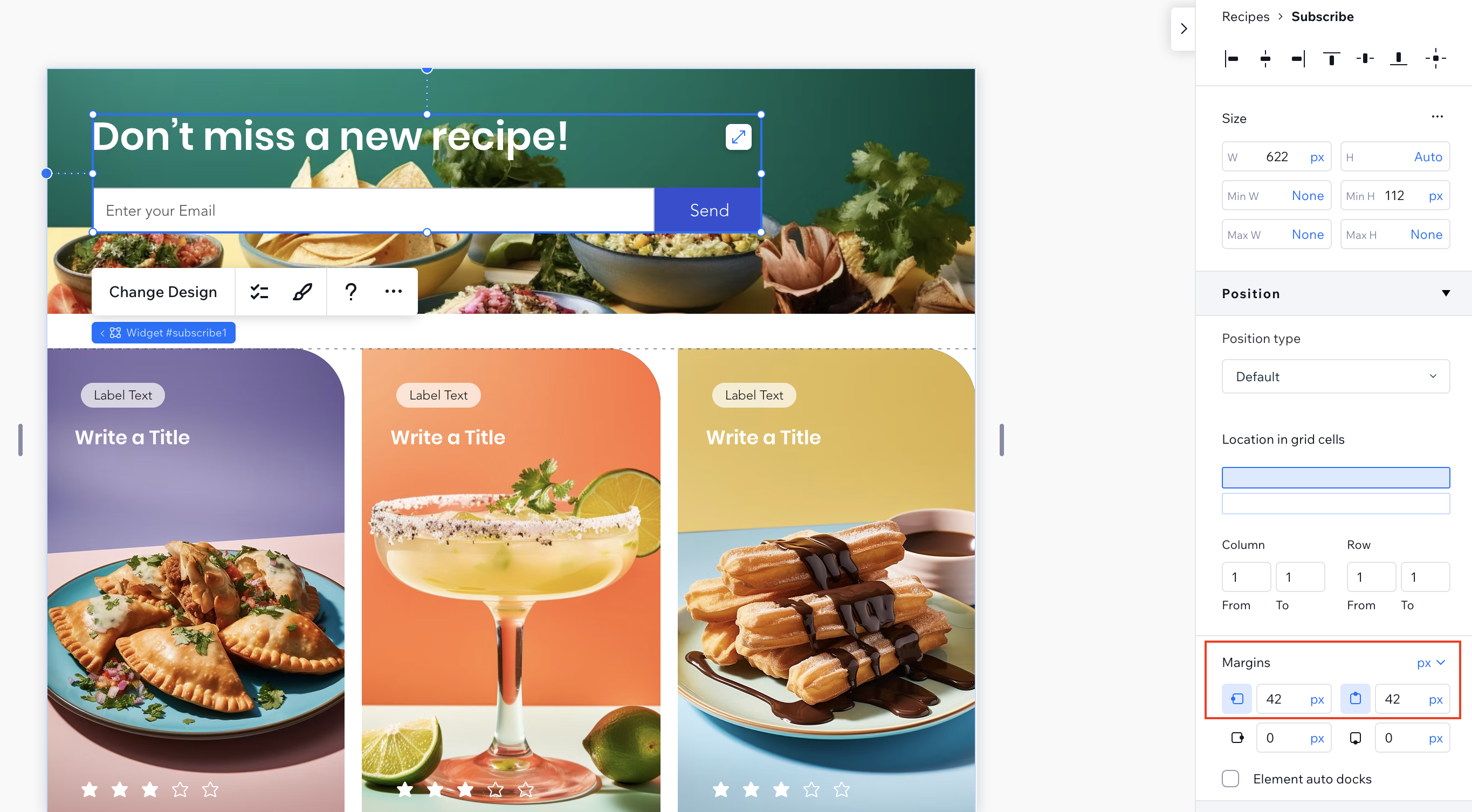
1. Click the Subscribe widget (make sure that you select the entire widget and not any internal element).
2. Go to the **Position** tab of the **Inspector**  .
3. Change the margins to 42px on the top and left.
4. Right-click on the Subscribe widget and select **Use on All Presets**. Now your layout changes apply to all presets.
See screenshot
Let's make some more changes in the mobile preset.
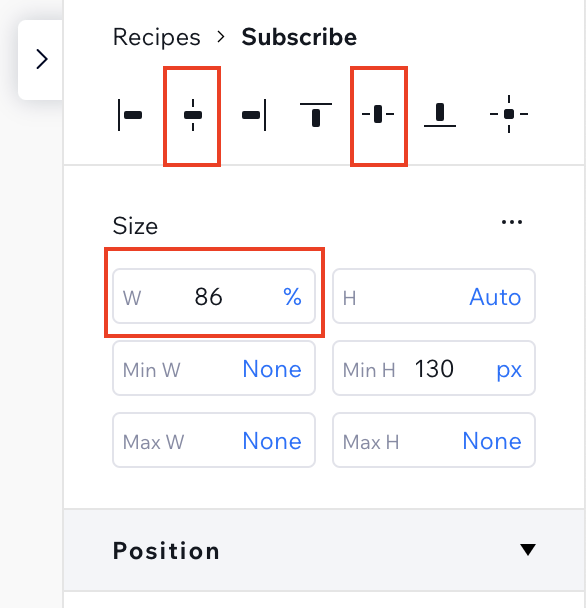
1. Go back to the **Design Presets** section of **App Interface**  and click your **Mobile Layout** preset.
2. In the inspector, click on 3 dots and enable **Advanced sizing**.
3. Change the Width to 86%.
4. Align to center - both vertically and horizontally.
See screenshot
* * *
## Step 11 | Create a Blocks Dashboard Page
Now we want an easy way for users to interact with the collection of recipes, so they can add and manage their recipes. For this, we have the app's Dashboard ([learn more](https://dev.wix.com/docs/build-apps/develop-your-app/frameworks/wix-blocks/dashboard-pages/about-dashboard-pages-in-blocks.md)). When a site builder installs your app on a site, the Dashboard page will be added with it.
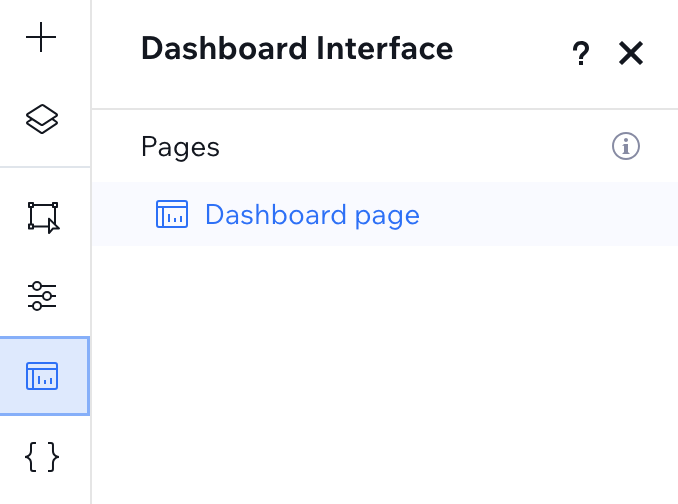
1. Go to your app's Dashboard page.
See screenshot
2. Let's look at the Dashboard page. The Dashboard is made out of a large multi-state box (you can see this easily in the Layers  panel). The multi-state box has 2 states, one to manage all the recipes and one to manage individual recipes. You can click on each state and see the difference between them.
See screenshot

3. Look at the **#recipes** state. It has 2 buttons:
* **Add Recipe:** changes the state of the multi-state box to the **form** state.
* **Manage Collection:** navigates to the CMS page in the Dashboard.
4. Look at the Dashboard's code tab to see the buttons' code:
```javascript
$w('#addBtn').onClick((e) => {
$w('#multiStateBox1').changeState('form');
})
$w('#manageCollectionBtn').onClick((e) => {
wixDashboard.navigate('wix-databases-lazy-page-component-id');
})
```
>**Note:**
>[wixDashboard.navigate()](https://www.wix.com/velo/reference/wix-dashboard/navigate) gives you the ability to navigate >to other dashboard pages. You must enable Dev Mode in your site to do so.
5. Look at the **#form** state. It has 2 buttons:
* **Cancel** cleans the form
* **Save** uploads the image and updates the repeater.
6. Look at the Dashboard's code tab to see the buttons' code:
```javascript
$w('#cancelBtn').onClick(onCancel)
$w('#saveBtn').onClick(onSave);
function onCancel(){
$w('#multiStateBox1').changeState('recipes');
cleanForm()
}
async function onSave() {
let imageUrl = ''
if($w('#imageInput').value.length !== 0){
const uploadedImage = await $w('#imageInput').uploadFiles();
imageUrl = uploadedImage[0].fileUrl;
}
await wixData.insert(getRecipesCollectionName(), {
title: $w('#titleInput').value,
description: $w('#descriptionInput').value,
rating: Number($w('#ratingInput').value),
duration: $w('#durationInput').value,
image: imageUrl,
});
await initRepeater();
$w('#multiStateBox1').changeState('recipes');
cleanForm();
}
async function initRepeater(){
const collectionData = await queryCollectionItems(getRecipesCollectionName());
populateRepeater($w('#recipesRepeater'), collectionData);
}
```
>**Note:**
>The **initRepeater()** function in the dashboard code looks almost identical to the **initRepeater()** in the widget >code. They both use the functions from the **repeaterUtils.js** file.
7. In the Dashboard page, go to **Preview** and try adding another recipe.
* * *
## Step 12 | Connect the dashboard to an action button
1. Go back to the **Recipes** widget.
2. Go to the **Configuration** tab.
3. Click the secondary action button, which is **Change Design**.
4. Click **Action Button Settings**.
5. Set the button to open a **Dashboard** instead of a panel.
6. Set the main action button text to **Manage Recipes** instead of **Change Design**.
See screenshot

Now that we finished building our app, it's time to build a major version (learn more [about versions in Blocks](https://dev.wix.com/docs/build-apps/develop-your-app/frameworks/wix-blocks/deploy-and-manage-blocks-apps/manage-blocks-app-versions.md)).
7. Click **Release** and select **Major Version**.
* * *
## Step 13 | Check the app on your site again
1. Go to your site's editor and update the app's version.
See screenshot

2. Open the site's dashboard.
3. You'll see a new dashboard page with your app's name. Click on it.
See screenshot

4. Click **Add Recipe** and add an item in the dashboard.
5. Click **Manage Collection**. Open the collection and view the item you just added.
6. You can also go back to the site editor and change the number of items again.
* * *
## Step 14 | Installation settings
Blocks [installation settings](https://dev.wix.com/docs/build-apps/develop-your-app/frameworks/wix-blocks/deploy-and-manage-blocks-apps/configure-blocks-installation-settings.md) determine how this app is installed for other people's websites.
1. Go back to Blocks.
2. Click on the 3 dots next to the Subscribe widget name.
3. Click **Editor Experience** and **Edit Installation Settings**.
4. Click **Installation Settings**.
5. Set it as **Not added automatically** (to a site's **Add**  panel). This is because people will install the main widget and get the inner widget in it.
See screenshot

5. Click the **Recipes** widget. Set it to be **Added to homepage**.
6. As a default preset, choose the **Editorial Layout**.
7. Choose the **Mobile Layout** preset to be the default for mobile.
See screenshot

8. Click **Save**.
9. Go back to Blocks and click **Release** again to apply the installation settings.
10. To see the installation settings in action, you need to uninstall and reinstall the app.
* * *
## Step 15 | Publish your app in the Wix App Market
Blocks apps can be used on your own sites and save you lots of copy-and-paste. They can also be published and sold in the Wix App market and earn money. The last thing we'll do is simulate how to publish your app, in case you want to publish your own app in the future.
1. Click **WixBlocks** \-> **App**.
2. Click **Publish App**. This takes you to [Wix Developers](https://manage.wix.com/account/custom-apps).
3. Click **Pricing**. Create a Premium plan and decide on its pricing.
4. Build your app in Blocks again.
Now your app has a premium plan. The next step is to configure what happens in Blocks according to the different plans that a user purchased. What extra abilities do you want them to have? For example, in our app, we might want the subscribing option to be disabled until a user has paid. Learn more about [adapting your app to a pricing plan](https://dev.wix.com/docs/build-apps/develop-your-app/frameworks/wix-blocks/publish-blocks-apps-to-the-app-market/adjust-a-blocks-app-to-different-pricing-plans.md).