> Portal Navigation:
>
> - Append `.md` to any URL under `https://dev.wix.com/docs/` to get its markdown version.
> - Pages are either content pages (article or reference text) or menu pages (a list of links to child pages).
> - To get a menu page, truncate any URL to a parent path and append `.md` (e.g. `https://dev.wix.com/docs/sdk.md`, `https://dev.wix.com/docs/sdk/core-modules.md`).
> - Top-level index of all portals: https://dev.wix.com/docs/llms.txt
> - Full concatenated docs: https://dev.wix.com/docs/llms-full.txt
## Resource: Add Your Media
## Article: Add Your Media
## Article Link: https://dev.wix.com/docs/build-apps/launch-your-app/market-listing/add-your-media.md
## Article Content:
# Add Your Media
To list your app on the market, you need to add some media that show what your app does. This includes:
- [Some images](https://dev.wix.com/docs/build-apps/launch-your-app/market-listing/add-your-media.md#step-1--add-images).
- [A high-quality video](https://dev.wix.com/docs/build-apps/launch-your-app/market-listing/add-your-media.md#step-2--add-a-video).
- [A promotional banner](https://dev.wix.com/docs/build-apps/launch-your-app/market-listing/add-your-media.md#step-3--add-a-promotional-banner).
To add your media, go to the **App Profile** > **Media** page of your app's dashboard.
## Step 1 | Add Images
Stunning images really help to encourage users to install your app. We've got [Sketch](https://wix.to/UnbCx7N), [Figma](https://www.figma.com/file/8xtPgazUnfkDIbRDJzwJLB/App-Logo-and-Images---create-a-duplicate-to-edit?node-id=0%3A199), and [PSD](https://www.dropbox.com/s/g77qsff92glt1tp/Mockups_App.psd?dl=0) files to get you started. If you're using the Figma file you need to create a duplicate before you can edit.
- **How many:** Try to add 5-6 images
- **Minimum size:** 1,200 x 900 px. Ratio 4:3
- **File types:** JPG or PNG
If you add text to your images, we recommend these specifications:
- **Font:** [Roboto](https://fonts.google.com/specimen/Roboto)
- **Size:** 20
- **Color:** Black or white
### Main Image
A promotional image that shows your app's brand. It should include:
- Your app's name.
- A tagline showing off your app's core benefit.
- An image that grabs a user's attention.
### Additional Images
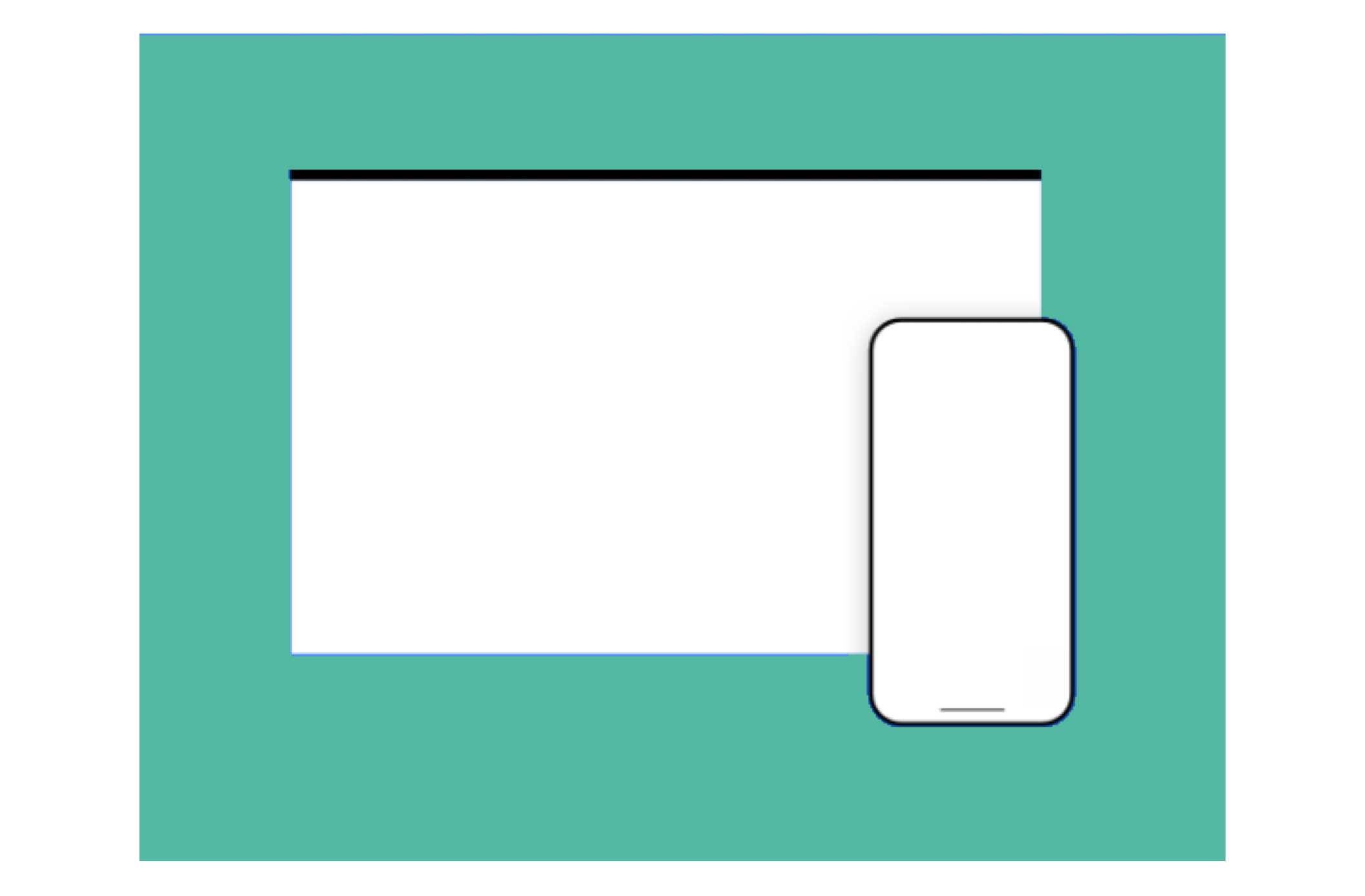
You can add extra images to show screenshots of how your app looks on the Wix platform.
- **For dashboard apps:** Show 3-4 images highlighting top features.
- **For website apps:** Show 2 images as it appears on a Wix template, and 1-2 of the app's settings and customization options.
- **For mobile-optimized apps:** Show 1 image of your app's mobile view.
> **Best practice for images**
> * Use high-quality images.
> * They should follow the same general design theme.
> * Use one solid background color for all your images (try to match this to your logo's dominant color).
> * Screenshots should show the app in use (not just the title art, login page, or splash screen).
> * Avoid images that contain only plain text or use large amounts of descriptive text.
> * Avoid graphics or text that relate to sales, promotions or discounts.
> * Don't copy existing official App Market sale or promotional graphics.
> * Use images to tell your app's story (they should flow progressively from one to the next).
## Step 2 | Add a Video
High quality videos are a great way to tell your app's story, so we highly recommend adding one using a YouTube URL. This should be a quick, promotional overview of what your app's about and shouldn't be a demo tutorial of how it works.
## Step 3 | Add a Promotional Banner
From time to time we feature the very best apps in dedicated App Market collections. A promotional banner is completely optional, but we do use these to promote our favourite apps in campaigns. Here's how they look in the App Market:

Often the image you've already uploaded as your first market listing image works well as a promotional banner. If not, follow this specification:
- **Recommended size:** 540 x 360 px
- **File type:** JPG
> **Best practice for promotional banners**
> * Use a colorful background, preferably your logo's dominant color (not white, which will fade into the white background of the App Market).
> * Don't include text or your app name. Your app name and teaser will appear directly below the banner.
> * Don't include your logo. It appears directly below the banner.
## Next step
- [Add your app's Get Found info](https://dev.wix.com/docs/build-apps/launch-your-app/market-listing/add-your-get-found-info.md)