> Portal Navigation:
>
> - Append `.md` to any URL under `https://dev.wix.com/docs/` to get its markdown version.
> - Pages are either content pages (article or reference text) or menu pages (a list of links to child pages).
> - To get a menu page, truncate any URL to a parent path and append `.md` (e.g. `https://dev.wix.com/docs/sdk.md`, `https://dev.wix.com/docs/sdk/core-modules.md`).
> - Top-level index of all portals: https://dev.wix.com/docs/llms.txt
> - Full concatenated docs: https://dev.wix.com/docs/llms-full.txt
## Resource: Identify and Manage App Users
## Article: Identify and Manage App Users
## Article Link: https://dev.wix.com/docs/build-apps/launch-your-app/pricing-and-billing/identify-and-manage-app-users.md
## Article Content:
# Identify and Manage App Users
In order to manage and customize your users’ experience in your app, you’ll need to:
- Identify each site that uses your app.
- Identify the site’s pricing plan and version of your app they’ve installed.
- Map each pricing plan to the features it supports.
## How to identify user plans
Wix provides all relevant identifying information about sites in app instance data. You can get app instance data in the following ways:
- [App Instance Installed event](https://dev.wix.com/docs/api-reference/app-management/app-instance/app-instance-installed.md)
- [Get App Instance method](https://dev.wix.com/docs/api-reference/app-management/app-instance/get-app-instance.md)
- [App instance query parameter](https://dev.wix.com/docs/build-apps/develop-your-app/access/app-instances/parse-the-app-instance-query-parameter.md) (for iframes and external pages)
**Tip:** The `originInstanceId` field helps you identify cloned sites. If this field is present, it means the site was cloned from another site that already had your app installed, and the value shows the original installation's `instanceId`. If the field is blank or missing, the app was installed directly on this site.
### Key fields to check
The field names may vary depending on how you access the app instance data. Here are the key fields organized by what you're trying to accomplish:
**To identify the site:**
- **`instanceId`**: Unique identifier for your app on a specific Wix site. Available in all contexts.
**To determine pricing plan:**
- **`vendorProductId`**: Pricing plan ID if user has a paid plan, empty if free. Available in app instance query parameter and webhooks.
- **`packageName`**: Pricing plan ID if user has a paid plan, empty if free. Available in REST API or SDK response.
- **`isFree`**: Boolean indicating whether the site has a free version installed. Available in REST API or SDK response.
**To track billing cycles:**
- **`expirationDate`**: When the current billing cycle ends (yearly/multi-yearly plans only). Available in REST API or SDK response.
- **`expiresOn`**: When the current billing cycle ends (yearly/multi-yearly plans only). Available in webhooks.
**To identify users:**
- **`uid`**: ID of the Wix user or site member who is logged in. Available in app instance query parameter only.
- **`aid`**: ID of an anonymous site visitor. Available in app instance query parameter only.
The `vendorProductId` in app instance query parameter and webhook payloads, and the `packageName` in the Get App Instance method, both refer to the identifier of the paid pricing plan this site has installed, as displayed in your app's dashboard:

**Important:** If `vendorProductId` or `packageName` is missing or empty, the site is using a free plan. Note that sites who cancel a paid plan will only stop returning a `vendorProductId` / `packageName` once their paid plan expires.
## Implementing plan restrictions
Once you've identified the user's plan, you need to implement logic that restricts features appropriately.
### Check the plan first
Always identify the user's plan before showing your app's interface. Default to restricting premium features until you confirm they have access.
### Apply restrictions based on plan type
**If you have a free plan and one paid plan:**
Use the `isFree` field to determine access. When `isFree` is `true`, restrict premium features. When `isFree` is `false`, allow full access.
> **Note**: Users on free trials are considered paid users (`isFree` will be `false`), so they should have access to paid features during their trial period.
**If you have multiple paid plans:**
Use `vendorProductId` or `packageName` to identify the specific plan, then grant features based on that plan's capabilities.
## Provide clear upgrade paths
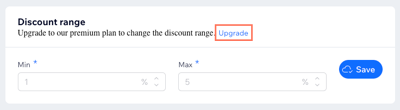
When users encounter restricted features, guide them toward upgrading by:
- Explaining what premium features they're missing.
- Including a prominent upgrade button or link.
- Making the value proposition clear and compelling.
For example, you can add an upgrade link right in your app:
### Create upgrade entry points
You're responsible for adding entry points to the pricing page where users can upgrade. All **Upgrade** buttons and CTAs should link to your app's pricing page opened in a new tab. To do so, use the following URL, replacing `` and `` with their respective values:
```https://www.wix.com/apps/upgrade/?appInstanceId=```
If your app is built with Blocks, see [Provide Entry Points to Upgrade a Blocks App](https://dev.wix.com/docs/build-apps/develop-your-app/frameworks/wix-blocks/publish-blocks-apps-to-the-app-market/provide-entry-points-to-upgrade-your-app.md).
## Why this matters
Failure to manage this flow will enable users who haven't paid for your app to access paid features.
## See also
- [The App Purchase Lifecycle in Wix](https://dev.wix.com/docs/build-apps/launch-your-app/pricing-and-billing/the-app-purchase-lifecycle-in-wix.md)
- [About Pricing Plans and Business Models](https://dev.wix.com/docs/build-apps/launch-your-app/pricing-and-billing/about-pricing-plans-and-business-models.md)