> Portal Navigation:
>
> - Append `.md` to any URL under `https://dev.wix.com/docs/` to get its markdown version.
> - Pages are either content pages (article or reference text) or menu pages (a list of links to child pages).
> - To get a menu page, truncate any URL to a parent path and append `.md` (e.g. `https://dev.wix.com/docs/sdk.md`, `https://dev.wix.com/docs/sdk/core-modules.md`).
> - Top-level index of all portals: https://dev.wix.com/docs/llms.txt
> - Full concatenated docs: https://dev.wix.com/docs/llms-full.txt
## Resource: Integrate Your Google Cloud Platform Databases with Your Wix Site
## Article: Integrate Your Google Cloud Platform Databases with Your Wix Site
## Article Link: https://dev.wix.com/docs/develop-websites-sdk/code-your-site/work-with-data/external-databases/google/integrate-your-google-cloud-platform-databases-with-your-wix-site.md
## Article Content:
# Integrate Your Google Cloud Platform Databases with Your Wix Site
> **Note:** This feature is only available for sites with certain premium plans. If you need to use this feature, you can [upgrade your site](https://www.wix.com/upgrade/website). Learn more about [premium plans](https://dev.wix.com/docs/develop-websites-sdk/maintain-your-site/scale-your-site/about-premium-plans.md).
Wix allows users to connect an external database to Wix sites using an [external database adaptor](https://dev.wix.com/docs/develop-websites-sdk/code-your-site/work-with-data/external-databases/overview/about-integrating-external-databases-with-your-wix-site.md#external-database-adaptors). Once the connection is set up, users can interact with these databases and use them to populate site elements as though they were Wix CMS collections.
With an external database adaptor, you can use your database hosted on GCP (Google Cloud Platform), and fully integrate it into your Wix site. This means your GCP data can be managed via the [Wix Data APIs](https://dev.wix.com/docs/rest/business-solutions/cms/introduction.md), and used (with or without [datasets](https://dev.wix.com/docs/velo/velo-only-apis/$w/dataset/introduction.md)) to populate Wix UI elements like [repeaters](https://dev.wix.com/docs/develop-websites-sdk/get-started/tutorials/data/tutorial-display-database-collection-content-in-a-repeater.md) and [tables](https://support.wix.com/en/article/cms-formerly-content-manager-displaying-collection-content-in-a-table).
## Overview
This article walks you through the following steps:
1. Create secrets to securely store your database credentials.
2. Create and deploy a new Cloud Run service to host the Wix database adaptor.
3. Test Your Service
4. Connect your Wix site to your database.
This tutorial assumes you already have your own database on GCP with a table containing some data. If you don't have this set up, refer to the [GCP documentation](https://cloud.google.com/docs) for instructions.
This tutorial uses a container image with all the functionality needed to interface between your database and your Wix site. If you want to look under the hood, you can have a look at the [service plugin specifications](https://www.wix.com/velo/reference/spis/external-database-collections) for external database collections, and an overview of what's involved in [building your own adaptor](https://support.wix.com/en/article/velo-working-with-external-database-collections).
### Supported Databases
Wix currently supports the following GCP databases:
- [Cloud SQL for MySQL](https://cloud.google.com/sql/mysql)
- [Cloud SQL for Postgres](https://cloud.google.com/sql/postgresql)
- [Cloud SQL for Microsoft SQL Server](https://cloud.google.com/sql/sqlserver)
- [Google BigQuery](https://cloud.google.com/bigquery)
- [Google Cloud Spanner](https://cloud.google.com/spanner)
**Prerequisites for Read-Write Access to Your Database Tables:**
If you want your table to be read-write on your Wix site, it must contain the following columns:
- `_id`
- `_createdDate`
- `_updatedDate`
- `_owner`
Tables without these columns will be read-only in your Wix site.
## Step 1 | Create secrets to securely store your database credentials
The external database adaptor requires you to set some environment variables. Some of these variables, like the DB credentials, are sensitive and shouldn't be visible. Use the [GCP Secret Manager](https://console.cloud.google.com/security/secret-manager) to store and access these variables securely.
> **Note:** We don't provide specific instructions for any configuration in GCP, as GCP's UI and flows may change. For further details on any of the instructions below, see the [Secret Manager documentation](https://cloud.google.com/secret-manager/docs/overview).
### Configure Secrets
Store the following secret values for **all databases**:
- **SECRET_KEY**
A secret key that is used when connecting your Wix site to the adaptor. To create a level of authentication between your site and the adaptor, each request your site sends to the adaptor contains this value in the payload.
- **PERMISSIONS (optional)**
A JSON object that defines the read and write permissions for the tables in your database.
If you don't set permissions, they default to admin. With admin permissions, only site admins can read or write to the external database from a Wix site. API calls or CMS connections to the database don't work for anyone who isn't a site admin. This means site code that communicates with the external database might not work for site visitors.
When setting up permissions, make sure you use the ID of the table you want to read and write to, and not the database ID.
Learn more about configuring database permissions
You can use the **PERMISSIONS** secret to customize the permission settings for each table in a database. The JSON object contains one key, **collectionPermissions**, whose value is an array of objects. Each object in this array contains the permissions settings for one of the collections in the database, using the following parameters:
- **id:** The collection ID.
- **read**: An array of strings representing which roles can read from the collection.
Options: 'Admin', 'Member', 'Visitor'
- **write**: An array of strings representing which roles can write to the collection.
Options: 'Admin', 'Member', 'Visitor'
Example **PERMISSIONS** value:
```json
{
"collectionPermissions": [
{
"id": "Contacts",
"read": ["Admin", "Member"],
"write": ["Admin"]
}
]
}
```
> **Note:** You can save this object as a .json file and upload it to GCP as the value for the **PERMISSIONS** secret.
Customizing permissions for external databases is currently a developer preview feature, and may change. Changes to permissions settings aren't reflected in the editor.
#### Database-Specific Secrets Configuration
In addition to the secrets above, each database requires its own specific secret configurations:
MySQL, Postgres, and MsSQL secret names and values
- **USER:** The username used to connect to your database instance. For Postgres instances, the default user name is **postgres**. For MySQL instances, the default user name is **root.**
- **PASSWORD:** The password used to connect to your SQL instance.
- **DB:** The database name to connect to.
- **CLOUD_SQL_CONNECTION_NAME:** The connection name for your DB instance.
BigQuery secret names and values
- **DATABASE_ID:** The BigQuery dataset ID.
- **PROJECT_ID:** Your Google Cloud Project ID.
Spanner secret names and values
- **INSTANCE_ID:** The Spanner instance ID.
- **PROJECT_ID:** Your Google Cloud Project ID.
Make sure to create all of the required secrets for your database. All databases must include a **SECRET_KEY**.
### Create Secrets
To create the secrets, go to the GCP Secret Manager and create a secret with the appropriate configuration.
| Database | Secret Configurations |
| -------------------------- | ------------------------------------------------------------------------- |
| MySQL, Postgres, and MsSQL | SECRET_KEY
USER
PASSWORD
DB
CLOUD_SQL_CONNECTION_NAME |
| BigQuery | SECRET_KEY
DATABASE_ID
PROJECT_ID |
| Spanner | SECRET_KEY
INSTANCE_ID
DATABASE_ID
PROJECT_ID |
To create a **PERMISSIONS** secret, instead of entering a **Secret value**, provide the .json file that contains your permission settings.
## Step 2 | Create and deploy a new Cloud Run service to host the Wix database adaptor
Next, deploy the external database adaptor as a service on Cloud Run. To do this, you'll need to create the service using a prebuilt container, configured secrets, and environment variables. Then you'll need to configure the database connections.
For further details on any of the instructions below, see the [Google Cloud Run documentation](https://cloud.google.com/run/docs).
### Create a Service
Create a new service for your cloud run project with the following configuration:
1. Enter the following as the **Container Image URL**:
```bash
gcr.io/wix-velo-api/velo-external-db
```
The **Service name** will default to **velo-external-db**.
2. Select the **All** for Autoscaling, and select **Allow unauthenticated invocations** for Authentication.
### Configure Access Roles, Secrets, and Environment Variables
Configure the secrets that you defined earlier as environment variables for the service. To do this, perform the following steps:
1. Create a new service account that will run the Cloud Run service.
2. Grant access roles to the new account.
3. Create environment variables and assign the secrets' values.
4. Set the **Service account name**. We recommend you set the Service account name to match the Cloud Run instance name so that you can easily know which account is used by which instance.
5. Grant the following roles to the service account according to your database:
All Databases:
- **Secret Manager Secret Accessor**
MySQL, Postgres, MsSQL:
- **Cloud SQL Editor**
BigQuery:
- **BigQueryAdmin**
Spanner:
- **Cloud Spanner Database User**
6. Define 2 environment variables according to your database.
The names and values for the variables are as follows:
| NAME | VALUE |
| ------------ | ---------------------------------------------------------------------------------------------------------------------------------------------------------------------------- |
| TYPE | MySQL database: **mysql
**Postgres database: **postgres**
MsSQL server database: **mssql**
BigQuery database: **bigquery**
Spanner database: **spanner** |
| CLOUD_VENDOR | Google Cloud Platform: **gcp** |
7. Make the secrets you configured and created in step 1 [accessible to Cloud Run](https://cloud.google.com/run/docs/configuring/services/secrets) by adding the secrets information and exposing them as a environmental variables. Refer to [the table above](#create-secrets) to see which secrets your database needs. For each secret, assign the environment variable the same name as the secret and ensure you've selected the latest version.
If you get a warning that the service account doesn't have permissions to access the selected secret, you are no longer configuring the service account that you set up in the previous steps.
### Configure the Database Connection
[Deploy the container](https://cloud.google.com/run/docs/quickstarts/deploy-container).
Get the cloud run service's URL. This URL is used to connect to your database adaptor service and to configure the external collection on your Wix site.
**Note:** If you change the value of a secret, you must redeploy the service for the new value to take effect.
## Step 3 | Test Your Service
You can test that your service is working by making a quick request using Curl.
Use the Curl command below, replacing the URL with your URL from Step 2 above, and replacing the **secretKey** value with your secret.
```bash
curl -L -X POST 'https://velo-postgres-db-cacacapca-uc.a.run.app/schemas/list' \
-H 'Content-Type: application/json' \
--data-raw '{
"requestContext": {
"settings": {
"secretKey": "ourLittleSecret"
},
"role": "OWNER"
}
}'
```
The output provides a list of tables and their columns from your database. If you have python installed, you can pipe the output to **python -m json.tool** and it will give you nicely formatted JSON.
The formatted output contains the list of tables and their columns from your database.
```json
{
"schemas": [
{
"id": "contacts",
"displayName": "contacts",
"allowedOperations": [
"get",
"find",
"count",
"update",
"insert",
"remove"
],
"maxPageSize": 50,
"ttl": 3600,
"fields": {
"name": {
"displayName": "name",
"type": "text",
"queryOperators": [
"eq",
"lt",
"gt",
"hasSome",
"and",
"lte",
"gte",
"or",
"not",
"ne",
"startsWith",
"endsWith"
]
},
"_createddate": {
"displayName": "_createddate",
"type": "datetime",
"queryOperators": [
"eq",
"lt",
"gt",
"hasSome",
"and",
"lte",
"gte",
"or",
"not",
"ne",
"startsWith",
"endsWith"
]
},
"email": {
"displayName": "email",
"type": "text",
"queryOperators": [
"eq",
"lt",
"gt",
"hasSome",
"and",
"lte",
"gte",
"or",
"not",
"ne",
"startsWith",
"endsWith"
]
}
}
}
]
}
```
## Step 4 | Connect your Wix site to your database
Now that you have a database and an adaptor service, you're ready to add the database as an external collection on your site.
> **Note:** You can only add external collections to your site if you have a [premium plan](https://dev.wix.com/docs/develop-websites-sdk/maintain-your-site/scale-your-site/about-premium-plans.md).
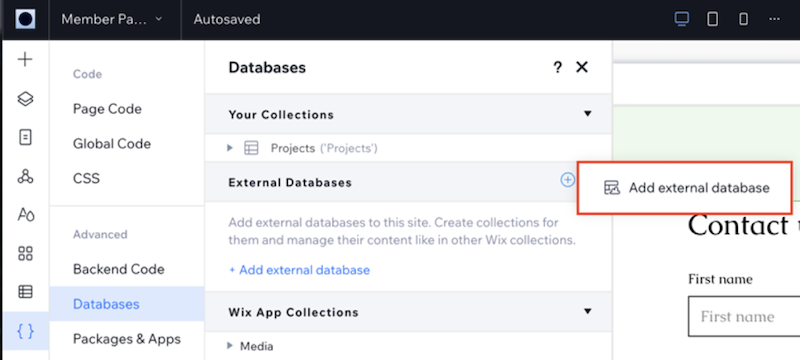
1. Go to the **Databases** section of the Code sidebar (Wix Editor) or the Code sidebar (Wix Studio).
2. Click the  icon next to **External Databases** and select **Add external database**.
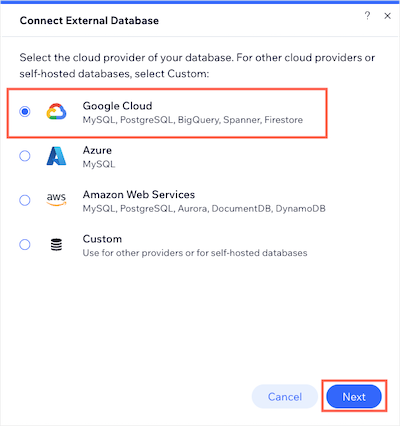
3. Choose **Google Cloud** as the cloud provider of the external collection being added, then click **Next**.
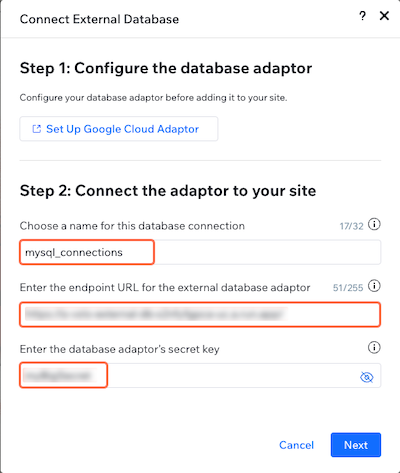
4. Enter a **name** for your external collection's namespace.
5. Copy and paste your adaptor service's URL into the **endpoint URL** field.
6. Enter your database adaptor's **secret key**.
7. Click **Connect**.
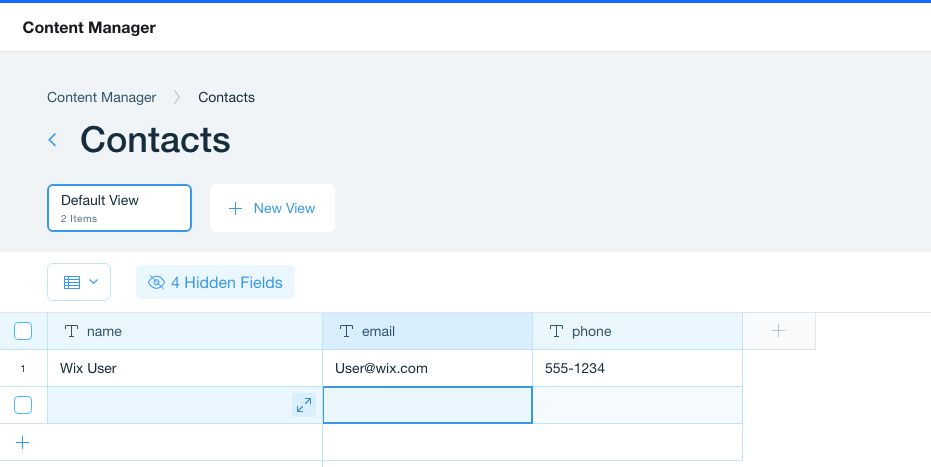
The collection displays the tables. If your table contains the **\_id**, **\_createdDate**, **\_updatedDate**, and **\_owner** fields, you can add data to the table directly from the CMS.
**Important:** The CMS doesn't currently support deleting from external collections. You can delete records from your collection using Wix Data's [`remove()`](https://dev.wix.com/docs/api-reference/business-solutions/cms/data-items/remove-data-item?apiView=SDK.md) method.
The external connection and its collections are displayed under **External Databases**.

You can now use the [Wix Data API](https://dev.wix.com/docs/sdk/backend-modules/data/introduction.md) with this collection as well as connect [repeaters](https://dev.wix.com/docs/develop-websites-sdk/get-started/tutorials/data/tutorial-display-database-collection-content-in-a-repeater.md) and [tables](https://support.wix.com/en/article/displaying-collection-content-in-a-table) to your MySQL, Postgres, MsSQL, BigQuery, and Spanner databases.
Try the following [Wix Javascript SDK](https://dev.wix.com/docs/sdk/articles/get-started/about-the-wix-java-script-sdk.md) code to query your external data using your collection name and table name:
```javascript
import { items } from '@wix/data';
export async function externalQuery() {
try {
const results = await items.query("/").find();
return results;
} catch (err) {
return err;
}
}
```
> **Notes:**
> - You must first install the `@wix/data` package on your site.
> - You can only call this code from your site's backend.