> Portal Navigation:
>
> - Append `.md` to any URL under `https://dev.wix.com/docs/` to get its markdown version.
> - Pages are either content pages (article or reference text) or menu pages (a list of links to child pages).
> - To get a menu page, truncate any URL to a parent path and append `.md` (e.g. `https://dev.wix.com/docs/sdk.md`, `https://dev.wix.com/docs/sdk/core-modules.md`).
> - Top-level index of all portals: https://dev.wix.com/docs/llms.txt
> - Full concatenated docs: https://dev.wix.com/docs/llms-full.txt
## Resource: Tutorial | Create a Custom Bookings Experience for Appointment Services
## Article: Tutorial | Create a Custom Bookings Experience for Appointment Services
## Article Link: https://dev.wix.com/docs/develop-websites-sdk/get-started/tutorials/bookings/tutorial-create-a-custom-bookings-experience-for-appointment-services.md
## Article Content:
# Tutorial | Create a Custom Bookings Experience for Appointment Services
Using the JavaScript SDK [Bookings APIs](https://dev.wix.com/docs/sdk/backend-modules/bookings/introduction.md), you can create a custom booking experience for the [appointment-based services](https://dev.wix.com/docs/sdk/backend-modules/bookings/services/about-service-types.md) you offer on your site.
This tutorial demonstrates how to build a complete booking flow that integrates with [Wix eCommerce](https://dev.wix.com/docs/sdk/backend-modules/ecom/introduction.md) for payment processing.
This tutorial covers appointment-based services only. For class and course services, the availability checking and booking processes are different and require separate implementation approaches.
## What you'll build
By the end of this tutorial, you'll have a fully functional booking flow that allows site visitors to:
- Browse available appointment services.
- Select an appointment time slot.
- Enter their contact information.
- Complete payment through Wix eCommerce.
To build the custom bookings experience, follow these steps:
1. [Set up the page elements and structure](#step-1--set-up-the-page-elements-and-structure).
2. [Build the backend logic to fetch available time slots](#step-2--build-the-backend-logic-to-fetch-available-time-slots).
3. [Build the backend logic to create bookings and process payments](#step-3--build-the-backend-logic-to-create-bookings-and-process-payments).
4. [Create the basic booking flow framework](#step-4--create-the-basic-booking-flow-framework).
5. [Enable customers to browse and select services](#step-5--enable-customers-to-browse-and-select-services).
6. [Display available appointment times to customers](#step-6--display-available-appointment-times-to-customers).
7. [Allow customers to choose their preferred time slot](#step-7--allow-customers-to-choose-their-preferred-time-slot).
8. [Process the booking and redirect to Wix eCommerce checkout](#step-8--process-the-booking-and-redirect-to-wix-ecommerce-checkout).
The code in this article was written using the following module versions:
- @wix/site-ecom (v1.10.0)
- @wix/bookings (v1.0.944)
- @wix/ecom (v1.0.1243)
- @wix/web-methods (v1.0.0)
Learn how to install npm packages [in the editor](https://dev.wix.com/docs/develop-websites-sdk/code-your-site/developer-environments/packages/npm/work-with-npm-packages-in-the-editor.md) or [using the CLI](https://dev.wix.com/docs/develop-websites-sdk/code-your-site/developer-environments/packages/npm/work-with-npm-packages-with-the-cli.md).
## Before you begin
It's important to note the following points before doing this tutorial:
- [Set up your services](https://support.wix.com/en/wix-bookings/setting-up-wix-bookings) using the Bookings app.
- This tutorial covers [appointment-based services](https://dev.wix.com/docs/sdk/backend-modules/bookings/services/about-service-types.md) only. Class and course services have different availability patterns and booking flows that aren't covered in this tutorial.
- For paid bookings, [set up payment processing](https://support.wix.com/en/article/about-accepting-payments) before using the Bookings APIs.
## Step 1 | Add elements to your page
This step sets up the page elements needed for the booking flow.
At the end of this step, you'll have a complete page structure ready for implementing the booking functionality.
To set up the page structure:
1. Add a dataset and connect it to the **Bookings/Services** collection.
Learn more about [Adding a Dataset](https://support.wix.com/en/article/cms-formerly-content-manager-adding-and-setting-up-a-dataset).
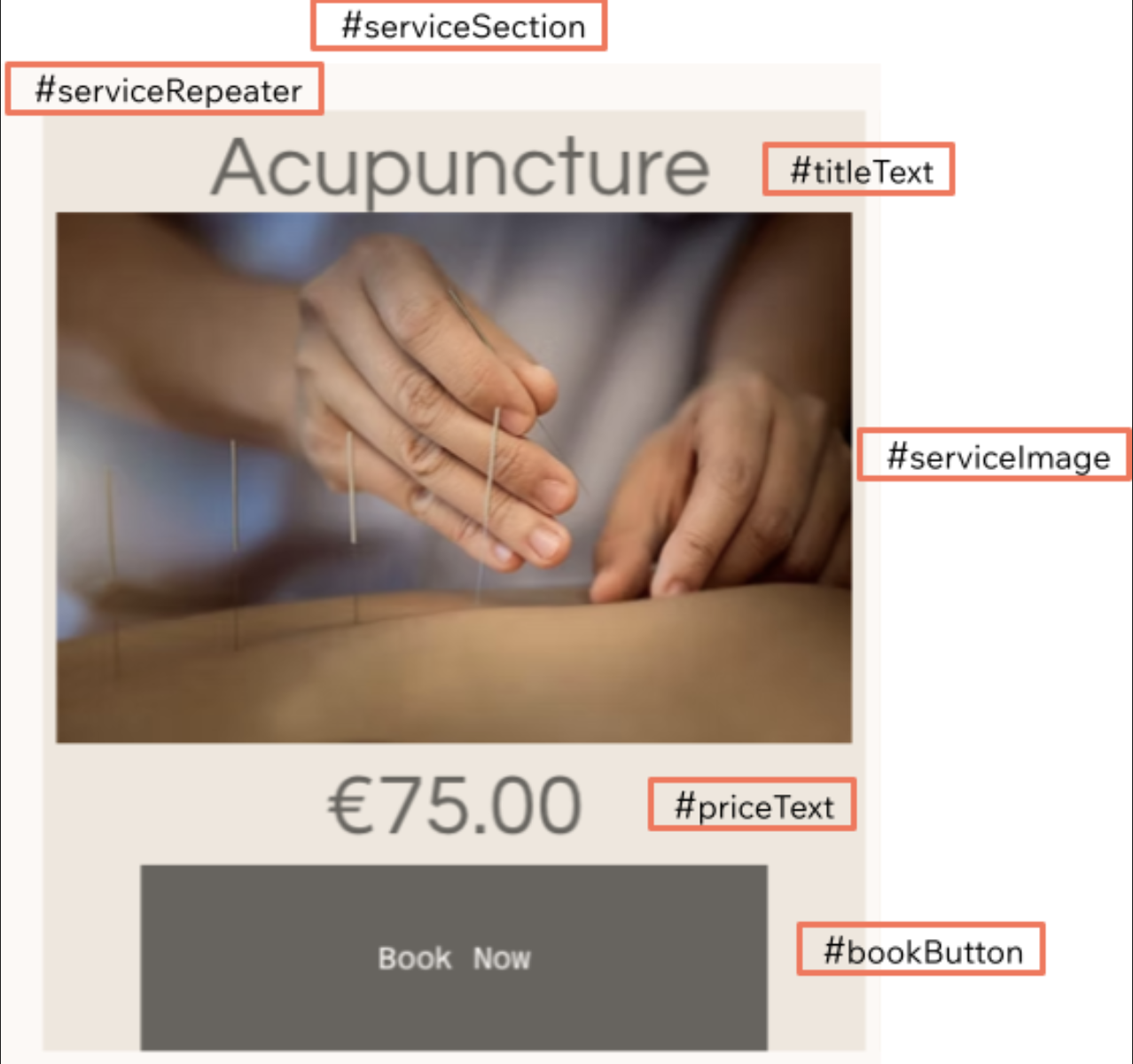
2. Add the following elements to your page for services display and connect the repeater elements to their respective fields from the **Bookings/Services** collection through the dataset:
| Type | ID | Connected to collection/field |
| -------- | --------------- | ----------------------------- |
| Section | serviceSection | - |
| Repeater | serviceRepeater | Bookings/Services |
| Text | titleText | Service Name (Text) |
| Image | serviceImage | Service Image (Image) |
| Text | descriptionText | Service Description (Text) |
| Text | priceText | Price Summary (Text) |
| Button | bookButton | - |
The layout should look like this:
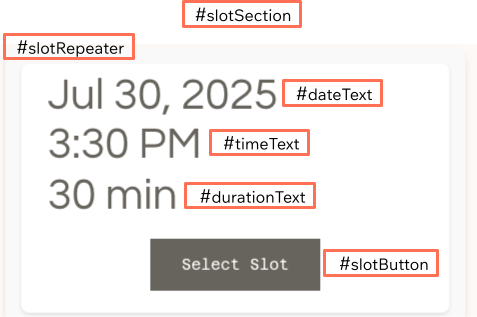
3. Add the following page elements for time slots display.
| Type | ID | Purpose |
| -------- | ------------ | ---------------------------- |
| Section | slotSection | Contains slot selection UI |
| Repeater | slotRepeater | Display available time slots |
| Text | dateText | Show slot date |
| Text | timeText | Show slot time |
| Text | durationText | Show slot duration |
| Button | slotButton | Select time slot |
The layout should look like this:
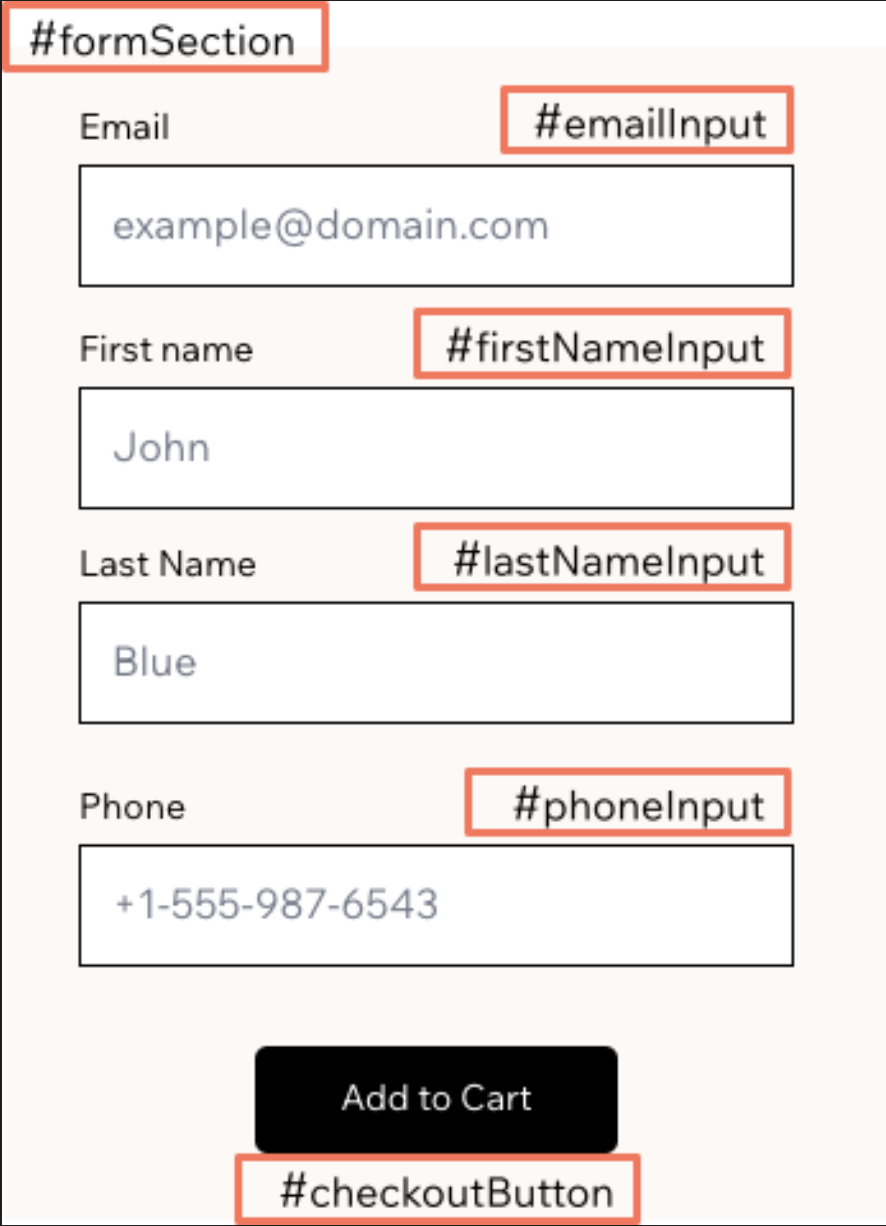
4. Add the following page elements for the booking form.
| Type | ID | Purpose |
| ------- | -------------- | ------------------------------ |
| Section | formSection | Contains customer input fields |
| Input | firstNameInput | Customer first name |
| Input | lastNameInput | Customer last name |
| Input | emailInput | Customer email |
| Input | phoneInput | Customer phone number |
| Button | checkoutButton | Add booking to cart |
The layout should look like this:
## Step 2 | Add backend code
This step creates the backend web module for checking slot availability.
At the end of this step, you'll have a backend web module that handles slot availability: fetching a list of available slots and verifying that a specific slot is still bookable right before creating a booking.
The availability checking methods in this step work with appointment-based services. Class and course services use different availability patterns and require [different API methods](https://dev.wix.com/docs/sdk/backend-modules/bookings/time-slots/introduction.md).
1. Create a new backend file called `bookings-availability.web.js` in your backend folder.
2. Add the required imports.
```javascript
/*****************************************
* Backend code - bookings-availability.web.js *
****************************************/
import { webMethod, Permissions } from "@wix/web-methods";
import { availabilityTimeSlots } from "@wix/bookings";
```
3. Add a [web method](https://dev.wix.com/docs/sdk/core-modules/web-methods/web-method.md) to list available slots.
It calls [`listAvailabilityTimeSlots()`](https://dev.wix.com/docs/sdk/backend-modules/bookings/time-slots/availability-time-slots/list-availability-time-slots.md) to retrieve available booking slots for a service.
The frontend code passes the required parameters: `serviceId`, `fromDate`, `toDate`, `timeSlotsPerDay`, and `timeZone`:
```javascript
// Get available time slots for a service using the Time Slots API
export const listAvailableSlots = webMethod(
Permissions.Anyone,
async (serviceId, fromDate, toDate, timeSlotsPerDay, timeZone) => {
try {
const response = await availabilityTimeSlots.listAvailabilityTimeSlots(
{
serviceId: serviceId,
fromLocalDate: fromDate,
toLocalDate: toDate,
timeSlotsPerDay: timeSlotsPerDay,
timeZone: timeZone,
}
);
return {
success: true,
timeSlots: response.timeSlots || [],
totalSlots: response.timeSlots ? response.timeSlots.length : 0,
};
} catch (error) {
console.error("Error fetching availability:", error);
return {
success: false,
error: error.message || "Unknown error occurred",
timeSlots: [],
totalSlots: 0,
};
}
}
);
```
4. Add the second method to verify slot availability.
This prevents double-booking by checking if a slot is still available right before creating the booking.
It calls [`getAvailabilityTimeSlot()`](https://dev.wix.com/docs/sdk/backend-modules/bookings/time-slots/availability-time-slots/get-availability-time-slot.md) to verify a specific time slot is still bookable.
The method checks the slot's `bookable` property to determine if it can still accept bookings.
The frontend code passes the required parameters: `serviceId`, `localStartDate`, `localEndDate`, `timeZone`, and `location`.
```javascript
// Verify a specific time slot is still available
export const verifyTimeSlotAvailability = webMethod(
Permissions.Anyone,
async (serviceId, localStartDate, localEndDate, timeZone, location) => {
// Validate required parameters
if (!serviceId || !localStartDate || !localEndDate) {
console.error("Missing required parameters for verification");
return {
success: false,
error: "Missing required parameters",
isAvailable: false,
};
}
try {
const response = await availabilityTimeSlots.getAvailabilityTimeSlot(
serviceId,
localStartDate,
localEndDate,
timeZone,
location
);
return {
success: true,
timeSlot: response.timeSlot,
isAvailable: response.timeSlot && response.timeSlot.bookable,
};
} catch (error) {
console.error("Error verifying slot:", error);
return {
success: false,
error: error.message || "Slot verification failed",
isAvailable: false,
};
}
}
);
```
## Step 3 | Build booking and payment logic
This step creates the backend web module for booking creation and cart integration.
The backend web module handles a 2-step process: first creating a booking and then adding it to the eCommerce cart for payment processing.
1. Create a new backend file called `bookings-checkout.web.js` in your backend folder.
2. Add the required imports.
```javascript
/*****************************************
* Backend code - bookings-checkout.web.js *
****************************************/
import { Permissions, webMethod } from "@wix/web-methods";
import { currentCart } from "@wix/ecom";
import { bookings } from "@wix/bookings";
```
3. Add a helper function to prepare booking data.
```javascript
// Helper function to prepare booking data from the frontend options
function prepareBookingData(bookingOptions) {
return {
bookedEntity: {
slot: bookingOptions.bookedEntity.slot,
},
contactDetails: {
firstName: bookingOptions.contactDetails.firstName,
lastName: bookingOptions.contactDetails.lastName,
email: bookingOptions.contactDetails.email,
phone: bookingOptions.contactDetails.phone,
},
numberOfParticipants: bookingOptions.numberOfSpots || 1,
};
}
```
4. Add a helper function to create the booking.
This function calls [`createBooking()`](https://dev.wix.com/docs/sdk/backend-modules/bookings/bookings/create-booking.md) and handles any errors that occur during booking creation.
```javascript
// Helper function to create a booking and handle errors
async function createBookingWithErrorHandling(bookingData) {
try {
const createdBookingResponse = await bookings.createBooking(bookingData);
// Validate booking creation before proceeding
if (!createdBookingResponse || !createdBookingResponse.booking._id) {
console.error("Booking creation returned invalid result");
return {
success: false,
error: "Booking creation failed - no booking ID returned",
step: "booking_validation",
};
}
return {
success: true,
booking: createdBookingResponse,
};
} catch (bookingError) {
console.error("Failed to create booking:", bookingError);
return {
success: false,
error:
"Failed to create booking: " +
(bookingError.message || "Unknown booking error"),
step: "booking_creation",
details: bookingError.details || null,
};
}
}
```
5. Add a helper function to add the booking to the cart.
This function uses [`addToCurrentCart()`](https://dev.wix.com/docs/sdk/backend-modules/ecom/current-cart/add-to-current-cart.md) to add the created booking to the eCommerce cart by specifying the Wix Bookings app ID and the booking ID.
```javascript
// Helper function to add booking to cart and handle errors
async function addBookingToCartWithErrorHandling(bookingId) {
try {
const cartOptions = {
lineItems: [
{
catalogReference: {
appId: "13d21c63-b5ec-5912-8397-c3a5ddb27a97", // Wix Bookings app ID
catalogItemId: bookingId,
},
quantity: 1,
},
],
};
const updatedCurrentCart = await currentCart.addToCurrentCart(
cartOptions
);
return {
success: true,
cart: updatedCurrentCart,
};
} catch (cartError) {
console.error("Error adding booking to cart:", cartError);
return {
success: false,
error:
"Failed to add booking to cart: " +
(cartError.message || "Unknown cart error"),
step: "cart_addition",
details: cartError.details || null,
};
}
}
```
6. Implement the main web method that coordinates the helper functions.
```javascript
// Main web method that coordinates booking creation and cart addition
export const addBookingToCart = webMethod(
Permissions.Anyone,
async (bookingOptions) => {
// Step 1: Prepare the booking data
const bookingData = prepareBookingData(bookingOptions);
// Step 2: Create the booking
const bookingResult = await createBookingWithErrorHandling(bookingData);
if (!bookingResult.success) {
return bookingResult; // Return error from booking creation
}
// Step 3: Add booking to cart
const cartResult = await addBookingToCartWithErrorHandling(
bookingResult.booking.booking._id
);
if (!cartResult.success) {
// In a production site, handle this partial success scenario carefully.
// The booking exists but is unpaid - consider canceling it or notifying site owners for follow-up.
console.log(
"Booking created but cart addition failed. Booking ID:",
bookingResult.booking.booking._id
);
return {
...cartResult,
booking: bookingResult.booking, // Include booking info even if cart failed
};
}
// Step 4: Return success response
return {
booking: bookingResult.booking,
cart: cartResult.cart,
success: true,
message: "Booking created and added to cart successfully",
};
}
);
```
## Step 4 | Add frontend code
This step sets up the frontend code structure for the booking flow.
You'll create the imports, utility functions, and basic UI setup needed for the booking functionality.
At the end of this step, you'll have a page with form validation and checkout button handling, ready to integrate with the service and slot selection features.
To set up the booking infrastructure:
1. Add the imports and global variables at the top of your page code.
```javascript
import { ecom } from "@wix/site-ecom";
import {
listAvailableSlots,
verifyTimeSlotAvailability,
} from "backend/bookings-availability.web.js";
import { addBookingToCart } from "backend/bookings-checkout.web.js";
// Global variables
let availableSlots = [];
let selectedSlot = null;
let selectedServiceId = null;
```
2. Add utility and helper functions.
```javascript
// Optional: Utility method to format dates for API calls
function toLocalISOString(date) {
// Convert date to local time ISO string
const offset = date.getTimezoneOffset();
// Adjust for timezone: getTimezoneOffset() returns minutes, so multiply by 60*1000 to get milliseconds
// Subtract because getTimezoneOffset() returns positive values for timezones behind UTC
const localDate = new Date(date.getTime() - offset * 60 * 1000);
// Convert to ISO string and remove the 'Z' suffix
// slice(0, -1) removes the last character ('Z') to indicate local time, not UTC
return localDate.toISOString().slice(0, -1);
}
// Helper function to validate form input and slot selection
function validateFormInput() {
// Check if a slot has been selected
if (!selectedSlot) {
console.error("No slot selected or slot data missing");
return false;
}
// Validate form inputs and remove leading/trailing whitespace with trim()
const firstName = $w("#firstNameInput").value.trim();
const lastName = $w("#lastNameInput").value.trim();
const email = $w("#emailInput").value.trim();
const phone = $w("#phoneInput").value.trim();
// Confirm all required input fields are filled
if (!firstName || !lastName || !email) {
// In a production site, consider displaying a message to the site visitor.
// For example: $w("#errorMessage").text = "Please fill in all required fields";
console.log("Please fill in all required fields");
return false;
}
return true;
}
```
3. Set up the `$w.onReady()` function with complete functionality.
```javascript
$w.onReady(function () {
// Initially hide slot and form sections (service section visible by default)
$w("#slotSection").hide();
$w("#formSection").hide();
// Add event listener for the checkout button
$w("#checkoutButton").onClick(() => {
// Validate form input and slot selection
if (!validateFormInput()) {
return;
}
// Process the booking (create booking and add to cart)
processBooking();
});
});
```
## Step 5 | Enable customers to browse and select services
This step implements the service selection user interface.
At the end of this step, clicking a service's book button shows the slot selection section though slots don't load yet.
To set up service selection:
1. Add the service repeater item ready function.
This function handles when a service item is displayed in the repeater and sets up the book button click handler.
```javascript
export function serviceRepeaterItemReady($item, itemData, index) {
$item("#bookButton").onClick(async () => {
selectedServiceId = itemData._id;
if (selectedServiceId) {
try {
await loadAvailableSlots(selectedServiceId);
// Show slotSection when bookButton is clicked
$w("#slotSection").show();
} catch (error) {
console.error("Error loading available slots:", error);
// In a production site, consider displaying a message to site visitors via UI elements.
// For example: $w("#serviceErrorMessage").text = "Unable to load available times. Please try again.";
}
} else {
// In a production site, consider displaying a message to site visitors via UI elements.
// For example: $w("#serviceErrorMessage").text = "Service unavailable. Please try again.";
console.log("No service ID found");
}
});
}
```
2. Add the service repeater registration to your `$w.onReady()` function.
```javascript
$w.onReady(function () {
// ... existing code ...
// Register the service repeater item ready method
$w("#serviceRepeater").onItemReady(serviceRepeaterItemReady);
});
```
## Step 6 | Display available appointment times to customers
This step implements the actual slot loading functionality by replacing the stub function with a real implementation.
At the end of this step, site visitors can view available time slots for their selected service.
To load and display available slots:
1. Add the `loadAvailableSlots` function to your page code.
When a site visitor selects a service by clicking the book button, this function fetches available time slots for that service.
This example queries availability for the next 7 days and limits results to 1 slot per day.
You can adjust the time range and slots per day to better suit your business needs and user experience requirements.
```javascript
// Load available time slots for the selected service
async function loadAvailableSlots(serviceId) {
try {
// Set up the date range and time zone parameters
const today = new Date();
const endRange = new Date();
// Set query time range (the example uses 7 days ahead, you can customize this range as needed)
endRange.setDate(today.getDate() + 7);
// Limit to 1 slot per day - increase for more options
let slotsPerDay = 1;
// Use the customer's timezone or default to UTC
// Note: UTC fallback may cause timezone mismatches for international customers
let timeZone = Intl.DateTimeFormat().resolvedOptions().timeZone || "UTC";
// Call the backend method to fetch available slots
const availability = await listAvailableSlots(
serviceId,
toLocalISOString(today),
toLocalISOString(endRange),
slotsPerDay,
timeZone
);
// Handle the response and call the slot population function
if (availability && availability.timeSlots) {
availableSlots = availability.timeSlots;
populateSlotRepeater();
} else {
// In a production site, consider showing a message to the site visitor.
// For example: $w("#noSlotsMessage").show();
console.log("No available slots found");
$w("#slotRepeater").data = [];
}
} catch (error) {
console.error("Error fetching slots:", error);
$w("#slotRepeater").data = [];
}
}
```
## Step 7 | Allow customers to choose their preferred time slot
This step implements the slot selection functionality with helper functions for cleaner, more maintainable code.
At the end of this step, site visitors can choose from available appointment times.
To display and interact with time slots:
1. Add the `populateSlotRepeater` function to your page code.
[Repeaters](https://dev.wix.com/docs/develop-websites-sdk/code-your-site/build-a-custom-frontend/editor-elements/repeaters/about-repeater-item-templates.md) require each data item to have an `_id` field that doesn't contain underscores within its value.
The raw slot data from the [`listAvailabilityTimeSlots()`](https://dev.wix.com/docs/sdk/backend-modules/bookings/time-slots/availability-time-slots/list-availability-time-slots.md) doesn't include an `id` field, so you must transform the data.
For example, by using the `map()` method.
Without this transformation, the repeater won't display any items while no error is logged.
```javascript
// Populate the time slots repeater
function populateSlotRepeater() {
try {
if (!availableSlots || availableSlots.length === 0) {
// In a production site, consider showing a message to site visitors via UI elements.
// For example: $w("#noSlotsMessage").text = "No available time slots. Please try different dates.";
console.log("No slots to display");
$w("#slotRepeater").data = [];
return;
}
// Show slot section
$w("#slotSection").show();
// Transform slots for repeater compatibility
// IMPORTANT: Repeaters require each item to have an _id field that doesn't contain underscores
// The raw slot data from the API doesn't meet this requirement, so we must map it
const repeaterData = availableSlots.map((slot, index) => {
return {
_id: `slot-${index}`, // Simple ID for repeater (no underscores in the value)
fullSlot: slot, // Nest the original slot data here
};
});
// Set the repeater data
$w("#slotRepeater").data = repeaterData;
} catch (error) {
console.error("Error populating repeater:", error);
}
}
```
2. Add a helper function to format slot display data.
```javascript
// Helper function to format slot data for display
function formatSlotForDisplay(slotData) {
const startDate = new Date(slotData.localStartDate);
const endDate = new Date(slotData.localEndDate);
// OPTIONAL: Format date using US locale with abbreviated month (e.g., "Jul 1, 2025")
// Customize this formatting to match your preferences
const dateStr = startDate.toLocaleDateString("en-US", {
month: "short", // Abbreviated month name (Jan, Feb, etc.)
day: "numeric", // Day without leading zero
year: "numeric", // Full year
});
// OPTIONAL: Format time using US locale with 12-hour format (e.g., "2:00 PM")
// You can use 24-hour format or other locale settings as needed
const timeStr = startDate.toLocaleTimeString("en-US", {
hour: "numeric", // Hour without leading zero
minute: "2-digit", // Minutes with leading zero if needed
hour12: true, // Use 12-hour format with AM/PM
});
// OPTIONAL: Calculate and display slot duration
// You might prefer to show this information differently
const durationMinutes = Math.round(
(endDate.getTime() - startDate.getTime()) / (1000 * 60)
);
const durationStr = `${durationMinutes} min`;
return { dateStr, timeStr, durationStr };
}
```
3. Add a helper function to handle slot selection.
```javascript
// Helper function to handle slot selection
function handleSlotSelection(slotData) {
// Store the selected slot for booking creation
selectedSlot = slotData;
// Show your custom booking form
$w("#formSection").show();
}
```
4. Implement the main slot repeater item ready method that uses the helper functions.
```javascript
export function slotRepeaterItemReady($item, itemData, index) {
try {
// Access the slot data from the fullSlot property due to our data transformation
const slotData = itemData.fullSlot;
// Format the slot data for display
const { dateStr, timeStr, durationStr } = formatSlotForDisplay(slotData);
// Set the formatted values to the repeater item's text elements
$item("#dateText").text = dateStr;
$item("#timeText").text = timeStr;
$item("#durationText").text = durationStr;
// Add event listener for the slot button - this is the core functionality
// When clicked, this stores the selected slot and shows the booking form
$item("#slotButton").onClick(() => {
handleSlotSelection(slotData);
});
} catch (error) {
console.error("Error in slot repeater itemReady:", error);
}
}
```
5. Add the slot repeater registration to your `$w.onReady()` function.
```javascript
$w.onReady(function () {
// ... existing code ...
// Register the slot repeater item ready method
$w("#slotRepeater").onItemReady(slotRepeaterItemReady);
});
```
## Step 8 | Process the booking and redirect to Wix eCommerce checkout
This step implements the booking creation functionality with a comprehensive set of helper functions for better code organization.
The frontend `processBooking()` function calls the backend web module `addBookingToCart()` (created in step 3) that handles both creating the booking and adding it to the eCommerce cart.
At the end of this step, you create the booking and automatically redirect customers to the cart page to complete their purchase.
To implement the booking process:
1. Add helper functions to collect form data and validate slot selection.
```javascript
// Helper function to collect form data
function getFormData() {
// Get form values and remove leading/trailing whitespace with trim()
const firstName = $w("#firstNameInput").value.trim();
const lastName = $w("#lastNameInput").value.trim();
const email = $w("#emailInput").value.trim();
const phone = $w("#phoneInput").value.trim();
return { firstName, lastName, email, phone };
}
// Helper function to validate slot selection
function validateSlotSelection() {
// Check if selectedSlot and its properties exist
if (!selectedSlot) {
throw new Error("No slot selected or slot data missing");
}
// Ensure we have the required data
if (!selectedSlot.localStartDate || !selectedSlot.localEndDate) {
throw new Error("Slot missing start or end date");
}
}
```
2. Add a helper function to transform slot data for booking creation.
You must transform the `slot` object returned from `listAvailabilityTimeSlots()` before specifying it in `createBooking()`. The required transformations are:
- **Rename date fields**: `localStartDate`/`localEndDate` → `startDate`/`endDate`.
- **Select a resource**: Choose 1 resource from the `availableResources` array.
- **Map location type**: Convert between different enum values.
| From `listAvailabilityTimeSlots()` | To `createBooking()` |
| ---------------------------------- | -------------------- |
| `CUSTOMER` | `OWNER_CUSTOM` |
| `CUSTOM` | `CUSTOM` |
| `BUSINESS` | `OWNER_BUSINESS` |
```javascript
// Helper function to transform slot data for booking creation
function transformSlotForBooking(contactDetails) {
// Map location type from time slots API to bookings API format
const locationTypeMap = {
CUSTOMER: "OWNER_CUSTOM",
CUSTOM: "CUSTOM",
BUSINESS: "OWNER_BUSINESS",
};
// Transform slot data for booking creation
return {
bookedEntity: {
slot: {
...selectedSlot,
startDate: selectedSlot.localStartDate,
endDate: selectedSlot.localEndDate,
location: {
...selectedSlot.location,
locationType:
locationTypeMap[selectedSlot.location.locationType] ||
"OWNER_BUSINESS",
},
resource: {
...selectedSlot.resource,
// Select a resource, it doesn't have to be the first resource.
id: selectedSlot.availableResources[0].resources[0]._id,
},
},
},
contactDetails,
numberOfSpots: 1,
};
}
```
3. Add a helper function to verify slot availability.
```javascript
// Helper function to verify slot availability before booking
async function verifySlotAvailability() {
// Use the customer's timezone or default to UTC
// Note: UTC fallback may cause timezone mismatches for international customers
const timeZone = Intl.DateTimeFormat().resolvedOptions().timeZone || "UTC";
// Verify slot is still available
const slotVerification = await verifyTimeSlotAvailability(
selectedServiceId,
selectedSlot.localStartDate,
selectedSlot.localEndDate,
timeZone,
selectedSlot.location
);
if (!slotVerification.success) {
throw new Error(
`Error verifying slot availability: ${slotVerification.error}`
);
}
if (!slotVerification.isAvailable) {
throw new Error("Slot is no longer available for booking");
}
}
```
4. Implement the main `processBooking` function that coordinates the helper functions.
This function orchestrates the entire booking process using the helper functions in a clear 6-step workflow.
```javascript
// Process booking: validate, create booking, and add to cart
async function processBooking() {
try {
// Step 1: Validate slot selection
validateSlotSelection();
// Step 2: Collect form data
const contactDetails = getFormData();
// Step 3: Transform slot data for booking
const bookingOptions = transformSlotForBooking(contactDetails);
// Step 4: Verify slot is still available
await verifySlotAvailability();
// Step 5: Create the booking and add it to the cart
const cartResult = await addBookingToCart(bookingOptions);
// Step 6: Navigate to cart page for checkout
await ecom.navigateToCartPage();
} catch (error) {
console.error("Error processing booking:", error);
// In a production site, consider displaying an error message to site visitors via UI elements.
// For example: $w("#errorMessage").text = "Error processing booking. Please try again.";
console.log("Error processing booking. Please try again.");
}
}
```
## What happens next
After the booking is added to the cart and the customer is redirected, they continue through the standard Wix eCommerce checkout flow:
1. **Cart page**: Site visitors review their booking details and continue to checkout.
2. **Checkout page**: Site visitors enter payment information and billing details.
3. **Confirmation**: Site visitors receive booking confirmation after successful payment.
Congratulations. You've successfully created a custom bookings experience that integrates with Wix eCommerce for payment processing.
You can continue building upon this example by adding features like booking confirmations, customer notifications, or apply what you learned in this tutorial to create entirely new booking workflows.
## Complete implementation code
Page code (frontend)
```javascript
import { ecom } from "@wix/site-ecom";
import {
listAvailableSlots,
verifyTimeSlotAvailability,
} from "backend/bookings-availability.web.js";
import { addBookingToCart } from "backend/bookings-checkout.web.js";
// Global variables
let availableSlots = [];
let selectedSlot = null;
let selectedServiceId = null;
function toLocalISOString(date) {
// Convert date to local time ISO string
const offset = date.getTimezoneOffset();
// Adjust for timezone: getTimezoneOffset() returns minutes, so multiply by 60*1000 to get milliseconds
// Subtract because getTimezoneOffset() returns positive values for timezones behind UTC
const localDate = new Date(date.getTime() - offset * 60 * 1000);
// Convert to ISO string and remove the 'Z' suffix
// slice(0, -1) removes the last character ('Z') to indicate local time, not UTC
return localDate.toISOString().slice(0, -1);
}
// Load available time slots for the selected service
async function loadAvailableSlots(serviceId) {
try {
// Set up the date range and time zone parameters
const today = new Date();
const endRange = new Date();
// Set query time range (the example uses 7 days ahead, you can customize this range as needed)
endRange.setDate(today.getDate() + 7);
// Limit to 1 slot per day - increase for more options
let slotsPerDay = 1;
// Use the customer's timezone or default to UTC
// Note: UTC fallback may cause timezone mismatches for international customers
let timeZone = Intl.DateTimeFormat().resolvedOptions().timeZone || "UTC";
// Call the backend method to fetch available slots
const availability = await listAvailableSlots(
serviceId,
toLocalISOString(today),
toLocalISOString(endRange),
slotsPerDay,
timeZone
);
// Handle the response and call the slot population function
if (availability && availability.timeSlots) {
availableSlots = availability.timeSlots;
populateSlotRepeater();
} else {
console.log("No available slots found");
// In a production site, consider showing a message to the site visitor.
// For example: $w("#noSlotsMessage").show();
$w("#slotRepeater").data = [];
}
} catch (error) {
console.error("Error fetching slots:", error);
$w("#slotRepeater").data = [];
}
}
// Populate the time slots repeater
function populateSlotRepeater() {
try {
if (!availableSlots || availableSlots.length === 0) {
$w("#slotRepeater").data = [];
return;
}
// Show slot section
$w("#slotSection").show();
// Transform slots for repeater compatibility
// IMPORTANT: Repeaters require each item to have an _id field that doesn't contain underscores
// The raw slot data from the API doesn't meet this requirement, so we must map it
const repeaterData = availableSlots.map((slot, index) => {
return {
_id: `slot-${index}`, // Simple ID for repeater (no underscores in the value)
fullSlot: slot, // Nest the original slot data here
};
});
// Set the repeater data
$w("#slotRepeater").data = repeaterData;
} catch (error) {
console.error("Error populating repeater:", error);
}
}
// Helper function to format slot data for display
function formatSlotForDisplay(slotData) {
const startDate = new Date(slotData.localStartDate);
const endDate = new Date(slotData.localEndDate);
// OPTIONAL: Format date using US locale with abbreviated month (e.g., "Jul 1, 2025")
// Customize this formatting to match your preferences
const dateStr = startDate.toLocaleDateString("en-US", {
month: "short", // Abbreviated month name (Jan, Feb, etc.)
day: "numeric", // Day without leading zero
year: "numeric", // Full year
});
// OPTIONAL: Format time using US locale with 12-hour format (e.g., "2:00 PM")
// You can use 24-hour format or other locale settings as needed
const timeStr = startDate.toLocaleTimeString("en-US", {
hour: "numeric", // Hour without leading zero
minute: "2-digit", // Minutes with leading zero if needed
hour12: true, // Use 12-hour format with AM/PM
});
// OPTIONAL: Calculate and display slot duration
// You might prefer to show this information differently
const durationMinutes = Math.round(
(endDate.getTime() - startDate.getTime()) / (1000 * 60)
);
const durationStr = `${durationMinutes} min`;
return { dateStr, timeStr, durationStr };
}
// Helper function to handle slot selection
function handleSlotSelection(slotData) {
// Store the selected slot for booking creation
selectedSlot = slotData;
// Show your custom booking form
$w("#formSection").show();
}
// Helper function to validate form input and slot selection
function validateFormInput() {
// Check if a slot has been selected
if (!selectedSlot) {
console.error("No slot selected or slot data missing");
return false;
}
// Validate form inputs and remove leading/trailing whitespace with trim()
const firstName = $w("#firstNameInput").value.trim();
const lastName = $w("#lastNameInput").value.trim();
const email = $w("#emailInput").value.trim();
const phone = $w("#phoneInput").value.trim();
// Confirm all required input fields are filled
if (!firstName || !lastName || !email) {
// In a production site, consider displaying a message to the site visitor.
// For example: $w("#errorMessage").text = "Please fill in all required fields";
console.log("Please fill in all required fields");
return false;
}
return true;
}
// Helper function to collect form data
function getFormData() {
// Get form values and remove leading/trailing whitespace with trim()
const firstName = $w("#firstNameInput").value.trim();
const lastName = $w("#lastNameInput").value.trim();
const email = $w("#emailInput").value.trim();
const phone = $w("#phoneInput").value.trim();
return { firstName, lastName, email, phone };
}
// Helper function to validate slot selection
function validateSlotSelection() {
// Check if selectedSlot and its properties exist
if (!selectedSlot) {
throw new Error("No slot selected or slot data missing");
}
// Ensure we have the required data
if (!selectedSlot.localStartDate || !selectedSlot.localEndDate) {
throw new Error("Slot missing start or end date");
}
}
// Helper function to transform slot data for booking creation
function transformSlotForBooking(contactDetails) {
// Map location type from time slots API to bookings API format
const locationTypeMap = {
CUSTOMER: "OWNER_CUSTOM",
CUSTOM: "CUSTOM",
BUSINESS: "OWNER_BUSINESS",
};
// Transform slot data for booking creation
return {
bookedEntity: {
slot: {
...selectedSlot,
startDate: selectedSlot.localStartDate,
endDate: selectedSlot.localEndDate,
location: {
...selectedSlot.location,
locationType:
locationTypeMap[selectedSlot.location.locationType] ||
"OWNER_BUSINESS",
},
resource: {
...selectedSlot.resource,
// Select a resource, it doesn't have to be the first resource.
id: selectedSlot.availableResources[0].resources[0]._id,
},
},
},
contactDetails,
numberOfSpots: 1,
};
}
// Helper function to verify slot availability before booking
async function verifySlotAvailability() {
// Use the customer's timezone or default to UTC
// Note: UTC fallback may cause timezone mismatches for international customers
const timeZone = Intl.DateTimeFormat().resolvedOptions().timeZone || "UTC";
// Verify slot is still available
const slotVerification = await verifyTimeSlotAvailability(
selectedServiceId,
selectedSlot.localStartDate,
selectedSlot.localEndDate,
timeZone,
selectedSlot.location
);
if (!slotVerification.success) {
throw new Error(
`Error verifying slot availability: ${slotVerification.error}`
);
}
if (!slotVerification.isAvailable) {
throw new Error("Slot is no longer available for booking");
}
}
// Process booking: validate, create booking, and add to cart
async function processBooking() {
try {
// Step 1: Validate slot selection
validateSlotSelection();
// Step 2: Collect form data
const contactDetails = getFormData();
// Step 3: Transform slot data for booking
const bookingOptions = transformSlotForBooking(contactDetails);
// Step 4: Verify slot is still available
await verifySlotAvailability();
// Step 5: Create the booking and add it to the cart
const cartResult = await addBookingToCart(bookingOptions);
// Step 6: Navigate to cart page for checkout
await ecom.navigateToCartPage();
} catch (error) {
console.error("Error processing booking:", error);
// In a production site, consider displaying an error message to site visitors via UI elements.
// For example: $w("#errorMessage").text = "Error processing booking. Please try again.";
console.log("Error processing booking. Please try again.");
}
}
export function serviceRepeaterItemReady($item, itemData, index) {
$item("#bookButton").onClick(async () => {
selectedServiceId = itemData._id;
if (selectedServiceId) {
try {
await loadAvailableSlots(selectedServiceId);
// Show slotSection when bookButton is clicked
$w("#slotSection").show();
} catch (error) {
console.error("Error loading available slots:", error);
// In a production site, consider displaying a message to site visitors via UI elements.
// For example: $w("#serviceErrorMessage").text = "Unable to load available times. Please try again.";
}
} else {
console.log("No service ID found");
}
});
}
export function slotRepeaterItemReady($item, itemData, index) {
try {
// Access the slot data from the fullSlot property due to our data transformation
const slotData = itemData.fullSlot;
// Format the slot data for display
const { dateStr, timeStr, durationStr } = formatSlotForDisplay(slotData);
// Set the formatted values to the repeater item's text elements
$item("#dateText").text = dateStr;
$item("#timeText").text = timeStr;
$item("#durationText").text = durationStr;
// Add event listener for the slot button - this is the core functionality
// When clicked, this stores the selected slot and shows the booking form
$item("#slotButton").onClick(() => {
handleSlotSelection(slotData);
});
} catch (error) {
console.error("Error in slot repeater itemReady:", error);
}
}
$w.onReady(function () {
// Initially hide slot and form sections (service section visible by default)
$w("#slotSection").hide();
$w("#formSection").hide();
// Register the item ready methods for the slot and the service repeater
$w("#slotRepeater").onItemReady(slotRepeaterItemReady);
$w("#serviceRepeater").onItemReady(serviceRepeaterItemReady);
// Add event listener for the checkout button
$w("#checkoutButton").onClick(() => {
// Validate form input and slot selection
if (!validateFormInput()) {
return;
}
// Process the booking (create booking and add to cart)
processBooking();
});
});
```
bookings-availability.web.js
```javascript
/*****************************************
* Backend code - bookings-availability.web.js *
****************************************/
import { webMethod, Permissions } from "@wix/web-methods";
import { availabilityTimeSlots } from "@wix/bookings";
/**
* Get available time slots for a service using the Availability API
*/
export const listAvailableSlots = webMethod(
Permissions.Anyone,
async (serviceId, fromDate, toDate, timeSlotsPerDay, timeZone) => {
try {
const response = await availabilityTimeSlots.listAvailabilityTimeSlots({
serviceId: serviceId,
fromLocalDate: fromDate,
toLocalDate: toDate,
timeSlotsPerDay: timeSlotsPerDay,
timeZone: timeZone,
});
return {
success: true,
timeSlots: response.timeSlots || [],
totalSlots: response.timeSlots ? response.timeSlots.length : 0,
};
} catch (error) {
console.error("Error fetching availability:", error);
return {
success: false,
error: error.message || "Unknown error occurred",
timeSlots: [],
totalSlots: 0,
};
}
}
);
// Verify a specific time slot is still available
export const verifyTimeSlotAvailability = webMethod(
Permissions.Anyone,
async (serviceId, localStartDate, localEndDate, timeZone, location) => {
// Validate required parameters
if (!serviceId || !localStartDate || !localEndDate) {
console.error("Missing required parameters for verification");
return {
success: false,
error: "Missing required parameters",
isAvailable: false,
};
}
try {
const response = await availabilityTimeSlots.getAvailabilityTimeSlot(
serviceId,
localStartDate,
localEndDate,
timeZone,
location
);
return {
success: true,
timeSlot: response.timeSlot,
isAvailable: response.timeSlot && response.timeSlot.bookable,
};
} catch (error) {
console.error("Error verifying slot:", error);
return {
success: false,
error: error.message || "Slot verification failed",
isAvailable: false,
};
}
}
);
```
bookings-checkout.web.js
```javascript
/*****************************************
* Backend code - bookings-checkout.web.js *
****************************************/
import { Permissions, webMethod } from "@wix/web-methods";
import { currentCart } from "@wix/ecom";
import { bookings } from "@wix/bookings";
// Helper function to prepare booking data from the frontend options
function prepareBookingData(bookingOptions) {
return {
bookedEntity: {
slot: bookingOptions.bookedEntity.slot,
},
contactDetails: {
firstName: bookingOptions.contactDetails.firstName,
lastName: bookingOptions.contactDetails.lastName,
email: bookingOptions.contactDetails.email,
phone: bookingOptions.contactDetails.phone,
},
numberOfParticipants: bookingOptions.numberOfSpots || 1,
};
}
// Helper function to create a booking and handle errors
async function createBookingWithErrorHandling(bookingData) {
try {
const createdBookingResponse = await bookings.createBooking(bookingData);
// Validate booking creation before proceeding
if (!createdBookingResponse || !createdBookingResponse.booking._id) {
console.error("Booking creation returned invalid result");
return {
success: false,
error: "Booking creation failed - no booking ID returned",
step: "booking_validation",
};
}
return {
success: true,
booking: createdBookingResponse,
};
} catch (bookingError) {
console.error("Failed to create booking:", bookingError);
return {
success: false,
error:
"Failed to create booking: " +
(bookingError.message || "Unknown booking error"),
step: "booking_creation",
details: bookingError.details || null,
};
}
}
// Helper function to add booking to cart and handle errors
async function addBookingToCartWithErrorHandling(bookingId) {
try {
const cartOptions = {
lineItems: [
{
catalogReference: {
appId: "13d21c63-b5ec-5912-8397-c3a5ddb27a97", // Wix Bookings app ID
catalogItemId: bookingId,
},
quantity: 1,
},
],
};
const updatedCurrentCart = await currentCart.addToCurrentCart(cartOptions);
return {
success: true,
cart: updatedCurrentCart,
};
} catch (cartError) {
console.error("Error adding booking to cart:", cartError);
return {
success: false,
error:
"Failed to add booking to cart: " +
(cartError.message || "Unknown cart error"),
step: "cart_addition",
details: cartError.details || null,
};
}
}
// Main web method that coordinates booking creation and cart addition
export const addBookingToCart = webMethod(
Permissions.Anyone,
async (bookingOptions) => {
// Step 1: Prepare the booking data
const bookingData = prepareBookingData(bookingOptions);
// Step 2: Create the booking
const bookingResult = await createBookingWithErrorHandling(bookingData);
if (!bookingResult.success) {
return bookingResult; // Return error from booking creation
}
// Step 3: Add booking to cart
const cartResult = await addBookingToCartWithErrorHandling(
bookingResult.booking.booking._id
);
if (!cartResult.success) {
// In a production site, handle this partial success scenario carefully.
// The booking exists but is unpaid - consider canceling it or notifying site owners for follow-up.
console.log(
"Booking created but cart addition failed. Booking ID:",
bookingResult.booking.booking._id
);
return {
...cartResult,
booking: bookingResult.booking, // Include booking info even if cart failed
};
}
// Step 4: Return success response
return {
booking: bookingResult.booking,
cart: cartResult.cart,
success: true,
message: "Booking created and added to cart successfully",
};
}
);
```
## See also
- [Wix Bookings API Reference](https://dev.wix.com/docs/sdk/backend-modules/bookings/introduction.md)
- [Wix Bookings architecture and data flow](https://dev.wix.com/docs/rest/business-solutions/bookings/architecture-and-data-flow.md)
- [Wix eCommerce API Reference](https://dev.wix.com/docs/sdk/backend-modules/ecom/introduction.md)
- [Wix eCommerce architecture and data flow](https://dev.wix.com/docs/rest/business-solutions/e-commerce/architecture-data-flow.md)
- [Working with Web Modules](https://dev.wix.com/docs/develop-websites-sdk/code-your-site/build-a-custom-backend/web-modules/about-web-modules.md)