> Portal Navigation:
>
> - Append `.md` to any URL under `https://dev.wix.com/docs/` to get its markdown version.
> - Pages are either content pages (article or reference text) or menu pages (a list of links to child pages).
> - To get a menu page, truncate any URL to a parent path and append `.md` (e.g. `https://dev.wix.com/docs/sdk.md`, `https://dev.wix.com/docs/sdk/core-modules.md`).
> - Top-level index of all portals: https://dev.wix.com/docs/llms.txt
> - Full concatenated docs: https://dev.wix.com/docs/llms-full.txt
## Resource: Work with npm Packages in the Editor
## Article: Work with npm Packages in the Editor
## Article Link: https://dev.wix.com/docs/develop-websites/articles/coding-with-velo/packages/work-with-npm-packages-in-the-editor.md
## Article Content:
# Work with npm Packages in the Editor
Wix allows you to install [npm packages](https://dev.wix.com/docs/develop-websites/articles/coding-with-velo/packages/about-npm-packages.md) on your site. This article explains how to install, update, and uninstall npm packages when working in the editor (Wix Studio and Wix Editor) or Wix IDE. You can also use npm packages in your local IDE with the [Wix CLI for Sites](https://dev.wix.com/docs/develop-websites/articles/coding-with-velo/packages/work-with-npm-packages-with-the-wix-cli.md).
>**Wix IDE users:** You can't install or update npm packages directly from the Wix IDE, but you can use packages that were installed or updated using the editor. Follow the instructions below for installing and updating packages in the editor, then import and use the package in the Wix IDE.
## Install an npm package
Before using an npm package, you need to install it on your site.
__Important:__
By installing an npm package, you agree to that npm module's license agreement.
To install an npm package in the editor:
1. Navigate to **Packages & Apps** in the code panel.
1. Hover over **npm** in Packages & Apps, click the plus icon , and select **Install npm package**.
The Package Manager opens. Note that the 10 most popular npm packages used on Wix sites are displayed in the Package Manager.
1. In the npm section of the Package Manager, search for the package you want to add to your site. Instructions for how to use the package are displayed on the right side of the Package Manager.
1. Click **Install** next to the package of your choice. Once installed, you can find the package under npm in the Packages & Apps section of the Code sidebar.
1. Learn how to use the installed package from its README file. There are several ways to view the README file:
+ In the **Packages & Apps** section of the Code sidebar, click the npm package to view the README file in the code editor.
+ Hover over the package, click the **Show More**  icon, and then select **View Documentation** to view the npm package documentation in a new browser.
+ Search for your package's README file at [npmjs.com](http://npmjs.com/).
## Change a package's version
In the editor, you can update an npm package to its latest version, or you can change it to a previous version.
**Important:**
After changing a package's version, make sure that the code on your site is compatible with the updated version of the package.
To change a package version in the editor:
1. Navigate to **Packages & Apps** in the code panel.
1. Hover over **npm** in Packages & Apps, click the plus icon , and select **Install npm package**.
1. In the Package Manager, select **Installed Packages**.
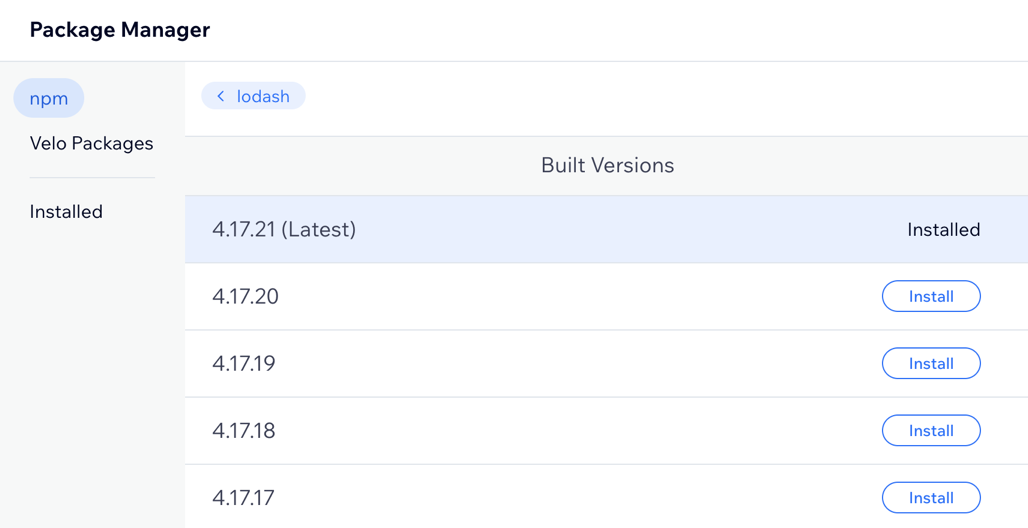
1. Hover over the package you want to update, click the **More Actions**  icon, and select **Choose a version**.

2. Find the version you want and click **Install**.
## Uninstall a package
You can uninstall npm packages that you no longer need.
**Warning:**
When you uninstall a package, make sure to update any code that relies on that package.
To uninstall a package in the editor:
1. Navigate to **Packages & Apps** in the code panel.
2. In the npm section, hover over the package you want to uninstall, click the **More Actions**  icon, and select **Uninstall**.
## See also
- [About packages](https://dev.wix.com/docs/develop-websites/articles/coding-with-velo/packages/about-packages.md)
- [About npm packages](https://dev.wix.com/docs/develop-websites/articles/coding-with-velo/packages/about-npm-packages.md)
- [Work with npm packages with the Wix CLI for Sites](https://dev.wix.com/docs/develop-websites/articles/coding-with-velo/packages/work-with-npm-packages-with-the-wix-cli.md)
