> Portal Navigation:
>
> - Append `.md` to any URL under `https://dev.wix.com/docs/` to get its markdown version.
> - Pages are either content pages (article or reference text) or menu pages (a list of links to child pages).
> - To get a menu page, truncate any URL to a parent path and append `.md` (e.g. `https://dev.wix.com/docs/sdk.md`, `https://dev.wix.com/docs/sdk/core-modules.md`).
> - Top-level index of all portals: https://dev.wix.com/docs/llms.txt
> - Full concatenated docs: https://dev.wix.com/docs/llms-full.txt
## Resource: Integrating External Databases with Your Wix Site
## Article: Integrating External Databases with Your Wix Site
## Article Link: https://dev.wix.com/docs/develop-websites/articles/databases/external-databases/overview/integrating-external-databases-with-your-wix-site.md
## Article Content:
# About Integrating External Databases with Your Wix Site
Wix's built-in data management solution is the [Wix Content Management System (CMS)](https://support.wix.com/en/article/cms-content-management-system-an-overview). While CMS collections cover a wide range of use cases for content-driven websites and applications, some projects may have specific requirements that can't be addressed by the integrated database solution.
To address such cases, Wix allows users to connect an external database to Wix sites using an external database adaptor. Once the connection is set up, users can interact with these databases and use them to populate site elements as though they were Wix CMS collections.
This article gives an overview of the ways you can connect an external database to Wix sites using an external database adaptor.
## Supported IDEs
You can work CMS collections and connected external databases in the following IDEs:
- The [editor](https://dev.wix.com/docs/develop-websites/articles/workspace-tools/velo-workspace/workspaces/wix-studio-working-with-the-code-panel.md) (Wix Studio and Wix Editor).
- The [Wix IDE](https://dev.wix.com/docs/develop-websites/articles/workspace-tools/velo-workspace/wix-ide/wix-studio-about-the-wix-ide.md) (Wix Studio).
- Your [local IDE](https://dev.wix.com/docs/develop-websites/articles/workspace-tools/developer-tools/git-integration-wix-cli-for-sites/about-git-integration-wix-cli-for-sites.md) (Wix Studio and Wix Editor).
## External database adaptors
To establish a connection between a site and an external database, you need to prepare an external database adaptor.
An external database adaptor is a server that translates Wix Data requests from your site to an external database’s protocol and translates the response back to a Wix Data format. From the Wix site’s point of view, the external database is a data collection and behaves exactly like an internal collection. This means that your external database collections can be managed via the [Wix Data APIs](https://dev.wix.com/docs/rest/business-solutions/cms/introduction.md), and used (with or without [datasets](https://dev.wix.com/docs/velo/velo-only-apis/$w/dataset/introduction.md)) to populate Wix UI elements like [repeaters](https://dev.wix.com/docs/develop-websites/articles/databases/wix-data/displaying-data/display-database-collection-content-in-a-repeater.md) and [tables](https://support.wix.com/en/article/cms-formerly-content-manager-displaying-collection-content-in-a-table).
**External database flows:**
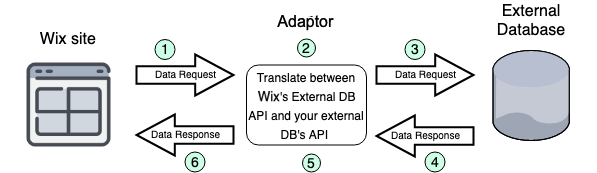
1. A Wix Data request is made to an external database collection. The request is sent to the adaptor.
2. The adaptor validates the request and translates it to a native database request in the required protocol.
3. The native protocol request is sent to the external database.
4. The external database sends a response in its native protocol and format.
5. The adaptor translates the response to a Wix Data format.
6. The translated response is sent to the Wix site and processed in the same way as an internal data response.
### Preparing an adaptor
You can prepare an external database adaptor in one of the following ways:
- [Deploy an out-of-the-box external database adaptor](#out-of-the-box-external-database-adaptors) for a single site.
- [Build and deploy your own external database adaptor](https://dev.wix.com/docs/sdk/backend-modules/data/external-database-connections/sample-flows.md#backend-modules_data_external-database-connections_build-your-own-adaptor).
### Out-of-the-box external database adaptors
Wix created out-of-the-box container image adaptors for several databases on external platforms, including AWS, Azure, and Google Cloud Platform.
The following database types are supported with out-of-the-box adaptors:
Click to expand list of supported databases
**MySQL**
[MySQL](https://www.mysql.com/) supports vanilla MySQL versions 5.7 to 8.0. This includes variants like MariaDB and Percona Server for MySQL, as MySQL APIs are fully compatible.
The following managed versions of MySQL are supported:
- [Google Cloud SQL for MySQL](https://cloud.google.com/sql)
- [Amazon RDS for MySQL and MariaDB](https://aws.amazon.com/rds/mysql/)
- [Amazon Aurora](https://aws.amazon.com/rds/aurora/mysql-features/)
- [Microsoft Azure MySQL](https://azure.microsoft.com/en-us/services/mysql/#overview)
**Postgres**
Open-source versions 9 to 13.
The following managed versions are supported:
- [Google Cloud SQL for Postgres](https://cloud.google.com/sql)
- [Amazon RDS for PostgreSQL](https://aws.amazon.com/rds/postgresql/)
- [Amazon Aurora](https://aws.amazon.com/rds/aurora)
- [Microsoft Azure Postgres](https://azure.microsoft.com/en-us/services/postgresql)
**MS SQL**
[Microsoft SQL Server](https://www.microsoft.com/en-us/sql-server/sql-server-2019) server can be connected both as an on-premises, self-managed installation or managed version where available:
- [Google Cloud SQL](https://cloud.google.com/sql/docs/sqlserver/quickstart)
- [Amazon RDS for SQL Server](https://aws.amazon.com/rds/sqlserver/)
- [Microsoft Azure SQL database](https://azure.microsoft.com/en-us/products/azure-sql/database/#overview)
**Google Cloud Spanner**
- [Google Cloud Spanner](https://cloud.google.com/spanner): Fully managed relational database with unlimited scale, strong consistency, and up to 99.999% availability from Google.
**Google Cloud BigQuery**
- [Google Cloud BigQuery](https://cloud.google.com/bigquery): Fully managed, scalable, and serverless data warehouse by Google with built-in machine learning capabilities.
Learn how to deploy an out-of-the-box external database adaptor for:
- [AWS](https://dev.wix.com/docs/develop-websites/articles/databases/external-databases/aws/integrate-your-aws-databases-with-your-wix-site.md)
- [Google Cloud](https://dev.wix.com/docs/develop-websites/articles/databases/external-databases/google/integrate-your-google-cloud-platform-databases-with-your-wix-site.md)
- [Microsoft Azure](https://dev.wix.com/docs/develop-websites/articles/databases/external-databases/microsoft-azure/integrate-your-microsoft-azure-database-with-your-wix-site.md)
## Connecting to an external database
Once you've prepared an external database adaptor, you can use it to connect Wix sites to the external database.
If you implemented your adaptor as part of a Wix app, the connection is made automatically when the app is installed on a site.
Otherwise, you need to make the connection manually using either of the following methods:
- [Add an external database collection in the Wix editor](https://dev.wix.com/docs/develop-websites/articles/databases/external-databases/overview/adding-and-deleting-an-external-database-collection.md).
- Call [Create External Database Connection](https://dev.wix.com/docs/rest/business-solutions/cms/external-database-connection/create-external-database-connection.md) in the External Database Connections API. See the API's [sample flows](https://dev.wix.com/docs/rest/business-solutions/cms/external-database-connection/sample-flows.md) for detailed instructions.
### Use existing data
You can use existing data from your external database in your Wix site. If you want your existing database table to be read-write on your site, it must contain the following columns:
- **\_id**
- **\_createdDate**
- **\_updatedDate**
- **\_owner**
Tables without these columns are read-only in your Wix site.
When creating new tables, include these columns to make the table writable from your site.
## See also
- [CMS (Content Management System): An Overview](https://support.wix.com/en/article/cms-content-management-system-an-overview)
- [About the Wix Data API](https://dev.wix.com/docs/rest/business-solutions/cms/introduction.md)