> Portal Navigation:
>
> - Append `.md` to any URL under `https://dev.wix.com/docs/` to get its markdown version.
> - Pages are either content pages (article or reference text) or menu pages (a list of links to child pages).
> - To get a menu page, truncate any URL to a parent path and append `.md` (e.g. `https://dev.wix.com/docs/sdk.md`, `https://dev.wix.com/docs/sdk/core-modules.md`).
> - Top-level index of all portals: https://dev.wix.com/docs/llms.txt
> - Full concatenated docs: https://dev.wix.com/docs/llms-full.txt
## Resource: Working with Wix Data
## Article: Working with Wix Data
## Article Link: https://dev.wix.com/docs/develop-websites/articles/databases/wix-data/data-api/working-with-wix-data.md
## Article Content:
# Velo: Working with Wix Data
[Wix Data](https://support.wix.com/en/article/welcome-to-wix-data) lets you work with database collections, user input elements, and dynamic pages on your site. This article explains how you can enhance Wix Data functionality using [Velo](https://dev.wix.com/docs/develop-websites/articles/get-started/about-developing-websites.md) or with [Wix Studio](https://dev.wix.com/docs/develop-websites/articles/coding-with-velo/overview/about-coding-with-wix-studio.md).
## Enable Wix Data
To enable Wix Data:
**Wix Editor**:
- Make sure Velo Dev Mode is [enabled](https://dev.wix.com/docs/develop-websites/articles/get-started/about-developing-websites.md).
- Click the **Add** icon  on the left. Click **CMS**, then click **Start Now**.
Once enabled, your database collections appear in the **Databases** panel of the Velo sidebar, and your dynamic pages appear in the **Page Code** panel.


> **Note**
> Dynamic pages are grouped in the Velo sidebar according to dynamic page URL prefixes. [Learn more](https://support.wix.com/en/article/velo-making-dynamic-page-urls-meaningful-with-prefixes).
**Wix Studio**:
- If you haven't done so already, click  on the left, then click **Start Coding**.
- Click **Add**  on the left. Click **CMS**, then click **Start Now**.
Once enabled, your database collections appear under **Your Collections** in the **CMS** panel, and your dynamic pages appear in the **Pages** panel.


> **Note:**
> Enabling Velo Dev Mode (Wix Editor) or code (Wix Studio) automatically enables Wix Data.
> However, enabling Wix Data does not enable Velo Dev Mode or code.
### Managing Collections and Dynamic Pages
From the sidebar, you can perform the following Wix Data actions:
Manage Collections
- **Create a collection:**
- Wix Editor: Click **Databases** and hover over Your Collections, click the plus icon, and click **New Collection**.
- Wix Studio: Click **CMS**, then click **Create Collection**.
- **Edit a collection:**
- Wix Editor: Click **Databases**, and click the collection.
- Wix Studio: Click **CMS**, navigate to the **Your Collections** tab and click the collection.
- **Edit collection permissions:** Hover over a collection and click the **Show More**  icon. Click **Edit Settings**, then click the **Permissions & privacy** tab. Select a permission preset or **Custom** from the dropdown menu and then set the **Custom Content Permissions**.
- **Delete a collection:** Hover over a collection, click the **Show More** icon, and click **Delete Collection**.
Manage Dynamic Pages
- **Add a dynamic page:** In **Databases** (Wix Editor) or **CMS** (Wix Studio), hover over a collection, click the **Show More**  icon, and click **Add dynamic page**.
- **Rename a dynamic page:** In **Page Code** (Wix Editor) or **Site Pages** (Wix Studio), hover over the dynamic page, click the **Show More** icon, and click **Rename**.
- **Convert a dynamic page to a regular page:** In **Page Code** (Wix Editor) or **Site Pages** (Wix Studio), hover over the dynamic page, click the **Show More** icon, and click **Remove Connections**.
- **Delete a dynamic page:** In **Page Code** (Wix Editor) or **Site Pages** (Wix Studio), hover over the dynamic page, click the **Show More** icon, and click **Delete**.
View Page Settings
- **View page settings:** In **Page Code** (Wix Editor) or **Site Pages** (Wix Studio), hover over a regular or dynamic page, click the **Show More** icon, and click **Settings**.
### Collections
With Wix Data you can create and manage database collections on your site. Velo lets you expand your capabilities when working with collections. Keep the following information in mind when working with collections and code:
#### Field IDs
When you add a field to your collection, a Field ID is automatically created based on the Field Name. Field IDs are only visible if Velo Dev Mode (Wix Editor) or code (Wix Studio) is enabled. You can specify your own Field ID, if you wish.

> **Important**
>
> - You cannot change the Field ID once the field has been created.
> - Field IDs cannot begin with $ or contain a period '.'
Field IDs are used when working with fields in code using the [Data API](https://dev.wix.com/docs/develop-websites/articles/databases/wix-data/data-api/working-with-the-data-api.md) or [Dataset API](http://wix.to/94BuAAs/wix-dataset.html). For example, if you want to insert an item into a collection using the Data API, you can use the following code:
```javascript
wixData.insert("MyCollectionName", { someFieldKey: "someValue" });
```
#### Hooks
The [Data API](https://dev.wix.com/docs/develop-websites/articles/databases/wix-data/data-api/working-with-the-data-api.md) contains hooks that allow you to run code before or after you interact with a collection.
To add a hook to a collection, hover over the collection name in the **Databases** panel (Wix Editor) or the **CMS** panel (Wix Studio) on the left, click the **Show More**  icon and select **Add Data Hooks**. Learn more about [data hooks](https://dev.wix.com/docs/develop-websites/articles/databases/wix-data/hooks/using-data-hooks.md).
#### Non-Schema Fields
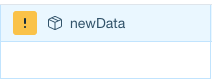
When you add fields to your collection using code, the fields are not automatically added to the collection structure and must be added manually. In the CMS, these fields appear with a warning icon, indicating that the field isn't defined yet. Learn more about the [structure of your database collection](https://support.wix.com/en/article/about-the-structure-of-your-database-collection). You can click on the field name to define the field type and add it to the structure.
#### Removing and Restoring Collections
If you remove a collection that is referenced in code, the code will no longer work and will generate an error in the Editor and in the published site. You can replace the collection name with a different one if relevant.
If you restore a collection you removed, the code will work again.
#### Data APIs
The Velo [Data API](https://www.wix.com/velo/reference/wix-data.html) and [Dataset API](https://www.wix.com/velo/reference/wix-dataset.html) provide additional functionality for working with data collections in your site. You can create customized searches and filters, manage and manipulate your data, and work with pagination, permissions, and hooks. Learn more about [working with the Data API](https://support.wix.com/en/article/velo-working-with-the-data-api).
#### Data Quotas
Wix places quotas on the amount of data resources your site can use. These quotas affect things like the number of collections your site can have and the number of data requests your site can make per minute.
If your site requires additional resources, Wix offers a variety of [premium plans](https://www.wix.com/upgrade/website) to suit your needs.
To find out more about the [data resources](https://dev.wix.com/docs/develop-websites/articles/coding-with-velo/limits-and-optimization/data-features.md) available for each package. Learn more about [premium plans](https://dev.wix.com/docs/develop-websites/articles/coding-with-velo/premium-plans/about-premium-plans.md).
**Note:** If you have Blocks apps installed on your site, how they affect your quotas depends on whether they are private or public apps. Learn more about [Blocks apps and CMS quotas](https://dev.wix.com/docs/develop-websites/articles/coding-with-velo/limits-and-optimization/data-features.md#blocks-apps-and-collection-quotas).
#### Request timeouts
When your site makes a data request, it may take some time to receive a response. Wix Data places limits on how long a response can take before the request times out. If the response time exceeds this limit, Wix Data returns an error instead of the intended result.
Request timeouts vary depending on your [Wix plan](https://www.wix.com/plans) and the type of collection you are attempting to access:
| Collection Type | Wix plan | Timeout |
| --------------------------------------------------------------------------------------------------------------------------------------------------------------------------- | ----------------------------------------------------------- | ---------- |
| [CMS collections](https://support.wix.com/en/article/cms-formerly-content-manager-managing-your-collections) | Free sites, premium sites (excl. Elite and Business Elites) | 5 seconds |
| [CMS collections](https://support.wix.com/en/article/cms-formerly-content-manager-managing-your-collections) | Business Elite & Elite Premium | 10 seconds |
| [External Database Collections](https://dev.wix.com/docs/develop-websites/articles/databases/external-databases/overview/integrating-external-databases-with-your-wix-site.md) | All plans | 15 seconds |
After the specified timeout, the request fails and the following error message is displayed in [Wix Logs](https://dev.wix.com/docs/develop-websites/articles/workspace-tools/developer-tools/logs/about-logs.md):
`WDE0028: Operation time limit exceeded.`
Learn more about [Wix Data error codes](https://dev.wix.com/docs/velo/apis/wix-data/error-codes.md).
### User Input
With Wix Data you can create user input forms and store user data in your collections. Velo provides additional layers of functionality when working with user input elements:
#### Input Validation
When collecting user input data, you want to make sure that the data entered is valid. Some input validation is available via the user input element Settings panel, but with code you can provide additional validation measures. Learn more about [input validation](https://dev.wix.com/docs/develop-websites/articles/databases/wix-data/user-input/about-validating-user-input-with-code.md).
#### Convert Regular Elements into Submit Buttons
Without code, you can create a form using [user input elements](https://support.wix.com/en/article/about-user-input-elements) and a "submit" element that saves the data into your collection when clicked. Only selected elements, such as buttons and images, can act as submit elements.
With code, you can add submit functionality to elements without a Submit option in the Connect panel. You can also add submit [success and error messages](https://support.wix.com/en/article/velo-adding-success-and-error-messages-for-elements-without-a-submit-option) when using those elements to submit.
#### Create a Custom Signup Form
With Velo you can create your own [custom signup form](https://support.wix.com/en/article/velo-tutorial-creating-a-custom-registration-form-with-code) to replace the standard one. Then [enable custom signup](https://support.wix.com/en/article/velo-enabling-custom-site-registration) so your visitors are directed to your custom form for site registration.
### Dynamic Pages
With Wix Data you can create dynamic pages to display content from your database collection on multiple pages in your site. You can also use Velo to interact with dynamic pages:
#### Hiding Dynamic Pages in Mobile
Without code, you can hide dynamic pages on your site when displayed on different devices such as a mobile device, by hiding the elements that link to the pages. Any code on your site connected to a hidden element will generate an error. Therefore it's best to use the [`formFactor`](https://dev.wix.com/docs/velo/apis/wix-window-frontend/form-factor.md) property of the Window API to determine if the visitor is viewing the site from a different device, and use the elements' `hide()` or `collapse()` functions to visually remove the elements from the page. Learn more about [hiding elements on different devices](https://support.wix.com/en/article/hiding-an-element-in-the-mobile-editor).
**Important:**
Hiding an element using the mobile Editor (Wix Editor) or [breakpoints](https://support.wix.com/en/article/studio-editor-designing-across-breakpoints) (Wix Studio) removes that element from the page completely. This causes any code that relies on the hidden element's existence to break.
#### Dynamic Pages and Hooks
You can add hooks to dynamic pages:
1. Click **Menus & Pages**  (Wix Editor) or click **Site Pages**  (Wix Studio) on the left side.
1. Click the **Show More** icon  next to the dynamic page.
1. Click **Settings** and select the **Page Info** tab.
1. Open the **Advanced Settings** tab, then click **Add hooks**.
1. Select the hooks you want to add, then click **Add & Edit Code**.
When a request comes in for one of your dynamic pages, a router uses the URL of the request to decide which page to show and what data to bind to the page's dataset. You can add a [data binding router hook](https://dev.wix.com/docs/develop-websites/articles/databases/wix-data/hooks/about-data-hooks-for-dynamic-pages.md) to intercept this process at certain points and insert additional logic.
### Working with Wix App Collections in Your Code
You reference the collections that Wix Apps add to your site similar to how you reference collections you create yourself, with one difference.
To reference a collection in your code that you created yourself, you just use the collection name in the code. For example, this code retrieves an item with an ID of 00001 from the collection named myCollection:
```javascript
wixData.get("myCollection", "00001");
```
To reference a collection that a Wix App added to your site you need to also include the App name in the path of the collection name. For example, let's say you also want to retrieve an item with an ID of 00001, but this time from the PrivateMembersData collection inside the Members database.
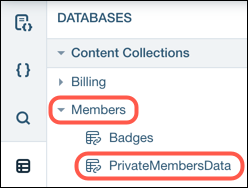
In this case, you need to include Members in the path for the collection name, like this:
```javascript
wixData.get("Members/PrivateMembersData", "00001");
```
You can also use Wix Data to add and update information in some Wix App collections. For example:
```javascript
let collectionToInsert = {
title: "New Collection",
};
wixData.insert("Portfolio/Collections", collectionToInsert).then((item) => {
console.log(item);
});
```
You can find many examples using the Wix Editor in the **Business Solutions** section of the [Coding Examples site](https://dev.wix.com/docs/coding-examples.md).