> Portal Navigation:
>
> - Append `.md` to any URL under `https://dev.wix.com/docs/` to get its markdown version.
> - Pages are either content pages (article or reference text) or menu pages (a list of links to child pages).
> - To get a menu page, truncate any URL to a parent path and append `.md` (e.g. `https://dev.wix.com/docs/sdk.md`, `https://dev.wix.com/docs/sdk/core-modules.md`).
> - Top-level index of all portals: https://dev.wix.com/docs/llms.txt
> - Full concatenated docs: https://dev.wix.com/docs/llms-full.txt
## Resource: About Multi-State Boxes
## Article: About Multi-State Boxes
## Article Link: https://dev.wix.com/docs/develop-websites/articles/wix-editor-elements/other-elements/multi-state-boxes/about-multi-state-boxes.md
## Article Content:
# Velo: About Multi-State Boxes
Use multi-state boxes to display different content for different situations. For example, you can:
- Show different site content if a shopping cart is empty or full.
- Display an error state when something goes wrong.
- Show a preloader while a page is loading.
- Switch between "sale," "new," and "out of stock" badges for your products.
- Show different site content depending on whether there's an upcoming event.
You can also use multi-state boxes to let site visitors easily navigate multiple displays. For example, visitors can:
- Navigate what appear to be multiple tabs.
- Switch between a brief description and a detailed block of text.
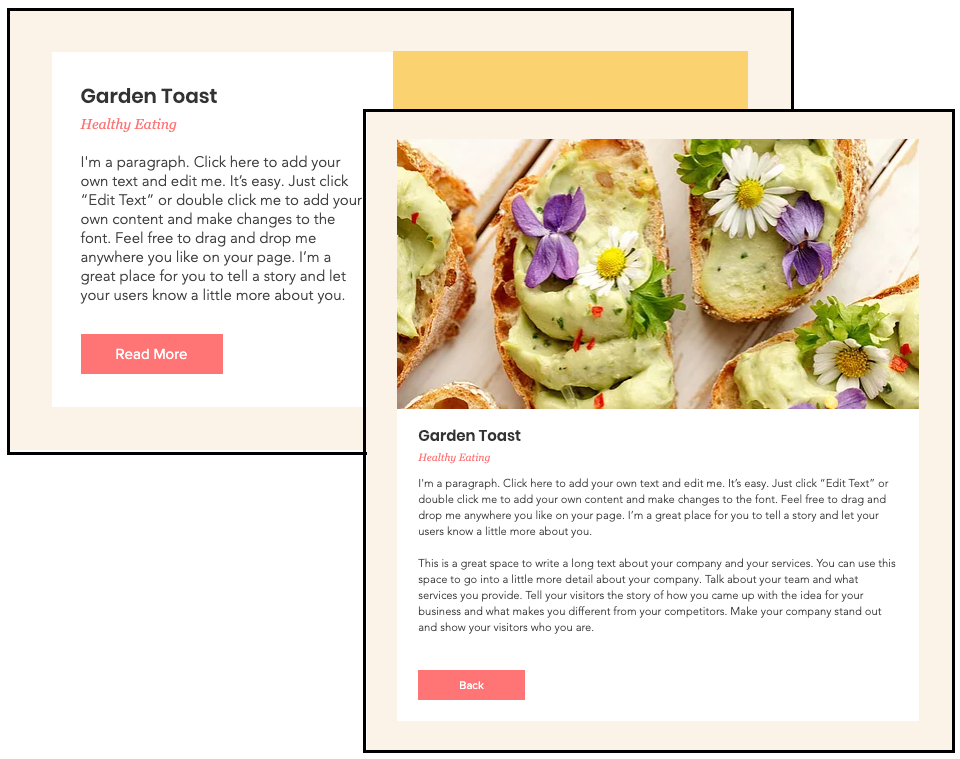
Multi-state boxes generally contain two or more states, each with different content. A specific state is displayed either because a particular condition exists (an empty shopping cart), or because a site visitor chose to navigate to that state (clicked a button to read expanded text).
**Tip:**
Changing the box state might [impact your page layout](https://dev.wix.com/docs/develop-websites/articles/wix-editor-elements/formatting-layout/how-page-layout-is-affected-when-elements-change-size.md).
## See also
- Learn how to [set up your multi-state box](https://dev.wix.com/docs/develop-websites/articles/wix-editor-elements/other-elements/multi-state-boxes/setting-up-your-multi-state-box.md).
- Learn how to [work with your multi-state box and code](https://dev.wix.com/docs/develop-websites/articles/wix-editor-elements/other-elements/multi-state-boxes/working-with-multi-state-boxes-and-code.md).