> Portal Navigation:
>
> - Append `.md` to any URL under `https://dev.wix.com/docs/` to get its markdown version.
> - Pages are either content pages (article or reference text) or menu pages (a list of links to child pages).
> - To get a menu page, truncate any URL to a parent path and append `.md` (e.g. `https://dev.wix.com/docs/sdk.md`, `https://dev.wix.com/docs/sdk/core-modules.md`).
> - Top-level index of all portals: https://dev.wix.com/docs/llms.txt
> - Full concatenated docs: https://dev.wix.com/docs/llms-full.txt
## Resource: Write Event Handlers with the AI Code Assistant in the Wix Studio Editor
## Article: Write Event Handlers with the AI Assistant in the Wix Studio Editor
## Article Link: https://dev.wix.com/docs/develop-websites/articles/workspace-tools/developer-tools/ai-assistants/ai-assistant-in-the-code-panel/write-event-handlers-with-the-ai-code-assistant-in-the-wix-studio-editor.md
## Article Content:
# Write Event Handlers with the AI Code Assistant in the Wix Studio Code Panel
> **Note:** This feature is only available to Wix Studio users.
Use the [AI Code Assistant](https://dev.wix.com/docs/develop-websites/articles/workspace-tools/developer-tools/ai-assistants/ai-assistant-in-the-code-panel/about-the-ai-code-assistant.md) to write custom code behavior for elements on a site.
To write an event handler with the **AI Code Assistant**:
1. Start a chat with the AI Code Assistant:
+ **On the canvas:** Right-click the element you want to customize and select **Add Custom Behavior with AI**.
 + **Through the Code panel:** Access the Code panel on the left side of the editor and select **AI Code Assistant**.
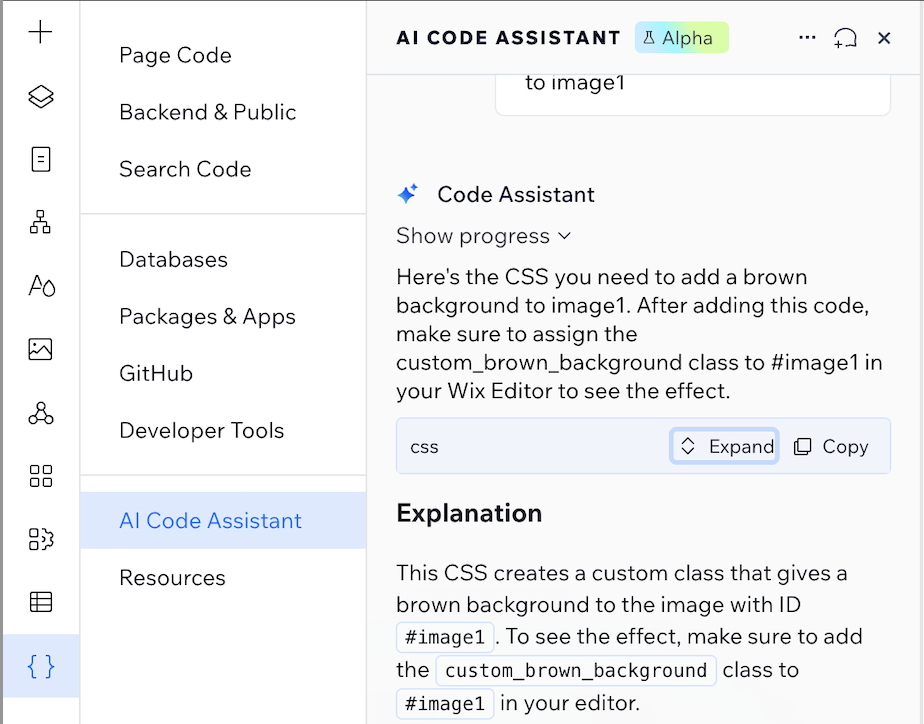 2. Select one of the assistant's suggestions or describe what you want to customize.
The AI Code Assistant generates the code.
3. Select one of the following options:
2. Select one of the assistant's suggestions or describe what you want to customize.
The AI Code Assistant generates the code.
3. Select one of the following options:
 + **Show code** displays the generated code along with an explanation of the code. You can copy and paste this code into a site's [page code](https://dev.wix.com/docs/develop-websites/articles/workspace-tools/velo-workspace/workspaces/wix-studio-working-with-the-code-panel.md#page-code), or ask the assistant to make adjustments.
+ **Add code** directly adds the code into a site's [page code](https://dev.wix.com/docs/develop-websites/articles/workspace-tools/velo-workspace/workspaces/wix-studio-working-with-the-code-panel.md#page-code).
## See also
- [About AI assistants](https://dev.wix.com/docs/develop-websites/articles/workspace-tools/developer-tools/ai-assistants/about-ai-assistants.md)
- [About the AI Code Assistant in the Wix Studio Code Panel](https://dev.wix.com/docs/develop-websites/articles/workspace-tools/developer-tools/ai-assistants/ai-assistant-in-the-code-panel/about-the-ai-code-assistant.md)
- [Studio Editor: Using the AI Code Assistant to Add Custom Code](https://support.wix.com/en/article/studio-editor-using-the-ai-assistant-to-add-custom-code)
- [About the AI Assistant in the Wix IDE](https://dev.wix.com/docs/develop-websites/articles/workspace-tools/developer-tools/ai-assistants/ai-assistant-in-the-wix-ide/about-the-wix-ai-assistant.md), to generate backend code using prompts.
+ **Show code** displays the generated code along with an explanation of the code. You can copy and paste this code into a site's [page code](https://dev.wix.com/docs/develop-websites/articles/workspace-tools/velo-workspace/workspaces/wix-studio-working-with-the-code-panel.md#page-code), or ask the assistant to make adjustments.
+ **Add code** directly adds the code into a site's [page code](https://dev.wix.com/docs/develop-websites/articles/workspace-tools/velo-workspace/workspaces/wix-studio-working-with-the-code-panel.md#page-code).
## See also
- [About AI assistants](https://dev.wix.com/docs/develop-websites/articles/workspace-tools/developer-tools/ai-assistants/about-ai-assistants.md)
- [About the AI Code Assistant in the Wix Studio Code Panel](https://dev.wix.com/docs/develop-websites/articles/workspace-tools/developer-tools/ai-assistants/ai-assistant-in-the-code-panel/about-the-ai-code-assistant.md)
- [Studio Editor: Using the AI Code Assistant to Add Custom Code](https://support.wix.com/en/article/studio-editor-using-the-ai-assistant-to-add-custom-code)
- [About the AI Assistant in the Wix IDE](https://dev.wix.com/docs/develop-websites/articles/workspace-tools/developer-tools/ai-assistants/ai-assistant-in-the-wix-ide/about-the-wix-ai-assistant.md), to generate backend code using prompts.