> Portal Navigation:
>
> - Append `.md` to any URL under `https://dev.wix.com/docs/` to get its markdown version.
> - Pages are either content pages (article or reference text) or menu pages (a list of links to child pages).
> - To get a menu page, truncate any URL to a parent path and append `.md` (e.g. `https://dev.wix.com/docs/sdk.md`, `https://dev.wix.com/docs/sdk/core-modules.md`).
> - Top-level index of all portals: https://dev.wix.com/docs/llms.txt
> - Full concatenated docs: https://dev.wix.com/docs/llms-full.txt
## Resource: Generate Code Using the Wix AI Assistant
## Article: Generate Code Using the Wix AI Assistant
## Article Link: https://dev.wix.com/docs/develop-websites/articles/workspace-tools/developer-tools/ai-assistants/ai-assistant-in-the-wix-ide/generate-code-using-the-wix-ai-assistant.md
## Article Content:
# Generate Code Using the Wix AI Assistant
Use the [Wix AI Assistant](https://dev.wix.com/docs/develop-websites/articles/workspace-tools/developer-tools/ai-assistants/ai-assistant-in-the-wix-ide/about-the-wix-ai-assistant.md) to help you work on a site's code inside the [Wix IDE](https://support.wix.com/en/article/about-the-wix-ide).
1. To access the Wix AI Assistant, click the **Wix AI Assistant**  icon in the Wix IDE sidebar or right click in the Wix IDE and select **Open the Wix AI Assistant**.
The **Wix AI Assistant** panel opens.
2. Select the type of help you need.
3. In the text input field, describe [what you want the code to do](https://dev.wix.com/docs/develop-websites/articles/workspace-tools/developer-tools/ai-assistants/ai-assistant-in-the-wix-ide/about-the-wix-ai-assistant.md), and then click send .
icon in the Wix IDE sidebar or right click in the Wix IDE and select **Open the Wix AI Assistant**.
The **Wix AI Assistant** panel opens.
2. Select the type of help you need.
3. In the text input field, describe [what you want the code to do](https://dev.wix.com/docs/develop-websites/articles/workspace-tools/developer-tools/ai-assistants/ai-assistant-in-the-wix-ide/about-the-wix-ai-assistant.md), and then click send .
Tip: To get immediate code fix suggestions, highlight the code and right click Wix AI Assistant: Fix code.
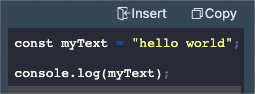
The code assistant creates a code snippet that performs the requested task and explains how the code works.
4. You can add the proposed solution to the code by selecting:
- **Insert**: Inserts the code directly into the code file you are editing.
Note: If any code is highlighted in the Wix IDE, the inserted code replaces it. Otherwise, the code is inserted at the current cursor position.
- **Copy**: Copies the code snippet to paste it manually into the Wix IDE.
5. You can continue your conversation with the assistant after receiving its initial response. You can ask up to 2 follow-up questions after each initial query. After this, the Wix AI Assistant starts over.
6. After your chat is complete, click home  at the top of the Wix AI Assistant panel to start over.
> **Note:** Make sure to test the code in [preview mode](https://dev.wix.com/docs/develop-websites/articles/workspace-tools/testing-monitoring/testing-troubleshooting/about-debugging-your-code.md) before publishing the site.
## See also
- [About AI assistants](https://dev.wix.com/docs/develop-websites/articles/workspace-tools/developer-tools/ai-assistants/about-ai-assistants.md)
- [About the AI Assistant in the Wix IDE](https://dev.wix.com/docs/develop-websites/articles/workspace-tools/developer-tools/ai-assistants/ai-assistant-in-the-wix-ide/about-the-wix-ai-assistant.md), to generate backend code using prompts.
- [Studio Editor: Using the AI Code Assistant to Add Custom Code](https://support.wix.com/en/article/studio-editor-using-the-ai-assistant-to-add-custom-code)
- [About the AI Code Assistant in the Wix Studio Code panel](https://dev.wix.com/docs/develop-websites/articles/workspace-tools/developer-tools/ai-assistants/ai-assistant-in-the-code-panel/about-the-ai-code-assistant.md)
at the top of the Wix AI Assistant panel to start over.
> **Note:** Make sure to test the code in [preview mode](https://dev.wix.com/docs/develop-websites/articles/workspace-tools/testing-monitoring/testing-troubleshooting/about-debugging-your-code.md) before publishing the site.
## See also
- [About AI assistants](https://dev.wix.com/docs/develop-websites/articles/workspace-tools/developer-tools/ai-assistants/about-ai-assistants.md)
- [About the AI Assistant in the Wix IDE](https://dev.wix.com/docs/develop-websites/articles/workspace-tools/developer-tools/ai-assistants/ai-assistant-in-the-wix-ide/about-the-wix-ai-assistant.md), to generate backend code using prompts.
- [Studio Editor: Using the AI Code Assistant to Add Custom Code](https://support.wix.com/en/article/studio-editor-using-the-ai-assistant-to-add-custom-code)
- [About the AI Code Assistant in the Wix Studio Code panel](https://dev.wix.com/docs/develop-websites/articles/workspace-tools/developer-tools/ai-assistants/ai-assistant-in-the-code-panel/about-the-ai-code-assistant.md) 