About Dynamic Pages
A dynamic page uses one layout to display items from a collection. You design the page once, and Wix fills it with collection data. For example, one item page can show every property in a Listings collection, each on its own URL.
Elements on a dynamic page connect to a CMS Data Source, which Wix attaches when you add the page.
Types of dynamic pages
Studio Two has two types of dynamic pages:
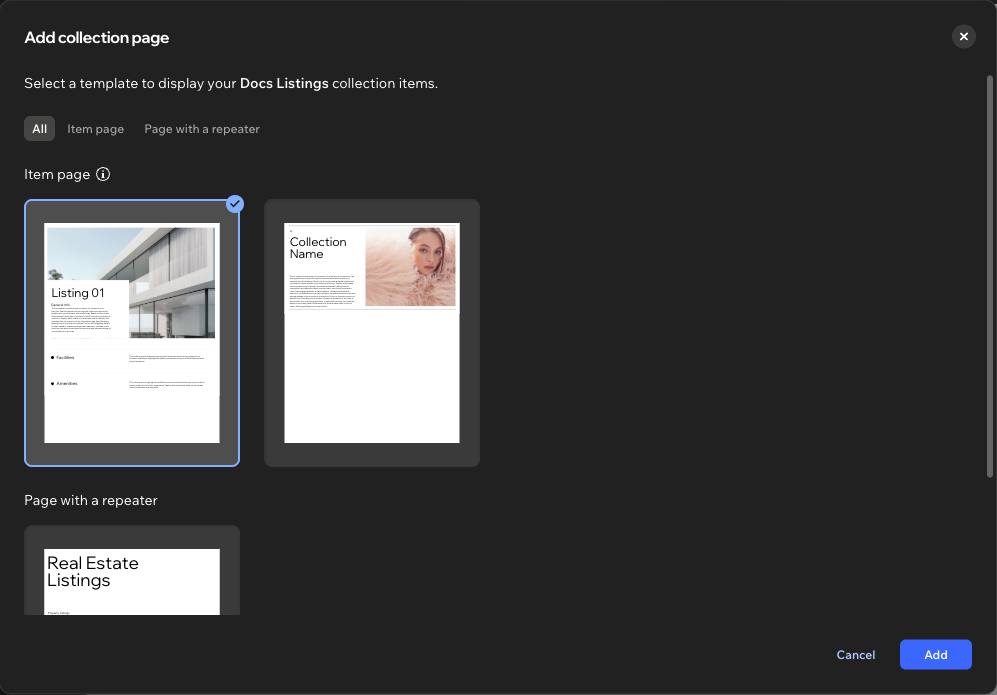
- Item page: Displays a single item. Each item in the collection gets its own URL. The page's elements connect to the collection's item page Data Source.
- Page with a repeater: Displays several items in a repeater on one URL, such as a list of all listings. The repeater connects to the collection Data Source.
Add an item page when each item needs its own URL. Add a page with a repeater to list items on one page. Many sites add both, and link each item in the list to its item page.
In Site Structure, item pages appear on the Pages tab under Wix CMS. A page with a repeater appears with the site's other main pages.
Add a dynamic page
To add a dynamic page:
-
In the Studio Two editor, open Site Structure and select Pages.
-
Click Add Page, then select Collection page. This option appears only when the site has at least one collection.
-
In Add collection page, select the collection, then click Continue.
-
Select a template under Item page or Page with a repeater.
-
Click Add.
For adding and organizing pages that aren't tied to a collection, see Studio Two Editor: Adding and Working with Pages.
Item page URLs
When you add an item page, Wix adds an Item slug field to the collection. The slug uses one of the collection's fields to create a clear, unique URL for each item. To change an item's URL, see Creating unique dynamic page URLs.
To link to an item's page from another page, connect a button or link to the item's page link with Connect to Data. For example, connect a button in each repeater item to its item page, so visitors can open the details of the item they choose. For the steps, see Display Collection Items.
Work with items on an item page
On the canvas, an item page shows one item at a time. The item switcher, at the top of the canvas, shows which item you're viewing. To see the page with another item, click the previous or next arrow, or select the item from the list. To edit the current item in the CMS dashboard, click Edit item.
To connect more elements on an item page, use Connect to Data with the item page Data Source. Learn more in About CMS Data Sources.
To add, update, or remove items, use the Data API in code. CMS Data Sources only display data.
See also
Last updated: 2 November 2026