Display Collection Items
Display a collection's items on a Studio Two site in a repeater, with no code. The repeater gets its items from the collection's CMS Data Source. You set how the Data Source sorts and filters the items and how many it loads at a time. You can also link each item to its own dynamic item page.
This article uses a page with a repeater, which Wix creates with the Data Source already attached and some of the repeater's elements already connected. The same steps apply if you attach a Data Source to an existing page or repeater yourself, using Connect Source. For that panel, see Connect to Source.
Step 1 | Add a page with a repeater
This step adds a page that lists the collection's items.
To add a page with a repeater:
- In the Studio Two editor, open Site Structure and select Pages.
- Click Add Page, then select Collection page. This option appears only when the site has at least one collection.
- In Add collection page, select the collection, then click Continue.
- Select a template under Page with a repeater, then click Add.
The new page has a section with a repeater. The section's tag shows the name of the collection Data Source, with a Manage Source button next to it, for setting which items the repeater shows and in what order. Wix connects some of the template's elements to the collection's fields, such as each item's title. To show more fields, see Step 3. For adding and organizing pages that aren't tied to a collection, see Studio Two Editor: Adding and Working with Pages.
Step 2 | Sort, filter, and set how many items load
This step sets which items the repeater shows and in what order.
To sort and filter the items:
-
Select the repeater's section.
-
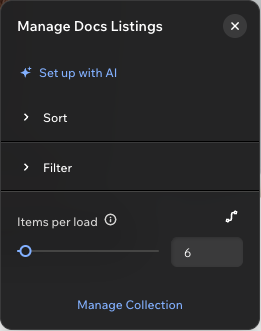
Click Manage Source next to the Data Source's name. A panel named after the collection opens, for example Manage Listings.
-
Set the options that you need:
- Sort: The order of the items.
- Filter: Which items to show.
- Items per load: How many items the repeater shows at a time. See Set Items Per Load.
To open the collection in the CMS dashboard, click Manage Collection.
On the page that Wix creates, the repeater's Load More event handler is already connected to the Data Source's Load More function, so the repeater can show more items than Items per load. The handler is in the repeater's Settings, under Advanced > Event handlers.
Step 3 | Connect more elements to fields
Some of the template's elements are already connected to fields. To show another field, connect an element in the repeater to it.
To connect an element:
- Right-click an element inside the repeater and select Connect to Data. The element's Settings panel opens.
- Click the Connect to data icon next to the property that you want to fill with data, such as Text. The Connect to Data panel opens with the repeater's items under Source.
- Under Field, select Fields. Then, under Fields Field, select the field to show.
- Click Apply.
Step 4 | Link each item to its item page
This step makes each repeater item open its own item page. The collection needs an item page. To add one, follow Step 1 and select an Item page template.
To link each item to its item page:
- Right-click a button or link inside the repeater and select Connect to Data. The element's Settings panel opens.
- Click the Connect to data icon next to Links to. The Connect to Data panel opens with the repeater's items under Source.
- Under Field, select Get Page Link.
- Click Page Link Parameter. In the Link dialog, select the collection's item page under Page, and click Done.
- Click Apply. Apply is available only after you set Page Link Parameter.
Each item's button or link now opens that item's page.
Step 5 | Preview the page
To check the page, click Preview in the Studio Two editor. The repeater shows the collection's items in the order you set, and each linked button or link opens its item's page.
See also
Last updated: 2 November 2026