Connect an External Database
Connect an external database to a Studio Two site so the site can work with the database's tables as CMS collections. You can connect with code for one site, or by building a Wix app with an External Database Provider extension and installing it on each site that needs the database.
Both ways need an adapter for the database, running at a public HTTPS URL.
Connect with code
A connection made with code takes two calls to the External Database Connections API. The first call creates the connection and returns the values that the adapter needs to verify requests from Wix. After you configure the adapter with those values, the second call gives Wix the adapter's URL.
Run both calls in a Wix Data script in the Code tab. Wix Data scripts can call the External Database Connections API without importing it.
To connect with code:
-
In the Studio Two editor, open the Code tab.
-
To open the Command Palette, press
Command+Shift+Pon macOS orControl+Shift+Pon Windows. -
Select Wix Data: Write Query. An empty script opens.
-
In the script, call Create External Database Connection with a name for the connection and the
WIX_SERVICE_PLUGINconnection type:CopyThe name becomes the prefix of the database's collection IDs, such as
myDatabase/products. It can be up to 255 characters, and you can't change it later. -
To run the script, click the play icon, Wix Data: Run Query, at the top right of the script tab. The response opens in a
result.jsontab:CopyconnectionStatus.successfulstaysfalseuntil you add the adapter's URL. -
Copy
publicKeyandapplicationIdfrom the response, and configure your adapter with them. The adapter usespublicKeyto verify each request's signature, and checks that the token'saudclaim matchesapplicationId. For the full list of checks, see Validating request signatures.Important: Save
publicKeynow. Retrieving the connection later doesn't return it. -
Replace the script's code with a call to Update External Database Connection. Pass the connection name and the adapter's base URL:
CopyAn update replaces all of the connection's settings with the ones you pass. Include every setting that you want to keep.
-
Run the script. When the response shows
connectionStatus.successfulastrue, the site can use the database's collections. To see them, check the connection.
Note: For each connection that you make with code, Wix adds an app called External Database to Custom Apps in your Wix account. The app holds the connection's adapter URL. Deleting the connection doesn't remove the app. If you lose the connection's publicKey, find it on the app's homepage. Click the More Actions icon and select View ID & keys.
Connect with an app
A connection made with an app uses an External Database Provider extension. You set up the extension in the app's dashboard, outside the Studio Two editor. When a site installs the app, Wix connects the site to the adapter.
To connect with an app:
-
Go to Custom Apps and select an app, or click Create New App.
-
In the app's dashboard, go to Develop > Extensions and click Create Extension.
-
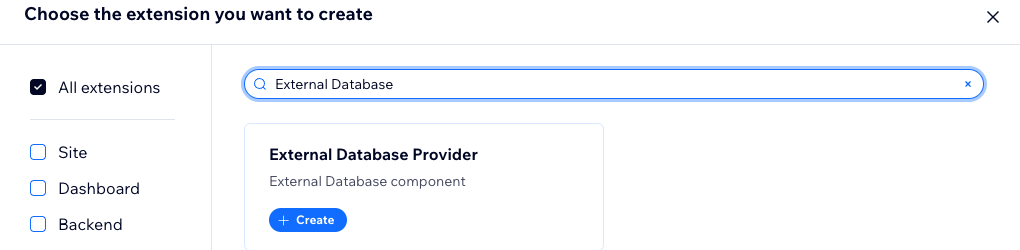
Search for External Database Provider. On the External Database Provider card, click Create.
-
If the app doesn't have a namespace, the Set a namespace for your app dialog opens. Enter a namespace and click Set Namespace. The namespace identifies the app, and you can't change it later.
-
In the JSON Editor, configure the extension:
CopyThe configuration has these properties:
uriConfig.baseUri: Required. The adapter's base URL. Wix Data adds each endpoint's path to it, such as/v3/items/query.uriConfig.alternativeUris: Optional. A list of full URLs for individual endpoints that don't use the base URL. Each item has amethodNameand anabsoluteUri.namespace: Required. It becomes the prefix of the database's collection IDs. For a private app, you can choose any namespace. For a public app, it must match the app's namespace.componentName: Optional. A name for the extension that appears in the app's dashboard.
For details, see the External Database service plugin reference.
-
Click Save.
-
Configure your adapter to verify requests from Wix with the app's public key and app ID. To find them, go to the app's homepage in the app dashboard, click the More Actions icon, and select View ID & keys. For the full list of checks, see Validating request signatures.
-
Install the app on the site:
- Go to Distribute > App distribution.
- Under Install app on a site, click Install on Site. If the app doesn't have a released version, release one when prompted.
- Select the site and approve the app's permissions.
Check the connection
After you connect, check that the database's collections appear on the site.
To check the connection:
-
In the Studio Two editor, open the Code tab.
-
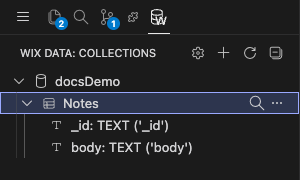
In the row of icons at the top of the sidebar, click the database icon to open the Wix Data view.

-
Click Refresh Collections. The database appears as a group named after its prefix, with its collections inside.
-
To see a collection's fields, expand the collection.
If the database doesn't appear, check the connection's status.
Check the status of a connection made with code
In a Wix Data script, call Get External Database Connection with the connection name, and run the script:
In the response, connectionStatus.causeOfFailure shows why the connection failed:
COMMUNICATION_FAILURE: Wix reached the adapter but couldn't communicate with it. Check that the adapter implements the External Database service plugin endpoints at the base URL.DESTINATION_HOST_UNREACHABLE: Wix couldn't reach the adapter's host. Check the URL and that the adapter is running.UNAUTHORIZED: The adapter rejected the request. Check the adapter's request verification settings.DESTINATION_ENDPOINT_NOT_DEFINED: The connection has no adapter URL. Update the connection with theendpoint.
connectionStatus.hasCollections shows NO when the adapter responded but exposes no collections.
Check the status of a connection made with an app
Call List Data Collections and look for EXTERNAL-type collections whose ID starts with the connection's namespace. If they're missing, the connection isn't working, though this method doesn't report why. To investigate:
- Check that the app is installed on the site, under Distribute > App distribution.
- Check that
uriConfig.baseUriin the extension's configuration is set and correct. - Check that the adapter is running and reachable at that URL.
- Check that the adapter implements the External Database service plugin endpoints at the base URL.
- Confirm the adapter is configured with the app's correct
publicKeyandapplicationId, found under View ID & keys on the app's homepage, so it can verify requests from Wix. - Check the adapter's own logs to see whether Wix is reaching it, and what it returns.
Remove a connection
Removing a connection removes the database's collections from the site. It doesn't change the data in the database.
Caution: You can't restore a removed connection. To connect the database again, create a new connection. Site code that refers to the database's collections stops working.
Remove a connection made with code
Call Delete External Database Connection in a Wix Data script, and run the script:
The result.json tab doesn't update after a deletion. To confirm that the connection is gone, click Refresh Collections in the Wix Data view.
Remove a connection made with an app
Uninstall the app from the site. Uninstalling the app removes its collections from the site.
See also
Last updated: 2 November 2026