Create a Collection
Create a collection to store a kind of content on a Studio Two site, such as property listings or contact form submissions. This article shows how to create one with a script from the Wix Data view in the Code tab. The script sets the collection's ID, fields, and permissions.
You can also create a collection in the CMS dashboard, or in site code with Create Data Collection.
Step 1 | Open a Create Collection script
Create Collection opens a script that already contains a template collection definition.
To open a Create Collection script:
-
In the Studio Two editor, open the Code tab.
-
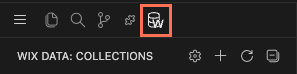
In the row of icons at the top of the sidebar, click the database icon to open the Wix Data view.
-
Click Create Collection, the plus icon at the top of the view. A script opens in a new tab.
If the Wix Data view doesn't list the site's collections, connect it with Configure Credentials first. See About the Code Tab.
The script isn't part of the site's code, and you choose when to run it.
Step 2 | Define the collection
This step sets the collection's ID, fields, and permissions. The template script looks like this:
To define the collection:
-
Replace
<id>with the collection ID. Site code uses this ID to refer to the collection. -
Replace
<displayName>with the name that the CMS dashboard shows. -
In
fields, add an object for each field. Set these properties:key: The field ID that code uses.displayName: The name that the CMS dashboard shows.type: The field type.
-
In
permissions, set the role that can add, update, remove, and read items. The template script sets every permission toADMIN, so site visitors can't read the items. To show the items on the site, setreadtoANYONE.
This example defines a Listings collection that anyone can read and only admins can change:
The collections object is available in Wix Data scripts with no import. A script runs with the permissions of the credentials that the Wix Data view is connected with, such as a CLI login or an API key. In site code, creating a collection requires elevated permissions, so do it only in backend code. Import collections from @wix/data, and call createDataCollection() with elevated permissions.
You don't need to add the system fields, such as _id and _createdDate. Every collection has them.
Field types
These are the most common values for a field's type:
TEXT: Plain text.NUMBER: A number.BOOLEAN:trueorfalse.DATE: A date, inYYYY-MM-DDformat.DATETIME: A date and time.TIME: A time of day.URL: A web address.RICH_TEXT: Text with formatting.IMAGE: An image.ADDRESS: A physical address.REFERENCE: A reference to an item in another collection.MULTI_REFERENCE: References to several items in another collection.ARRAY: A list of values.OBJECT: A JavaScript object.
A REFERENCE or MULTI_REFERENCE field also needs the ID of the collection it refers to. For example:
For every field type, see Create Data Collection. For the format of each type's values in code, see Data Types in Wix Data.
Permission roles
Each permission takes one of these roles:
ANYONE: Any site visitor.SITE_MEMBER: Any logged-in site member.SITE_MEMBER_AUTHOR: The logged-in site member who added the item.ADMIN: Site admins only.
Backend code can perform operations that a collection's permissions don't allow by elevating permissions. For how roles work, and how they relate to the permission settings in the CMS dashboard, see the Data Permissions API and About collection permissions.
Step 3 | Run the script
To run the script, click the play icon, Wix Data: Run Query, at the top right of the script tab. The response opens in a result.json tab.
Step 4 | Check the collection
To check the collection:
- In the Wix Data view, click Refresh Collections. The new collection appears in the list.
- Expand the collection to see its fields. Each field is listed as
<fieldId>: <TYPE> ('<Display name>').
Wix also creates CMS Data Sources for the collection, so you can display its items on the site's pages.
See also
Last updated: 2 November 2026