Find Collection and Field IDs
You need collection and field IDs whenever your code works with a site's data. A collection ID tells the Data API which collection to use. A field ID names a field to filter, sort, or set.
You can copy both IDs from the Wix Data view in the Code tab.
Find a collection ID
To find a collection ID:
-
In the Studio Two editor, open the Code tab.
-
In the row of icons at the top of the sidebar, click the database icon to open the Wix Data view.
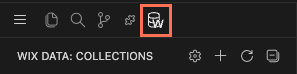
-
If the collection isn't listed, click Refresh Collections.
-
Right-click the collection and select Copy Collection ID.
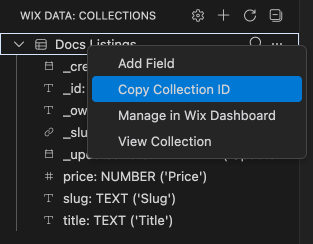
Note: App collections are grouped by the business solution that owns them, and collections from an external database are grouped under their connection's prefix. Their IDs include a prefix, such as Blog/Posts. Copy the ID rather than building it from the group name. For a list of app collection IDs, see Wix App Collections.
Find a field ID
To find a field ID:
- In the Wix Data view, expand the collection that contains the field.
- Right-click the field and select Copy Field ID.
Each field is listed as <fieldId>: <TYPE> ('<Display name>'), so you can also read the ID straight from the list.
Note: To get collection and field IDs in code, call List Data Collections. Each collection in the response includes its ID and its fields.
See also
Last updated: 2 November 2026