About the Development Environment
You write and manage all the code for a Studio Two site in the browser, in the Code tab of the Studio Two editor. The environment is ready the moment you open a site, so there's nothing to install or configure before you start. The Code tab sits alongside the Design tab, so you can move between building your site visually and extending it with code without leaving the editor.
The Code tab
The Code tab is a Visual Studio Code environment running in the browser. For the sidebar, terminal, Wix Data, and logs, see About the Code Tab.
Wix Extension Builder
The Wix Extension Builder is where you add functionality to your site.
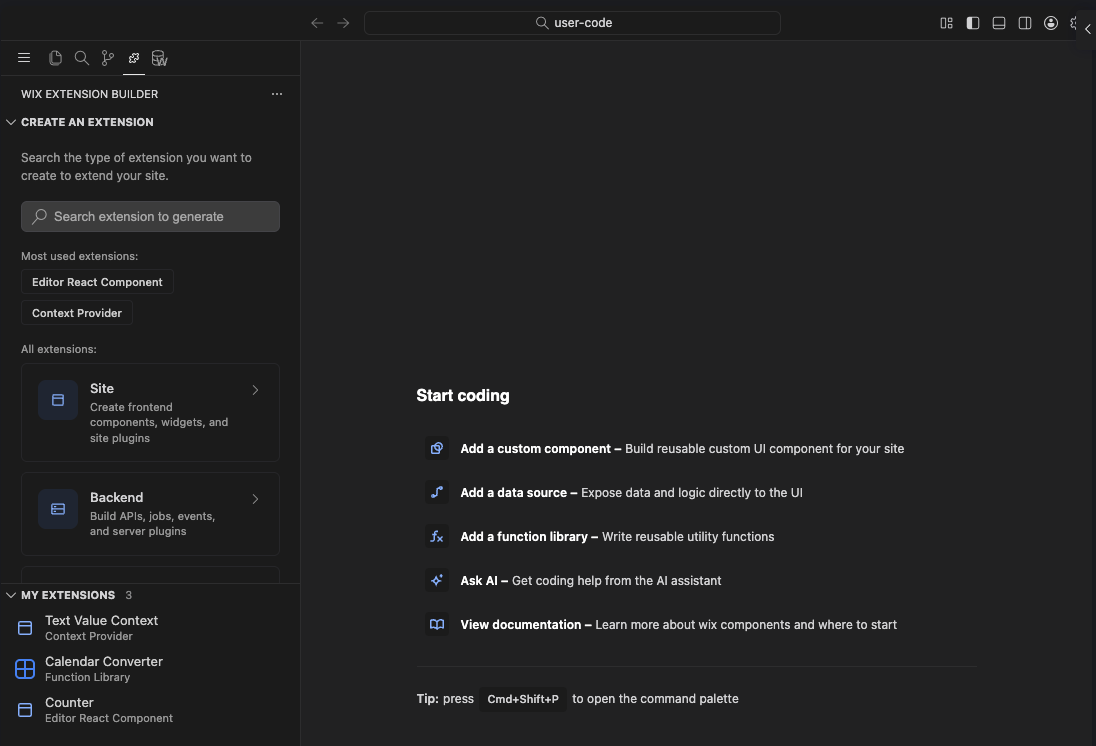
The Builder has 2 sections:
- Create an Extension: Presents the full catalog of extension types, grouped by Site, Dashboard, and Backend
- My Extensions: Lists the extensions already in your site
Project structure
Your extensions live under src/extensions/, organized into site, backend, and dashboard subfolders based on where the code runs. Each individual extension lives in its own subfolder containing a manifest file (.extension.ts) alongside its implementation files. For example, an ERC named my-button would live at src/extensions/site/components/my-button/.
Your project's extensions.ts at the root of src/ records all the extensions your site uses.
AI assistance
Aria, Wix's AI assistant, is available in the Code tab. Aria can write and modify code based on what you describe, which is often the fastest way to take a generated extension from boilerplate to something that fits your site. For how to open Aria and work with it, see Working with Aria.
Test your site
Use preview mode to test your code in a controlled environment. You can interact with a preview version of your site and check your extensions without affecting the live version. For how preview and publishing work in the editor, see Studio Two Editor: Saving, Previewing, and Publishing a Site.
You can also create a dedicated test site to experiment with features and test integrations without impacting your live site. This is especially useful for complex updates or collaborative testing.
Maintain your site
Keep track of your site's performance and troubleshoot issues with the monitoring dashboard. Keeping tabs on monitoring data lets you address issues proactively.
Access detailed logs to review site activity and debug issues. Your site's code writes log entries with the monitoring client, and you read them on the Logs page under Developer Tools in the site dashboard. Wix keeps entries for 24 hours, and you can forward them to an OpenTelemetry endpoint to keep them longer. See About Logs in Studio Two.
See also
- Studio Two Editor: A Guided Tour of the Studio Two Editor: A tour of the editor around the Code tab.
- Studio Two Editor: About the Studio Two Editor: What the editor includes.
- About the Code Tab: The sidebar, terminal, Wix Data, and logs.
- About Studio Two Extensions: The extension types you can add to a site.
- About the Component Model: How Studio Two's React components and manifests fit together.
Last updated: 2 November 2026