Troubleshoot Build Errors
When your site's code fails to build, the editor can't apply your latest changes. Find the cause in the Code tab, fix it, and confirm that the site builds again. For the kinds of errors and how each one affects the site, see About Errors in Studio Two.
Recognize a build error
You have a build error when you see any of these:
-
A red error indicator in the top bar, next to the Design and Code toggle.

-
A yellow Couldn't prepare site in the status bar at the bottom of the Code tab. Hover over it to read the message.
-
Code errors may impact your site in the Go live with your site panel.
The editor prepares your site after it saves your code. The status bar goes from Syncing changes… to Preparing site…, and then to Synced or Couldn't prepare site. When it shows Couldn't prepare site, your changes are saved, but your live site can't include them until the build succeeds.
Find the cause
Two panels report errors. They do different jobs.
| Panel | Where to find it | What it shows | What to use it for |
|---|---|---|---|
| Site code errors | Click the red error indicator in the top bar. It's available on both the Design and Code tabs. | Each build error, with its message, the file and line, and the code that caused it. | See what failed, jump to the code, and ask Aria to fix it. |
| Problems | On the Code tab, click the problem count in the status bar, or press Control+Shift+M (or Command+Shift+M on macOS). | Each problem, grouped by file, with a message, a TypeScript code, and the line and column. | Find every line that has a problem, including type errors that don't stop the build. |
The Site code errors panel shows the build errors. The Problems panel shows all the problems in your code.
The Site code errors panel:
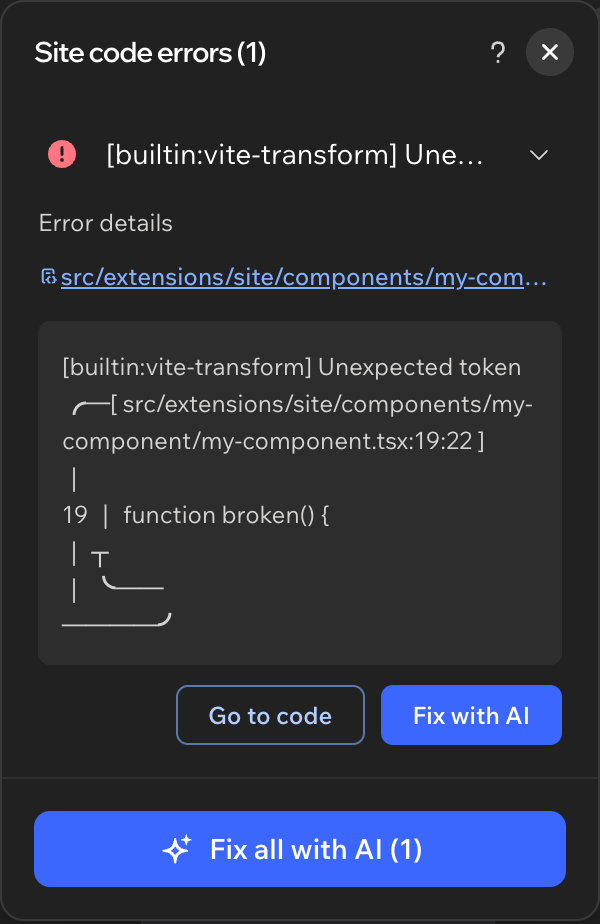
The ? icon at the top of the panel opens this article.
The Problems panel:

To find the cause:
- Click the red error indicator in the top bar to open the Site code errors panel.
- Click Go to code under an error to open the file at the line that caused it.
- To see every problem in your code, open the Problems panel on the Code tab. Select a problem to go to its line.
A single mistake can produce several problems. For example, one unclosed function can produce dozens of problems in the Problems panel, but only one error in the Site code errors panel. Start with the first one, then check the list again after you fix it.
Common causes:
| Message | Where it appears | Cause |
|---|---|---|
[builtin:vite-transform] Unexpected token | Site code errors panel | A syntax error, such as a missing closing brace or parenthesis. The Problems panel shows related messages such as ';' expected. |
[UNRESOLVED_IMPORT] Could not resolve './file' | Site code errors panel | An import of a file or module that doesn't exist. The Problems panel shows Cannot find module './file' or its corresponding type declarations. Check the path and the file name, or install the package with npm install. |
Note:
Not every problem in the Problems panel causes a build error. The panel can flag a type error such as Type 'string' is not assignable to type 'number' while the code still builds. The status bar stays Synced and the red error indicator doesn't appear. Fix the type error anyway, so the code behaves as you expect.
Fix the error
Edit the file yourself, or ask Aria, Wix's AI assistant, to fix it.
To fix the error yourself, edit the file until you resolve each problem that stops the build. The editor saves your changes and prepares the site again.
To fix the error with Aria:
-
Open the Site code errors panel from the red error indicator.
-
Click one of these:
- Fix with AI under an error, to fix that error.
- Fix all with AI, to fix every error. The label includes the error count.
Aria's chat opens and sends Fix my code. Aria then works on the fix.
-
When Aria finishes, it reports the result, for example that it fixed a syntax error and that the component now builds successfully. Click Files changed to see which files it modified.
Aria changes your code directly. It doesn't ask you to approve the change first. The fix can remove code you meant to keep. If the code imports a package that doesn't exist, Aria can remove the import and the code that uses it.
Open the files under Files changed and review them. To keep code that Aria removed, install the package yourself, or tell Aria what you want in the chat.
When the fix works, Aria reports that it fixed the code. The status bar changes to Synced, and the red error indicator turns into a green check that disappears after a few seconds.
Confirm the fix
After you fix the code, the editor saves your changes and prepares the site again. This usually takes under a minute.
To confirm that the build succeeds:
- On the Code tab, check the status bar. It changes from Syncing changes… to Preparing site…, and then to Synced.
- Check that the red error indicator has cleared from the top bar. A green check appears briefly.
- Check the Problems panel. When the code is clear, it says No problems have been detected in the workspace. The status bar shows 0 problems. A type error can remain in the Problems panel while the status bar shows Synced.
Fix build errors before you publish. If you already published with a build error, complete these steps, then publish again. For details about how publishing a failed build can affect the site, see Errors and publishing.
If the site doesn't prepare
Couldn't prepare site means the editor saved your code but couldn't build it for your live site. This happens when the build fails, such as from a syntax error or a missing module. A type error leaves the status Synced.
| What you see | What to do |
|---|---|
| A red error indicator in the top bar, and Couldn't prepare site in the status bar | Fix the error in the Site code errors panel. The editor prepares the site again when it saves your changes. |
| Couldn't prepare site with no red error indicator, or no error in the Site code errors panel | There's no code to fix. Click Couldn't prepare site in the status bar to try again. If it fails again, wait a few minutes and retry. |
| Couldn't prepare site after you fix the error | Click Couldn't prepare site in the status bar to try again. If it fails again, wait a few minutes and retry. |
| Unsaved changes in the status bar | Wait for the editor to save your changes. |
Clicking Couldn't prepare site runs Preparing site… again. If the code still has an error, the status returns to Couldn't prepare site after a few seconds.
When a publish fails because of a temporary issue on Wix's side, the editor shows Your site can't be published. Wait a few minutes and try again.
See also
- About Errors in Studio Two: The kinds of errors you might see and how each affects your site
- About the Development Environment: How the Code tab works
Last updated: 2 November 2026