About Editor React Component Extensions
Editor React Component extensions let you build custom site widgets in React that fully integrate with the editor. You describe your component's customizable parts in a declarative manifest, and the editor handles the rest.
The editor reads the manifest and automatically sets up the native integrations your component needs, from design panels and content controls to its underlying data schema. This gives Wix users the same editing experience they get with built-in Wix elements, without having to build and maintain your own settings panels like you would with custom elements.
To see this in action, follow the tutorial to build a manifest step by step.
Editor Compatibility
Editor React Component extensions are built for Wix Harmony, Wix's AI-powered editor. They're not supported on Wix Editor or Wix Studio sites, and there's no way to conditionally switch between extension types based on the editor.
How it works
Your extension has 2 main parts:
- React component: Your UI code that renders in the editor and on the live site.
- Manifest: A configuration object that describes your component to the editor, so the editor knows which parts are customizable and how to present them to Wix users. You build the component first, then write the manifest to match it.
Your component code may also include additional assets like stylesheets, and you can provide separate bundles for the live site and the editor. For more details, see resources.
When a Wix user adds your component to their site:
- The editor reads the manifest to understand what customizations are available.
- The editor configures the appropriate panels and controls in the editor UI.
- As the Wix user makes changes, the editor stores those values. It passes data changes to your component as props and applies style changes as CSS directly to the DOM elements that match the selectors in the manifest. TypeScript types for all props are available from the
@wix/editor-react-typespackage.
Example
Here's a testimonial card built as an Editor React Component. The component code comes first, then the manifest that drives it.
React component:
Sample stylesheet (style.css)
Notice how the component applies className to the root element and uses CSS classes like .quote and .author-name on inner elements. These patterns are part of the component requirements that let the editor manage your component.
Manifest:
The selector (.testimonial-card) matches the CSS class on the component's root element. Everything else in the manifest drives the editor UI automatically.
Each data property with dataType: "text" becomes an editable text field. When a Wix user clicks Edit Text on the component, the editor configures a panel with inputs for every text property. The displayName value appears as the label for each input:
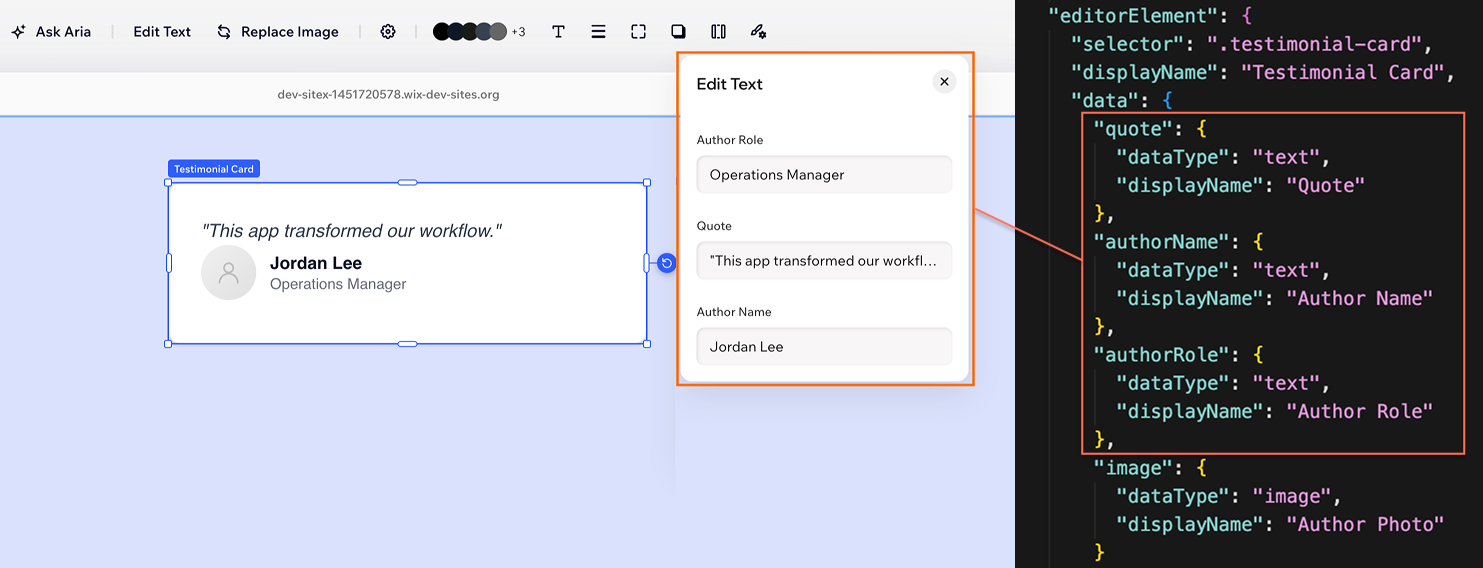
Properties with dataType: "image" surface in the Settings panel, where Wix users can upload or choose images from the Wix Media Manager:
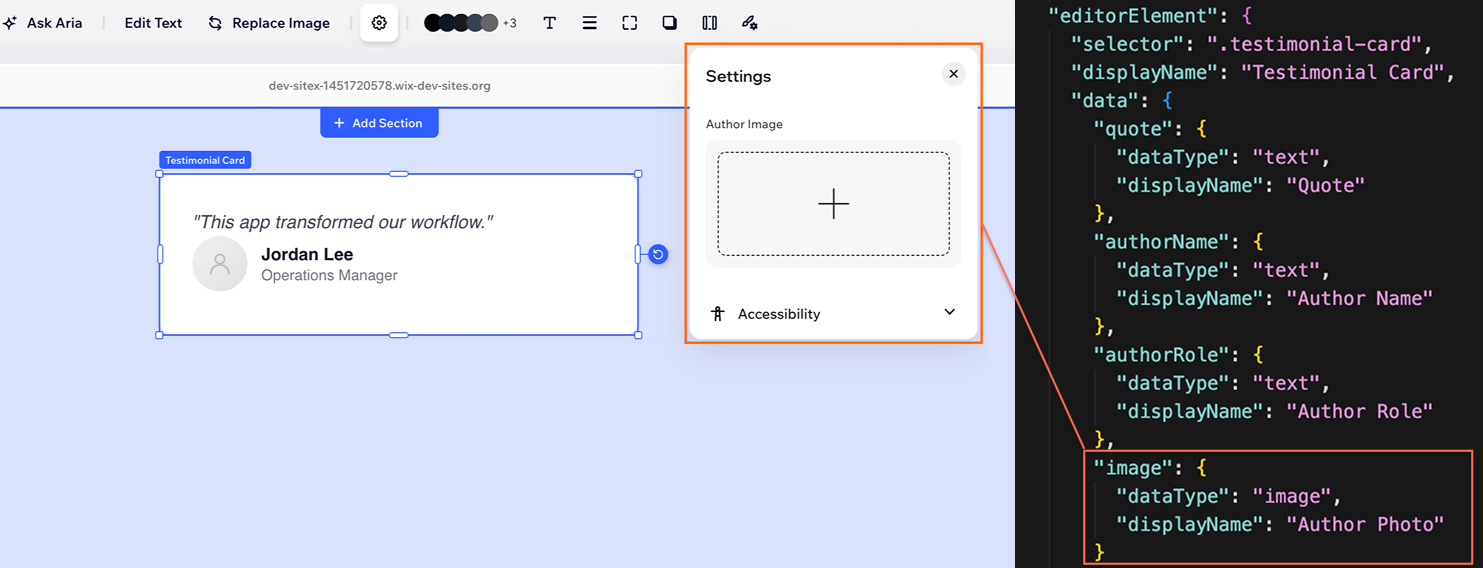
The cssProperties configure a full Design panel with controls for fill colors, borders, corners, shadows, and spacing. The editor maps each CSS property to the appropriate design control:
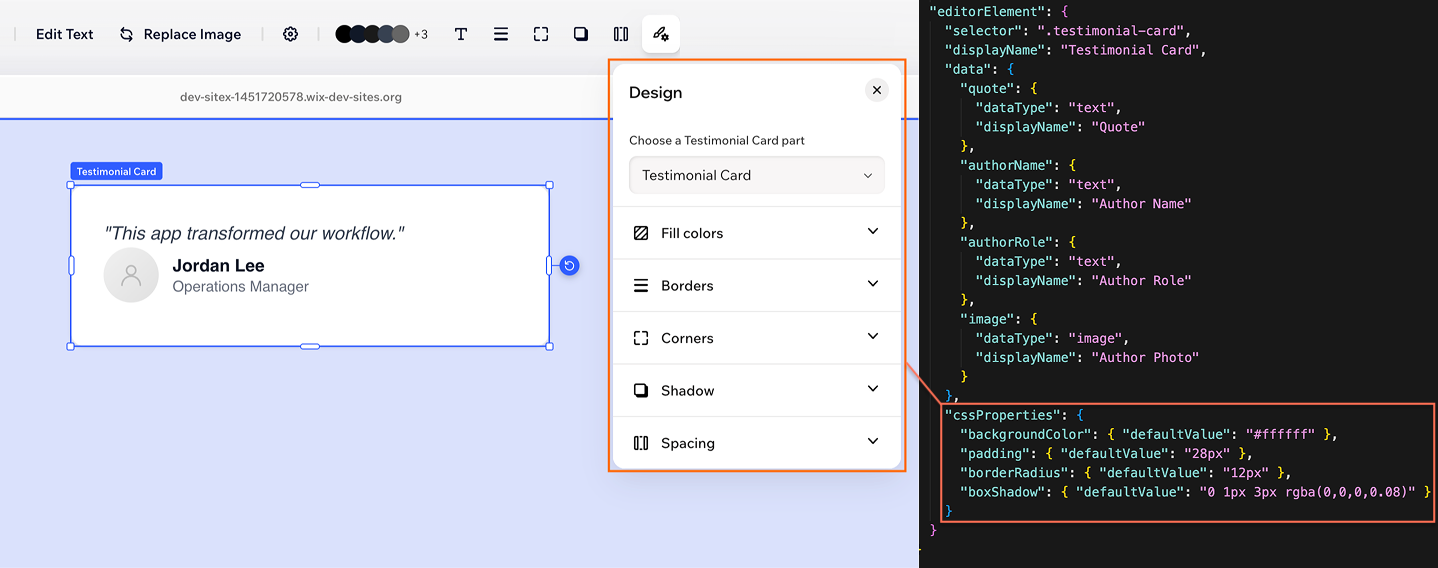
Note: These panels are just a subset of what's available. The entire editor toolbar is auto-configured from your manifest, without you writing any custom panel code.
Component requirements
For the editor to style, select, and configure your component, it needs to follow these conventions:
- Export a default function component.
- Accept a
classNameprop and apply it to the root element. The editor uses this to manage styles and layout. - Add selectors to elements you want the manifest to target. The manifest accepts any valid DOM selector. CSS classes are the recommended approach.
- Name your data props to match the keys in the manifest's
datadefinition.
Some manifest features may require additional component-side setup, such as a wrapper element for presets and prop handling for interaction states. The tutorial on building a manifest covers these as they come up.
Runtime props
As Wix users edit your component, the editor passes updated values to it as React props. Data values like text and numbers arrive as top-level props, while style changes are applied directly to the DOM as inline CSS. For the full breakdown of prop categories and how they map to your manifest, see Runtime Props.
Some data types, like images and vector art, use complex object formats at runtime. The @wix/editor-react-types package provides TypeScript types for these values.
Manifest capabilities
The testimonial card example covers a simple case: editable text, an image, and some design properties. But most components go further. A slideshow has navigation arrows, a menu has items with hover states, a card grid needs layout controls. The manifest is designed to handle all of this, including inner elements with independent controls, interaction states, layout and resize behavior, and richer data types.
For a full overview, see About the Manifest.
Get started
You can add an Editor React Component extension using the CLI. The CLI scaffolds your component files, handles bundling, and manages deployment.
Once your extension is scaffolded, the tutorial covers how to write the component and build the manifest step by step, adding 1 property at a time.