Site Plugins
A site plugin is an interactive component embedded into a slot exposed by a Wix business solution, such as a Stores Product page or a Bookings Service page.
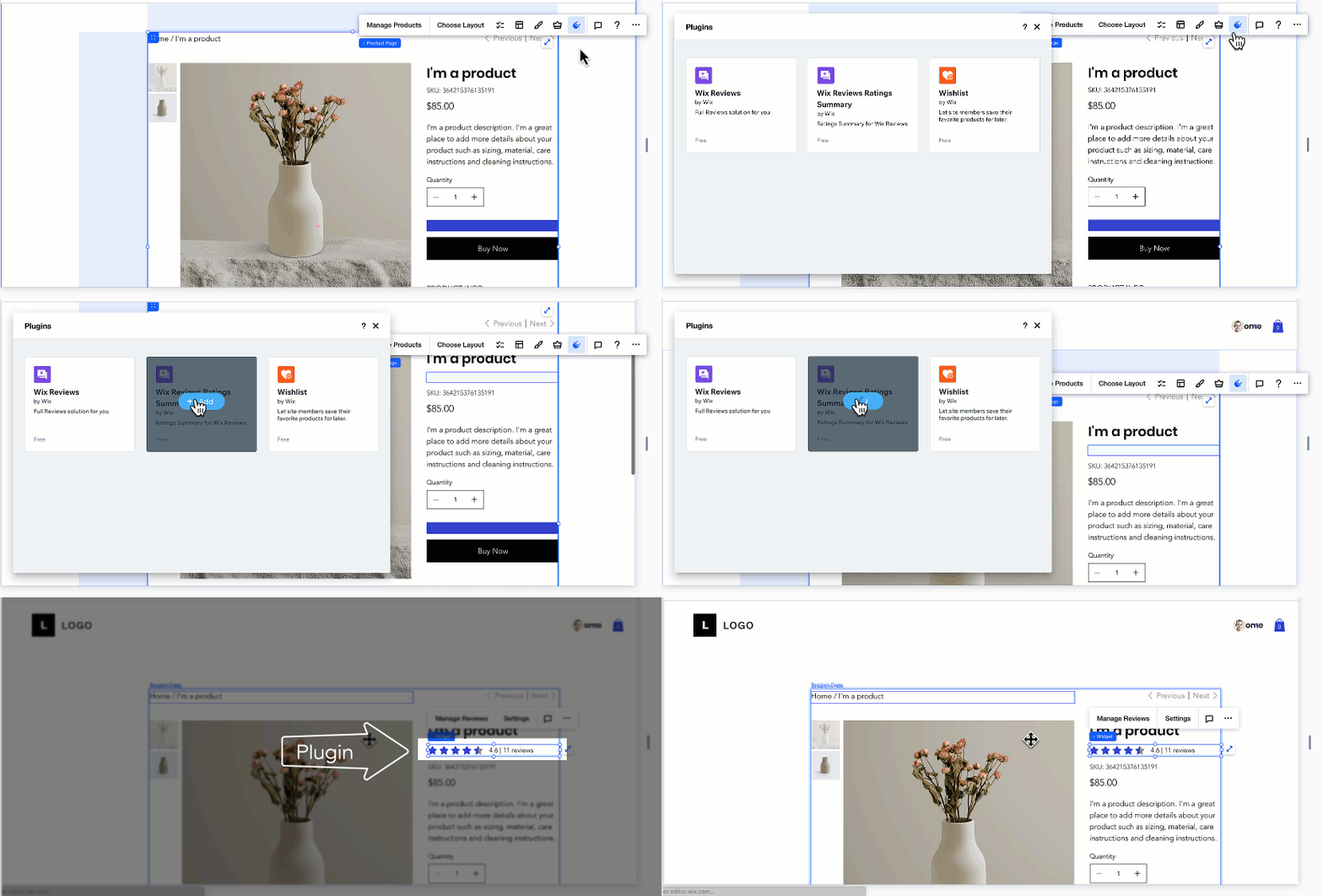
When to use a site plugin
Use a site plugin to extend an existing Wix business solution rather than build a standalone surface elsewhere on the site. Common cases include:
- Adding product reviews or related-product widgets to a Stores product page.
- Appending custom fields or supplementary info to a Bookings service page.
- Offering post-purchase upsells or cross-sells on an eCommerce thank you page.
- Adding sharing controls or related-post recommendations to a Blog post page.
Plugin slots
A slot is a UI placeholder where a site plugin can render. Slots live inside host widgets, which are widgets belonging to Wix business solutions like Wix Stores or Wix Bookings. A host widget can expose multiple slots, each identified by a unique ID.
At registration, a plugin declares the slots it can target. It can list 1 slot, or several in priority order. Wix users place the plugin in any of those slots through the plugin explorer in the editor.
A plugin can also be configured to be placed automatically when an app is installed on a site. With automatic placement, the platform walks the plugin's target slots in priority order and places the plugin in the first one that's available. If no target slot is available, the plugin isn't placed automatically.
See About Slots for the available host widgets and slot IDs.
Plugin rendering and context
A site plugin renders in 3 contexts, and the runtime behavior differs across them:
- Site editor: Sandboxed for security. The editor treats the plugin as if it comes from a different domain, blocking same-origin browser storage and Wix API calls. Plugins that depend on dynamic data still need to render visually, typically against placeholder data or a static preview, so Wix users can position and style them without seeing API errors.
- Preview: Runs without the editor's sandbox restrictions. The plugin can call Wix APIs with appropriate authentication, access browser storage and other same-origin resources, and respond to visitor interactions.
- Published site: Same as preview. This is the runtime mode visitors actually see.
Plugin code
Each slot exposes a plugin API, which is a set of context data the host widget passes to the plugin at runtime. The API is specific to the slot. For example, the Wix Stores Product page slot exposes data like the current product ID and selected variant ID, while a Wix Blog Post page slot exposes post-related context instead.
Use Wix APIs at runtime to act on the host context, read site data, and integrate with Wix business solutions.
Authentication and permissions
Site plugin code runs in 3 contexts with different rules:
- In the editor, the plugin is sandboxed. Wix API calls are blocked, and the plugin renders against placeholder or static data.
- In preview and on the published site, the plugin runs with the identity of the person viewing the page, a visitor or member. Calls from the plugin inherit that identity.
What the plugin can do at preview and published time is bounded:
- The visitor or member's permissions on the site limit which methods they're allowed to invoke.
- When the plugin belongs to an installed app, the app declares the permission scopes it needs in its manifest, and those scopes further constrain what the plugin can call.
For some restricted methods, you can elevate the call from backend code that the plugin invokes to gain higher authorization than the calling identity has.
Site plugins across development paths
- Sites: Don't add site plugins directly. Instead, create a private app that registers the extension and install that app in your site.
- Wix-managed headless projects: Not supported. Site extensions run on Wix-hosted sites; headless projects use a separate frontend you control.
- Self-managed headless projects: Not supported.
- Wix-managed apps: Build plugins as custom elements with the Wix CLI. See Add Site Plugin Extensions with the Wix CLI.
- Self-managed apps: Build plugins as self-hosted custom elements. See Add Self-hosted Site Plugin Extensions with Custom Elements in Build Apps.
- Blocks apps: Build plugins in the Blocks visual editor. Blocks-built plugins aren't supported on Wix Harmony sites. See Build a Site Plugin in Blocks in Build Apps.
Last updated: 2 August 2026