Site Widgets
A site widget is a UI component that Wix users can place and resize on any site page. Wix users configure widgets through the widget's settings panel, and visitors interact with them on the published site.
Tip: Site widgets aren't pinnable to a fixed location on the page. If you need a UI element that stays anchored to a page edge, use an embedded script instead.
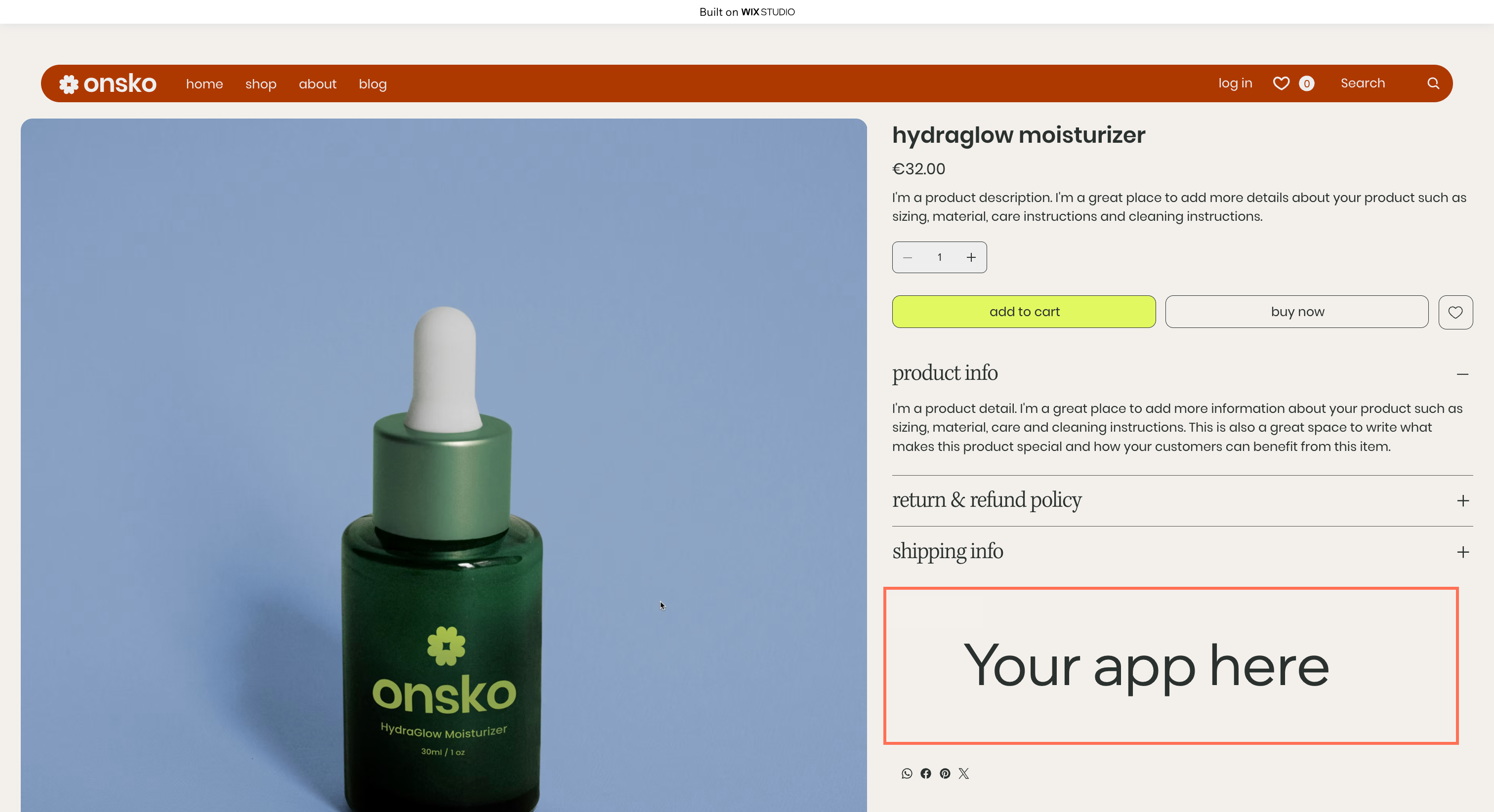
When to use a site widget
Use a site widget when you need a movable, resizable UI surface that Wix users can drop onto any page. Common cases include:
- Embedding an interactive component, like a product configurator or a custom media player.
- Displaying data from your backend, like a live availability calendar or a personalized recommendation list.
- Adding a rich form or input experience, like a multi-step quiz or a custom contact form.
- Displaying external content, like a social media feed or a curated map.
Tip: For Wix Harmony sites, there's also a separate extension type called Editor React Components that gives Wix-native editing for custom components.
Widget rendering and context
A site widget renders in 3 contexts, and the runtime behavior differs across them:
- Site editor: Sandboxed for security. The editor treats the widget as if it comes from a different domain, blocking same-origin browser storage and Wix API calls. Widgets that depend on dynamic data still need to render visually, typically against placeholder data or a static preview, so Wix users can position and style them without seeing API errors.
- Preview: Runs without the editor's sandbox restrictions. The widget can call Wix APIs with appropriate authentication, access browser storage and other same-origin resources, and respond to visitor interactions.
- Published site: Same as preview. This is the runtime mode visitors actually see.
A widget's size and placement are controlled at registration. Width can be stretchable to full page width or fixed. Height can adjust automatically to the widget's content or be set manually by the Wix user. The widget can be set to appear on the site automatically when an app is installed, or to appear in the Add Elements panel for the Wix user to place manually.
In the editor, each widget exposes an action bar with a Settings button that opens the widget's settings panel as an iframe, and optionally a Manage button that links to a dashboard page.
Widget code
Use Wix APIs at runtime to read site data, respond to visitor interactions, and integrate with Wix business solutions. Wix APIs are available at preview and on the published site, not in the editor's sandbox.
The widget's settings panel is separate from the widget itself. It runs as an iframe in the editor and communicates with the widget through the Editor API to apply configuration changes that visitors see at preview and published time.
Authentication and permissions
Site widget code runs in 3 contexts with different rules:
- In the editor: The widget is sandboxed. Wix API calls are blocked, and the widget renders against placeholder or static data.
- In preview and on the published site: The widget runs with the identity of the person viewing the page, a visitor or member. Calls from the widget inherit that identity.
What the widget can do at preview and published time is bounded:
- The visitor or member's permissions on the site limit which methods they're allowed to invoke.
- When the widget belongs to an installed app, the app declares the permission scopes it needs in its manifest, and those scopes further constrain what the widget can call.
For some restricted methods, you can elevate the call from backend code that the widget invokes to gain higher authorization than the calling identity has.
The widget's settings panel is separate code that runs in the editor with the Wix user's identity, like a dashboard extension.
Site widgets across development paths
The development path determines how you build a site widget:
- Sites: Add Wix built-in UI elements to site pages. To add a reusable component of their own, site developers can use a custom element.
- Wix-managed headless projects: Not supported. Site extensions run on Wix-hosted sites; headless projects use a separate frontend you control.
- Self-managed headless projects: Not supported.
- Wix-managed apps: Build widgets as custom elements with the Wix CLI. See Add Site Widget Extensions with the Wix CLI.
- Self-managed apps: Build widgets as self-hosted custom elements. See Add Self-hosted Site Widget Extensions with Custom Elements in Build Apps.
- Blocks apps: Build widgets in the Blocks visual editor. Blocks-built widgets aren't supported on Wix Harmony sites. See Build a Site Widget in Blocks in Build Apps.
Last updated: 2 August 2026