Get Started Designing
Introduction
Wix Design System is a design system for admin pages and app settings panels for Wix apps.
To start designing with Wix Design System follow the instructions on this page to set up all required tools and resources.
Install Figma
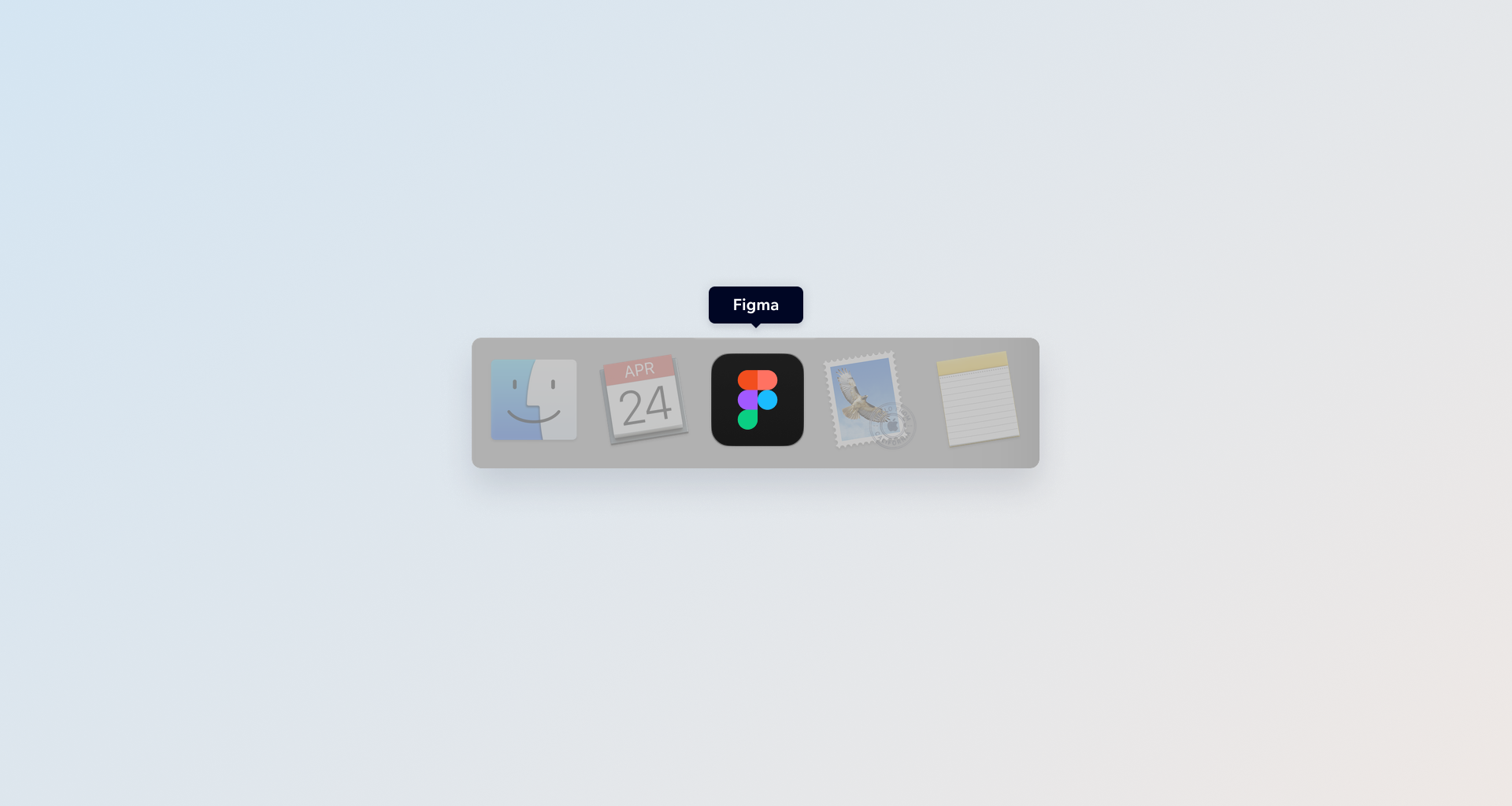
1. Install Figma
Download and install the Figma app on your device. It's available for macOS and Windows devices. If you're new to Figma, follow the official installation guide.
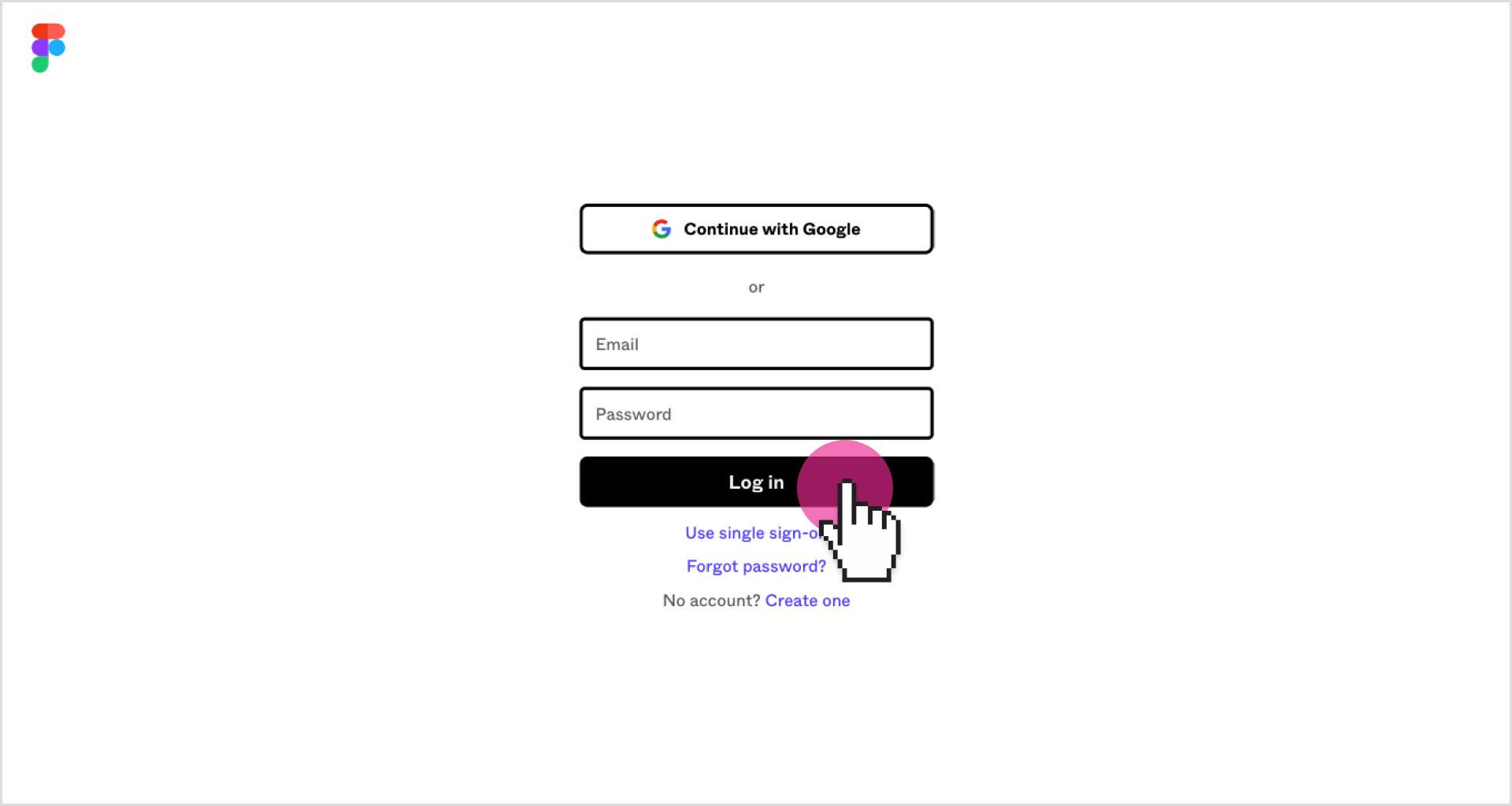
2. Log in
Log in to your existing Figma account or create a new one.
Download the Figma library
This Figma library gives you the Wix Design System components, text styles, icon library and ready-made page templates. It carries the same component configurations as React, along with the Wix Madefor font.
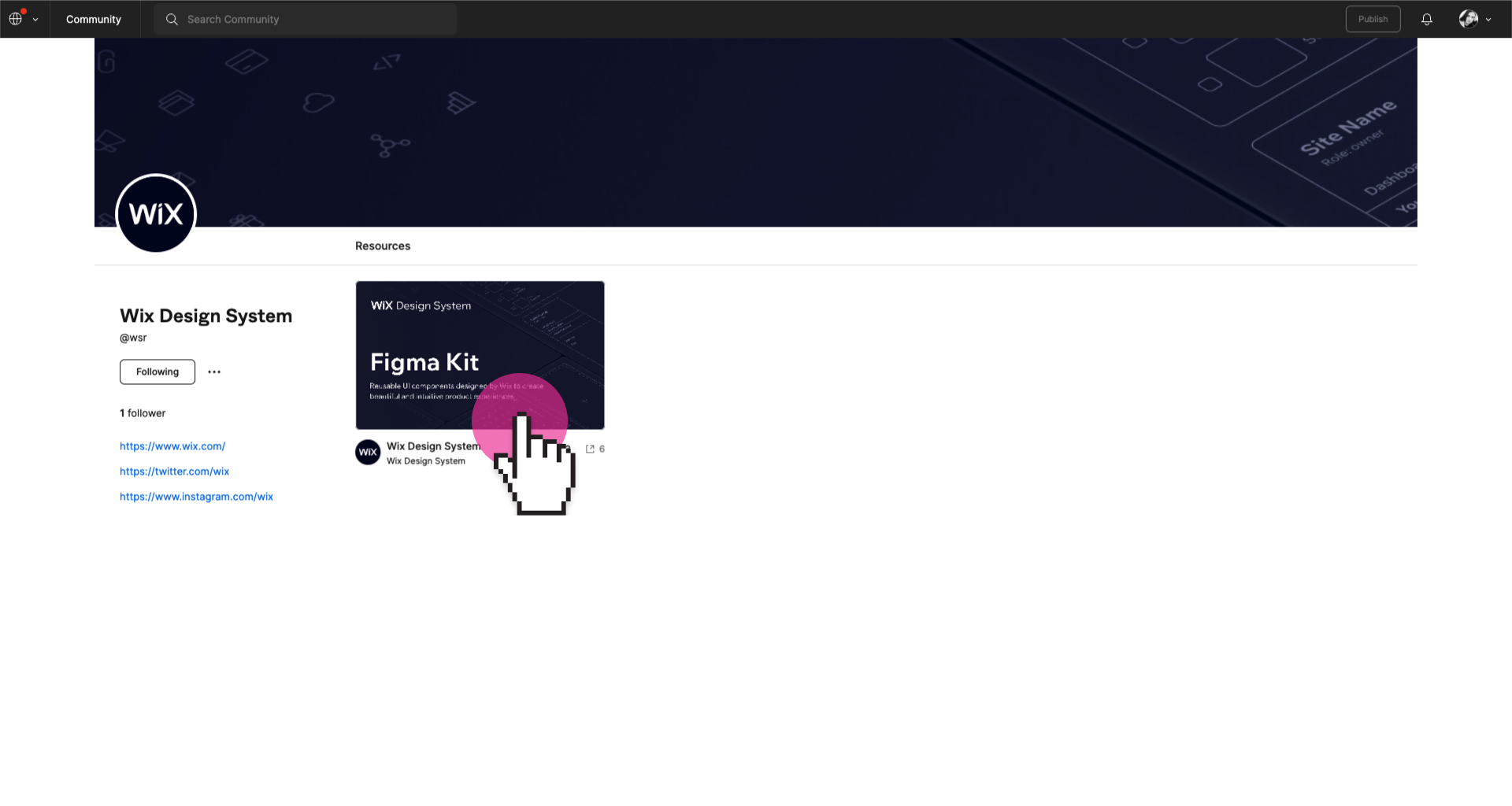
1. Go to community page
Go to Figma community page and open a library file.
2. Copy the library
Copy the library to a draft in your personal workspace. Then you can work with components and styles to create your designs.
Note: To use components and styles in new files or projects, you need to publish them as a library. Learn who can publish libraries.

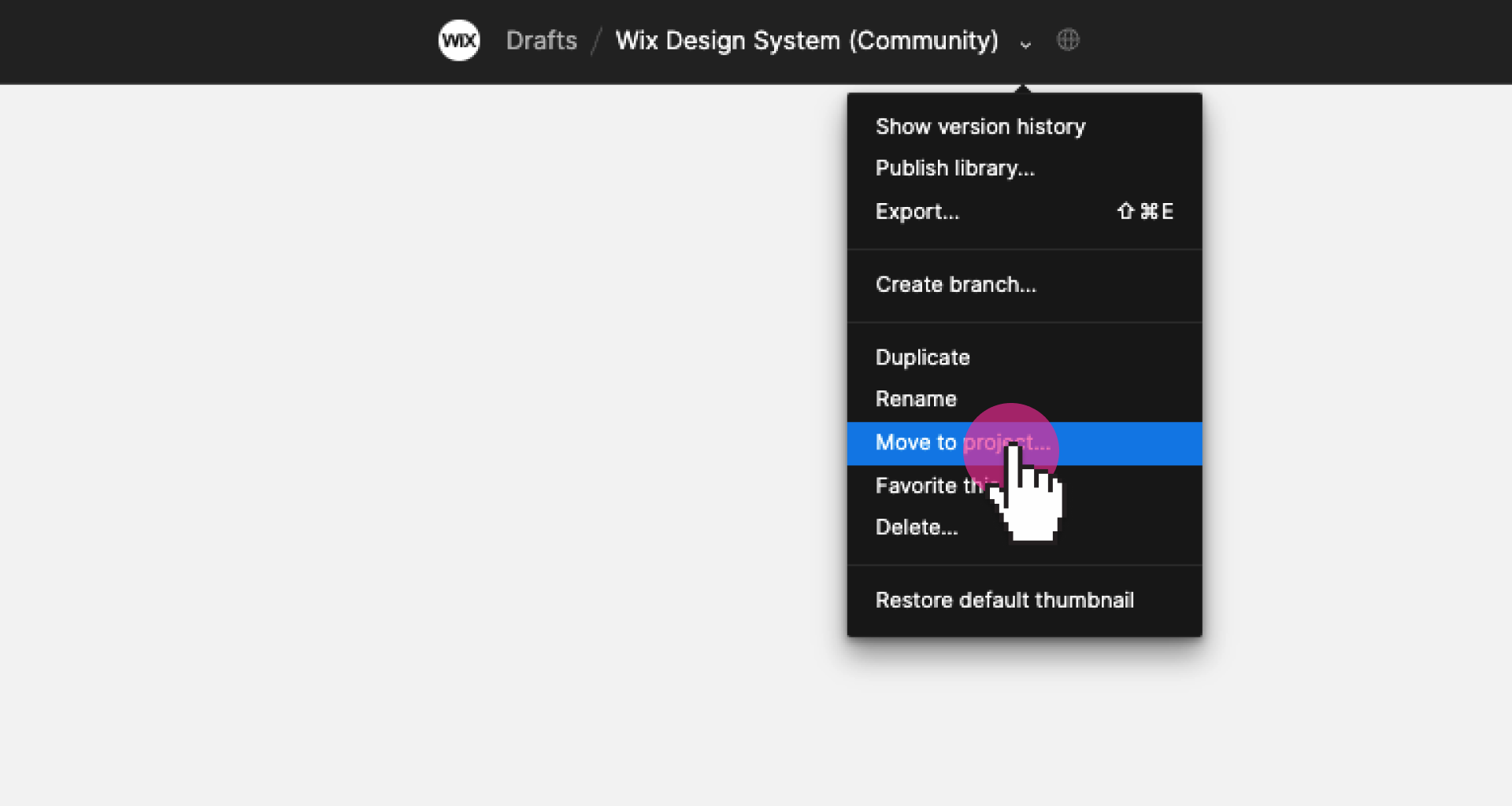
3. Move the file
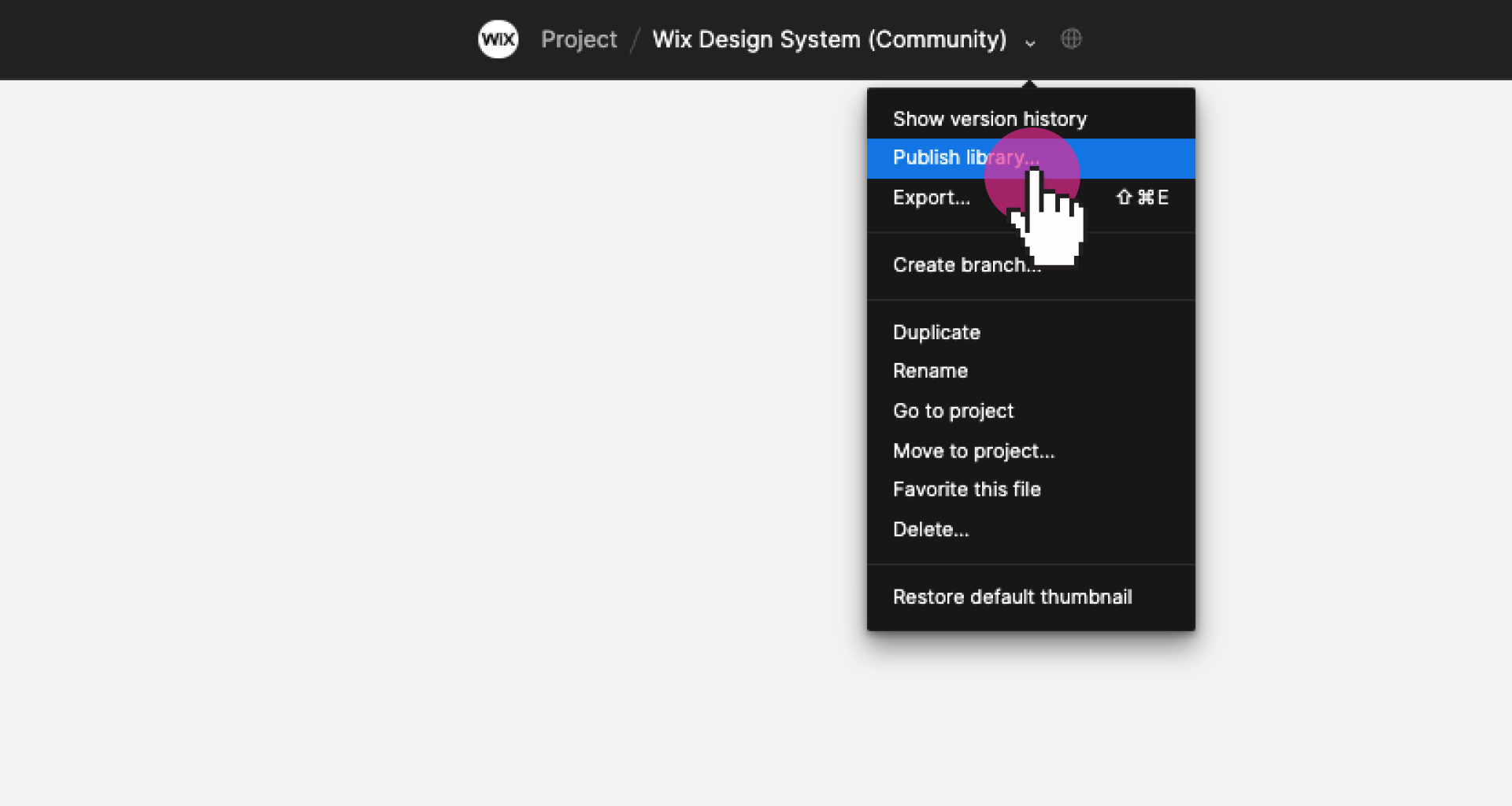
Libraries can't be published from the Drafts folder. To publish components and styles, move the library file to a selected project.
4. Publish
Select "Publish styles and components' to publish the library for all members of a team. Then you'll be able to use the library in all your projects and files.
5. ✅ You're all set
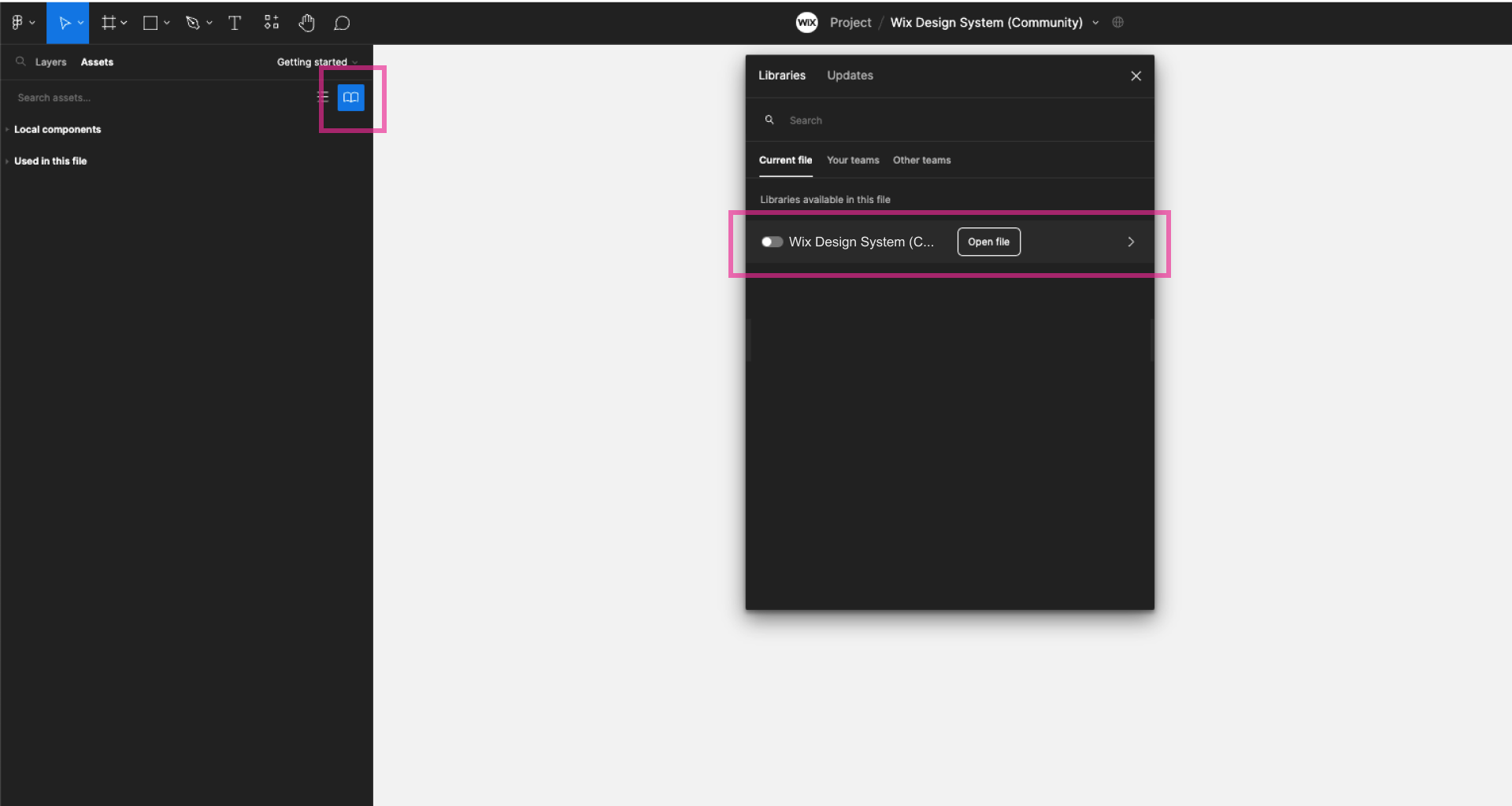
Enable the library in any file by going to Assets panel > Team libraries.
Resources
Next, explore the design and component guidelines and start creating apps.
Last updated: 15 October 2026