Add a Custom Trigger
Custom triggers allow you to run an automation from anywhere in your site's code. This article explains how to create a custom trigger and use the Custom Trigger API to run your automation.
Step 1 | Create an automation with the Velo code trigger
To create a new automation:
-
Go to the Automations page in your site's dashboard.
-
Click + Create Automation > + Start from Scratch to open the automation builder. Give your new automation a title.
-
From the list of available triggers in the left menu, select Velo code trigger.
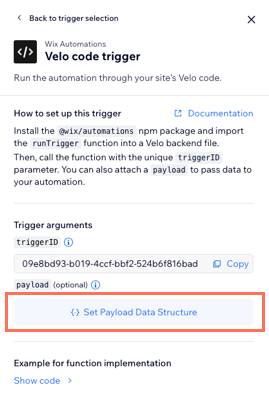
Once you select the trigger, the left panel displays instructions on how to work with the trigger, as well as the trigger ID and the payload. The bottom part of the panel also displays sample code that you can copy.
Define the payload structure (optional)
You have the option to define the trigger payload schema by inputting sample data. Wix provides you with default sample data, which you can choose to keep or replace with your own data.
To define a payload schema for the trigger:
-
In the Velo code trigger panel, click {..} Set Payload Data Structure.
-
Edit the displayed JSON data as necessary, then click Preview Structure >. A preview of your payload schema opens.

-
Optionally, click Mark Contact ID to mark one of the UUIDs as a contact ID.

Only fields in proper UUID format appear on the list. You may only select a single field to be a contact ID. Click Save to exit the Mark Contact ID modal.
-
When you're satisfied with your payload schema structure, click Save Structure. You can return to edit the structure in the builder at any time.
Copy code and complete automation setup
Whether you define a payload or not, Wix provides you with the trigger ID, which you need to run your automation, as well as some example code.
-
Copy the trigger ID to use for later in your site code. At the bottom of the trigger configuration panel, click Show code >.

The trigger setup provides you with some sample code. Copy this code for use as a starting point in your own code.
-
Click Apply to save your trigger setup.
-
Select and configure at least 1 action as part of your automation, then activate the automation.
Now that you've configured your automation, you can write the code to run it for any event.
Step 2 | Implement runTrigger() in site code
To implement runTrigger(), you need to define a web method in the backend that calls the method. Then you can export that web method to other code files for use.
-
Import the
@wix/automationsand@wix/essentialsSDK packages. -
Create a new web module in your editor.
-
In the web module, paste the code you copied from the automation setup, so that your file looks like the one below. The code creates a web method, and elevates
runTrigger()so it runs with the correct permissions. It then calls the elevated method with the ID of your automation, as well as any payload you defined.Copy -
Export your web method to another file, such as the frontend code for a site page. Add this line to the top of the file you want to import the method into:
Copy -
Call the method in the file code where necessary. For example, if you add a button element to a page, and you want to run the automation every time a visitor clicks that button. You can then simply call
runTrigger()in that button'sonClick()handler:CopyIf you defined a payload schema for your trigger, you can pass a payload object to
runTrigger(). All payload fields are optional, but any fields you include in the payload should match the keys and types defined in the schema. -
To test your code, either publish your site or create a test site. Your backend code may not work in Preview mode.
See also
Last updated: 11 December 2025