View Logs with Google Cloud Logs
You can view a site's logs using Google Cloud Logs, an external monitoring tool that displays, analyzes, and stores logs. With Google Cloud Logs, you can:
- Stream, search, and analyze log data in real time.
- Store log data in the cloud.
- Trace, sort, and filter aggregated error data.
This article explains how to:
Connect to Google Cloud Logs
To connect a site's logs to Google Cloud Logs:
-
In the site dashboard, click Developer Tools > Logging Tools.
-
In the Google Cloud Logs section, click Open. The Google Cloud Logs page opens.

-
In the Google Cloud Logs page, click Connect. The Google Account Login page appears.
-
Sign in to the Google account associated with the site.
The site is now connected to Google Cloud Logs.
View logs with Google Cloud Logs
Reload a site and generate logs from its frontend or backend.
To view logs using Google Cloud Logs:
-
In the site dashboard, click Developer Tools > Logging Tools.
-
In the Google Cloud Logs section, click Open. The Google Cloud Logs page appears.

-
Click Open and sign in to a Google account associated with the site.
Once logged in, the Google Cloud Logs Explorer page opens. It displays the site's logs and errors.
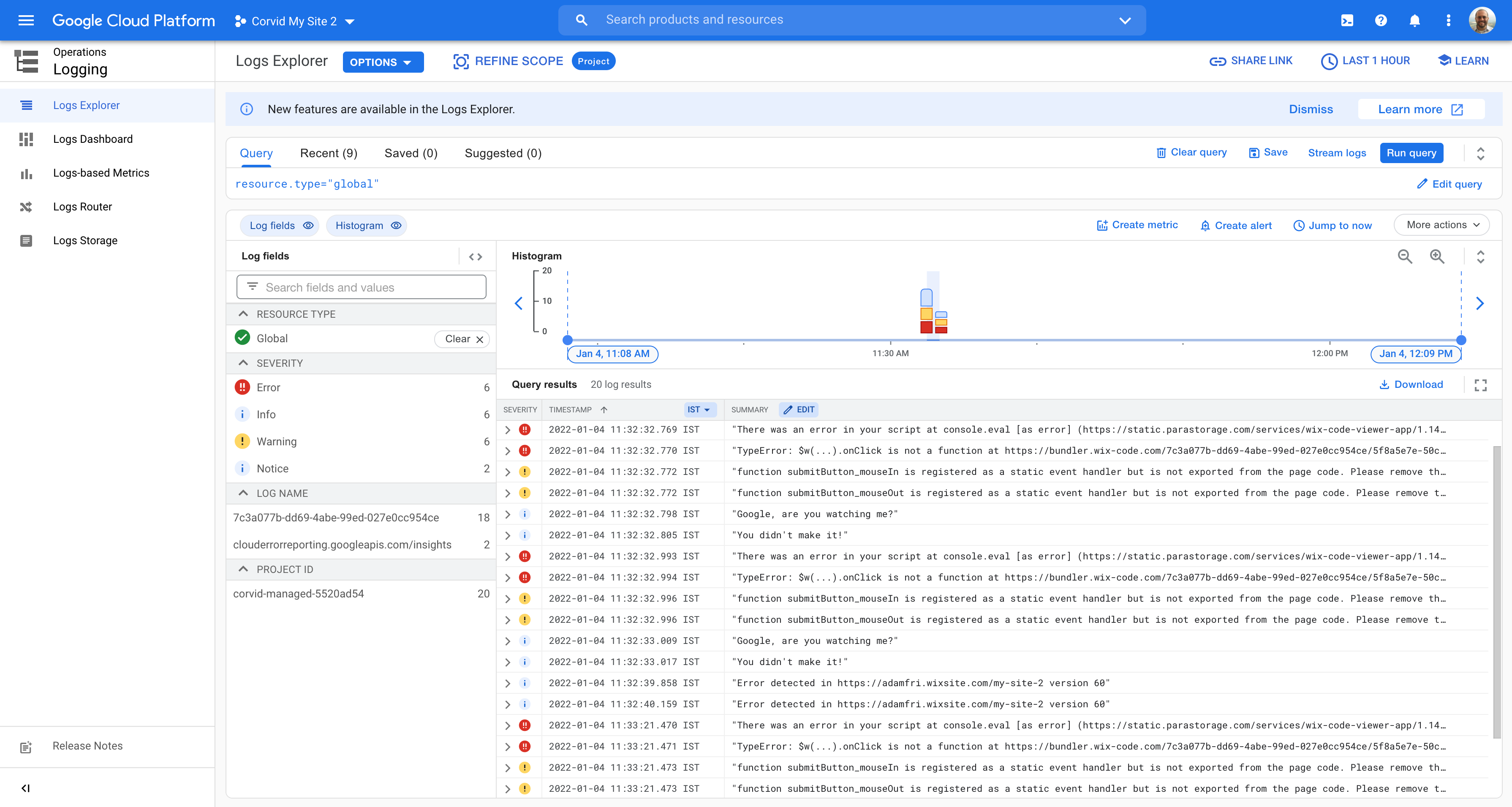
Click any log to view its data.
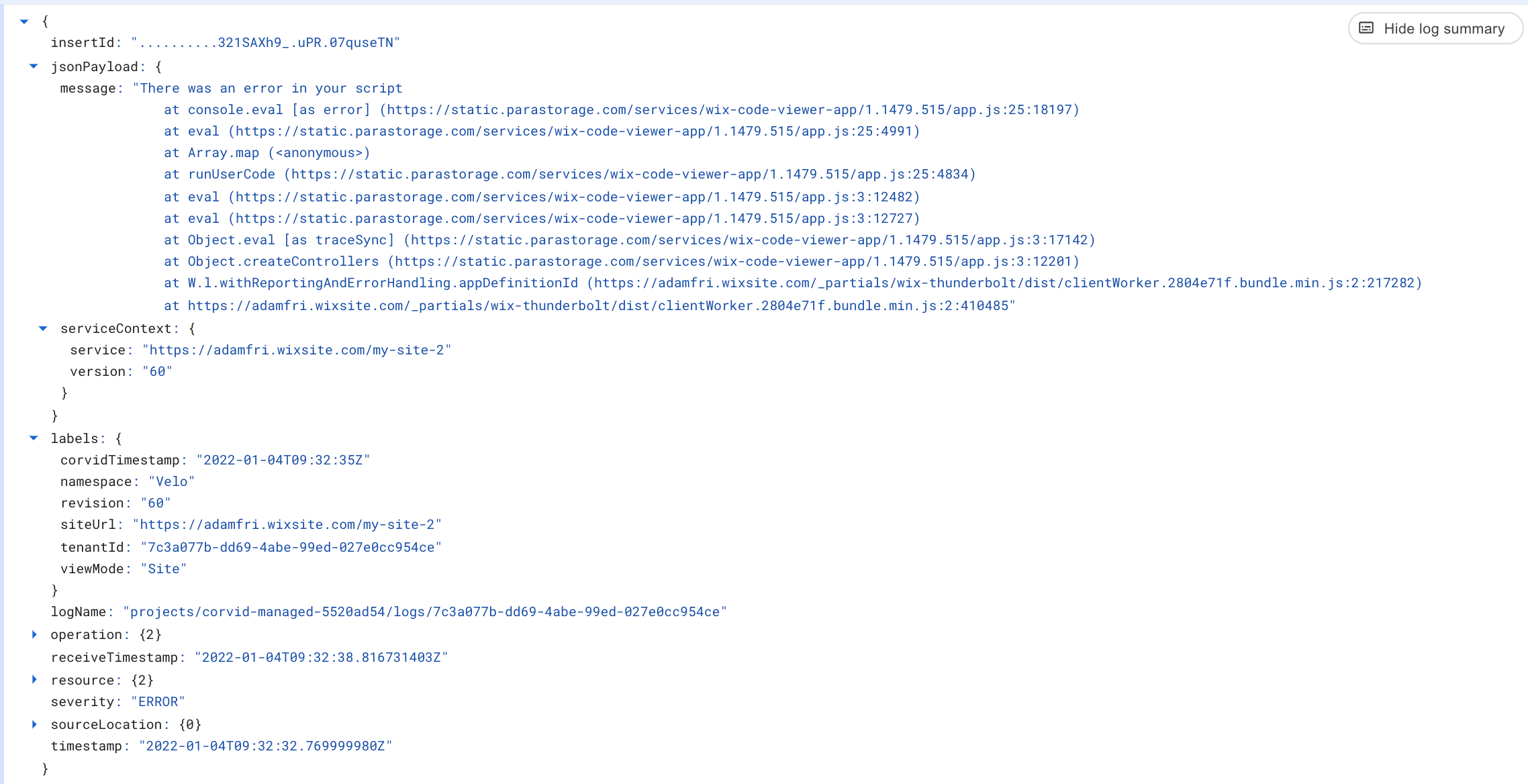
To better understand the logs, learn about the log object structure.
Disconnect Google Cloud Logs
To disconnect a site from Google Cloud Logs:
-
In the site dashboard, click Developer Tools > Logging Tools.
-
In the Google Cloud Logs section, click Open. The Google Cloud Logs page appears.
-
On the top right of the page, click Disconnect.

-
In the Disconnect from Google cloud Logs? popup, click Disconnect.

The site is now disconnected from Google Cloud Logs.
Note: Disconnecting a site from Google Cloud Logs doesn't affect the data stored in a Google Cloud Logs account. You can reconnect a site to Google Cloud Logs at any time.
See also
Last updated: 11 December 2025