Tutorial | Block Off Time in the Bookings Calendar
Using the Calendar APIs, you can programmatically block time slots in your staff's Bookings calendars. This tutorial demonstrates how to build an interface that allows Wix users to efficiently manage staff availability by creating blocked time sessions for individual staff members or resources. This functionality is useful for scenarios such as staff vacation and time off, equipment maintenance, or training sessions.
By the end of this tutorial, you'll have a resource availability management interface that allows Wix users to:
- Select specific staff members or resources to manage.
- Block single time slots on staff calendars.
- Create recurring blocked time patterns.
Caution: The interface created in this tutorial should only be accessible in a protected area, not exposed to regular site visitors. Consider implementing this functionality in a dashboard page or on a members-only page with appropriate permissions.
The code in this article was written using the following module versions:
- @wix/bookings (v1.0.1017)
- @wix/calendar (v1.0.148)
- @wix/web-methods (v1.0.11)
- @wix/essentials (v0.1.28)
Learn how to install npm packages in the editor or using the CLI.
Use the following steps to build the functionality:
Before you begin
It's important to note the following points before doing this tutorial:
- The site must have the Wix Bookings app installed.
- The site must have at least 1 staff member or resource set up in the Bookings dashboard.
- For recurring blocked time, only intervals of 1 or more weeks are supported.
Step 1 | Add elements to your page
This step creates an interface for Wix users to set up blocked time events.
At the end of this step, you'll have a functional page with all the necessary input elements for blocking time slots, including options for recurring patterns. The interface should look like this:
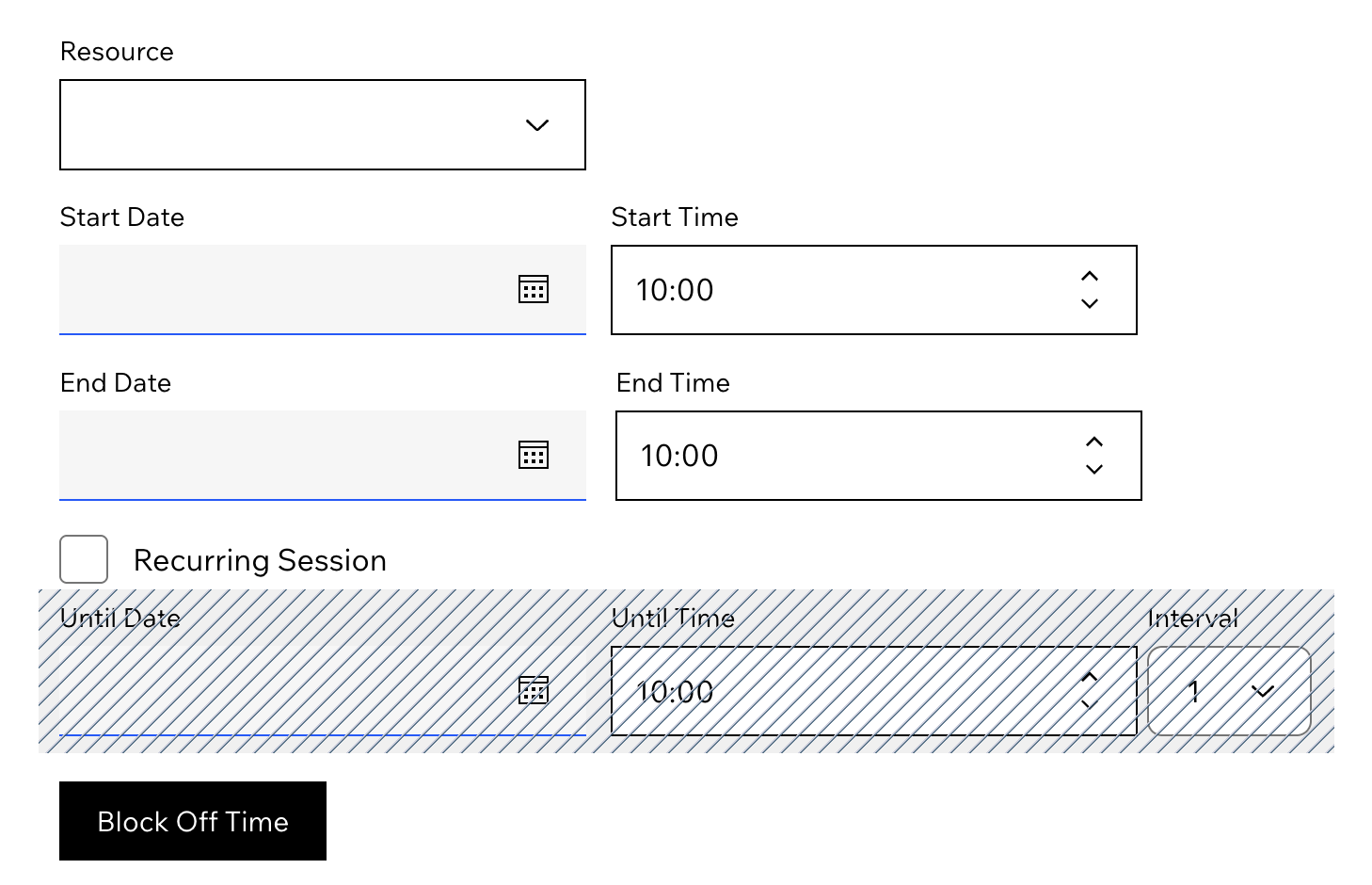
To create the interface:
Add the following elements to your page:
- A dropdown for selecting staff members/resources. Set the dropdown ID to
resourcesDropdown. - A date picker for selecting the start date. Set the date picker ID to
startDate. - A time picker for selecting the start time. Set the time picker ID to
startTime. - A date picker for selecting the end date. Set the date picker ID to
endDate. - A time picker for selecting the end time. Set the time picker ID to
endTime. - A checkbox to enable recurring blocked time. Set the checkbox ID to
recurrenceCheckbox. - A container to hold recurring-specific elements. Set the container ID to
recurrenceContainer. - A date picker for selecting the cutoff date of recurrence. Set the date picker ID to
untilDate. - A time picker for selecting the cutoff time of recurrence. Set the time picker ID to
untilTime. - A dropdown for selecting the recurrence interval, in weeks. Set the dropdown ID to
intervalDropdown. - A button for creating the blocked time event. Set the button ID to
button.
-
Place
untilDate,untilTime, andintervalDropdowninsiderecurrenceContainer. -
In the Properties & Events panel, set
recurrenceContainerto Collapsed by default. -
Select
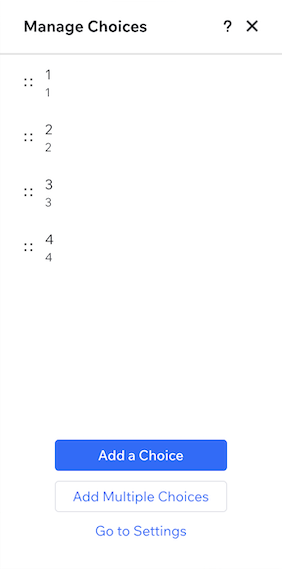
intervalDropdown, and then select Manage Choices to populate the dropdown with options. Each option represents a number of weeks to set as the interval between recurring events. The panel should look like this:
Step 2 | Add backend code
This step creates a backend code file with methods that call Wix APIs.
At the end of this step, you'll have 2 backend methods:
- A method that retrieves Bookings resources and responds with a list of options for a dropdown element.
- A method that creates a blocked off event in the Bookings calendar.
To add backend code:
-
Create a new backend file called
blockedOffTime.web.jsin your backend folder. -
Add the required imports:
- Define a web method that gets a list of Bookings resources by calling
queryResources(), and returns a mapping of the resource into objects with the following fields:label: The name of the resource, to display as a dropdown option.value: A resource ID, to provide as a value for the dropdown option.
- Create a second web method that receives an
eventobject. The method defines an elevated call to the Calendar API'screateEvent()method, and makes the call with the specifiedeventobject.
Note: Elevated permissions are unnecessary if the implementation is in a dashboard page.
Complete backend code
Step 3 | Add frontend code
This step ties everything together. We use page code to define the behavior of some page elements and call our backend methods.
At the end of this step, you'll have page code that:
- Populates
resourcesDropdownwith options using our backend method. - Expands and collapses
recurrenceContainerbased onrecurrenceCheckbox. - Calls the backend method
createBlockedOffTimeEventwhen the button is pressed.
To add the following code to your page:
- Import the methods you created in step 2:
- When the page loads, populate the resources dropdown, and set up an
onClickevent handler for the button and anonChangeevent handler for the checkbox. The next steps define these methods.
- Define a method that calls
getResourceList()from the backend and populatesresourcesDropdownwith the response.
- Define a method that expands or collapses
recurrenceContainerwhenrecurrenceCheckboxbecomes checked or unchecked.
- Define a helper method that formats a date and a time into a single string. The Events API requires the following format for
localDatefields:YYYY-MM-DDTHH:mm:ss. The'en-CA'locale provides the correct format for the date.
- Define a method to block off time in the calendar. First, get data from page elements, format it to match the requirements of the Calendar API, and then create an
eventobject.
- If
recurrenceCheckboxis checked, add recurrence data to theeventobject. The'en-CA'locale and{ weekday: 'long' }provide the chosen date's weekday in English.
- Finish the method by calling the
createBlockedOffTimeEvent()method from the backend, specifying the constructedeventobject.
You've successfully created an interface that allows Wix users to block off time slots in staff calendars, including support for both single time blocks and recurring patterns.
Complete page code
See also
Last updated: 17 February 2026