Best Practices for Extending Sites
This article outlines a number of best practices to consider before adding code to a Wix site.
The best practices are organized into the following sections:
Code
Consider these best practices to help you code more efficiently using the Wix JavaScript SDK.
Give element IDs meaningful names
Using meaningful names for element IDs makes your code easier to write, read, and maintain. For example, suppose you have a button on your page that's used to submit data to a collection. Changing the button's ID from button1 to submit makes it easier to find in the autocomplete when you're assigning it an onClick() handler. It also makes it easier to understand what your code is doing when you or someone else looks at your code, possibly at a later date.
Catch errors in code
You should always strive to catch all the errors that might occur in your code and never let them propagate to the browser. When you catch errors before they make it to the browser, you can handle them gracefully.
There are a few techniques you should use to catch the various types of errors that may occur. When working with asynchronous functions that return a Promise, you should always include a catch() to handle rejections. Also, before retrieving data that may not exist, you should check for existence before reading the data.
For example, this code queries a collection and catches 2 types of errors.
Code only one onReady() per page
The code you place in an onReady() callback runs when your page loads.
Technically, you can call onReady() several times to create several callbacks that run when your page loads. However, doing so fragments your code, making it more difficult to read and maintain, without providing any obvious benefit. So keep to 1 onReady() per page.
Note however, that if you have an onReady() defined in masterPage.js and another defined on a page, when that page loads, both onReady() callbacks run. This is fine, because the site onReady() deals with elements that are on all site pages, whereas the page onReady() deals only with the elements on that specific page.
Set events only once
You should only set a particular event handler for an element 1 time. It's important to understand that each time you set an event handler, you are adding a new handler, and not replacing the old 1. So, if you set an event handler for a button using its onClick() method and then later attempt to "reset" the event handler by calling onClick() again, you have now defined 2 onClick() behaviors. Meaning, when the button is clicked, both event handlers run and you can't even know which will run first.
You should also avoid using both code and the link panel from the editor to add a link to an element.
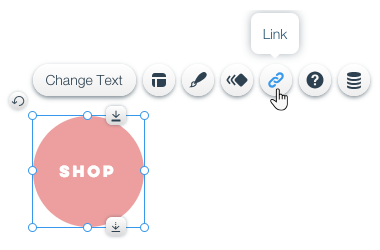
Creating links both in the editor and code can result in a conflict that produces unreliable functionality.
Use $w("Type") to select multiple elements
There are multiple ways to select elements using the $w() selector method. The most common way is to select a single element by providing the $w() method with a hashtag followed by an element ID.
You can also select elements by type by providing the $w() method with the type name. For example, to select all buttons on a page, you can use $w('Button'). The method call returns an array containing all the buttons on the page. You can then use that array to perform actions on all the buttons at once with a single method call. For example, to disable all the buttons on a page, you can use $w('Button').disable().
Use masterPage.js
Use the masterPage.js file to write code that affects elements that appear on all of a site's pages. Typically, these elements are in a site's header or footer.
If you try to select a regular page element from masterPage.js, it causes an error on all pages other than the one on which the element exists.
Note
Don't import methods from masterPage.js into the code files of individual pages. Doing this causes the masterPage onReady() to run twice on that page. If there's a method that you want to use in the code for multiple pages, store it in a public file and import it from there.
Be aware of browser-specific code requirements
Web browsers process JavaScript code in different ways. Functionality supported by some browsers might not be supported by others. For example, on Apple iOS, the Safari and Chrome browsers don't support the regular expression lookbehind syntax. Many online resources allow you to quickly look up different browser requirements.
Security
As you plan a site and consider security issues, you should review the full Security Considerations guidelines. The following is a summary of the issues you should consider.
Performance
These tips will help you to take performance considerations into account when extending a site.
Change text dynamically
There are cases where you might want to add multiple overlapping text elements to your page and display each text when a specific condition is met. For example, you may want to have a success and error message. But adding a lot of elements to your page can slow down a site.
Instead of using multiple text elements, you can use a single text element and change the displayed text dynamically. You can use $w.Text.text to change plain text and $w.Text.html to change styled text.
Data
Using data from database collections or from a 3rd-party source can be a powerful tool to enhance a site's functionality. However, sending a lot of data to the browser from the server can be a time-consuming operation that might negatively affect a site's loading time. Therefore, you want to minimize the amount of data that's sent from the server to the browser.
Whether you're using a dataset or the Data API, there are several approaches you can follow to improve a site's performance.
Asynchronous code in onReady()
Using async/await functionality in your onReady() method delays the rendering of page elements, decreasing site performance. In many cases you'll want to avoid using async/await in onReady() for this reason.
On the other hand, delaying the rendering of your page elements allows database content to load in time for search bots to index your content, which is important for SEO. You need to decide what's best for a particular site on a case-by-case basis.
For more information on handling promises with async/await or .then, see About Promises.
Quotas
Wix places quotas on data and backend code requests on a site. Data requests include using the Content Management System (CMS), Datasets, Wix Forms, and the SDK's Data API. Backend requests include calls to web methods from frontend code, using routers hooks, and calling HTTP functions. You can take steps to make sure code isn't exceeding the quotas.
Learn more about working with data and backend quotas.
Database collections
Take a few minutes to review these best practices for working with database collections and configuring datasets.
Validate visitor input
Collections are important data stores. To make sure that the data in your collection is valid, complete, and consistent, validate the input data before storing it in a collection.
Validate your input data at the field level using the input element's settings:
- Data type
- Maximum and minimum values
- Maximum character length
- Regex validation patterns
For more complex validations use the onCustomValidation() event handler. Both the field setting and custom validations are triggered by the valid property.
To validate entire items, use the beforeInsert, beforeUpdate() and beforeRemove data hooks. Hooks give you the ability to control the data going into a collection with backend code, processed before it gets to the collection. Hooks are independent of the frontend and run regardless of what triggers the write, whether it be frontend code, the content manager, or importing data.
When using a dataset, use the onItemValuesChange, and onBeforeSave to validate data before a save().
Dataset modes
Datasets can be configured as read, write, or read-write. Read-write datasets should only be used where both read and write or update are required.
When using a read-write dataset, take care to understand all of the potential flows that may exist. For example, suppose you have a collection with existing data, a table to display that data, and a set of input elements below the table to allow the visitor to edit the selected row, including buttons for submit, delete, and new. The table, the input elements and the buttons, are all connected to a read-write dataset.
As the visitor clicks each row in the table, the values of the input elements update with the values of the selected row. The visitor can now edit the contents of a row and click submit to save the data.
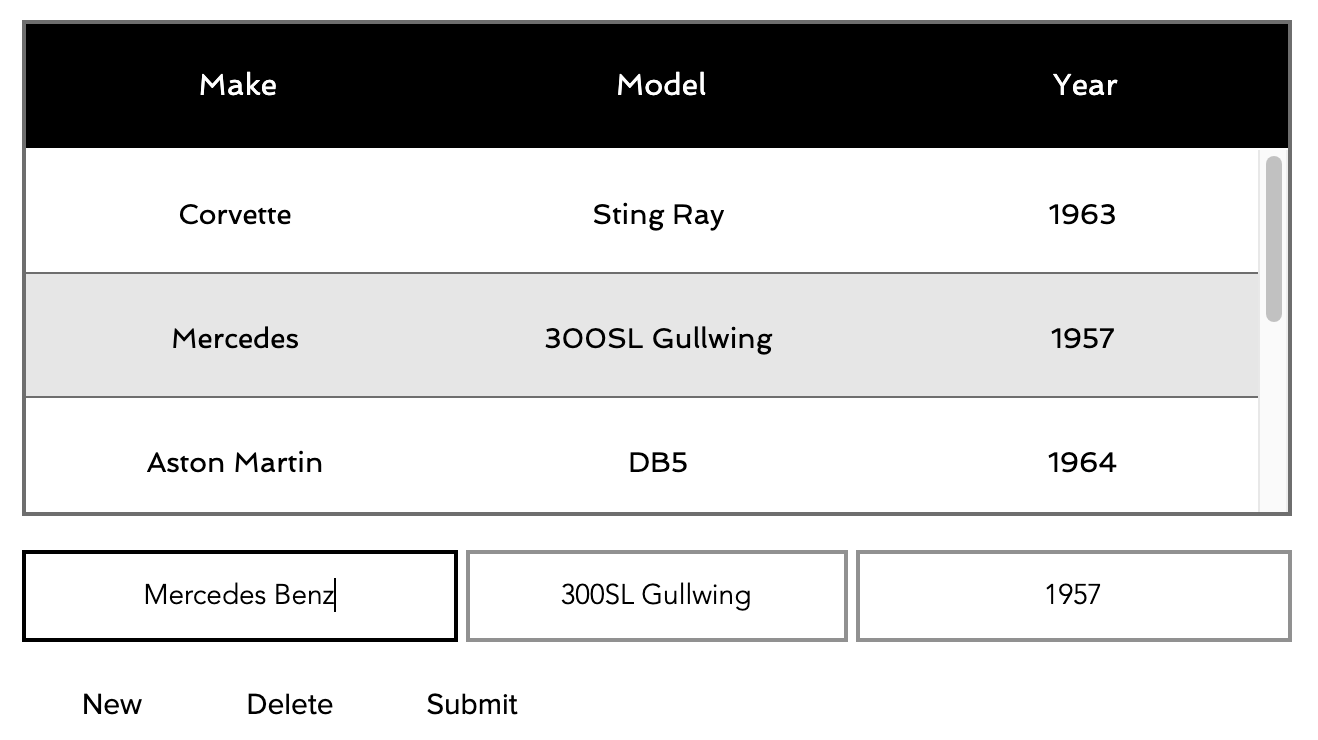
The following flows can produce some unexpected outcomes:
- In the scenario above, if a row is selected, and the values changed in the input elements, selecting another row causes the changed data to be saved without clicking Submit. This happens because any change to the dataset's index saves the changed data to the collection. The index can be changed by selecting a different item in a connected list or by using the
setCurrentItemIndex()method. - Pages should only allow the selection and editing of a single item. Use the
revert()method or a button connected to theRevertdataset action, if you want site visitors to be able to undo changes. - Avoid overwriting existing data when trying to create new items. Use the
new()method or a button connected to theNewdataset action. - In the scenario outlined above, site visitors may try to delete an item by deleting the contents of each input element, and clicking Submit. This updates the selected item setting each field to blank but won't delete the item. Use the
remove()method or a button connected to theDeletedataset action for any delete operations. Make sure that the site visitor can clearly identify which item is to be deleted. - A read-write dataset reads data when the page is ready, so if you are building a form to update a collection, the read-write dataset displays the first item in the collection in input fields.
- From a performance point of view, when your page loads, a read-write dataset takes more time as it has to retrieve the data from the collection. Speed up page loading by implementing the minimum functionality required.
Datasets vs code
In general code runs faster than a dataset, especially if you have many datasets on the same page. However, dynamic datasets can be faster due to the way they request the data. For better code performance, you can run the code on the backend, lightening the load on the browser.
Design
The best practices, design tips, and editor tools listed here can save you time and let you focus more on coding with the SDK.
Use SVG images
SVG is a vector graphic format based on XML that's flexible and scalable without sacrificing quality. You can easily change the image's content, color, and shape dynamically, as opposed to when working with other graphic formats. You should use SVG files instead of other image files when you need this kind of flexibility.
Last updated: 22 July 2026