About Element Size Changes and Page Layout
Important: This article is only for Wix Editor sites. The way elements interact with each other in Wix Studio may differ. Learn more about Wix Studio page structure.
Element resizing in the Wix Editor occurs when elements change size automatically. For example, a text box might expand or a repeater might grow as more items appear.
These changes can shift other elements on the page and affect overall page height. Understanding how the Wix Editor positions elements and reacts to size changes helps you predict and control page behavior.
Why elements shift on a page
When elements change size, other elements on the page may shift to maintain spacing based on the gap rules defined below.
Elements may shift due to:
- Other elements collapsing or expanding.
- Other elements growing to accommodate more content.
Elements don't shift due to:
- Animations.
- Other elements being hidden or shown.
When this matters
The layout rules are particularly important when you're building:
-
Dynamic content features. For example:
- Adding or removing items from repeaters.
- Growing text elements with user input.
- Loading content via a dataset that varies in size.
- Displaying search results with varying content.
- Displaying user-generated content that changes over time.
-
Interactive elements. For example:
- Collapsible elements that site visitors can collapse and expand.
- Wix Forms that show/hide fields conditionally.
- Multi-state boxes with states of different sizes.
For example:
Element hierarchy
The Wix Editor organizes content as nested containers and elements. A parent contains its children, and elements with the same parent are siblings at the same level.
Parents set overall context and constraints, but a parent's effective bounds are often determined by its children. For example, a container can expand to fit new content.
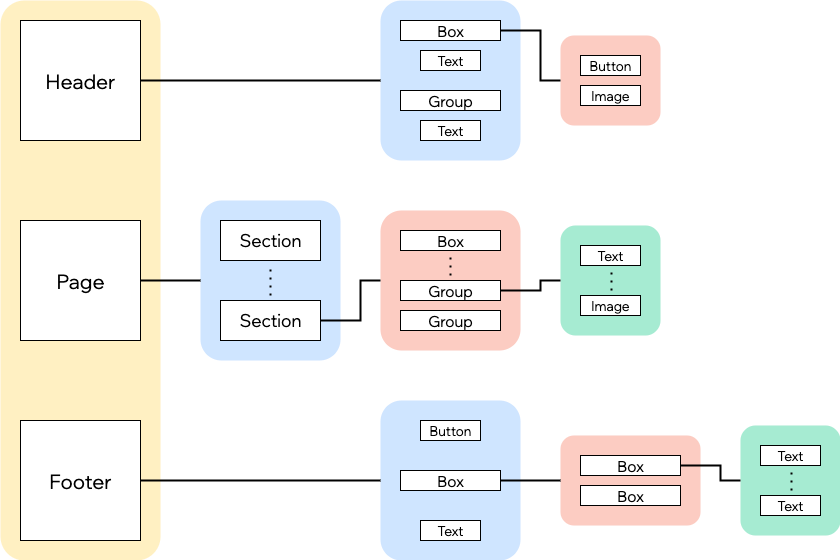
Top‑level elements typically include the Header, the Page (which includes Sections), and the Footer, while their child elements can vary in many ways. The diagram below shows a possible arrangement of elements:
Scope of the rules
These layout rules consider only vertical position and size. The system ignores horizontal positioning when determining which elements affect each other.
Vertical gaps
The vertical gap between elements is the empty space between them, measured from the bottom of the higher element to the top of the lower element.
When deciding whether to trigger movement, the system always checks the element with the smallest gap from the resized element. This article refers to this element as the nearest sibling.
How to calculate the gap
You need the exact size and position of each element. You can view these values in the Wix Editor Toolbar.
To calculate the gap:
- Calculate the Y value of the bottom edge of the higher element by adding its H (the height) to its Y value.
- Calculate the gap by subtracting that bottom edge value from the Y value of the lower element.
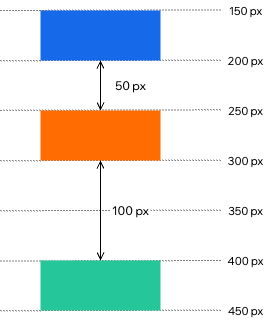
For example, in the illustration below:
-
The blue element is positioned at 150 px and has a height of 50 px, so its bottom edge is at 200 px, calculated as 150 + 50. The orange element is at 250 px, so the gap is 50 px, calculated as 250 - 200.
-
The same process shows that the gap between the orange and green elements is 100 px.
Rule evaluation sequence
When an element changes size, the system evaluates movement in this order:
- In the same container (siblings): Finds the nearest lower sibling by the smallest vertical gap and applies the relevant rule. Continues down the sibling chain until no more siblings need to move.
- Container adjustment (parent): If the parent container needs more or less space to fit its children, it expands or collapses from the bottom accordingly. The children keep their relative positions.
- Outside the container (parent's siblings): Treats the parent as a single element relative to its own nearest lower sibling and continues evaluation down that chain.
- Repeats up the hierarchy as needed until no more elements move.
Note: If multiple elements have the same smallest gap, the system treats them as equally nearest. In that case, all of those elements move at the same time according to the applicable rules.
For clarification, each of the following is treated as a single element when evaluated against its siblings:
Tip: To keep multiple items moving together, group them together or place them inside a container box, which you can also set to transparent.
Note: A group's bounds (top, bottom, left, and right) are derived from its children and determine gaps and overlap. The top equals the highest child's top position, and the same principle applies to the other bounds. To learn more, see Grouping and Ungrouping Elements.
Rules
The rules below outline how the system evaluates and applies layout adjustments.
When an element changes size, movement can cascade through the layout. The system repeatedly applies the evaluation order described in Rule evaluation sequence until no more elements move.
Collapse and expand
When an element collapses or expands, elements below may shift vertically. The behavior depends on the size of the gap between elements:
Gaps of 70 px or less
Elements below move:
- If the element has collapsed, they shift up to fill the space.
- If the element has expanded, they move down to maintain the gap.
Gaps greater than 70 px
Elements below stay in place, regardless of whether the element above has collapsed or expanded.
Example: A 50 px gap and a 100 px gap
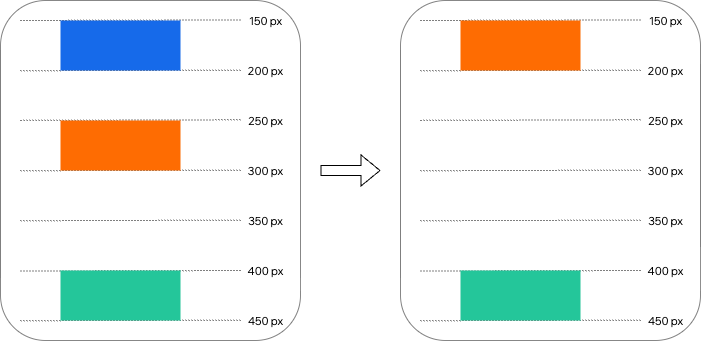
In the illustration above, the gap between the blue and orange elements is 50 px. Since this gap is less than 70 px, when the blue element collapses, the orange element moves up.
However, the gap between the orange and green elements is 100 px. Since this gap is greater than 70 px, the green element stays in place.
Example: A 50 px gap and another 50 px gap
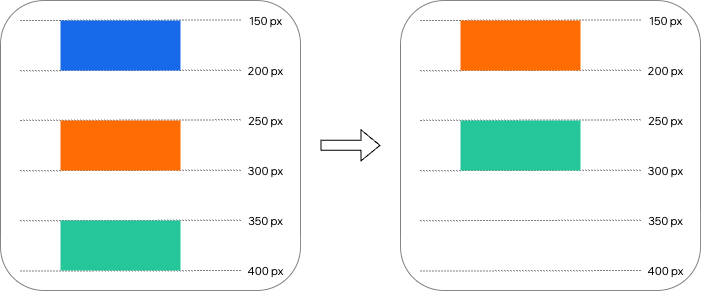
In this example, both gaps are 50 px. Consequently, when the blue element collapses, both the orange and green elements move up into the space previously occupied by the blue and orange elements, respectively.
Elements that grow
The height of an element can increase when its content increases. For example, elements connected to a dataset may need to expand to display additional information.
When an element grows, the elements below may move down to accommodate the extra space. This behavior depends on the size of the gap between elements:
Gaps of 70 px or less
Elements below move down to preserve the original gap. Their new Y value increases by the gap size.
Gaps greater than 70 px
Elements below stay in place. The exception is when the resulting gap falls below 10 px, in which case the lower element moves down to maintain a 10 px gap.
Example: A 50 px gap
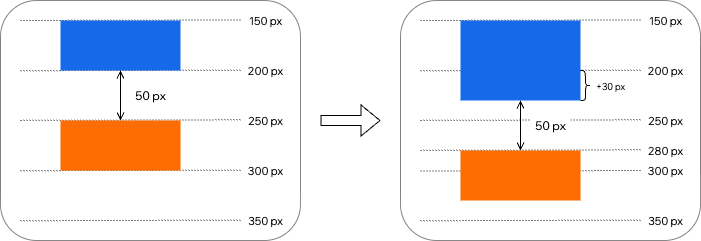
In this example, the gap between the blue and orange elements is 50 px. Since this gap is 70 px or less, when the blue element grows by 30 px, the orange element moves down by 30 px to preserve the 50 px gap.
Example: An 80 px gap
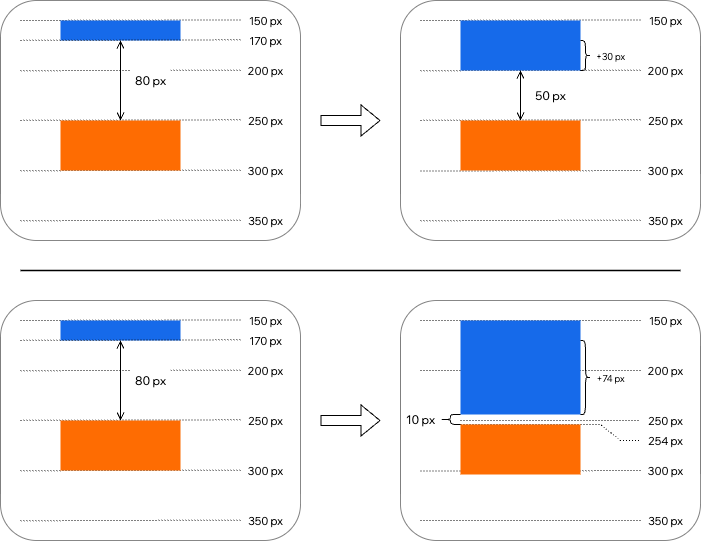
In this example, the gap between the blue and orange elements is 80 px. Since this gap is greater than 70 px:
- In the first scenario, when the blue element grows by 30 px, the orange element stays in place because the resulting gap is 50 px, which is above the 10 px minimum.
- In the second scenario, when the blue element grows by 74 px, the orange element moves down by 4 px to maintain the 10 px minimum, because the resulting gap would otherwise be 6 px.
Vertical overlap exception
Two elements are considered to vertically overlap when the lower element's top edge sits above the vertical middle of the higher element.
Note: An element's vertical middle is the average of its top and bottom edges. Wix Editor calculates it as Y + H/2, where Y is the top position and H is the height.
When elements overlap vertically, the normal rules don't fully apply.
For example, the behavior for 2 vertically overlapping elements during collapse and expand works as follows:
- Single change: If only 1 of the 2 overlapping elements collapses or expands, no other elements react.
- Both change: If both overlapping elements collapse or expand, the normal hierarchy evaluation applies as if only the lower of the overlapping elements changed.
The illustration below demonstrates this behavior:
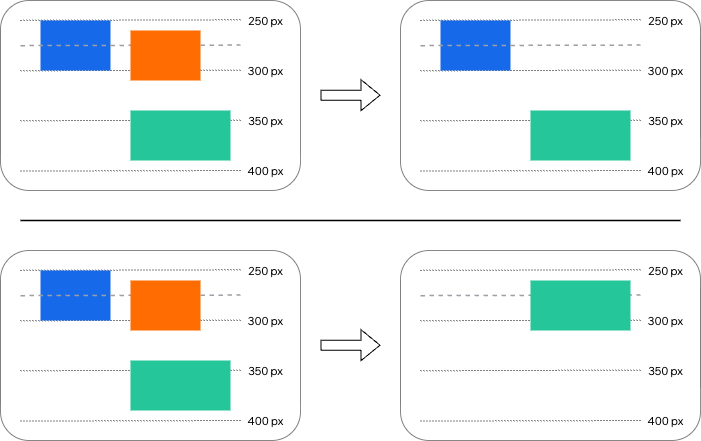
In both scenarios, the orange element's top edge is above the blue element's vertical middle. Therefore, overlap rules apply:
- In the first scenario, only the blue element collapses. It's a single change, therefore it doesn't cause other elements to move.
- In the second scenario, both the blue and orange elements collapse. The green element then moves up to take the orange element's position.
Example: usual behavior
The illustration below demonstrates 2 scenarios where elements aren't considered overlapping:
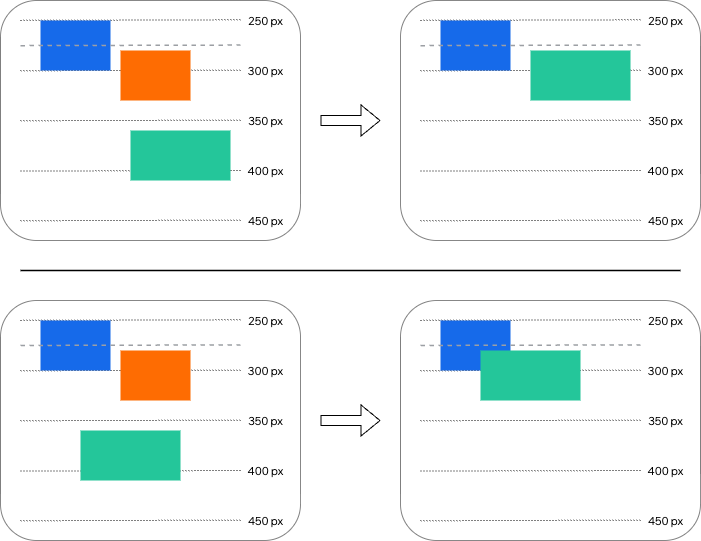
In both scenarios, the orange element's top edge isn't above the blue element's vertical middle, so normal rules apply and elements move as expected.
The only difference is that in the lower scenario the blue and green elements overlap both horizontally and vertically after movement, while in the upper scenario they don't.
Last updated: 11 December 2025