Tutorial | Send Tracking and Analytics Events
You can add tracking code to monitor how site visitors interact with your site. This gives you insight into your site visitors' online behavior and can help you optimize your online marketing strategies.
By the end of this tutorial, you'll have a site that sends custom events to an analytics tool (like Google Analytics) whenever a site visitor clicks the download button on your site.
You'll use the following steps to send a tracking event from your page code:
- Connect your site to an analytics tool
- Set up a simple page
- Add code that sends a tracking event when a user performs a specific interaction
The code in this article was written using the following module versions:
- @wix/site-window (v1.3.8)
- @wix/data (v1.0.241)
Learn how to install npm packages in the editor or using the CLI.
Note
- Tracking & Analytics requires you to have an account with an external analytics tool and only works with premium sites.
- If your custom event isn't appearing in Google Analytics, you can use the Google Tag Assistant to verify the event is being sent correctly.
Step 1 | Connect an analytics tool
Connect the desired tracking and analytics tool to your site. This tutorial connects to Google Analytics, but the same concepts apply when connecting to Meta Pixel.
Step 2 | Set up your page
- Add page elements.
Add the following elements to your page:
- A repeater to display a title and download button for each document. Set the repeater ID to
docRepeater. - A text element (repeated) to display the document title. Set the text ID to
docTitle. - A button (repeated) to download the document. Set the button ID to
downloadButton. - A collection to store document data. Set the collection ID to
docData.
-
Connect elements to your data.
Query the
docDatacollection and use the results to populate the repeater and its repeated elements.Copy
The result should look like this:
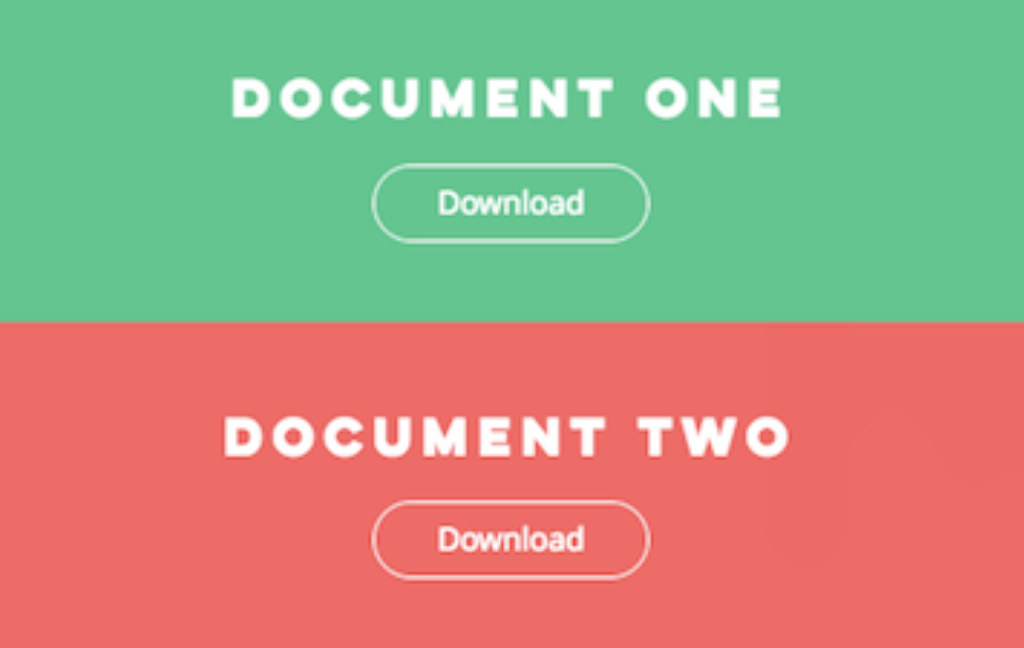
Step 3 | Add frontend code
-
Import the
windowmodule.Add this import statement at the top of your page code:
Copy -
Add an
onClick()event to the repeateddownloadbutton.Add an
onClick()event handler to the repeater'sonReady()handler:Copy -
Call the
trackEvent()method.Add the tracking code inside the
onClick()event. This sends Google Analytics a custom event that indicates a download occurred.When sending a custom event to Google Analytics, use these parameters:
Key Value Type Required Usage eventCategorystring yes Object that was interacted with eventActionstring yes Type of interaction eventLabelstring no Event category eventValuenumber no Numeric value associated with the event CopyNow, when a user clicks the download button, you'll see an event registered in your analytics tool.
Complete code
Here's the complete code for your page:
See also
To learn more about the types of events you can send and their corresponding parameters, see trackEvent( ) in the API Reference.
Last updated: 11 December 2025