Publish a Site with Git Integration & Wix CLI
Once you've used Git Integration & Wix CLI to edit a site's code and test it, you're ready to move it to the live site. This process includes 2 stages:
- Pushing the code to the site's GitHub repository.
- Publishing the site.
Step 1 | Push code to GitHub
A site's editor is synced with the default branch of the site's GitHub repository. Usually, this is the main branch, but you can change it to any branch you want.
To sync the code with the editor, push a commit to the repo's default branch. You can use other GitHub features like branches, pull requests, and reviews as you normally would.
Once you push a commit to the default branch, the code appears in the editor. The commit details appear in the GitHub Integration panel of the Code sidebar (Wix Editor), or in the Github section of the Code sidebar (Wix Studio).
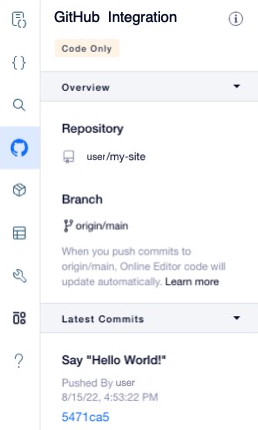
Note: There may be a delay between when you push a commit to GitHub and when it appears in the editor.
Step 2 | Publish the site
When working with Git Integration & Wix CLI, you can publish a site either from the editor or from the Wix CLI. The different publishing options use different copies of the site's code and different UI versions, as follows:
| Publishing Method | Code Version | UI Version |
|---|---|---|
| Editor | The code in the default branch of the site's repo. | The latest UI version, even if this version doesn't align with the code in the site's repo. |
| CLI - Latest commit | The code in the default branch of the site's repo. | The UI version indicated in the wix.config.json file in the site's repo. |
| CLI - Local code | The code saved in your IDE even if you haven't pushed it to GitHub. | The UI version indicated in the wix.config.json file in the site's repo. |
Note: Before you publish your site, make sure to save any changes you've made in the editor. Unsaved changes won't be included in the published site.
Publish from the editor
To publish a site from the editor do the following:
- Open the editor.
- Click Publish on the top-right.
- Note that a modal may appear warning you that you are about to publish the latest UI version. Click Continue.
Publish from the CLI
To publish a site from the CLI, do the following:
-
Open a terminal and navigate to the site's repo.
-
Run this command:
wix publish. -
When you publish from the CLI, you can either use the code in the repo's default branch, or the code saved in your IDE.
-
To publish from the default branch, select
Latest commit from {the repo's default branch}. -
To publish from the code on your local environment, select
Local code.Important: Publishing local code leaves the live site and the site's GitHub repo out of sync. If you publish from the repo later without pushing your local code, your local code is overwritten and may be lost.
-
-
Once you make a selection, the source of the code and UI version that are being used to publish are displayed in the terminal. A link to a preview site is also displayed. If you're sure you want to publish, press
y.The terminal displays the URL of the published site and links to view logs and backend traffic.
See also
Last updated: 11 December 2025